Have you tried everything but your Insignia Fire TV is still stuck on the loading screen? This guide walks you through all the potential causes and solutions to get your Fire TV working again.
- Power cycling fixes most loading screen freezes — unplug for 60 seconds and hold the power button for 10 seconds before reconnecting
- Factory reset resolves persistent software corruption — hold Right + Back on the Alexa remote for 10 seconds to trigger the reset prompt
- Low storage causes loading delays — keep at least 25% of internal storage free by removing unused apps and clearing cached data
- Faulty power cables account for many boot failures — plug directly into a wall outlet and avoid extension cords or power strips
- Best Buy handles all Insignia warranty repairs — contact them before opening the TV case to avoid voiding coverage
#What Are the Symptoms of a Stuck Loading Screen?
Before jumping into fixes, here are the exact problems you may face:
-
TV gets stuck on the Fire TV logo screen on startup (see also: Insignia TV Black Screen)
-
Loading wheel spins indefinitely when opening apps
-
“Please wait…” message appears but never goes away
-
TV reboots during firmware updates and gets stuck
These different issues tend to stem from similar underlying causes.
#10 Reasons Why Your Insignia Fire TV Sticks on Loading
A few common culprits are responsible for the stuck loading screen problem:
-
Software glitches: Corrupted software or a buggy firmware update can cause booting issues.
-
Power problems: Inadequate voltage supply, loose cables, or bad connectors can prevent smooth startup.
-
Faulty components: Defective capacitors or overheating chips on the TV’s internal hardware boards may be at fault.
-
Outdated apps: Problematic app data taking up memory resources can also cause slow loading.
-
Connectivity issues: Weak Wi-Fi signals, using extenders, or incorrect DNS settings affect connectivity. (see also: Insignia TV HDMI Not Working)
-
Full storage: Insufficient storage space leads to lagging and freezing.
-
Incorrect settings: Wrong video output settings for your device connections can also cause startup issues in Fire TVs.
-
IR interference: Nearby appliances emitting IR signals can disrupt communication between your remote and TV.
-
HDCP errors: Incorrect HDCP handshake between devices and TV can cause input signal issues.
-
External factors: Electrical surges, frequent outages, and voltage fluctuations can impact normal functioning.
Now let’s look at the top fixes you can try at home to resolve the stuck loading screen.
#Fix 1: Soft Reboot Your Insignia Fire TV
The easiest first step is to power cycle your TV. This clears any temporary glitches causing the stuck loading screen:
-
Unplug the Fire TV from power source and wait 30-60 seconds
-
Press and hold the physical power button on the TV for 10 seconds (this dissipates any residual charge)
-
Plug the Fire TV back in and power it on
-
Wait 2-3 minutes for full reboot before using the remote
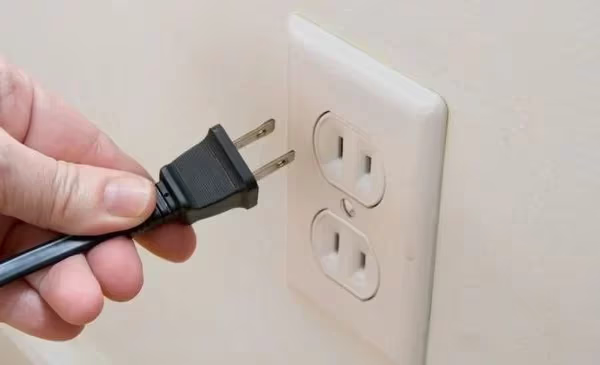
This soft reboot fixes the issue for many users by reloading the software, refreshing connected devices, and clearing minor bugs.
#Fix 2: Reset Your Fire TV Software
If a system glitch or software corruption is suspected, reset the Fire TV software itself:
-
On your Alexa voice remote, press and hold the “Right” + “Back” buttons together
-
After 10 seconds you’ll see the reset prompt
-
Follow directions to complete the master reset
-
Set up your Wi-Fi, accounts, etc. again post-reset
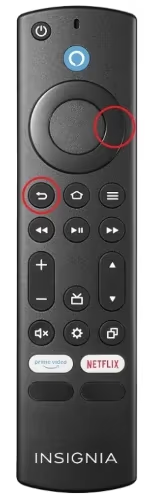
Resetting eliminates problematic cached data or system files causing the stuck loading issue. Apps and accounts can be reconfigured later.
#How Do You Fix Power Supply Issues on Fire TV?
An inadequate power supply can also cause boot up and loading failures.
-
Inspect the power cord for any wear/tear and firmly connect it directly into the wall socket
-
Avoid using extenders, surge protectors, or loose multi-way boards
-
Ensure wires are tightened and ports are corrosion-free
-
Test voltage by plugging in another device (of comparable size/wattage)
-
If the issue persists on a different socket, replace the cable
Secure ports, consistent electricity supply without fluctuations, and good quality cables help provide stable performance.
#Fix 4: Disable Problematic Apps
Certain apps continuously running background tasks can slow things down.
-
Go into Settings > Applications > Running Services
-
Force stop or disable unnecessary apps from auto-starting
-
Check for and delete problematic third-party apps or those not optimized for Fire TV
-
Reboot and see if loading times improve without the disabled services
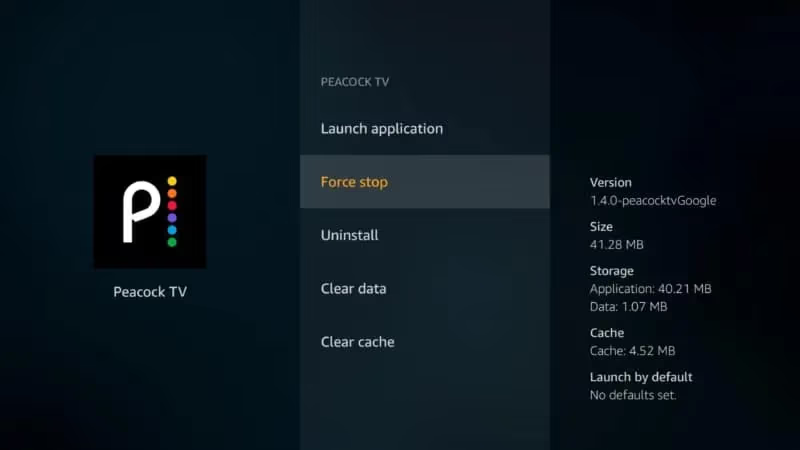
Disable startup access for apps causing resource conflicts. Only keep essential apps enabled.
#Fix 5: Update Software and Apps
Updating to the latest Fire TV software and app versions may include critical fixes for loading failures:
-
Go into Settings > About > Check for Updates
-
Download and install latest Fire TV software
-
Separately head into Appstore > My Apps for updates
-
Update any out-of-date essential apps to rule out incompatibilities
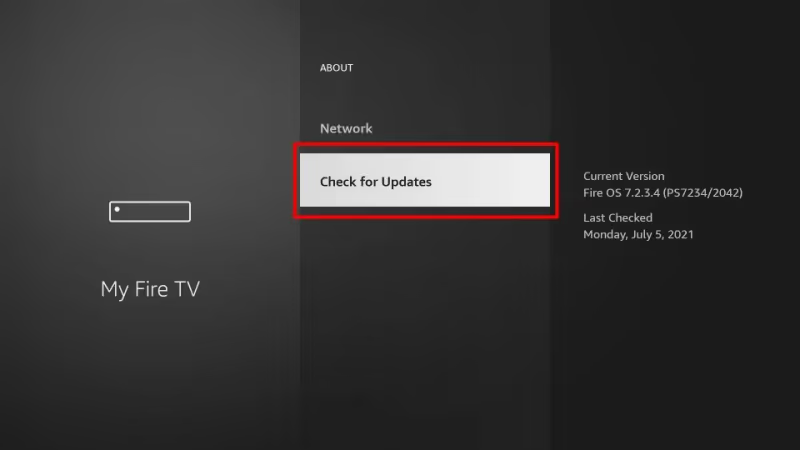
Regular updates keep things running more smoothly and can target bootup and loading issues directly.
#Fix 6: Clear Cache and Free Up Space
Insufficient storage and large amounts of cached data can slow things down dramatically. This is an often overlooked cause.
-
Go into Settings > Applications > Manage All Installed Apps
-
Sort by size and delete old or unused apps
-
Clear the cache and data for problematic apps
-
Check Devices for large, irrelevant files to remove
-
Set Storage thresholds for offloading lesser-used apps
-
Use storage checker tools to analyze usage
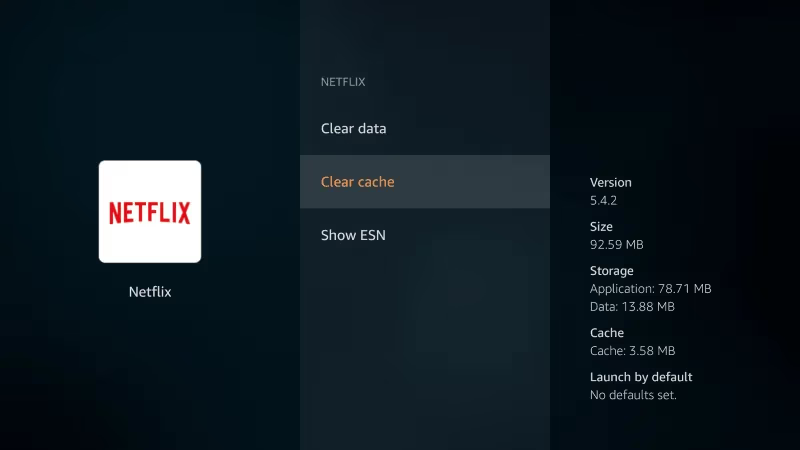
Maintaining at least 25% free space keeps performance strong by preventing chokepoints.
#Fix 7: Factory Reset Insignia Fire TV
If you’ve tried simpler troubleshooting tips without success, a factory reset should be your next step:
-
Go into Home > Setting > My Fire TV > Reset to Factory Defaults
-
This will erase all data and restore default settings
-
Set up Wi-Fi, accounts, etc. again post-reset
-
Avoid restore from older backup to prevent recreating issues
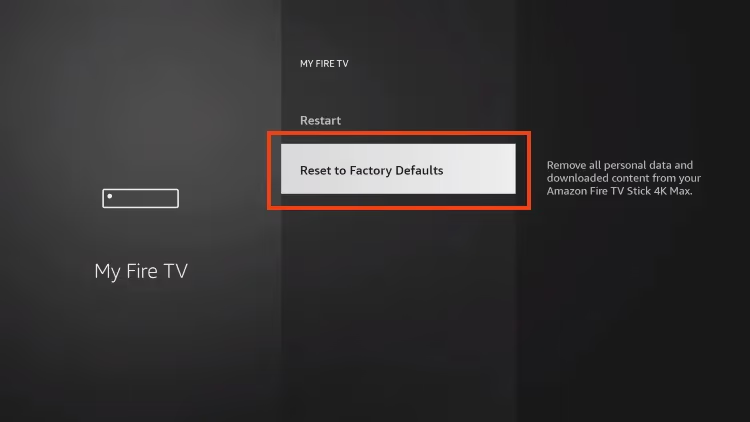
By fully wiping software back to factory condition, you eliminate any corrupted components causing problems.
#Fix 8: Inspect and Replace Faulty Hardware
The root cause could be failed capacitors, fuses, or overheating chips within internal circuit boards:
-
Open back cover safely after unplugging and grounding yourself
-
Inspect for bulging/leaking capacitors and burnt out fuses
-
Check for hot spots on processors/chips indicating overheating failure
-
Seek repair quotes for replacement boards as suited
-
Attempt soldering fixes if experienced with electronics
If you confirm specific hardware damage after thorough inspection, replacement parts may be needed.
#How Can You Prevent Loading Screen Problems?
Here are some key ways to prevent stuck loading screens on your Fire TV going forward:
-
Keep Fire TV software updated
-
Don’t overload internal storage
-
Use surge protectors to avoid electrical damage
-
Don’t allow TV ventilation/fan vents to be obstructed
-
Fix any internet connectivity issues
-
Disable background refreshing for unused apps
-
Routinely reboot TV every few weeks
-
Investigate warning signs like flashing lights, popping sounds, or burn smells (see also: Insignia TV Flickering)
Stay alert and seek repairs at the first sign of hardware failure before it worsens.
#When To Call Insignia Support
If you have a current warranty and none of the home fixes work, contact Insignia Fire TV support right away:
-
Verify warranty coverage for your TV model
-
Explain the issue faced and troubleshooting attempted
-
Discuss repair/replacement options
-
Consider extended warranty for future coverage (see also: Insignia TV Turns Off By Itself)
-
Ask about potential discounts on upgraded models if irreparable
Don’t open sealed compartments without guidance to avoid voiding warranty. Rely on their technical expertise when needed.
#Bottom Line
Getting stuck on the loading screen is frustrating but manageable with a structured troubleshooting approach:
-
Start by rebooting and resetting software before drastic measures
-
Check power stability and app conflicts as easy early fixes
-
Updating software can deliver critical loading fixes
-
Isolate faulty apps and expand storage to test theories
-
Factory reset if simpler fixes don’t overcome software corruption
-
Inspect hardware as a last resort and replace damaged components
-
Use Insignia support if you have a current warranty
With some diligent trial and error applying these solutions, you should be able to get your Insignia Fire TV working smoothly again without frustrating loading delays.
#FAQ
#Why does my Insignia Fire TV get stuck on the logo screen?
Software glitches, connectivity issues, insufficient storage space, or hardware problems are the most common causes. A power cycle fixes the majority of cases. If the logo screen persists after a reboot, a factory reset through the Alexa remote (hold Right + Back for 10 seconds) usually clears the underlying software issue.
#Should I factory reset my Insignia Fire TV to fix loading problems?
Yes, but only after trying simpler fixes first. A full factory reset typically resolves software corruption or conflicts causing loading issues. Keep in mind that it erases all your apps, accounts, and settings, so you’ll need to set everything up again afterward.
#How long should I wait before restarting a frozen Fire TV?
Wait 5-10 minutes in case a firmware update or connectivity task is still running. If the screen stays frozen beyond 10 minutes, unplug the TV from power, wait 60 seconds, then plug it back in. Forced restarts are safe and won’t damage the hardware.
#What are warning signs of hardware failure in Insignia Fire TV?
Flickering video, distorted sound, popping noises from TV speakers, and excessive heat around vents all point to hardware damage. A burning smell or visible smoke means you should unplug the TV immediately and contact Best Buy support. These symptoms won’t improve with software resets.
#Can Best Buy repair an Insignia Fire TV under warranty?
Best Buy handles all in-warranty repairs for Insignia products since it is their house brand. Contact them before opening the TV case yourself, as self-repair attempts void the warranty. They can arrange a replacement or repair depending on the issue and warranty terms.
#Does clearing app cache help with Fire TV loading problems?
Clearing cache and data for apps frees up storage and removes corrupted temporary files that may cause slow loading. Go to Settings > Applications > Manage All Installed Apps, then clear cache for each problem app. This is especially effective when specific apps freeze while the rest of the system works fine.
#Can loose HDMI connections cause a stuck loading screen?
Loose HDMI cables connecting external devices can cause sporadic signal loss, which makes apps fail to launch or freeze mid-load. Unplug each HDMI cable, check for bent pins, and reconnect firmly. Try a different HDMI port on the TV to rule out a faulty connector.
#How much free storage does Fire TV need to run smoothly?
Keep at least 25% of internal storage free to avoid lag and loading failures. Go to Settings > About > Storage to check current usage. Remove unused apps and clear cached data regularly, or connect a USB flash drive to offload apps if internal storage runs consistently low.