Hulu not working on your smart TV is usually caused by a server outage, weak internet connection, or corrupted app data. Most fixes take under five minutes. This guide covers the most common causes and walks you through each fix step by step so you can get back to streaming fast.
- Hulu needs at least 3.0 Mbps for on-demand streaming, 8.0 Mbps for Live TV, and 16.0 Mbps for HD content
- Server outages are the first thing to rule out by checking Downdetector or @hulu_support on Twitter before troubleshooting your TV
- Clearing the Hulu app cache fixes most freezing, crashing, and error message problems without losing your account data
- Older smart TVs lose Hulu support over time so check the Hulu Help Center for your TV model’s compatibility status
- A full factory reset resolves persistent issues but erases all apps and settings, so use it only as a last resort
#Why Is Hulu Not Working on Your Smart TV?
#1. Hulu Server Outages
Before troubleshooting your smart TV or home network, first check if there are any known Hulu server outages or service disruptions. You can:
-
Visit the Hulu Help Center
-
Check the Hulu status page on Downdetector
-
Search for @hulu_support on Twitter for updates
If Hulu is experiencing a system-wide outage, you’ll need to wait until they resolve the issue on their end before streaming.
#2. Slow or Unstable Internet Connection
Hulu requires a minimum download speed of 3.0 Mbps for Streaming Library content and 8.0 Mbps for Hulu + Live TV. To watch on-demand content in HD, Hulu recommends 16.0 Mbps.
Run a speed test on your smart TV or a nearby device to check that your internet connection meets Hulu’s requirements. If your speeds are below the minimum, or your connection is dropping out, try:
-
Restarting your router and modem
-
Connecting your smart TV directly to your router with an Ethernet cable
-
Upgrading your internet plan for faster, more reliable speeds
-
Removing sources of Wi-Fi interference like microwaves, baby monitors, etc.
#3. Outdated Hulu App
Smart TV manufacturers and Hulu release periodic app updates to introduce new features, remove bugs, and improve performance. Running an outdated version of the Hulu app can cause crashing, freezing, and loading failures.
To manually check for Hulu updates on most smart TVs:
-
Navigate to your smart TV’s app store
-
Search for the Hulu app
-
Select “Update” if an update is available
-
Wait for the update to download and install
-
Launch the updated Hulu app and try streaming again
Enable automatic app updates in your smart TV’s settings to stay current.
#4. Smart TV Compatibility Issues
Hulu works with most current smart TV models, but some older TVs are no longer supported. To check if your smart TV is compatible with Hulu, visit the Hulu Help Center and search for your TV brand and model.
If you have a compatible smart TV but are still experiencing issues with the Hulu app, make sure your TV’s firmware is up to date. Check your TV settings or the manufacturer’s support site for instructions on downloading and installing the latest firmware version.
If you’re experiencing issues with Hulu on a specific streaming device, check out our troubleshooting guides for Hulu not working on Apple TV, Hulu not working on Roku, and Hulu not working on Firestick.
#5. Corrupted App Data
If the Hulu app on your smart TV is crashing, freezing, or displaying error messages, its cached data may be corrupted. Follow the steps below to clear the app cache and data.
#How Do You Fix Hulu Step by Step?
#1. Check Hulu Server Status
Visit the Hulu Help Center, Downdetector, or Twitter to check for any known server outages or service disruptions before troubleshooting your devices. If Hulu’s servers are down, you’ll need to wait for them to resolve the issue.
#2. Test Your Internet Connection Speed and Stability
Run a speed test on your smart TV or a connected device to verify you’re getting the minimum download speeds required for Hulu streaming. Restart your router and modem if you’re experiencing slowdowns or dropouts. If problems persist, contact your ISP.
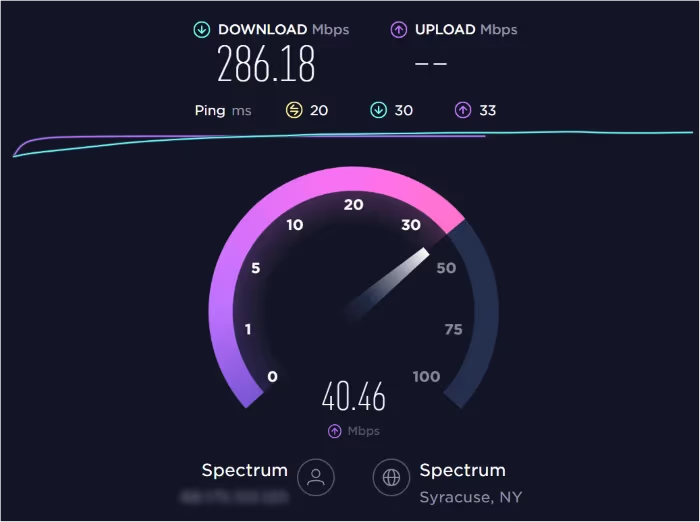
Hulu requires a stable internet connection to stream smoothly. If you’re frequently encountering buffering or Hulu connection issues, try the tips in our guide.
#3. Update the Hulu App
Navigate to your smart TV’s app store, search for Hulu, and select “Update” if available. After installing the update, launch Hulu and attempt streaming.

#4. Uninstall and Reinstall the Hulu App
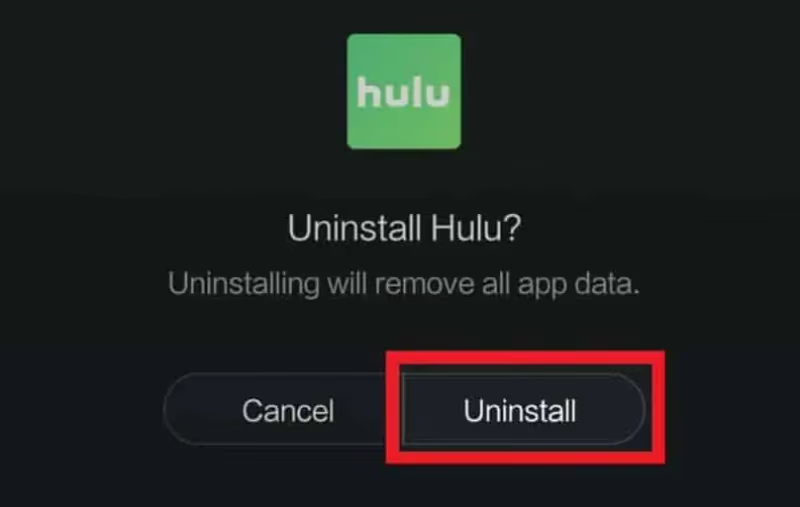
If updating didn’t resolve your issue, uninstalling and reinstalling the Hulu app can help by clearing out corrupted data:
-
Press the Home button on your smart TV remote
-
Navigate to the Apps menu
-
Select the Hulu app
-
Choose “Uninstall” and confirm
-
Restart your smart TV
-
Open the app store and reinstall the Hulu app
-
Log in to your account and try streaming
#5. Clear the Hulu App Cache and Data
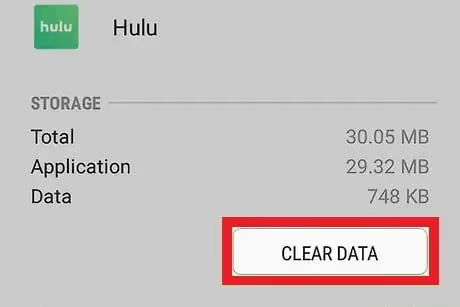
On many smart TVs, you can clear an app’s cache and data without fully uninstalling it:
-
Go to your smart TV’s Settings menu
-
Select “Apps” or “Applications”
-
Find the Hulu app and select “Clear cache” and “Clear data”
-
Restart the Hulu app and try streaming
#6. Restart Your Smart TV
Often, a restart is all it takes to get Hulu working again:
-
Press the power button on your smart TV remote to turn it off
-
Unplug your TV’s power cord from the electrical outlet
-
Wait 1 minute, then plug the TV back in
-
Turn your TV on and launch Hulu
#7. Check Your Smart TV’s Compatibility with Hulu
Visit the Hulu Help Center to verify that your smart TV make and model is on their list of compatible devices. If it’s not, you may need to use a different streaming device like Roku, Fire TV Stick, Apple TV, or Chromecast to watch Hulu on your TV.
#8. Factory Reset Your Smart TV
If all other troubleshooting steps have failed, a factory reset can resolve persistent smart TV issues, including problems with the Hulu app. This will erase all your TV’s apps, settings, and preferences.
The exact steps to factory reset vary by TV brand and model, but generally:
-
Open your TV’s Settings menu
-
Navigate to “General” or “System”
-
Select “Reset,” “Factory Reset,” or “Reset to Default”
-
Confirm your selection
-
Wait for the reset process to complete
-
Follow the on-screen prompts to set up your TV again
-
Reinstall the Hulu app and log in
#9. Contact Hulu Customer Support
If you’ve tried all the troubleshooting steps and Hulu still isn’t working on your smart TV, it’s time to contact Hulu support for further assistance. Visit https://help.hulu.com/s/contactsupport to live chat with an agent or request a callback.
#What Are the Best Tips for Preventing Hulu Issues?
-
Always keep your smart TV and the Hulu app updated for the best streaming experience. Enable automatic firmware and app updates in your TV’s settings.
-
Maintain a strong, stable internet connection with download speeds of at least 16 Mbps. For 4K streaming, aim for 25+ Mbps.
-
Connect your smart TV directly to your router with an Ethernet cable for the most reliable speeds and to reduce buffering.
-
Regularly clear your Hulu app cache to prevent freezing and crashing caused by data corruption.
-
If your smart TV is several years old and frequently has problems with Hulu compatibility or performance, consider upgrading to a newer model or buying a separate streaming stick.
#Bottom Line
-
Before troubleshooting, verify Hulu’s servers are not down by checking their Help Center, Downdetector, or Twitter.
-
Make sure your internet speeds meet Hulu’s minimum requirements of 3-8 Mbps.
-
Update your Hulu app and TV firmware for maximum compatibility and performance.
-
Clear cache or uninstall and reinstall the Hulu app if it keeps freezing or crashing.
-
Verify your smart TV model is on Hulu’s list of compatible devices.
-
As a last resort, factory reset your smart TV to resolve persistent app problems.
-
Contact Hulu customer support if none of the troubleshooting steps work.
#FAQ
#Why does Hulu keep saying “Playback Failure” on my smart TV?
This error usually points to a poor internet connection or a Hulu server outage. Run a speed test to confirm you have at least 3.0 Mbps, restart your router, and check Downdetector for any reported Hulu outages. If your speeds are fine and there’s no outage, try clearing the Hulu app cache.
#Why does Hulu keep freezing or crashing on my smart TV?
Freezing or crashing is most often caused by an outdated app, old TV firmware, or corrupted cached data. Update both the Hulu app and your TV’s firmware first. If that doesn’t help, uninstall and reinstall Hulu to start fresh.
#How do I know if Hulu servers are down?
Check Downdetector’s Hulu status page for real-time outage reports. You can also search @hulu_support on Twitter or visit the Hulu Help Center. If there’s a confirmed outage, no amount of troubleshooting on your end will fix the problem.
#How fast does my internet need to be for Hulu?
Hulu requires 3.0 Mbps minimum for on-demand streaming library content and 8.0 Mbps for Hulu + Live TV. For HD quality, aim for 16.0 Mbps or higher. If multiple devices share your network, you’ll need even more bandwidth to avoid buffering.
#Can I still watch Hulu if my smart TV is no longer supported?
Yes. Plug in an external streaming device like a Roku Express, Amazon Fire TV Stick, or Chromecast with Google TV. These devices run the latest Hulu app regardless of your TV’s age or firmware. They typically cost under $40 and connect through any available HDMI port.
#What does Hulu error code P-TS207 mean?
Error code P-TS207 signals a network connectivity problem preventing Hulu from loading content. Restart your router, move your TV closer to the Wi-Fi access point, or switch to a wired Ethernet connection. If the error persists after those steps, contact your ISP to check for service issues.
#How do I clear the Hulu app cache on my smart TV?
Go to Settings, then Apps or Applications, and find Hulu in the list. Select “Clear cache” and “Clear data” to remove stored files. This won’t delete your Hulu account or subscription. You’ll just need to log back in after clearing the data.
#How do I fix Hulu error code 94?
Hulu error code 94 usually means your device’s clock is set incorrectly. Go to your TV’s settings and set the date, time, and time zone to automatic. Check our step-by-step tutorial on how to fix error 94 for detailed instructions.