Hulu not working on Apple TV is one of the most common streaming headaches Apple TV owners run into. You sit down to watch your favorite show, and the app freezes, crashes, or refuses to load.
This guide walks you through 10 tested fixes, from quick restarts to DNS changes, so you can get back to streaming in minutes.
- Restart your Apple TV first — a simple reboot clears temporary glitches and resolves most Hulu crashes within 30 seconds
- Update Hulu and tvOS together — outdated app versions cause the majority of compatibility-related freezes on Apple TV
- Switch DNS to Google (8.8.8.8) — ISP DNS issues account for many streaming failures, and manual DNS fixes them instantly
- Check Hulu server status — Downdetector shows real-time outage data so you avoid troubleshooting a problem on Hulu’s end
- Apple TV 4th Gen or newer required — older Apple TV models (1st-3rd Gen) do not support the current Hulu app at all

Hulu is a subscription-based video-on-demand service with a large library of TV shows, movies, and documentaries from various networks. It streams on multiple devices, including your TV, computer, tablet, or smartphone. With millions of active subscribers, Hulu ranks among the top five streaming platforms in the US.
#What Makes Hulu Not Work on Apple TV?
There can be several reasons why Hulu is not working on an Apple TV. Here are some of the most common causes.
#1. Unstable Internet Connection
Hulu requires a stable internet connection to work properly. If your internet connection is unstable or weak, it can cause buffering issues, slow loading times, and other problems. For a deeper look at network-related streaming failures, check our guide on Hulu connection issues.
#2. Outdated App or Software
If you haven’t updated your Hulu app or Apple TV software recently, it could be causing compatibility issues. And it might prevent Hulu from working correctly.
#3. Account Issues
Sometimes, Hulu may not work on your Apple TV due to account-related issues such as an expired subscription. Incorrect login details or a billing problem are among other reasons that may trigger this issue.
#4. Device Malfunction
If your Apple TV is experiencing hardware or software problems, it may affect the performance of the Hulu app. That will eventually lead to malfunction.
#5. Regional Restrictions
Hulu isn’t available in all countries, and even if it is, the content may vary depending on your location. If you’re trying to access Hulu from a region where it’s not available, it may not work properly.
Besides, here are the best solutions you can try if you see an Apple TV black screen. We believe at least one of these solutions will help you overcome this issue.
#What Are the Solutions to Fix This Issue?
Mentioned below are the solutions to try if Hulu is not working on Apple TV.
#Fix 01: Restart Your Apple TV
Restarting your Apple TV is one of the first troubleshooting steps you should try. Here’s how to do it.
-
Press & hold the “Menu” and “Home” buttons on your Apple TV remote simultaneously.
-
Keep holding the buttons down until the light on the front of the Apple TV starts flashing rapidly.
-
Release the buttons, and your Apple TV will restart.
-
Once the Apple TV has restarted, launch the Hulu app and see if it’s working correctly.
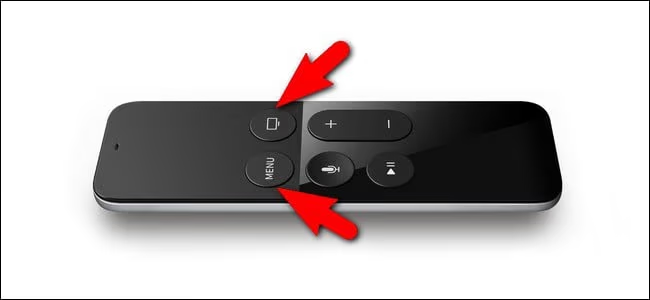
Restarting your Apple TV can help clear any temporary glitches or issues that may be causing problems in Hulu. If your Apple TV is lagging in general, a restart often fixes that too.
If this doesn’t solve the problem, move on to the other troubleshooting steps below.
#Fix 02: Chang Your Device’s DNS Settings
Here’s another solution you can try. You should change the DNS (Domain Name System) settings on your device. Below are the steps that should be followed.
-
On your Apple TV, go to “Settings” and select “General”.
-
Scroll down and select “Network”.
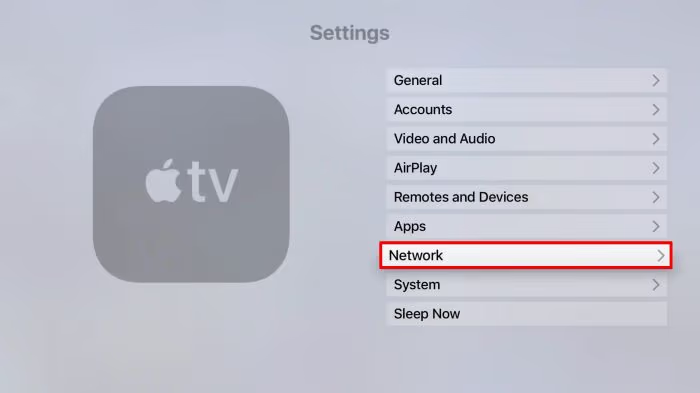
- Select the Wi-Fi network you’re currently connected to.
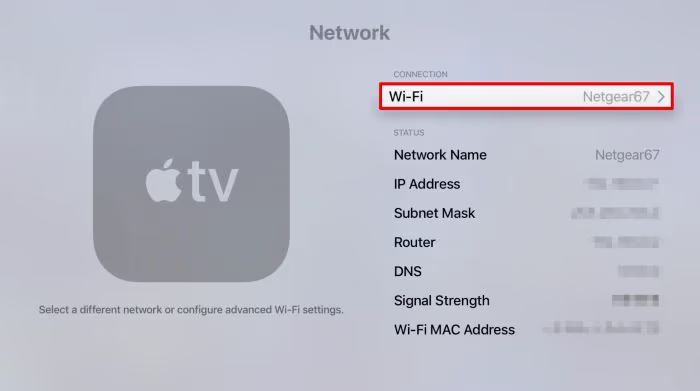
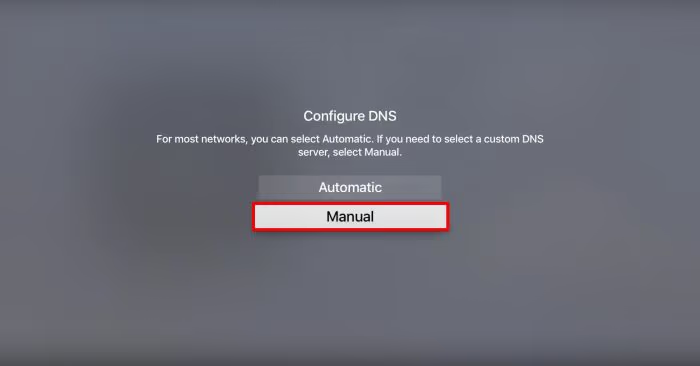
- Scroll down and select “Configure DNS”.
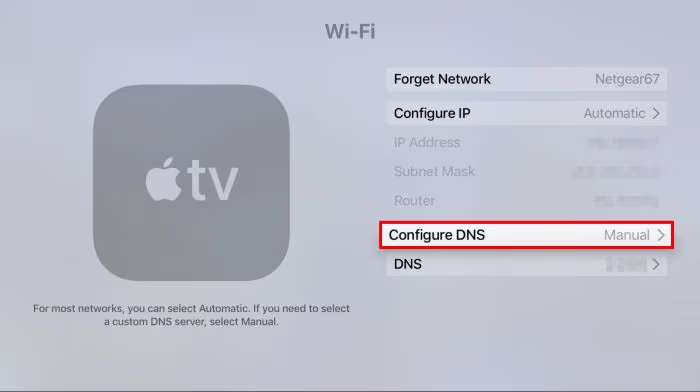
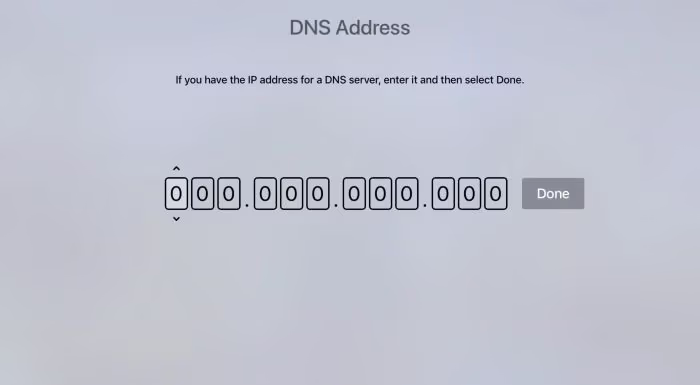
- Select “Manual” and enter the following DNS addresses:
-
For Google DNS, enter 8.8.8.8 and 8.8.4.4
-
For OpenDNS, enter 208.67.222.222 and 208.67.220.220
-
Press “Done” to save the changes.
-
Restart your Apple TV.
By changing your DNS settings, you’re essentially using a different server to connect to the internet.
This can help fix issues with your current DNS provider that may be causing Hulu to not work correctly.
After changing your DNS settings and restarting your Apple TV, launch Hulu and see if it’s working correctly.
#Fix 03: Disable Your Apple TV’s 4K Option
If your Apple TV has 4K enabled in it, that might be a reason for Hulu to stop working.
In this case, you can simply fix this issue by disabling the 4K feature on your TV.
-
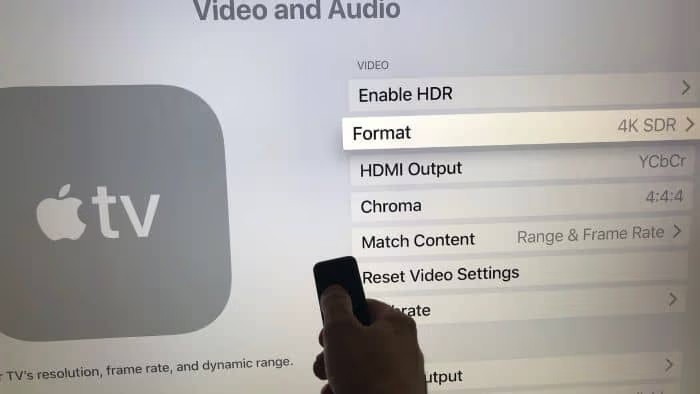
On your Apple TV, go to “Settings” and select “Video & Audio”.
-
Select “Format”.
-
If “4K” is selected, switch to “1080p SDR”.
-
Restart your Apple TV.
By disabling the 4K option, you’re reducing the demand on your internet connection.
This step can help improve the performance of the Hulu app.
Once you have done that, you can launch the Hulu app and see if it’s working correctly.
#Fix 04: Update Your Apple TV’s Apps
If you’re experiencing issues with Hulu not working on your Apple TV, updating the app may be a solution.
Here’s how to do it.
-
On your Apple TV, go to the home screen and select the “App Store” app.
-
Once you’re in the App Store, select the “Updates” tab.
-
If there’s an available update for the Hulu app, select “Update” next to the app.
-
Wait for the update to download/install.
-
Once the update is complete, launch the Hulu app and see if it’s working correctly.
Updating the Hulu app can help fix any bugs or compatibility issues that may be causing it to malfunction. It’s always a good idea to keep your apps up to date to ensure they’re working correctly.
#Fix 05: Reset the TV
If Hulu is not working on Apple TV even after the above methods, here’s another option. This method will cause data loss on your device. ****
- On your Apple TV, go to “Settings” and select “System”.
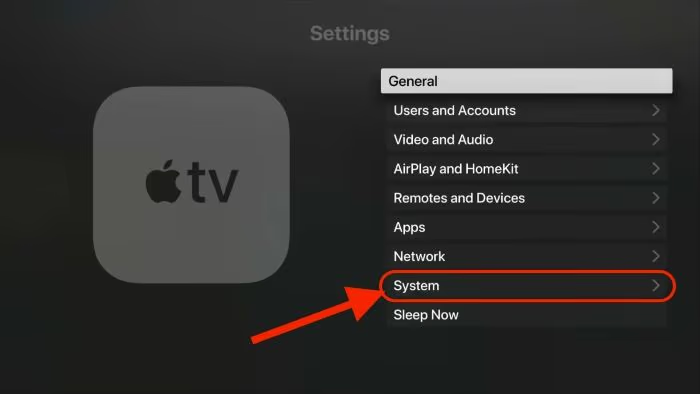
- Select “Reset”.
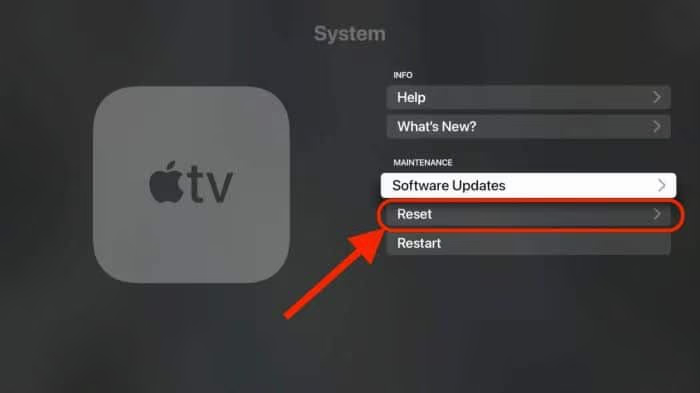
- Choose the option to “Reset All Settings”.
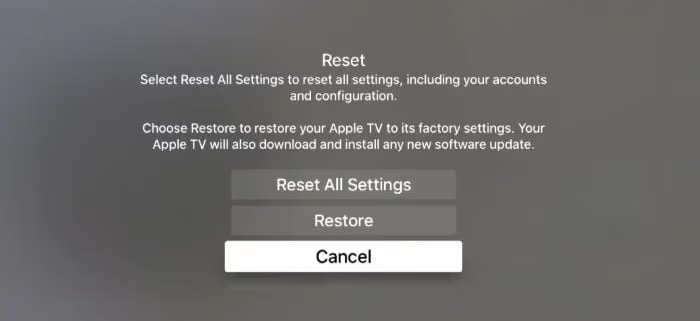
-
Enter your passcode if prompted.
-
Confirm that you want to reset your Apple TV.
-
Wait for the reset process to finish, which may take a few minutes.
-
after the reset is complete, you’ll need to set up your Apple TV again from scratch. In fact, you even have to sign in to your accounts and downloading apps.
Also, many streamers have complained about Hulu not working on Samsung Smart TV. Let’s figure out the reasons and best seven solutions to easily fix it.
#What If the Problem is Directly Related to Hulu Itself?
In some cases, the issue may relate directly to Hulu itself but not Apple TV. If you have faced this issue and want to solve this issue, here’s what you can do.
#Fix 01: Force Close the Hulu App and Reopen It
If you’re experiencing issues with Hulu not working on your Apple TV, this solution may work.
So, you should force closing and reopening the app is a quick and easy troubleshooting step to try.
Here’s how to do it.
-
Double-click the “Home” button on your Apple TV remote to bring up the app switcher.
-
Swipe left or right to locate the Hulu app.
-
Swipe up on the Hulu app to force close it.
-
Wait a few seconds, then press the “Home” button on your remote to return to the home screen.
-
Launch the Hulu app again and see if it’s working correctly.
Force closing the Hulu app can help clear any temporary glitches that may be causing it to malfunction.
#Fix 02: Check If the Hulu Servers Are Down
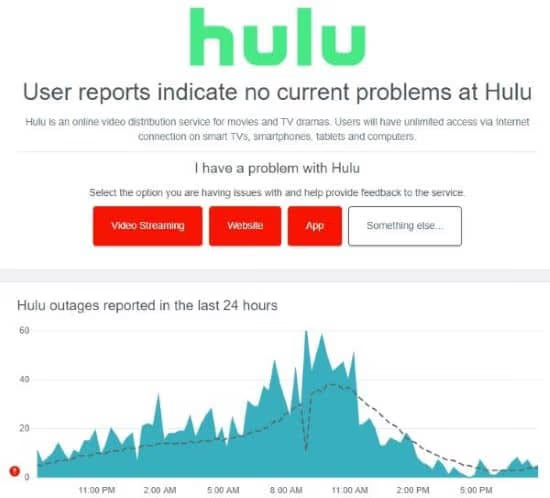
If Hulu is not working on Apple TV, you should check if its servers are working fine.
As you know, Hulu is a service that works online servers. If the servers are down, you cannot watch any content through Hulu.
So, it is recommended to use an online tool like Downdetector to see the status of Hulu.
#Fix 03: Log out of the Hulu Profile and Log in Again
Do you notice Hulu not working on Apple TV? If so, logging out and then logging back into your Hulu account may help.
Here’s how to do it.
-
Launch the Hulu app on your Apple TV.
-
Navigate to the “Account” tab in the bottom navigation menu.
-
Select “Log Out”.
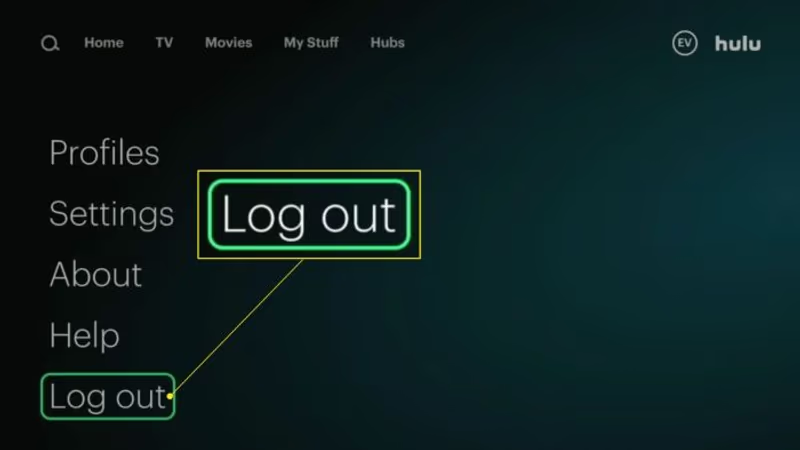
-
Wait a few seconds for the app to log you out.
-
Once you are logged out successfully, select “Log In” and enter your Hulu credentials.
-
Follow the prompts to complete the login process.
This method can help refresh the connection between the app and the Hulu servers. So it will resolve any issues that may be causing the app to not work properly.
#Fix 04: Check for Compatibility
You must have an Apple TV 4th Gen or newer for Hulu to work properly.
#Fix 05: Update the Hulu App
If nothing has worked, try to update the Hulu app and see if it works. You might also run into Hulu error 94 during this process, which has its own set of fixes.
-
On your Apple TV, go to Apple Store.
-
Go to the area called “Purchased” and find Hulu.
-
Click “Update”. Then, follow the instructions displayed on the screen.
#Bottom Line
Start with a restart and a Hulu app update — those two steps fix the problem for most Apple TV users. If the issue persists, change your DNS to Google (8.8.8.8), disable 4K output, or log out and back into your Hulu account.
When nothing on your end works, check Downdetector{:rel=“noopener” target=“_blank”} to confirm Hulu’s servers are running. If all else fails, a factory reset of your Apple TV is the last resort, and Hulu Support{:rel=“noopener” target=“_blank”} can assist with account-specific problems.
#FAQ
#Why does Hulu keep crashing on my Apple TV?
Hulu crashes usually stem from an outdated app version or corrupted cache data. Force-close the app by double-clicking the Home button and swiping up on Hulu, then reopen it. If crashes continue, delete and reinstall the Hulu app from the App Store.
#What internet speed do I need for Hulu on Apple TV?
Hulu recommends at least 3 Mbps for the standard on-demand library and 8 Mbps for live TV streams. For 4K content on Hulu, you need a minimum of 16 Mbps. Run a speed test on your Apple TV under Settings > Network to verify your actual download speed.
#Does Hulu work on older Apple TV models?
No. Hulu requires an Apple TV 4th Generation (released 2015) or newer. The 1st, 2nd, and 3rd Generation Apple TV hardware cannot run the current Hulu app because they lack the tvOS App Store entirely.
#How do I clear the Hulu cache on Apple TV?
Apple TV does not have a manual cache-clearing option like Android devices. The workaround is to delete the Hulu app (long-press the icon, then select Delete), restart your Apple TV, and reinstall Hulu from the App Store. This wipes all locally stored data for the app.
#Can a VPN cause Hulu to stop working on Apple TV?
Yes. Hulu actively blocks most VPN and proxy connections because of content licensing restrictions. If you have a VPN configured on your router or Apple TV, disable it and try Hulu again. Even a partial VPN configuration can trigger Hulu’s geo-blocking system.
#Why does Hulu show a black screen but still play audio on Apple TV?
A black screen with audio typically points to an HDMI handshake failure or a 4K/HDR compatibility conflict. Switch your Apple TV output from 4K HDR to 1080p SDR under Settings > Video and Audio > Format. If that fixes it, the issue is between your TV’s HDMI port and the Apple TV’s output settings.
#How do I check if Hulu servers are down?
Visit Downdetector’s Hulu page{:rel=“noopener” target=“_blank”} to see real-time outage reports from other users. You can also check Hulu’s official Twitter/X account (@haborto) for service status updates during major outages. Server-side problems typically resolve within a few hours without any action on your end.
#Will factory resetting my Apple TV fix Hulu?
A factory reset should be your last resort because it erases all apps, accounts, and settings from your Apple TV. It does fix persistent software conflicts that simpler methods cannot. Before resetting, write down your Wi-Fi password and streaming service credentials so you can set everything up again quickly.