Your LG TV won’t connect to WiFi, and you need it online. This is one of the most common issues LG TV owners face, and the fix is usually straightforward. This guide walks you through turning on WiFi on your LG TV and 13 solutions if the standard method doesn’t work.
- WiFi setup takes under 2 minutes — press Home, go to Settings > Network, select your network, and enter the password
- 7 common causes for WiFi being disabled include firmware updates, wrong DNS settings, incorrect date/time, and hardware faults
- Power cycling fixes most issues — unplug the TV for 2 minutes, then reconnect and try WiFi again
- Google DNS (8.8.8.8 / 8.8.4.4) resolves connection problems caused by faulty default DNS settings on LG TVs
- Factory reset is the last resort — go to Settings > General > Reset to Initial Settings, but this erases all saved apps and preferences
#Why Is Your LG TV’s WiFi Connection Turned Off?
Before learning how to turn on WiFi on LG TV, it helps to know the potential causes. Several different reasons can disable WiFi on your LG TV.
- Your TV has undergone a firmware update or a reinstallation.
- Your WiFi connection is turned off accidentally or purposely, and the TV settings are changed.
- Your LG TV has the wrong DNS settings, date, and time.
- Your LG TV is experiencing a malware-related issue.
- There’s something wrong with the configurations of your TV.
- The LG TV is experiencing a hardware issue.
- Your WiFi router is faulty.
Many users have also reported LG TV AirPlay not working problems. That guide covers fifteen fixes for AirPlay connectivity issues.
#How Do You Turn On WiFi on an LG TV?
Here are the basic steps to connect your LG TV to WiFi under normal circumstances.
- Your router must be turned on, and it should have an active internet connection.
- Go to the Home menu using the LG TV’s remote control.
- Select “Settings.” After that, go to the option called “Network.” Enter the WiFi connection to proceed.
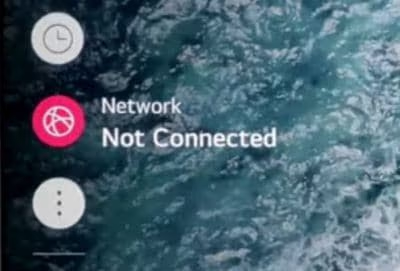
- Now, the LG TV will try to establish a connection.
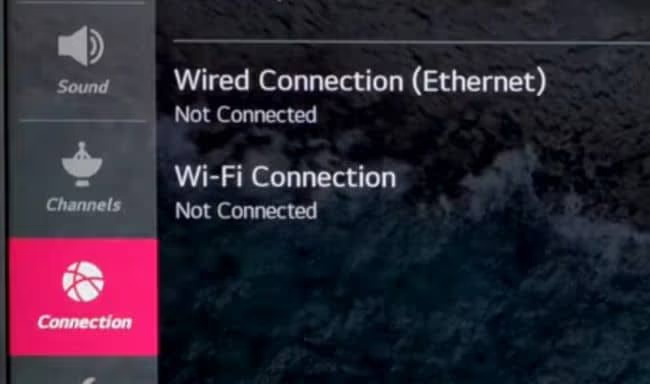
- Select the router to which you want to connect your LG TV. The router should be placed closer to your TV.
- Select the “Connect” button to connect the LG TV and router. Make sure that you enter the password.
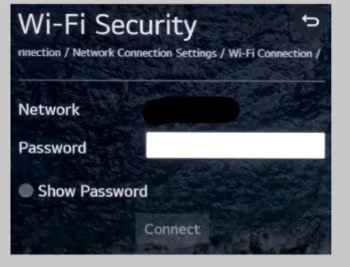
That’s how to turn on WiFi on LG TV under usual circumstances. If this didn’t work and you still can’t connect, follow the solutions below.
#Solution 01: Turn the TV Off and On
Current LG TVs do not include a hard reset button. This technique is also called power cycling or soft resetting, and you don’t need any specialized knowledge to do it. Malfunctioning software is the key reason for connection problems.
- First, unplug your LG TV and leave it for 2 minutes or more.
- Plug the TV in.
- See if you can connect to the WiFi network.
#Solution 02: Check the Date & Time
After restarting, the date and time on some LG TV models get adjusted incorrectly. Inaccurate time and date settings can break WiFi connectivity due to SSL certificate validation failures.
Be sure your TV’s date and time match the current day. Check both the time zone and the AM/PM setting. You can try manually changing the time and date to see if it helps.
- Go to “Settings” after pressing the “Home” button on the remote.
- Select “All Settings” and go to “General.”
- Select “Time & Date.”
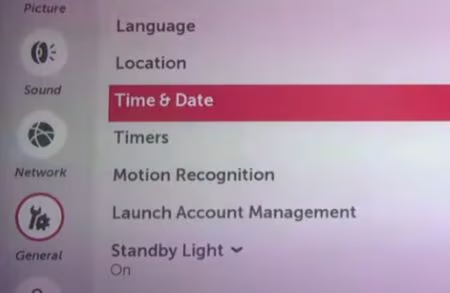
- Enter the correct values that match your location.
- If the TV is connected to the internet, “Automatic” time and date settings work better.
- Check if the WiFi connection is restored.
#Solution 03: Are the DNS Settings Working?
Faulty DNS settings can prevent your LG TV from connecting to WiFi. Here’s how to check and fix them.
- Go to “System” and select “Network Settings.”
- Go to “General” > “Network Configurations.”
- Go to “Advanced Wi-Fi” > “Edit.”
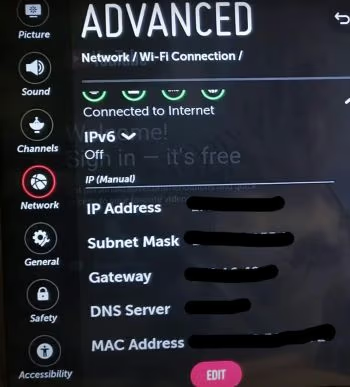
- Enter the IP address of the router in the given field.
- Find the network mask of the router and enter it in the field called “Subnet Mask.”
- Select “Connect.”
- If your DNS settings don’t work, use Google DNS instead.
Primary DNS: 8.8.8.8
Alternative DNS: 8.8.4.4
- Now, check if the connection works.
#Solution 04: Is Your WiFi Connection Unstable?
An unstable WiFi connection can drop your LG TV off the network repeatedly. Try these fixes.
- Bring the wireless router and the TV closer together.
- Be sure that the Ethernet cable is in the correct order.
- Remove baby monitors, microwaves, and other devices that interfere with WiFi signals.
- Look for other accessories that could cause interference.
- See if it works.
#Solution 05: Turn Off the Feature Called “Quick Start”
The Quick Start feature can interfere with your WiFi connection on some LG TV models. Disabling it forces a clean boot sequence. Note that this option does not appear on all TVs.
- Select “All Settings” > “General.”
- Select “Quick Start” and then disable it.
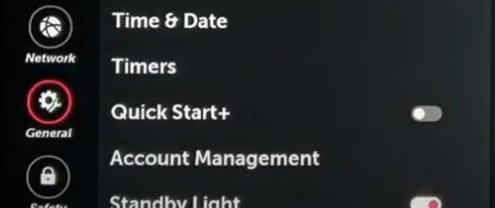
- Now, disconnect the TV from its power supply.
- Press and hold the power button for about 30 seconds to drain residual power.
- Reconnect the device and switch it on.
- Check if it works.
#Solution 06: Check if the WiFi Settings Are OK
Double-check your WiFi credentials. Have you entered the correct username and password? Here are a few other things to verify.
- Make sure your WiFi router is switched on. Go to the home screen and select “Settings.”
- If the device is not listed yet, hit the “Left” arrow. Then, select a network.
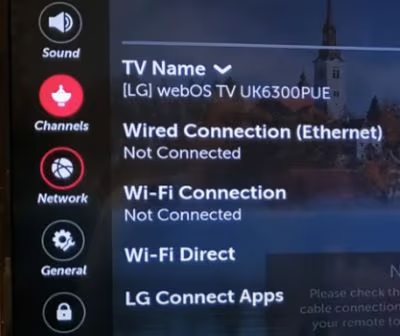
- Now, select a WiFi connection from the available options.
- See if you can use WiFi now.
#Solution 07: Check if the Router Is Working Properly
Test your router with a different device first. If that fails, make sure your LG TV is connecting with the correct credentials. Wait 30 seconds after turning off both the TV and router before switching them back on.
- Connect a different device to the same router and see if it works.
- See if you have entered the correct credentials.
- Try using an ethernet cable.
- Check if your LG TV is blacklisted in the router.
- Check if your router gets a power supply.
#Solution 08: Restart the TV
A restart clears temporary software glitches that block WiFi. This has eliminated the problem for most users. Wait a full 2 minutes before plugging the TV back in.
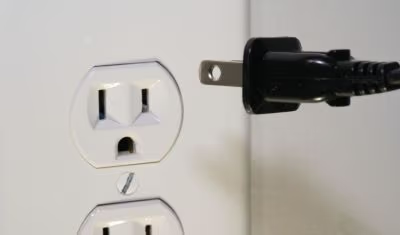
- Turn off the TV using the power button on the remote.
- Disconnect from the power supply.
- Wait at least 2 minutes.
- Connect the TV to the power outlet and see if you can connect it to WiFi.
#Solution 09: Check if the Setup Cables Are Working Fine
Sometimes the issue comes from loose internal cables. Here’s how to check them.
- Remove the rear casing of the TV.
- Remove the blue-color tape and straighten the ribbon (for WiFi).
- Also, gently straighten any other module cables for WiFi.
- Now, check if the WiFi connection works.
Also read: How to Get HBO Max on LG Smart TV
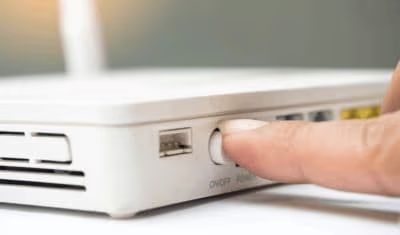
#Solution 10: Reboot the Router
Rebooting the router clears its memory and re-establishes all connections. Here’s how to do that.
- Press the reset key on your router for 30 seconds.
- Wait for about one minute.
- Switch it on again and see if it works properly.
#Solution 11: Install Any Updates
Outdated firmware can cause WiFi connectivity problems. Installing the latest update patches known bugs.
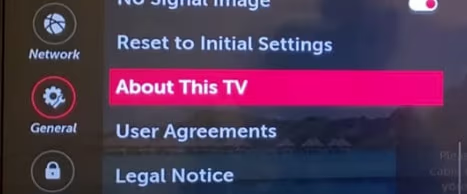
- Select “General” and go to “About This TV.”
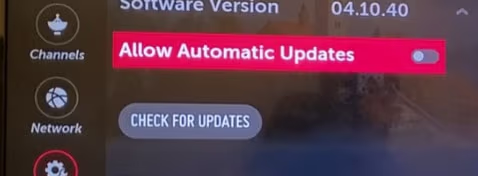
- Verify the prompt that asks you to allow automatic updates.
- Select the option that checks for updates.
- Follow the on-screen instructions to download updates.
- Now, check if the issue is solved.
#Solution 12: Use an Ethernet Connection
If none of the WiFi solutions have worked, switch to a wired ethernet connection. Plug an ethernet cable from your router directly into the LG TV’s LAN port, then restart the TV.
#Solution 13: Perform a Factory Reset
A factory reset is one of the last resorts. It erases all your apps, settings, and saved passwords. Here’s how to do it.
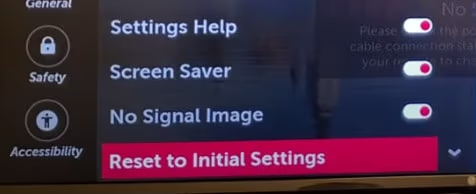
- Go to Home > Settings (on the remote).
- Select General > Reset to Initial Settings.
- Enter the password if prompted.
- After a reset, see if the issue persists.
Also read: How to Factory Reset LG Smart TV With or Without a Remote?
#Bottom Line
Those are the solutions to try when WiFi won’t turn on for your LG TV. Start with the simple fixes like power cycling and checking your date/time settings. Work your way through DNS changes and router reboots before trying a factory reset. If none of these solutions fix the problem, contact a certified LG technician for hardware diagnosis.
#FAQ
#How do I turn on WiFi on an LG TV without a remote?
Use the joystick button on the bottom or back panel of your LG TV to navigate to Settings. From there, select Network and choose your WiFi network. You can also download the LG ThinQ app on your smartphone to control the TV wirelessly.
#What should I do if my LG TV says “WiFi is turned off”?
Go to Settings > Network and toggle the WiFi switch back on. If the toggle is grayed out, unplug the TV for 2 minutes to reset the network module. A firmware update or power surge can sometimes disable WiFi automatically.
#Why does my LG TV keep disconnecting from WiFi?
Weak signal strength is the most common cause. Move the router closer to the TV or remove devices like microwaves and baby monitors that cause interference. Updating the TV firmware and setting DNS to Google (8.8.8.8) also helps stabilize the connection.
#Can I connect my LG TV to WiFi using a mobile hotspot?
Yes. Open your phone’s mobile hotspot, then go to Settings > Network on your LG TV and select your phone’s hotspot name. Enter the password to connect. Keep in mind that streaming video over a mobile hotspot uses significant data.
#Does an LG TV work without WiFi?
An LG TV works for basic functions like watching cable, satellite, or antenna channels without WiFi. You lose access to streaming apps like Netflix, Disney+, and software updates. Connecting via ethernet cable gives you internet access without WiFi.
#How do I fix the “no WiFi hardware installed” error on my LG TV?
This error means the internal WiFi module has disconnected or failed. Unplug the TV for 5 minutes, then plug it back in and check Settings > Network. If the error persists, the WiFi module hardware needs repair or replacement by an LG service center.
#Is it better to use WiFi or ethernet on an LG TV?
Ethernet provides a more stable and faster connection, which is better for 4K streaming and large app downloads. WiFi is more convenient since it requires no cable. For most users, a 5 GHz WiFi connection placed within 15 feet of the TV works well enough for streaming.