Logging out of your Roku account on your Roku TV is an important step to secure your privacy, protect subscriptions, and prep for resale. Below you will find how to sign out, unlink, or factory reset Roku smart TVs.
- Sign out via Settings > System > Sign Out — this removes access to subscriptions and purchases tied to your account
- Unlink devices at my.roku.com — fully disconnects the TV from your account online, but personal data stays on the device
- Factory reset erases everything — returns the TV to out-of-box condition, requiring a 4-digit on-screen PIN to confirm
- Guest Mode auto-signs out after inactivity — ideal for shared spaces like dorms, hotels, or waiting rooms
- Account deactivation is permanent — once closed, all prior purchases and rentals become inaccessible
#Why Log Out of Your Roku TV?
There are a few key reasons you may want to properly sign out of your Roku TV:
-
Selling Your TV: Logging out removes personal data and protects account info when selling or gifting your Roku TV. See our comparison of Roku vs. Cable TV if upgrading.
-
Protect Account Security: Signing out prevents unauthorized access to subscriptions or personal info if someone else uses your TV. Roku’s PIN protection helps too – see what to do if you forgot your Roku PIN.
-
Troubleshoot Issues: Logging out and back in can resolve account-related problems with streaming or purchases.
-
Stay Private Using Guest Mode: Enabling guest mode auto signs out after a set time to keep your info secure.
Properly logging out is crucial before passing your Roku TV onto someone else to safeguard all account details, settings and purchases. How does Roku compare to a Firestick for seniors?
#How to Sign Out of Your Roku Account on the TV
Signing out of your Roku account on the TV itself just takes a few simple steps:
-
Using your Roku remote, press the Home button to access the main Roku menu.
-
Navigate to Settings then select the System option.
-
Scroll down and choose Sign Out.
-
Confirm you want to sign out of your Roku account.
Once signed out, your Roku TV will no longer have access to content subscriptions, purchases or any personal customizations tied to your Roku account.
#Tips for Signing Out
-
Only sign out of the Roku system UI, not individual streaming apps.
-
Use guest mode to auto sign out after inactivity for shared TVs.
-
Sign back in anytime with your account email and password.
Signing out through the Roku settings is the proper way to fully log out of your account. But additional steps are needed if selling or resetting your device. See how Roku compares to DirecTV for streaming flexibility.
#Unlinking Your Roku TV from Your Account
Before selling or gifting your Roku smart TV, you’ll want to unlink the device from your Roku account. Here’s how:
-
On a computer, tablet or phone, visit my.roku.com and sign into your Roku account.
-
Under My Linked Devices, click on your Roku TV you wish you unlink.
-
Choose **Unlink **next to the device name and confirm unlinking.
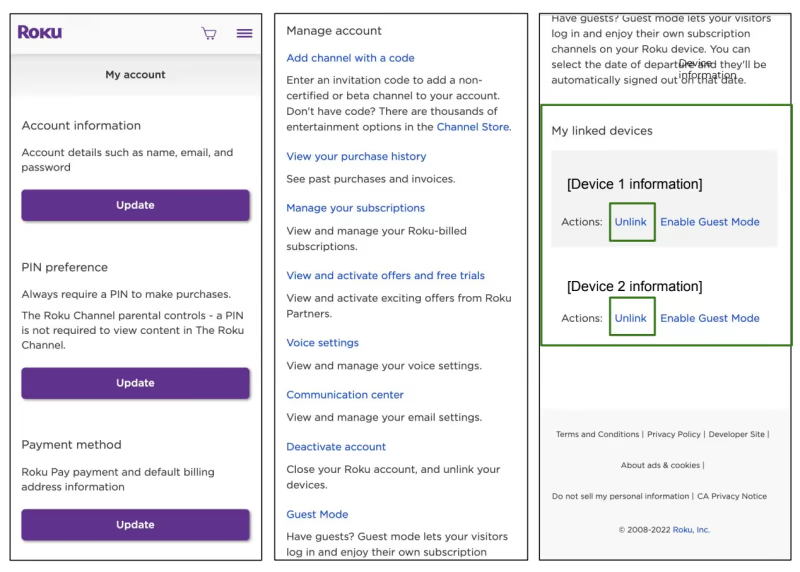
Once unlinked, your Roku TV will no longer appear under your account and does not have access to any content or info associated with that account.
#Tips for Unlinking Your Device
-
Unlinking online fully disconnects devices from your account.
-
Repeat for each Roku player you want to remove.
-
Unlinking does not deactivate subscriptions or your account.
Unlinking the Roku TV properly disconnects it from your account so it can be used by someone else. But personal data still remains on the device until performing a factory reset. Compare Roku vs. Chromecast for device gifting.
#Factory Resetting Your Roku TV
Before selling or gifting your Roku TV, you’ll want to factory reset the device. This deletes all account info, erases custom settings, and returns it to original factory conditions.
Here is the step-by-step process for factory resetting your Roku TV:
-
From the Roku TV home screen, go to Settings > System > Advanced System Settings.
-
Choose Factory Reset then enter the 4-digit PIN code that appears on-screen.
-
Select Start Factory Reset to initiate wiping process. Your Roku TV will reboot, prompting account setup like new.
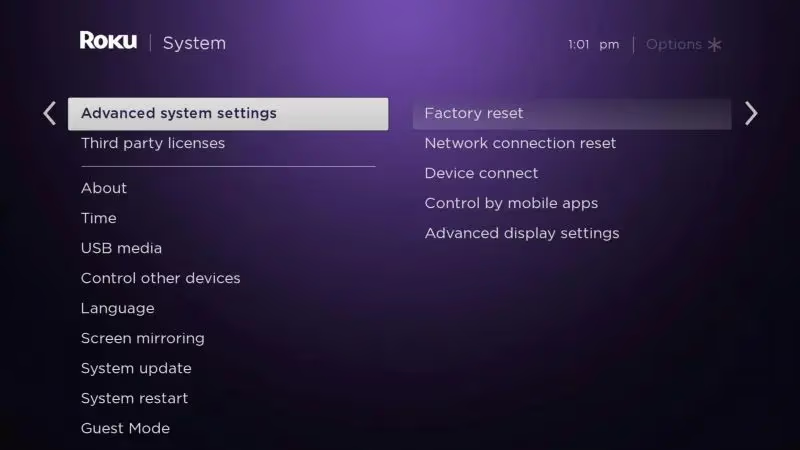
With all data erased, your Roku TV is ready to link to another account or owner with no traces of personal information. But a factory reset permanently deletes all purchases and previously saved settings.
#Tips for Factory Resetting
-
Double check the device setup activation screen to confirm reset.
-
Cable/antenna rescanning may be needed post-reset.
-
Utilize remote or manual buttons if no remote.
-
Instantly log back into your Roku account with past credentials.
Factory resetting when selling or sharing your Roku TV ensures complete privacy but requires repeating device setup. See Roku vs Firestick differences here.
#Logging Back Into Your Roku Account
If you change your mind or end up keeping your Roku TV for personal use, logging back into your Roku account restores all your settings, subscriptions and purchases.
Here is how to log back into your Roku TV after a reset:
-
Power cycle the Roku TV off and on again to prompt account setup options.
-
Follow the prompts to connect WiFi and link your Roku TV to your account.
-
Submit your Roku account credentials (email and password).
-
Check your email inbox for a device activation code to finish linking process.
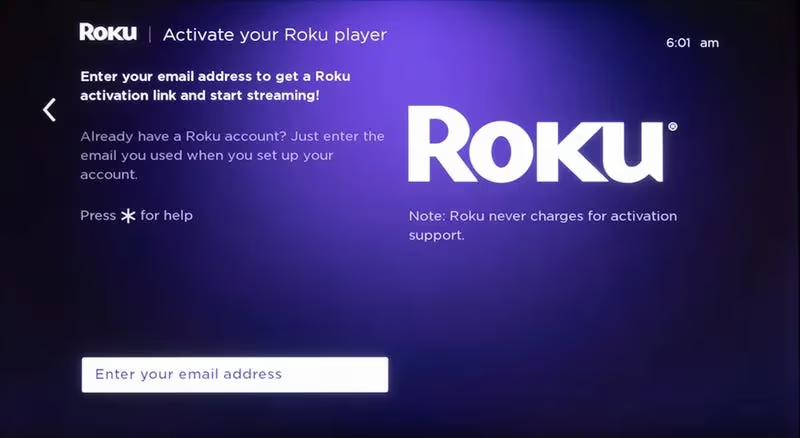
Within just a few minutes, your Roku TV will reactivate with your account, automatically set up any streaming channel subscriptions, payment info, preferences and viewing history.
#Tips for Logging Back In
-
Use original Roku account sign up email and password.
-
Check spam folder if don’t see activation email.
-
Call Roku support if activation link issues.
-
Redownload any purchased apps/channels.
Roku makes it simple to pick back up right where you left off by instantly relinking your account during device setup and retrieving all associated details. Here’s how Roku vs Apple TV compare as TV platforms.
#Using Roku Guest Mode to Auto Sign Out
Roku’s Guest Mode provides a convenient way to automatically sign out of your Roku TV after a set duration of inactivity.
Guest Mode ensures someone else using your TV doesn’t have ongoing access your Roku account while allowing temporary use. Here’s how to set it up:
-
Go to Settings > Guest Mode on your Roku TV.
-
Toggle Guest Mode to On position.
-
Use the Auto Sign Out option to select a time of inactivity after which your Roku will automatically sign out.
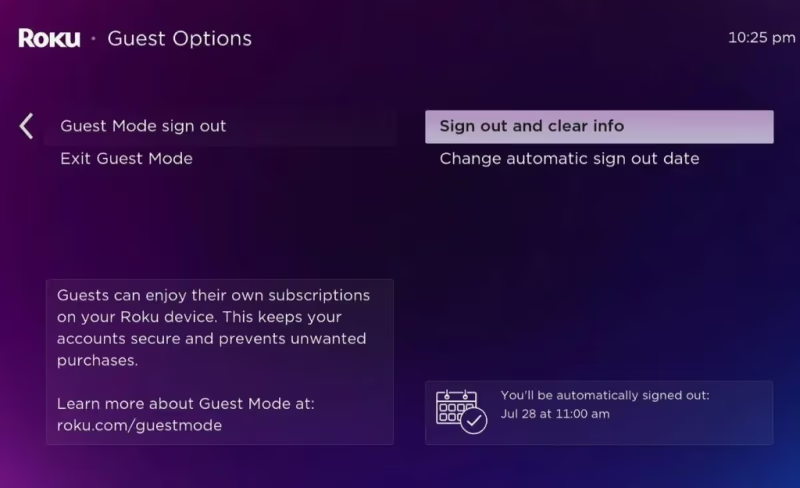
With Guest Mode enabled, anyone can use your TV for a short duration without compromising security or privacy around your account content and info. Just pick a reasonable auto sign out duration.
#Tips for Guest Mode
-
Great for dorm rooms, hotels, waiting rooms.
-
Customize the guest home screen message.
-
Manually sign out anytime from profile icon.
-
Guests can’t access paid content or subscriptions.
Roku Guest Mode delivers effortless privacy for shared TV viewing situations through temporary access and automated sign out.
#Can You Deactivate a Roku Account?
If you no longer wish to use your Roku account or want to switch to a different one, Roku does allow fully deactivating accounts.
Here’s how to deactivate your Roku account:
-
Visit my.roku.com and sign into your account.
-
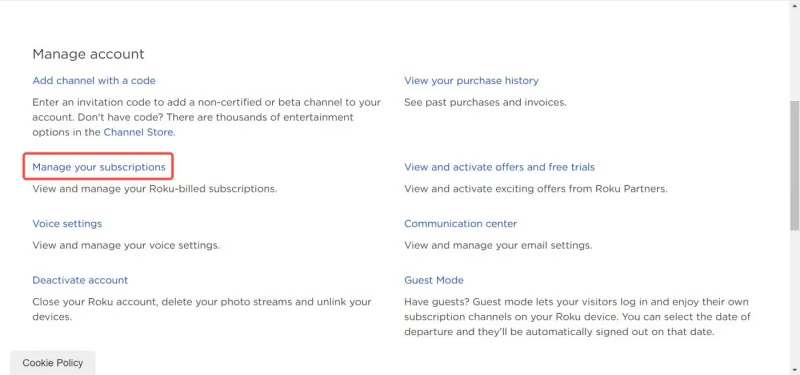
Choose Manage your subscriptions to cancel any paid ones.
-
Select Done then click Deactivate account on My Account page.
-
Complete the account closure prompts.
Once deactivated, your Roku account cannot be reactivated. All prior purchases or rentals will no longer be accessible either.
#Tips for Roku Account Deactivation
-
Finish device unlinking first before deactivating account.
-
associated payment methods removed.
-
Create a new account if want Roku access later.
-
Doesn’t cancel non-Roku streaming subscriptions.
Deactivating your account completely closes it out, which helps limit recurring charges or unused subscriptions. But it requires setting up a brand new account to reuse Roku.
#Bottom Line
If you are selling or gifting your Roku TV, sign out through Settings > System > Sign Out, then unlink the device at my.roku.com, and finish with a factory reset. That three-step process removes all personal data, subscriptions, and account ties from the device. For shared spaces like vacation rentals or dorm rooms, Guest Mode handles automatic sign-outs without a full reset. And if you keep the TV, logging back in with your credentials restores everything within a few minutes.
#Frequently Asked Questions about Roku Log Out and Reset
#How do I switch Roku accounts on my TV?
To use another Roku account, you must factory reset your TV first. This wipes all existing account data and lets you link a different account during the fresh setup process. There is no option to simply swap accounts without resetting.
#Does a factory reset on a Roku TV remove the account link?
Yes. A factory reset breaks the account association, erases all stored data on the device, and lets you activate a new Roku account. However, you should also unlink the device at my.roku.com to fully remove it from your old account’s device list.
#Can someone else use my Roku TV after I reset it?
After a factory reset wipes all stored data and settings, your Roku TV can be set up with someone else’s Roku account. The new owner will go through the standard activation process as if the TV were brand new.
#Why does my Roku TV still show old account info after factory reset?
If your device continues showing info from a prior account after a factory reset, the wipe process was likely incomplete. Make sure the TV reaches the initial activation prompt screen. If old account data persists, hold the physical reset button on the TV for at least 15 seconds and try again.
#Does factory reset remove WiFi settings on Roku TV?
Yes. A factory reset erases all custom settings and preferences, including saved WiFi network credentials. After the reset, you will need to reconnect to your wireless network and re-enter the password before streaming.
#Can you reset a Roku TV without a remote?
Most Roku TVs have a physical reset button on the back or bottom panel of the device. Press and hold this button for about 20 seconds until the status light begins blinking. The TV will restart and begin the factory reset process without needing the remote.
#Does logging out of Roku cancel my subscriptions?
Signing out of your Roku account on the TV does not cancel any active subscriptions. Your subscriptions remain tied to your Roku account online. To cancel paid channels or services, visit my.roku.com and manage subscriptions from there.