Your LG TV is frozen, apps keep crashing, or the settings are a mess. A factory reset fixes most of these problems by restoring the TV to its original state. Here is how to factory reset an LG Smart TV using every available method.
- Factory reset erases everything: all apps, settings, Wi-Fi passwords, and saved preferences return to default
- Default PIN is 0000 or 1234. If neither works, use the master reset code 0325 or 0313 to create a new PIN
- No remote needed. Use the joystick-style button on the bottom or side panel of your LG TV to navigate menus
- Soft reset vs factory reset: a soft reset (hold OK button for 5 seconds) clears temporary glitches without deleting data
- Reset takes 2-3 minutes. The TV restarts automatically and walks you through initial setup like a new TV
#What Does Rebooting an LG Smart TV Mean?
Pressing the power button on your remote does not actually shut down the TV. It puts the TV into standby mode, which keeps background processes running.
A reboot forces the TV to close every running process and start fresh. This clears temporary files, stops stalled firmware updates, and frees up memory that apps may have locked.
Think of it this way: standby is like putting your laptop to sleep, while a reboot is a full shutdown and restart. The reboot approach solves problems that standby never will, including frozen menus, unresponsive apps, and sluggish performance. If your LG TV keeps restarting on its own, a controlled reboot followed by a firmware check is the right first step.
#Is There a Reset Button on LG TV?
No. LG TVs do not have a dedicated reset button.
However, you can trigger a soft reset by pressing and holding the OK button (or center joystick button) on the TV panel for about 5 seconds. The screen goes dark briefly, then the TV restarts. This soft reset clears temporary glitches without erasing your apps or settings.
If a soft reset does not fix the issue, you will need a full factory reset through the Settings menu. The steps below cover both methods.
#How to Restart an LG TV With the Remote
Restarting with the remote takes under a minute.
-
Press the Home button on your remote to open the main menu.
-
Select Settings (the gear icon).
-
Navigate to General and select Reset.
-
Follow the on-screen prompts and press Confirm for each warning message.
-
Enter the device PIN when prompted. The default PIN is 0000 or 1234. If you never changed it, one of these will work. For model-specific default PINs, check the LG support page for your TV.
After the restart, your TV will power back on with all your apps and settings intact. This is different from a factory reset, which erases everything.
If your remote is not responding at all, check out our guide on LG TV remote not working before trying the no-remote method below.
#How to Restart an LG TV Without the Remote
Lost your remote? You can still restart using the physical controls on your TV.
-
Locate the joystick-style button on the bottom center or lower-right side of your LG TV. Press and hold the Power button on this panel for about 10 seconds. If the TV restarts, you are done.
-
If holding the power button did not trigger a restart, use the joystick to navigate. Press it once to open a small menu overlay, then use it to reach Menu and then Settings. From there, follow the same steps listed in the remote method above.
The joystick navigation is slower than using a remote, but it works for every LG webOS TV made since 2014.
#How to Reset an LG TV Without the Password?
Forgot your PIN? LG has a built-in master code sequence that lets you bypass the forgotten password.
-
Using your remote, go to Settings, then Advanced Settings.
-
Select the Safety menu.
-
Highlight the Reset Password option but do NOT press it yet. Instead, press Channel Up twice, then Channel Down once, then Channel Up once. This hidden button combination unlocks the master reset screen.
-
Enter PIN 0325 or 0313 in the dialog box that appears.
-
In the next box, enter 0000 as your new temporary PIN.
-
A confirmation window appears where you can set a new PIN of your choice.
Once you have a working PIN, proceed with the factory reset steps in the next section. If your TV is stuck on the LG logo screen and you cannot access menus at all, you may need to contact LG support directly.
#How to Factory Reset LG TV?
Factory reset erases all apps, settings, Wi-Fi passwords, and saved data. Back up anything important before proceeding. You will need to sign into every streaming app again after the reset.
A factory reset restores your LG TV to its out-of-the-box state. Every app you installed, every setting you changed, and every account you signed into gets wiped clean.
-
Press the Home button on your remote to open the main menu.
-
Select Settings (the gear icon).
-
Go to General and select Reset to Initial Settings.
-
Confirm each warning message on screen.
-
Enter your device PIN and wait. The TV restarts and displays the initial setup wizard, just like when you first unboxed it.
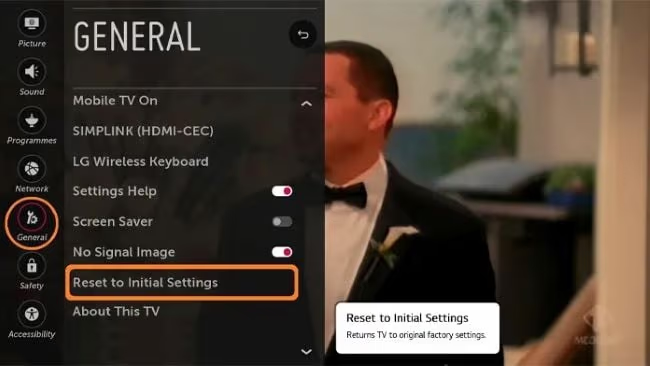
The entire process takes 2-3 minutes. After the reset, you will need to reconnect your LG TV to Wi-Fi and reinstall any apps you had previously downloaded.
#How to Factory Reset an LG TV Without the Remote?
The process is nearly identical to the remote method. The only difference is how you access the menus.
-
Use the joystick-style button on the TV panel to open the menu overlay. Navigate to Settings.
-
Go to General and select Reset to Initial Settings.
-
Confirm each warning prompt.
-
Enter your PIN. The TV restarts and runs the initial setup.
If the joystick is hard to use for PIN entry, consider downloading the LG ThinQ app on your phone. It turns your phone into a remote and makes navigation much easier.
#How to Unlock an LG TV
Holding the power button on the TV panel for about 5 seconds usually unlocks a frozen LG TV. If that does not work, unplug the TV from the wall outlet for 60 seconds, then plug it back in. This hard power cycle forces the TV to fully restart.
Removing the back panel to disconnect the battery is sometimes mentioned online, but we do not recommend it. Opening the TV voids your warranty and risks electrical damage.
#Troubleshooting Common Issues
Sometimes problems persist even after a factory reset. Here are the most common scenarios and what to do next.
TV still freezes after reset: Check if a firmware update is available. Go to Settings, then All Settings, then Support, and select Software Update. Outdated firmware causes many stability issues on LG webOS TVs.
Apps crash or won’t install: The LG Content Store may have compatibility issues with older TV models. If specific apps keep crashing, try deleting and reinstalling them. For apps that are no longer supported on your TV model, a streaming stick gives you access to a wider app library.

If your LG TV's built-in apps keep crashing or your model no longer receives webOS updates, plugging in a Fire TV Stick 4K gives you a modern app store with regular updates. It connects via HDMI and works with any LG TV that has an HDMI port.
No picture after reset: If your LG TV shows a black screen after a factory reset, unplug the TV for 60 seconds, then reconnect it. If the screen remains black, the issue is likely hardware-related rather than software.
Contact LG support: For persistent problems that survive a factory reset and firmware update, reach out to LG customer support. Have your model number and serial number ready.
#Bottom Line
A factory reset is the nuclear option for LG TV problems, but it works. Try a soft reset first (hold OK for 5 seconds), then a regular restart, and save the full factory reset for when nothing else fixes the issue. Keep your PIN written down somewhere safe so you are not locked out when you need a reset most.
#Frequently Asked Questions
#How long does a factory reset take on an LG TV?
Most LG TVs complete a factory reset in 2-3 minutes. The TV screen goes dark during the process, then the LG logo appears as the system restarts. Older models with less processing power may take up to 5 minutes, but anything longer than that could indicate a problem with the reset itself.
#Does factory reset fix LG TV Wi-Fi problems?
It can, but it is not always the best first step. A factory reset clears corrupted network settings that may prevent your TV from connecting. Try forgetting the Wi-Fi network in Settings and reconnecting first. If that fails, then a factory reset gives you a clean slate for the network configuration.
#Can I factory reset an LG TV using the LG ThinQ app?
Yes. The LG ThinQ app on your smartphone can act as a remote control for your TV. Open the app, connect to your TV, and navigate to Settings, then General, then Reset to Initial Settings. This is the easiest option if you have lost your physical remote.
#Will factory reset remove a software update on my LG TV?
No. Factory reset does not roll back firmware. Your TV keeps whatever firmware version was installed before the reset. If a recent firmware update caused problems, you would need to contact LG support for a firmware downgrade, which is not available through the TV menus.
#What happens if I enter the wrong PIN during factory reset?
The TV gives you multiple attempts before locking you out temporarily. After several wrong entries, some LG models lock the PIN input for 30 minutes. If you cannot remember your PIN at all, use the master code method described earlier in this article to create a new one.
#Can I cancel a factory reset once it starts?
No. Once you confirm the factory reset and the process begins, it cannot be stopped or reversed. The TV must complete the full reset cycle before it becomes usable again. This is why the confirmation prompts exist, so double-check before pressing that final confirm button.
#Do I need to update firmware after a factory reset?
Yes, and you should do it immediately. After the initial setup, go to Settings, then Support, then Software Update. Installing the latest firmware patches security vulnerabilities and fixes bugs that may have caused your original problems.
#Is a soft reset the same as a factory reset on LG TV?
No, they are completely different operations. A soft reset restarts the TV and clears temporary memory without deleting any data. A factory reset wipes the entire TV back to its original out-of-the-box state, removing all apps, accounts, and customized settings. Always try a soft reset before jumping to a factory reset.