Are you trying to figure out how to change the language on your Disney+ account? With Disney’s streaming service now available in dozens of countries, knowing how to customize your language settings makes a real difference in your viewing experience. This guide walks you through exactly how to change the language on Disney+ across every major device, from mobile apps to smart TVs. Whether you prefer dubbing or subtitles, you can switch languages in under a minute.
- Disney+ supports in-app language switching — change audio and subtitle languages directly during playback on most devices
- Profile-level defaults save time — set your preferred language once per profile and it applies across all your devices
- Each profile gets its own language — family members can watch in different languages without affecting each other
- Amazon Fire TV is the exception — language changes must be made through Fire TV device settings, not the Disney+ app
- Language availability varies by title — major languages like Spanish, French, German, and Japanese are widely supported but not guaranteed for every show
#Why Would You Change the Language on Disney+?

There are a few key reasons you might want to change the language settings on your Disney+ account:
-
You prefer to watch content dubbed in your native language rather than the original audio
-
You want to add subtitles in a specific language to improve comprehension
-
You’re learning a new language and want to immerse yourself by watching familiar content
-
You’re sharing an account with family members who have different language preferences
Disney+ has a wide selection of language options for its international audience. Exact language availability varies by title and region, but major languages like Spanish, French, German, Italian, and Japanese are widely supported.
If you are running into other issues, check out our guide on Disney Plus error code 41 or our DisneyNow vs. Disney Plus comparison.
#How Do You Change the Language on Disney+?
The process for changing the language on Disney+ differs slightly depending on your device. Follow the steps below for your preferred viewing method.
#Change Disney+ Language on iPhone or Android
-
Open the Disney+ app on your iPhone or Android device
-
Select the content you want to watch and let it start playing
-
Tap on your screen to bring up the player controls
-
Tap the Audio and Subtitles icon in the top right corner (speech bubble icon)
-
Under Audio, select your preferred language from the list
-
Under Subtitles, toggle on Subtitles if desired and select your language
#Change Disney+ Language on PC Web Browser
-
Sign in to Disney Plus through a web browser like Chrome
-
Start playing the show or movie you want to watch
-
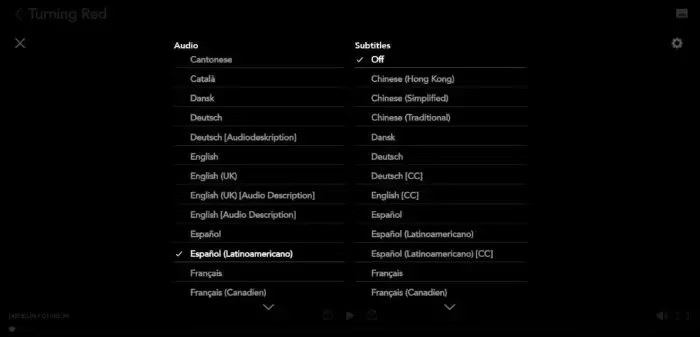
Click the Audio and Subtitles icon in the top right of the player
-
Choose your preferred Audio language from the left side menu
-
Toggle on Subtitles if desired and select your subtitle language
-
Your changes will take effect immediately
To change your default profile language on Disney+ from a web browser:
-
Log in and navigate to your Account settings
-
Select Edit Profiles and choose the profile you want to modify
-
Under App Language, select the language you prefer as default
-
Save your changes
If your Disney+ app gets stuck loading, check out our guide on fixing the Disney Plus black screen.
#Change Disney+ Language on Roku
-
Start watching any Disney+ content on your Roku device
-
Press the asterisk (*) button on your Roku remote
-
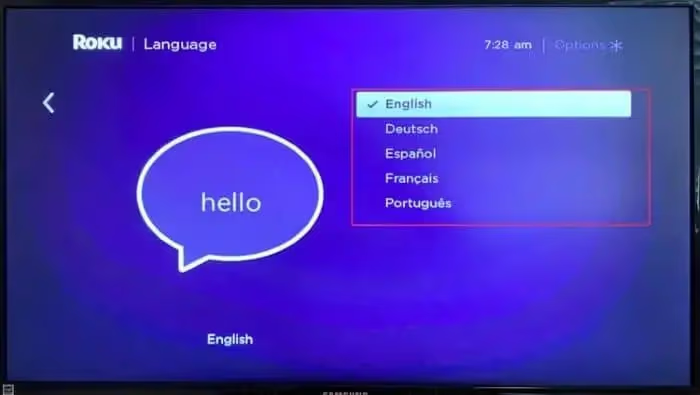
Navigate to the Audio option
-
Select your desired audio language from the list on the right side
-
Press OK to confirm and return to playback
If you encounter issues, check out our guide on troubleshooting Disney Plus on Roku.
#Change Disney+ Language on Apple TV
-
Open the Disney+ app on your Apple TV device
-
Select a show or movie and let it start playing
-
Swipe down on your Apple remote to access the playback settings
-
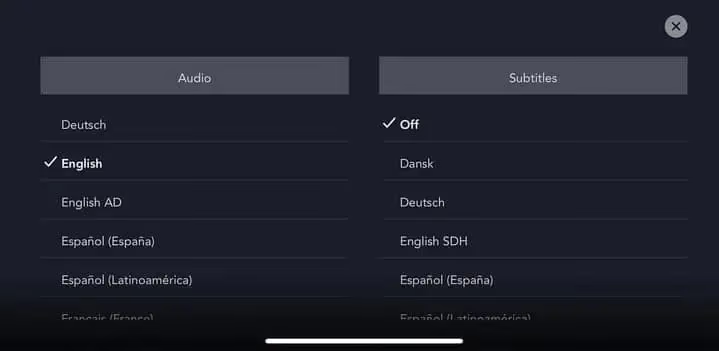
Under Audio, select your preferred language from the available options
-
Your chosen language takes effect right away
If you run into problems, refer to our article on fixing Disney Plus on Apple TV.
#Change Disney+ Language on Smart TV
-
Begin playing any Disney+ title on your smart TV
-
Using your TV remote, pause playback
-
Navigate to the Audio and Subtitles settings, typically in the top right
-
Select your desired audio language from the list
-
Turn on subtitles and choose your subtitle language if desired
-
Resume playback and your language changes will be applied
For most smart TVs, you can also change your default Disney+ profile language:
-
From the Disney+ homepage, select your profile icon
-
Choose Edit Profiles and select the profile to edit
-
Navigate to App Language under profile settings
-
Choose your preferred default profile language from the options
We also have dedicated guides for Disney+ issues on Samsung TV and Disney+ problems on LG TV.
#Change Disney+ Language on Amazon Fire TV
Unfortunately, changing languages directly through the Disney+ app is not currently supported on Amazon Fire TV devices. To watch Disney+ in a different language on Fire TV:
-
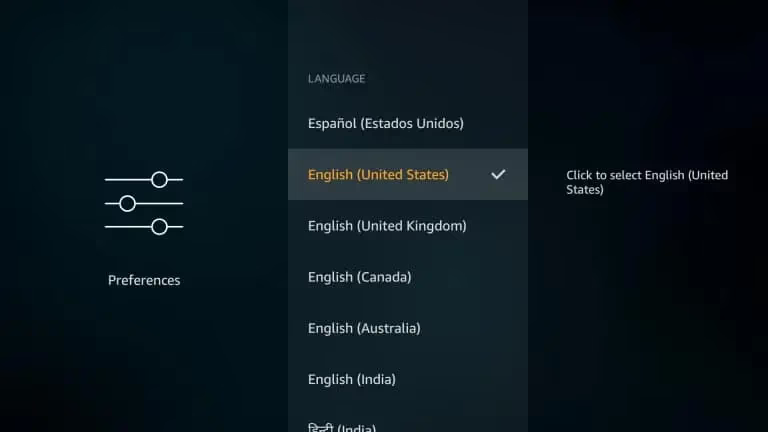
From the Fire TV home screen, navigate to Settings
-
Select Preferences, then Language
-
Choose your desired language from the list
-
Your new language will be applied across all apps, including Disney+
Keep in mind this changes the language for your entire Fire TV interface, not just Disney+. See more solutions for Disney+ on Fire TV.
#Bottom Line
-
You can change the language on Disney+ in just a few steps, including audio and subtitle languages
-
The exact process varies slightly depending on if you’re using the Disney+ mobile app, website, or a TV device
-
Most devices allow you to change language directly through Disney+, except for Amazon Fire TV which requires changing the device language
-
You can set different default languages for each profile on your Disney+ account
-
Supported languages may vary by Disney+ title and country, but common languages like Spanish and French are widely available
#FAQ
#Can I set different language preferences for each Disney+ profile?
Yes. Disney+ lets you customize the default app language for each profile individually. This works well for families where members speak different languages. Go to Edit Profiles, select the profile, and change the App Language setting.
#Does changing the language affect what content is available?
No, changing your language settings does not change which shows and movies appear in your library. However, not every title has subtitles or dubbing in every language.
#Can I switch languages during playback?
You can switch audio and subtitle languages while watching any title by tapping the Audio and Subtitles icon in the player. The change takes effect instantly without restarting the video.
#Will Disney+ charge extra for different languages?
No. Language options are included with your regular Disney+ subscription at no additional cost.
#What if my preferred language is not listed?
Language availability on Disney+ depends on the specific title and your region. Disney adds new languages over time, so a title that lacks your language today may gain support in a future update. You can also check if the original-language audio track is available as an alternative.
#Do I need to change the language on every device separately?
Your language settings on Disney+ are tied to your profile, not to a specific device. Once you set a default language for your profile, it carries over when you sign in on other devices. The one exception is Amazon Fire TV, where language is controlled at the device level.
#Can I use different audio and subtitle languages at the same time?
Absolutely. You are free to mix and match audio and subtitle languages. For example, you could watch a movie with Spanish audio and English subtitles to practice a new language.
#How many languages does Disney+ support?
Disney+ supports dozens of languages for its interface, audio tracks, and subtitles. The exact number varies by region and title, but widely available options include English, Spanish, French, German, Italian, Japanese, Portuguese, and Korean.