Are you wondering how to add apps to Vizio Smart TV? Well, you should look no further, as this article explains the process in the simplest possible manner. So, go ahead and learn everything about it.The ability to receive all of your chosen streaming apps within a single, easy-to-access location is awesome, isn’t it?
That feature is among the most significant benefits of smart TV platforms. Vizio smart TV platform, also known as the “SmartCast” feature, is found on the newest models of TVs.
In fact, it is an outstanding demonstration of a smart TV console on an inexpensive set of TVs. However, we are aware that you will want to verify that SmartCast is compatible with a specific app.
That said, mentioned below is how to check or what steps to take if a specific app is missing. In other words, the content below explains how to add apps to Vizio Smart TV.
- SmartCast pre-installs all supported apps — no manual downloading required, just connect to Wi-Fi and browse
- Setup takes under 10 minutes — press Menu, select Network, choose your Wi-Fi, and enter the password
- Hundreds of apps are available — including Netflix, Disney+, Hulu, Apple TV+, Prime Video, and Peacock
- Chromecast is built into SmartCast — cast any Chromecast-compatible app from your phone without extra hardware
- AirPlay 2 support is included — Apple users can stream directly from iPhone, iPad, or Mac to Vizio TVs
#How to Download Apps on Vizio Smart TV?
Here’s the main content of this article; how to download apps on Vizio TV? Well, we intend to explain everything in the simplest possible manner for your convenience, so go ahead and read.
| Difficulty Leve | The Duration of the Workaround | Things You Might Need |
|---|---|---|
| Easy | Ten minutes | ● Your Vizio TV that has the SmartCast feature |
● Vizio Remote ● A good Wi-Fi connection |
Besides, if you are facing Vizio SmartCast not working error, you have landed on the correct guide, as it reveals to fix SmartCast TV is not available.
#Connect the TV to the Internet
Users will be happy to hear that the majority of app maintenance is automated, thanks to Vizio’s SmartCast solution. You should be looking for a particular app only if SmartCast does already have it. We will explain more about it in the following paragraphs.
However, you will first need your TV to have an internet connection. Also, the majority of people find that doing so over their home Wi-Fi network is the most straightforward method.
Please follow up below steps to accomplish this successfully:
**1.**As the first step, you are supposed to press the “Menu” button on the Vizio remote. Then, you will be able to use the app called “SmartCast” as your remote.
Also, you will be able to use it and connect to a Wi-Fi connection. However, the on-TV option is a very simple process. Also, it doesn’t want you to have extra devices.
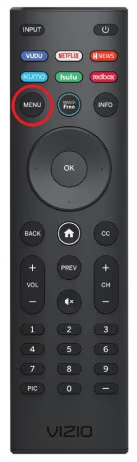
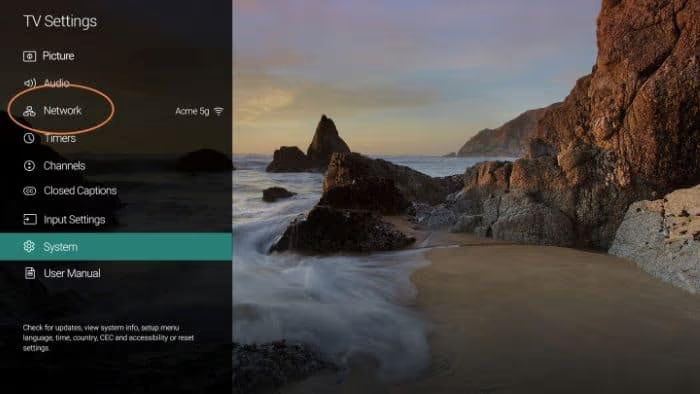
**2.**When you see the screen, you can use the remote navigation option to select the option called “Network.” After that, you should confirm by clicking on “OK.” You can then choose the option called “Network Connection.”
Thereafter, you can select Wireless. If you can route your ethernet cable to the TV, that would be much better. In fact, a wired connection is much stronger and more reliable compared to Wi-Fi but not mandatory; it’s preferred.
**3.**Now, you should wait for a little so the TV brings a list of Wi-Fi networks located nearby. You can then select a network as per your preference. You should use the user interface and enter the wireless network password.
After that, the TV will connect to the network automatically. If you still have any issues with it, Vizio comes with a guide to troubleshooting wireless connections.
So, that’s how to add apps to Vizio Smart TV.
Also, if you want to fix the Vizio remote not working, let’s know the causes, and then fix the stopping your remote from working issue properly.
#View the Apps That Are Installed in Vizio
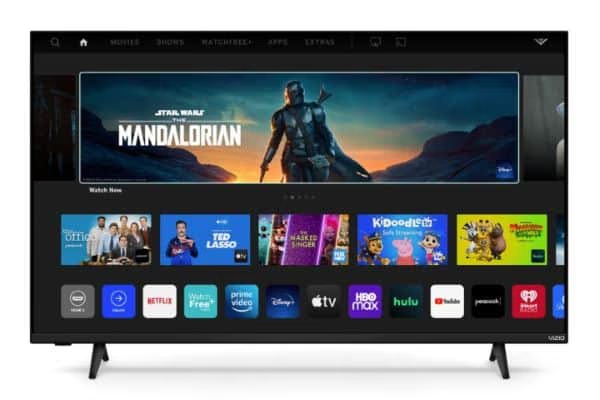
You don’t need to hunt for and download a certain app before using it on the Vizio TV anymore. At this point, SmartCast will take care of ensuring that you have access to all of the apps that it supports.
It is true that it may require an update to include any recently released apps. So, the first step is to ensure that the television is properly connected to an internet connection. After that, you will be able to consider all of your choices.
**1.**To access the home screen of SmartCast, just press the button labeled “Home,” which is located on your remote control. Doesn’t your device have a “Home” button?
If so, look for a button labeled Menu or Input that provides you with a selection of options. You can select SmartCast from those options.
**2.**Proceed to the app area. Once you’re there, look for a setting that allows you to display All Available Apps. It’s possible that some SmartCast types might be somewhat different here. Also, they won’t come in the same categories.
However, if you’re having trouble finding a particular program, you may use the search tool to hunt for it. SmartCast provides users with access to hundreds of apps.
For instance, well-known video streaming services such as Netflix, Prime Video, Hulu, Disney+, and Apple TV+ are included there.
It also provides access to well-known television networks such as Fox Now, CBS Sports, The CW, and Peacock. In addition to that, a vast selection of extra apps, ranging from Funimation to Plex, are also available. It’s a really long list!
**3.**Pick the app that best suits your needs. Be sure to have your login information on hand. That is because it will take you directly to the screen where you should enter login details.
Aside from that, using apps ought to be simple and uncomplicated. SmartCast will keep track of the apps that you are utilizing. In addition to that, it will allow you to rearrange the apps in your App Row. In fact, this is more convenient to access.
**4.**So, that’s it. SmartCast will update automatically. If you can keep the unit connected to the internet, the update will take place automatically.
Also, the apps that get updated will appear in the menu. That’s some important information for those who wonder how to download apps on Vizio TV.
By the way, here, you will get the answer to how do I add Beachbody to my smart TV in different ways and then enjoy your Beachbody on Demand content easily.
#What Can You Do if Vizio Lacks a Specific App?
You shouldn’t be concerned because you have no shortage of choices. One of the finest features is that SmartCast is designed to be compatible with Google Chromecast. So assume that you found an app that accepts Chromecast.
You can easily cast it instantly to Vizio without the need to purchase an additional Chromecast device.
Mentioned below is how to perform such an action.
**1.**Ensure that your preferred streaming app supports Chromecast. Also, you should ensure that it has the most recent version installed on your smartphone.
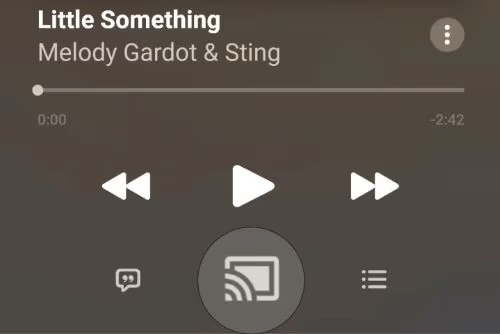
**2.**Launch the app you want to use for playback. After that, you should pick the Cast icon. This specific app icon has the appearance of a little TV rectangle.
In addition to that, it has a Wi-Fi signal in one of the app’s corners. Depending on the device or the platform that you are using, the Cast button might be placed differently. So, observe the area carefully.
**3.**Watch the time pass while your smartphone looks for your Vizio TV unit. Once a successful connection has been established, the color of the Cast icon will change.
Begin playing an audio or video file to begin streaming it to the TV. By selecting the Cast option once more, you will be able to disconnect at any time that you choose.
#It is a Good Idea to Use AirPlay 2
Do you desire to utilize Apple products but might rather stream content via AirPlay over Chromecast? If so, the smart TVs manufactured by Vizio support AirPlay 2.
In fact, that is an additional streaming option. The AirPlay icon will display on apps exactly where this Cast button is currently located. And the workflow will be essentially the same.
Also read: Vizio TV Black Screen – 9 Fixes to Try.
#FAQ
#Can I add apps to any model of Vizio Smart TV?
Most Vizio Smart TVs released after 2016 use the SmartCast platform, which comes with all supported apps pre-loaded. Older Vizio models running the VIA or VIA+ system allow you to manually install apps from the Vizio App Store. Check your TV’s settings menu to confirm which platform your model uses.
#Are all apps free to download on Vizio Smart TV?
The apps themselves are free to access on SmartCast. However, many streaming services like Netflix, Hulu, and Disney+ require paid subscriptions to watch their content. Free ad-supported apps such as Pluto TV and Tubi are available without any subscription.
#Can I uninstall apps from my Vizio Smart TV?
SmartCast does not allow you to uninstall individual apps because all apps are built into the platform. You can rearrange your App Row by moving frequently used apps to the front for quicker access.
#Is sideloading apps safe for my Vizio Smart TV?
Sideloading apps is not officially supported on Vizio SmartCast TVs. Attempting to install third-party APK files carries the risk of malware and can void your warranty. If you need an app that SmartCast does not support, use Chromecast or AirPlay 2 to stream it from your phone instead. This approach is safer and does not require any modifications to the TV’s software.
#What should I do if an app is not working properly on my Vizio Smart TV?
Start by restarting the TV and checking your internet connection speed. If the problem persists, go to Settings > System > Check for Updates to make sure SmartCast is running the latest firmware. A factory reset is the last resort and will restore all apps to their default state.
#How do I update apps on my Vizio Smart TV?
Vizio SmartCast updates all apps automatically when the TV is connected to the internet. There is no manual update button for individual apps. Keeping your TV connected to Wi-Fi ensures that both apps and the SmartCast firmware stay current.
#Why is a specific app missing from my Vizio Smart TV?
Not every streaming service is available on SmartCast. Vizio adds new apps through firmware updates, so check for system updates first. If the app you want is still missing, you can cast it from your smartphone using the built-in Chromecast or AirPlay 2 feature.
#Bottom Line
Well, that’s all about how to download apps on Vizio TV. Hopefully, you will be able to perform the above actions without any issues, even if you are a novice.
If you have any other doubts related to this matter, keep us posted in the comments section. Our team will attend to your questions at our earliest convenience. Your valuable input is always appreciated.