Experiencing lag, buffering, and slow performance on your Hisense Smart TV? This guide covers 15 proven fixes to speed up your Hisense TV. A sluggish Hisense TV can be frustrating when trying to stream movies or shows. The good news is that in most cases, you can greatly improve Hisense TV lag by troubleshooting your Wi-Fi connection, updating software, closing resource-heavy apps, or conducting a simple factory reset as outlined in this Hisense TV factory reset instructions guide.
Follow these fixes in order until your TV performance meets expectations.
- Slow internet is the top cause — you need at least 15-25 Mbps for smooth Hisense TV streaming
- Outdated firmware triggers lag — check Settings > Support > System Update and install any pending updates
- Background apps eat RAM — force-stop unused apps and clear cached data to free resources
- 5 GHz Wi-Fi cuts buffering — switch from 2.4 GHz to 5 GHz band or use a wired ethernet connection
- Factory reset fixes persistent lag — Settings > System > Advanced System > Reset erases all data but restores speed
#Why Is My Hisense TV Lagging?
There are a few common culprits behind a laggy Hisense television:
-
Poor internet connection – If you don’t have at least 15-25 Mbps speeds, your Hisense will buffer.
-
Outdated firmware – New updates optimize performance and fix bugs.
-
Too many apps running – Close unused apps in the background.
-
Crowded Wi-Fi network – Too many devices connected can slow things down.
-
Motion processing modes – Turn these off if enabling.
-
Power saving settings – Adjust to High Performance to increase speed.
-
Remote batteries – Weak batteries can cause laggy response.
-
Cache and cookies – Clear this data to refresh performance.
-
Overheating – Ensure proper ventilation and airflow.
-
Hisense hardware limitations – Older models have less RAM/processing.
All of these problems have straightforward fixes you can try at home.
#Can a Bad Internet Connection Cause Hisense TV Lag?
The #1 issue with Hisense TVs lagging is an insufficient internet connection from your modem.
-
Use a speed test to check for at least 15-25 Mbps down on your Hisense.
-
If speed is lower, contact your internet service provider about improving bandwidth to your modem.
-
Try rebooting modem/router if testing wireless connection (leave unplugged for 1 minute).
-
Connect via ethernet cable directly from wall rather than using Wi-Fi for fastest speeds.
Data Usage Warning: Streaming 4K video can use 3-7+ GB per hour. So regular HD streaming on multiple Hisense TVs can easily exceed home internet data caps.
#Wi-Fi Network Overcrowded or Too Far From Router
Hisense Smart TVs primarily use your home Wi-Fi network to connect to streaming apps and services.
-
If signal strength drops below 50%, you’ll likely experience buffering, lagging, connection errors.
-
Switch Hisense TV Wi-Fi from 2.4Ghz to 5Ghz band in router settings for faster throughput.
-
Relocate router closer to Hisense TV if signal weak. 25 feet or less ideal if no obstructions.
-
Disconnect unused Wi-Fi devices to reduce bandwidth contention and crosstalk interference.
-
Add mesh networking Wi-Fi extenders if needed to boost coverage area.
#Does Outdated Firmware Cause Hisense TV Lagging?
Hisense regularly pushes software updates to fix bugs, enhance performance, block ads, or add new app capabilities.
-
Select Settings (gear icon) > Support > System Update > Check Firmware Upgrade
-
Choose Auto Update: On and update mode: Update Overnight
-
Manually Check Now and install if updates available.
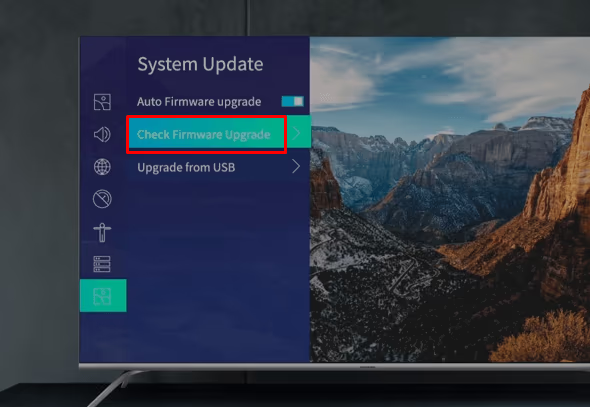
Warning: Never disconnect power or turn off Hisense TV during major firmware installing or could brick motherboard.
#Too Many Apps Running
Smart TVs have limited RAM and storage, so an overload of apps consuming resources in the background can slow things down.
-
Press Home Button > Select Settings Icon > Apps > See All Apps
-
Force Stop on any unused apps by selecting Options on the app menu.
Also, go to Device Storage & Reset menu and select Clear Cache and Manage Apps. Sort by size and start Deleting old or unused apps.
#Motion Processing Modes
Features that smooth or enhance video processing (e.g. MEMC, MotionFlow, etc.) require heavy CPU usage and can slow Hisense TV performance when enabled.
Locate Picture settings menu and disable the following if lagging:
-
Motion Smoothing / Auto Motion Plus
-
MEMC (Motion Estimation Motion Compensation)
-
Noise Reduction Features
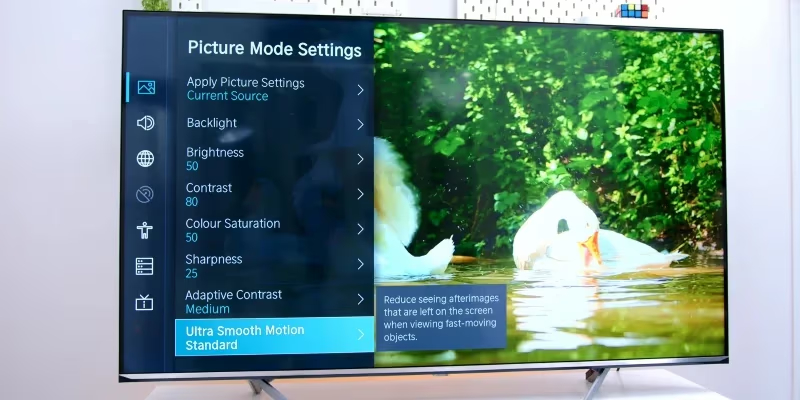
Simply turn off to free up resources if you don’t find them essential. Lower lag time is ideal for gaming.
#Power Saving Settings
Long periods of Hisense TV inactivity may dim screen or throttle hardware as battery preservation tactic.
-
Access Settings (gear) > Select Device Preferences
-
Choose Power > Disable features below:
Auto Power Off
-
Screen Saver
-
Sleep Timer
-
Eco Mode
-
Even better, enable Quick Start Mode to keep apps/processes from fully closing.
#Remote Control Battery
A laggy or unresponsive Hisense remote can easily be fixed by:
-
Replacing remote AAA batteries with fresh ones.
-
If new batteries don’t help responsiveness, try re-pairing remote using TV settings menu.
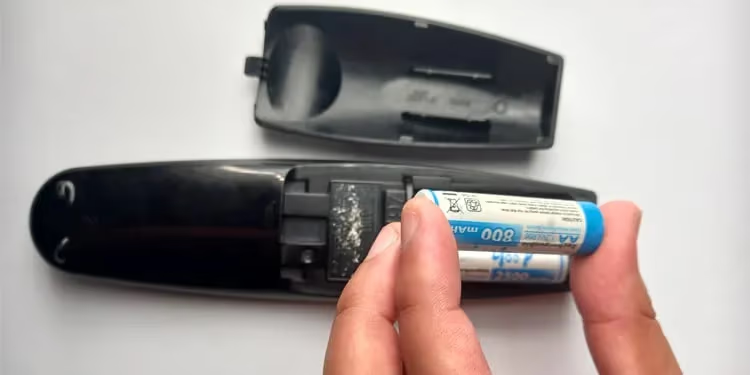
Also check for stuck buttons or damage preventing IR signal being received.
#Clear Cache and Data
As mentioned earlier, a full cache containing temporary usage data can bog down the Hisense TV operating system.
-
Access Settings > Apps > See All Apps
-
Select desired app and choose Storage
-
Hit Clear Cache and Clear Data buttons
-
Repeat deleting cache/data across apps causing problems
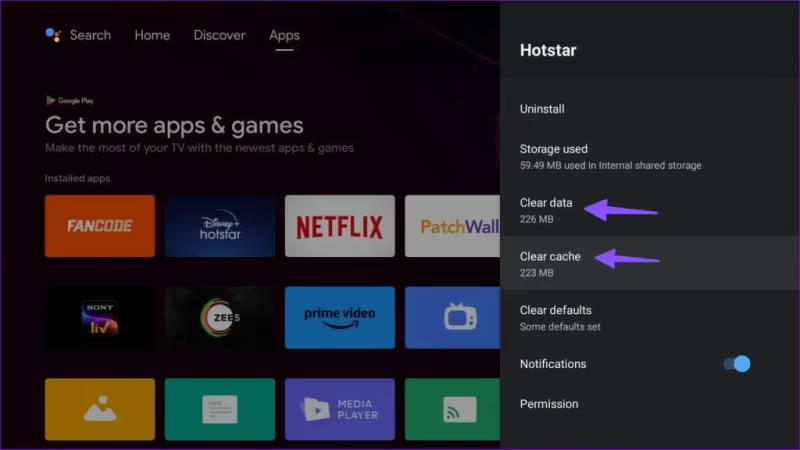
More aggressive option is wiping the entire Hisense TV cache partition. Just be prepared to login again to apps.
#Close Background Apps
Especially if operating system feels slow in general, be sure to close out of any apps running quietly in the background.
-
Hit the Home Button on Hisense remote.
-
Scroll left/right and highlight any active apps.
-
Press down to bring up Options menu.
-
Choose Close App for those not being used.
This forces them to shutdown, freeing up RAM and CPU usage.
#Can Overheating Slow Down a Hisense TV?
As with any electronics, excessively high temperatures cause Hisense TV components and processors to throttle performance as a safety precaution.
Ensure your Hisense television has at least 3-4 inches clearance on all sides if enclosed in a cabinet. Install a cooling fan to actively circulate airflow and dissipate heat.
Use a phone thermometer app or cooking thermometer to scan back of TV near top vent. Anything continuously above 110°F can trigger problems. Shut down TV for a couple hours if concerned and make sure no sunlight or heating equipment shining on Hisense.
#Factory Reset Hisense TV
If you’ve tried less invasive fixes, performing a factory reset often resolves software-related lagging issues:
-
Go to Settings > Select System > Choose Advanced System > Navigate to Reset
-
Select Factory Data Reset (Note this erase all accounts/settings)
-
Follow prompts to confirm and be patient as TV restarts from scratch.
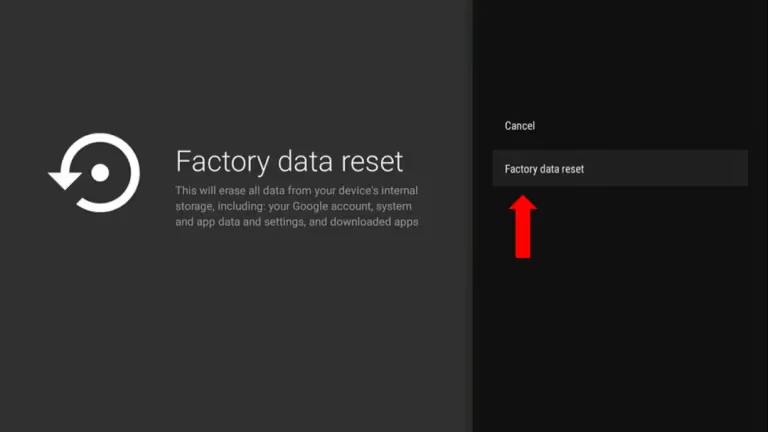
Factory reset is also accessible by pressing small pinhole near the rear inputs using a paperclip if the remote isn’t responsive.
#Update Hisense TV Software
Hisense actively develops firmware updates to patch bugs, boost efficiency, and improve features.
-
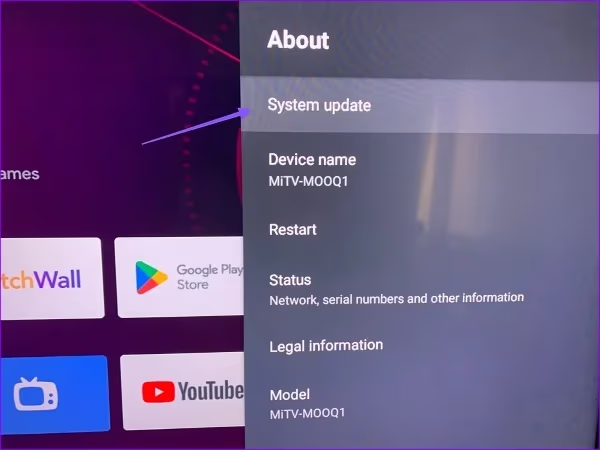
Navigate to Settings > System > Advanced System
-
Select About > System Update
-
Choose Auto Update On + Overnight Schedule
-
Manually check by selecting Check Now to install updates.
If issues persist, you can also try downgrading firmware in System Update menu if an update you installed recently caused problems.
#Use Faster 5GHz Wi-Fi Band
Most modern dual band routers broadcast separate 2.4GHz and 5GHz networks. Connect your Hisense TV Wi-Fi to the 5GHz band in your router admin for lag-free streaming.
Just keep in mind 5GHz provides faster speeds but less range and wall penetration than 2.4GHz.
#Connect Hisense TV via Ethernet Cable
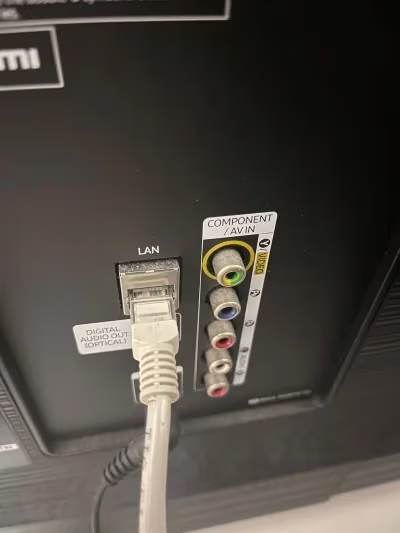
One workaround if your Hisense Smart TV has Wi-Fi connectivity problems is to use Ethernet cable instead.
Run Cat 5e/Cat6 cable from your router/modem LAN port to the RJ45 input on the back of the Hisense Smart TV. Always use shielded ethernet cables to reduce interference.
This option ensures the lowest ping, max throughput, and eliminates Wi-Fi inconsistencies. Just note it is less convenient than wireless if mounting TV away from router location.
#Streaming Device Alternatives
Another workaround is using an external streaming device like Roku, Fire TV, Apple TV, Chromecast plugged into your Hisense via HDMI input instead of relying on internal SmartCast platform for apps.
They have more powerful processors, memory and storage dedicated solely to streaming. Just turn off SmartCast Wi-Fi/Ethernet connectivity and disable onboard apps if adding an external streaming media device.
If exploring universal remote control options for your Hisense television, check out this overview on finding the right universal remote for Hisense TVs.
#Contact Hisense Customer Support
Review tips above to resolve over 95% of lagging issues on Hisense TV models. But if problems still persist:
USA
Phone: Call (888) 935-8880
Chat & Repair: https://www.hisense-usa.com/support
Specialists can troubleshoot over phone/chat or dispatch certified repair technician if needed to replace any defective hardware like motherboard, faulty HDMI inputs causing problems, etc if under warranty.
#Extend Warranty
Standard Hisense TV warranty only covers 1 year, but you can add 2-3 years extended protection plans via SquareTrade or Hisense Care packages. Could save hundreds on motherboard or backlight repairs down the road.
See how Hisense models compare to Vizio in this head-to-head on Hisense vs Vizio televisions.
#FAQs
#Why does my Hisense remote keep lagging?
Replace the Hisense remote batteries with fresh AAA cells. If new batteries do not help, re-pair the remote through Settings > Remote & Accessories. Check for stuck buttons that might block the IR signal from reaching the TV sensor.
#Why does my Hisense TV buffer while streaming?
Buffering points to an internet speed problem. Run a speed test directly on your Hisense TV or phone — you need at least 15-25 Mbps for reliable HD and 4K streaming. Switching to a wired ethernet connection usually eliminates buffering right away.
#How do I speed up an older Hisense Smart TV?
Close all background apps, set power mode to High Performance, and disable motion smoothing features. Update firmware through Settings > System > System Update. Clearing cached data across your streaming apps also frees up memory on older models with limited RAM.
#What causes a Hisense TV black screen or freezing?
A black screen or freeze usually points to a hardware failure such as a bad power supply board or failing LED backlight strips. Try a soft reset first by unplugging the TV for 60 seconds. If the problem returns, contact Hisense support for a warranty repair or board replacement.
#Does clearing the cache actually fix Hisense TV lag?
Yes, clearing cached data removes temporary files that pile up over weeks of use. Go to Settings > Apps > select each app > Storage > Clear Cache. This is especially effective when a single app like Netflix or YouTube runs slowly while other apps work fine.
#Should I use a streaming stick instead of built-in Hisense apps?
A dedicated streaming device like Roku, Fire TV Stick, or Apple TV has a faster processor and more RAM than most built-in Hisense smart platforms. Plug it into an HDMI port and switch your TV input. This bypasses the slower internal operating system entirely.
#How often should I update Hisense TV firmware?
Enable automatic updates through Settings > Support > System Update > Auto Update so your TV installs patches overnight. Hisense pushes firmware updates every few months to fix bugs and improve app performance. Manually check for updates if you notice new lag after skipping several months.
#Bottom Line
-
Start troubleshooting with speed test to confirm Wi-Fi network providing 15-25Mbps downloads.
-
Relocate router closer and connect Hisense to 5Ghz band for better connection.
-
Reduce background apps not in use, disable motion smoothing, adjust power saving restrictions.
-
Update Hisense firmware, clear app cache/data and factory reset if still lagging.
-
Use wired ethernet connection or streaming stick alternatively.
-
Contact Hisense support if problems continue past troubleshooting.
With a bit of trial and error using these fixes, you should see much snappier response and less buffering from your Hisense television model. Enjoy crystal clear 4K streaming!