Your Hisense Roku TV screen stays black when you press the power button. This is a common problem, and most of the time the fix takes less than five minutes. Below you’ll find the most likely causes and step-by-step solutions to get your TV working again.
- Power source problems cause most failures — a bad outlet, damaged cord, or power strip can block electricity from reaching the TV
- Dead remote batteries trick many owners — the TV itself may be fine while the remote simply can’t send a signal
- A 60-second power cycle fixes most firmware glitches — unplug the TV, hold the power button for 30 seconds, then reconnect
- Backlight or power board failure requires professional repair — a blinking red light usually points to internal hardware damage
- Factory reset is the last software fix — it erases all settings but clears stubborn bugs that prevent startup
#Why Is Your Hisense Roku TV Not Turning On?
Before jumping to fixes, it helps to narrow down the cause. Here are the most frequent culprits:
-
Faulty power supply: A damaged power cord or malfunctioning AC adapter can prevent your TV from getting electricity. The power button on your Hisense TV may also be defective.
-
Firmware glitches: Recent firmware updates sometimes introduce bugs that stop your TV from powering on properly. If your Hisense TV keeps going back to the home screen, that points to a software issue.
-
Hardware issues: Problems with internal components like the backlight or power supply board can stop your TV from turning on. A blinking red light on your Hisense TV often signals a hardware failure.
-
Remote control problems: A defective remote or dead batteries can make it seem like your TV won’t start. Consider using a universal remote for your Hisense TV as a backup.
-
Loose connections: Cables that aren’t fully plugged in can cut power to your TV.
Now that you know what might be going on, let’s get to the solutions.
#How Do You Fix a Hisense Roku TV That Won’t Turn On?
Follow these troubleshooting steps in order until your TV powers on again:
#1. Check the Power Source
-
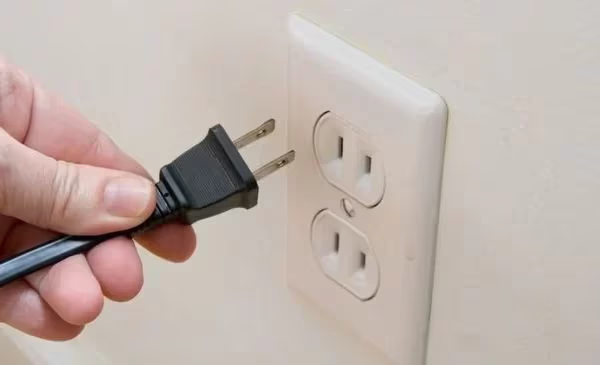
Plug your TV directly into a working wall outlet, not a power strip or extension cord.
-
Test the outlet with a different device to confirm it delivers power.
-
Inspect the power cord for visible damage or kinks. If you find any, try a different compatible cable.
#2. Examine the Remote
-
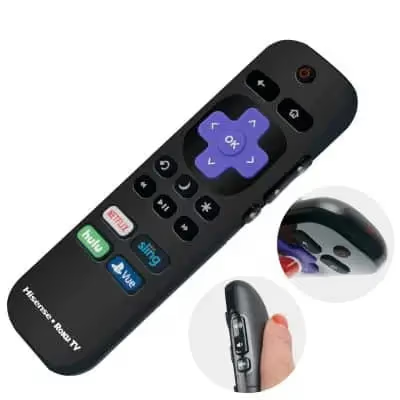
Replace the batteries in your Roku remote with fresh ones.
-
Confirm the remote is set to the correct input.
-
Look for any physical damage to the remote and replace it if needed.
#3. Power Cycle the TV
A power cycle can often clear firmware-related issues:
-
Unplug your TV from power and wait a full 60 seconds.
-
Press and hold the power button on the TV for 30 seconds.
-
Release the button, plug the TV back in, and try turning it on.
Note: If your Hisense TV turns on by itself after this step, it may be due to HDMI-CEC settings or a faulty power board.
#4. Troubleshoot Hardware Problems
-
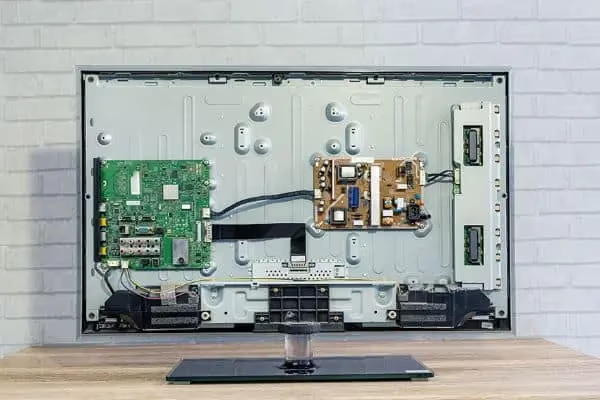
Check the backlight and power supply board for burnt, damaged, or loose components. If anything looks wrong, professional repair may be needed.
-
Unplug all external devices from your TV, including gaming consoles, cable boxes, and sound systems. Then try turning it on again. If you experience Hisense TV no sound, the issue could be with your audio settings or external speakers.
#5. Update or Reset Firmware
- If you can access the settings menu, check for any available Roku firmware updates and install them:
-
Press the Home button on your remote.
-
Navigate to Settings > System > System update.
-
Select Check now and follow the prompts.
- As a last resort, you can factory reset your Hisense TV to clear stubborn bugs:
-
Go to Settings > System > Advanced system settings.
-
Select Factory reset and confirm the action.
If your Hisense TV is lagging or freezing during this process, give it time to complete the reset.
#6. Check Your Internet Connection
A weak or unstable Wi-Fi signal can cause issues with your Hisense TV’s performance, including startup problems. If your Hisense TV is not connecting to Wi-Fi, try repositioning your router or connecting via Ethernet.
#7. Contact Hisense Customer Support
If none of the above steps solves your problem, reach out to Hisense support. Visit the Hisense support page or contact their customer service by phone, email, or live chat for help specific to your model.
#Bottom Line
-
A Hisense TV that won’t turn on is often due to power supply issues, firmware glitches, or faulty hardware.
-
Check the power source, remote, and cables first. Then try a power cycle and firmware updates or a factory reset.
-
Other Hisense TV problems like a blinking red light, turning on by itself, lagging, or no sound can also affect power-on functionality.
-
If basic troubleshooting doesn’t work, reach out to Hisense customer support for model-specific help.
-
Regular restarts and keeping your firmware updated can prevent most power-on issues from happening again.
#FAQ
#Why does my Hisense Roku TV turn off by itself?
An active sleep timer or eco mode setting is usually responsible. Check Settings > System > Power and disable any automatic shutdown options. HDMI-CEC can also trigger unexpected shutoffs if a connected device sends a power-off command.
#What should I do if my Hisense TV is stuck on the logo screen?
Unplug the TV for at least five minutes, then plug it back in. This gives the internal capacitors time to fully discharge. If the problem continues after two attempts, a factory reset through the physical reset button on the back of the TV is your next step.
#How long do Hisense TVs typically last?
Most Hisense TVs last 7 to 10 years with normal use. The LED backlight is usually the first component to degrade, and its lifespan depends on brightness settings and daily usage hours. Hisense includes a standard 1-year warranty, though some retailers offer extended coverage.
#Can I replace the power supply board myself?
It is possible, but it requires comfort with electronics repair and the right replacement part for your specific model number. Opening the TV also voids most warranties. For safety, an authorized Hisense technician is the better choice unless you have prior experience with board-level repairs.
#Why won’t my Hisense TV turn on even after a power cycle?
A failed power cycle usually points to a hardware problem rather than a firmware glitch. The power supply board or main board may need replacement. Check for a blinking red standby light, which confirms the TV receives power but cannot complete startup.
#Does unplugging a Hisense TV damage it?
No. Unplugging is safe and actually recommended as a first troubleshooting step. The only risk is interrupting a firmware update in progress, which can corrupt the TV’s software. Wait for any active updates to finish before pulling the plug.
#How do I turn on a Hisense Roku TV without the remote?
Press the physical power button on the TV itself. On most Hisense Roku models, this button is on the bottom edge of the frame, usually center or left side. You can also download the Roku app on your phone and use it as a virtual remote over Wi-Fi.
#What does a blinking red light mean on a Hisense TV?
A blinking red light indicates the TV detects a hardware fault during its startup self-check. The number of blinks often corresponds to a specific error code. Two blinks typically point to a power supply issue, while three or more blinks suggest a main board or backlight driver failure.