HBO Max gives viewers full control over subtitles, which is great news if you prefer reading along or need captions for accessibility. Whether you are watching a foreign-language film or just want to catch every word, toggling subtitles takes only a few taps. This guide covers how to enable and customize subtitles on HBO Max across every major device.
- Subtitles work on all HBO Max devices — FireStick, Roku, Android, iPhone, PC, Mac, and smart TVs all support captions
- Activation takes under 10 seconds — open playback controls, tap the CC or speech bubble icon, and pick a language
- Multiple languages are available — HBO Max offers subtitle tracks in English, Spanish, French, and more depending on the title
- Font size and style are adjustable — you can change text size, color, and background through the subtitle settings menu
- Subtitle issues usually fix themselves after an app update — closing background apps and restarting the device resolves most glitches
#Why Use Subtitles on HBO Max?
There are several reasons why you might want to turn on subtitles while watching HBO Max:
-
Accessibility: Subtitles make content more accessible for viewers with hearing impairments or those watching in noisy environments.
-
Language Learning: Subtitles can help you learn a new language by providing written translations alongside the audio.
-
Clarity: Sometimes, actors might speak quickly, have heavy accents, or use unfamiliar slang. Subtitles ensure you don’t miss a single word.
-
Quiet Viewing: If you’re watching late at night or in a shared space, subtitles allow you to follow along without disturbing others.
#How Do You Turn On Subtitles on HBO Max?
#Amazon FireStick
-
Open the HBO Max app on your Amazon FireStick.
-
Click on the three lines in the top left corner to access the menu.
-
Select “Subtitles” under Audio & Subtitle Options.
-
Choose your desired language and click “Next” to confirm.
Besides, here, let’s learn how to add HBO Max to Hulu easily, as Hulu and HBO joined forces for a new service that offers more of the shows you love.
#Roku
-
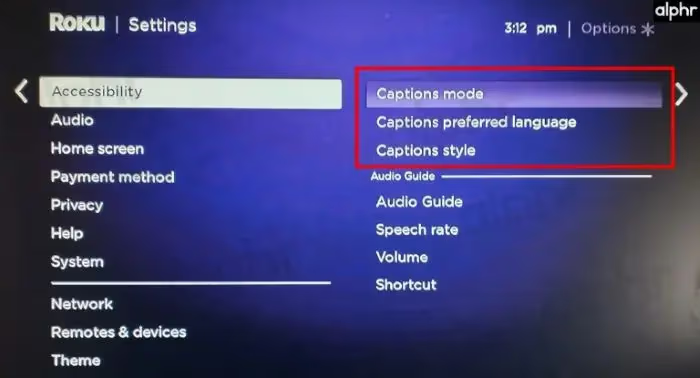
Press the gear icon at the top right corner of your screen.
-
Scroll down to find “Preferences” and select it.
-
Choose “Accessibility” in the left column.
-
Find “Subtitles” under Audio & Language Preferences.
-
Toggle the Subtitle On/Off button for your preferred language.
#Android or iPhone
-
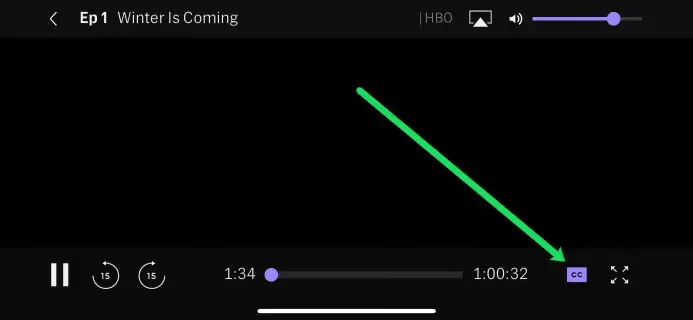
Launch the HBO Max app on your Android or iPhone device.
-
Tap on the cog icon at the top right corner to access settings.
-
Navigate to the accessibility options and select your desired subtitle language.
#PC or Mac
-
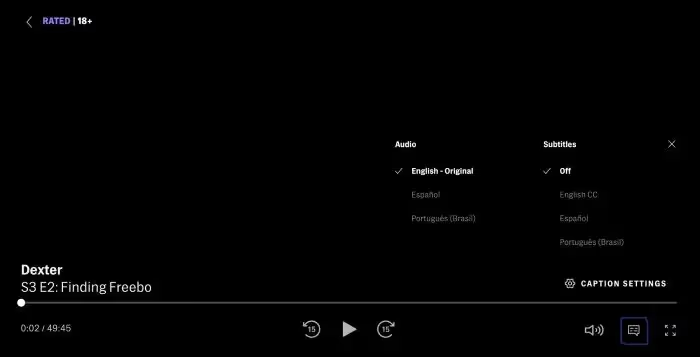
Visit the HBO Max website and find your favorite movie or TV show.
-
Look for a “Subtitles” or “CC” (Closed Captioning) link near the bottom right of the page or in the description box.
-
Click on it and choose your preferred language from the drop-down menu.
#Smart TVs
-
Use your remote to navigate to the language selection menu.
-
Press the down arrow key until you find the English or your preferred language option.
-
Press OK to confirm your selection.
-
To choose a language other than English, return to the subtitles menu and select from the available options.
Also, if your HBO Max keeps crashing, that might frustrate you big time. Here, we will explain the steps you should take if your HBO Max app keeps crashing.
#How Can You Customize Your Subtitle Experience?
HBO Max has several options to personalize your subtitle experience:
-
Changing Subtitle Language: Go to the settings menu, click on subtitles, and select your desired language from the list.
-
Adjusting Font Size: Access the subtitle settings and choose “Subtitle Size” to modify the text size according to your preference.
-
Customizing Appearance: On some devices, you can alter the font color, background color, and text style to enhance readability.
#Troubleshooting Subtitle Issues
If you encounter problems with subtitles on HBO Max, try the following:
-
Close all other apps before launching HBO Max.
-
Minimize the app and relaunch it.
-
Ensure you have the latest version of the HBO Max app installed.
-
Restart your device if necessary.
If you’re experiencing issues with HBO Max on specific devices, check out these troubleshooting guides:
#FAQ
#Can you change the subtitle language on HBO Max?
Yes, HBO Max supports multiple subtitle languages. Open the subtitle settings during playback and pick any available language from the list. The selection saves automatically for future viewing sessions.
#Are subtitles available for all HBO Max content?
Most shows and movies on HBO Max include subtitles, but a small number of titles may not have them. Older catalog titles and some licensed content occasionally lack subtitle tracks.
#Why should you use subtitles even without a hearing impairment?
Subtitles help you catch dialogue in scenes with heavy accents, background noise, or fast-paced speech. They also make it easier to follow along when watching in a noisy room or a quiet environment where you need to keep the volume low.
#How do you turn off subtitles on HBO Max?
Open the playback controls while watching a video and tap the CC or speech bubble icon. Select “Off” or “None” from the subtitle options. The change applies immediately to the current stream.
#Can you adjust subtitle appearance while watching a show?
Yes, HBO Max lets you modify subtitle font size, text color, and background opacity during playback. Go to the subtitle settings within the video player to make changes. Your preferences carry over to other titles until you change them again.
#Do HBO Max subtitles sync automatically with the audio?
Subtitles on HBO Max are pre-synced to each title’s audio track. If you notice a delay, try pausing and resuming playback or restarting the app. Persistent sync issues usually clear up after updating to the latest app version.
#What subtitle formats does HBO Max support?
HBO Max uses closed captions (CC) and standard subtitles depending on the title and device. Both formats display text on screen during playback, though closed captions also describe sound effects and music cues for viewers who are deaf or hard of hearing.
#Bottom Line
Turning on subtitles on HBO Max takes just a few taps on any device, from FireStick and Roku to smartphones and smart TVs. You can also tweak the font size, color, and language to match your preferences. If subtitles stop working, a quick app update or device restart almost always fixes the issue.
Don’t forget to explore how to enjoy HBO Max on your Apple TV for an enhanced viewing experience.