Is your HBO Max app not working on Samsung TV? You’re not alone. Many Samsung TV owners have reported issues with the popular streaming service not loading, crashing, or displaying error messages. As a streaming expert with over a decade of experience troubleshooting smart TVs and apps, I’ve compiled the most effective solutions to get HBO Max working smoothly on your Samsung TV.
- Internet speed matters — HBO Max needs at least 5 Mbps for HD and 25 Mbps for 4K Ultra HD streaming
- Power cycling fixes most glitches — unplug your Samsung TV for 60 seconds and hold the power button for 30 seconds
- Corrupted cache is a top cause — clearing HBO Max app cache and data resolves loading and crashing issues
- Outdated software creates conflicts — update both the HBO Max app and your Samsung TV firmware regularly
- Factory reset is the last resort — this erases all settings and apps, so try every other fix first
Here are the common reasons why HBO Max may not be working on your Samsung TV:
-
Slow or unstable internet connection
-
Outdated Samsung TV software
-
Corrupted HBO Max app cache or data
-
Server-side issues with HBO Max
Let’s walk through the proven troubleshooting steps to resolve HBO Max not working on Samsung TV, starting with the simplest fixes.
#How Do You Check Your Internet Connection?
One of the most common reasons for HBO Max not working on Samsung TV is a poor internet connection. Here’s how to check it:
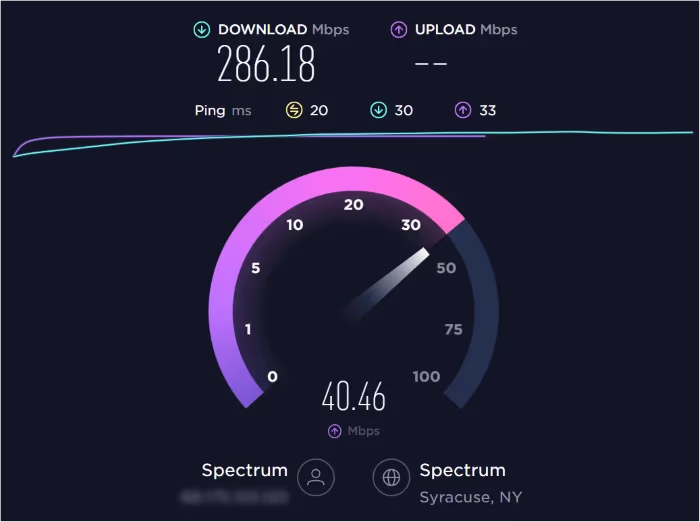
- Run a speed test on your phone or computer to see if you’re getting the speeds you pay for from your internet provider. For smooth HD streaming, HBO Max recommends:
-
5 Mbps for High Definition
-
25 Mbps for 4K Ultra HD
-
If speeds are significantly slower, try restarting your modem and router by unplugging them for 60 seconds before plugging them back in.
-
For best performance, connect your Samsung TV directly to the modem using an Ethernet cable instead of relying on Wi-Fi.
#Power Cycle Your Samsung TV
Often, a power cycle is all you need to get apps working normally again. Follow these steps:
-
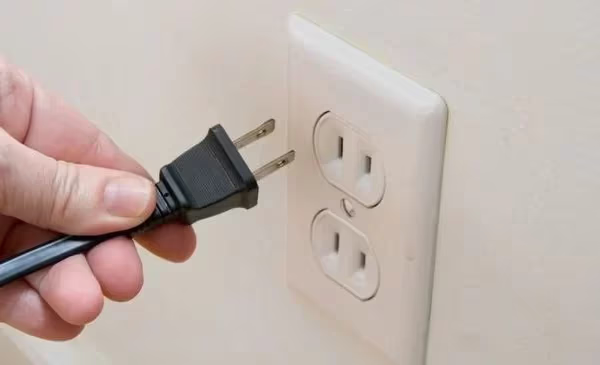
Unplug your Samsung TV from the power outlet and leave it unplugged for 60 seconds.
-
Locate and hold the power button on your TV for 30 seconds. This will drain any residual power.
-
Plug your Samsung TV back in and turn it on.
#How Do You Clear HBO Max App Cache and Data?
Clearing an app’s cache and data can remove any corrupted files that may be preventing HBO Max from working on your Samsung TV. Here’s how:
-
Press the Home button on your TV remote, then navigate to and select Settings.
-
Go to Apps, then select the HBO Max app from the list.
-
Select “Clear cache” and “Clear data.”
-
Open the HBO Max app and sign back in.
If clearing the app cache and data doesn’t resolve the issue, the app may be crashing. In that case, follow our guide to troubleshoot HBO Max crashing issues.
#Update HBO Max App
Using an outdated version of the HBO Max app can also cause issues. To update it:
-
Press the Home button on your remote, then navigate to and select Apps.
-
Select “HBO Max,” then “Update” if an update is available. If no update option appears, you already have the latest version.
#Update Samsung TV Software
Running your Samsung TV on outdated firmware can lead to app compatibility issues. Here’s how to check for and install updates:
-
Press the Home button on your remote, then navigate to and select Settings.
-
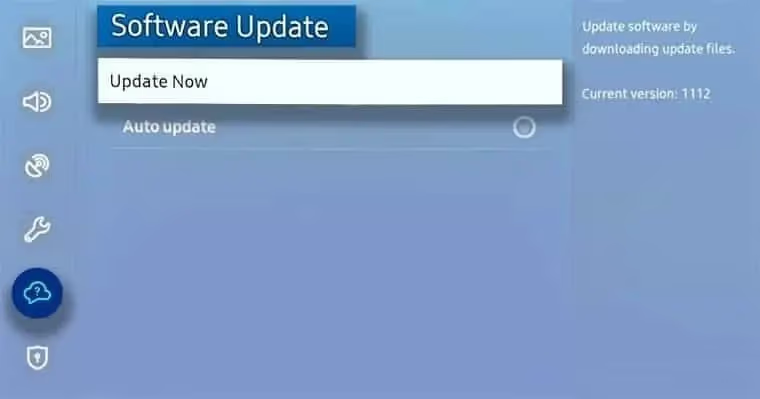
Select Support > Software Update.
-
Select Update Now. Your TV will automatically download and install any available updates.
#How Do You Reinstall the HBO Max App?
If updating the app and TV software doesn’t work, try uninstalling and reinstalling the HBO Max app using these steps:
-
Press the Home button on your remote, then navigate to and select Apps.
-
Find and select the HBO Max app, then select Delete.
-
Press the Home button, navigate to and select Apps.
-
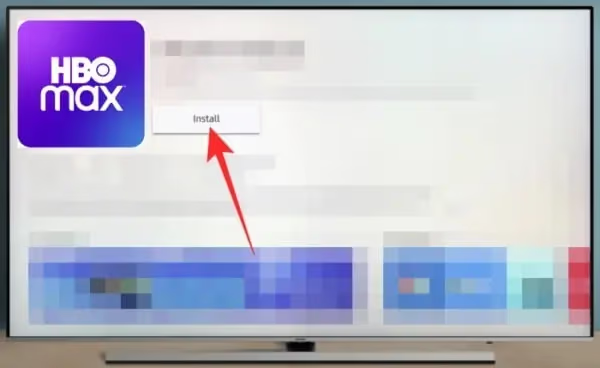
In the search box, type “HBO Max.” Select it from the results to install the app.
-
Open HBO Max and sign in.
Are you also experiencing HBO Max issues on other devices like Apple TV, Vizio smart TV, LG TV, or Amazon Fire TV Stick? Check out our device-specific guides for more tailored troubleshooting steps.
#Factory Reset Samsung TV
As a last resort, you can factory reset your Samsung TV. Note that this will erase all your settings and apps, so only do this if all other troubleshooting steps have failed.
-
Press the Home button, then navigate to Settings.
-
Select General > Reset.
-
Enter your PIN. (Default is 0000 if you never set one).
-
Select Reset. Your TV will turn off and on again, then display the initial setup screen.
#Contact HBO Max and Samsung Support
If you’ve tried all the above steps and HBO Max still isn’t working on your Samsung TV, it’s time to contact support:
-
Visit the HBO Max Help Center for troubleshooting articles or live chat.
-
Contact Samsung Support for help with TV-specific issues.
#FAQs
#Why does HBO Max freeze on my Samsung TV?
HBO Max freezing is usually caused by a poor internet connection or a corrupted app cache. Run a speed test to confirm you have at least 5 Mbps, and try clearing the app cache under Settings > Apps > HBO Max. If the problem continues, power cycle your TV by unplugging it for 60 seconds.
#What does “Can’t Play Title” mean on HBO Max?
This error points to a problem with the HBO Max app itself, not your TV. Update the app first, then clear its cache and data. If you still see the error after reinstalling the app, the issue may be on HBO Max’s servers — wait an hour and try again.
#Why is HBO Max stuck on the loading screen?
A corrupted cache is the most likely cause. Go to Settings > Apps > HBO Max and clear both cache and data, then reopen the app. If it still won’t load, delete the app entirely, restart your TV, and reinstall HBO Max from the Samsung App Store.
#Is my older Samsung TV compatible with HBO Max?
HBO Max works on most Samsung Smart TVs from 2016 or later. If your TV no longer receives firmware updates from Samsung, it may not support the current version of HBO Max. You can still stream by connecting a Roku or Fire TV Stick to an HDMI port.
#How do I turn on subtitles for HBO Max on Samsung TV?
Open any show or movie in HBO Max, tap the speech bubble or CC icon during playback, and select your subtitle language. If subtitles still don’t appear, check your Samsung TV’s accessibility settings under Settings > General > Accessibility > Caption Settings.
#Can I add HBO Max to my Hulu subscription on Samsung TV?
Yes. Open Hulu on your Samsung TV, go to Account > Manage Add-ons, and select HBO Max. You’ll be billed through Hulu. For a step-by-step walkthrough, see our guide on how to add HBO Max to Hulu.
#Does HBO Max support 4K streaming on Samsung TV?
HBO Max streams select titles in 4K Ultra HD with Dolby Vision and Dolby Atmos on compatible Samsung TVs from 2019 or later. You need a stable internet connection of at least 25 Mbps and an HBO Max subscription that includes 4K content.
#Bottom Line
-
Check your internet speeds and stability first. Aim for at least 5 Mbps for HD.
-
Power cycle your Samsung TV by unplugging it for 60 seconds.
-
Keep the HBO Max app and Samsung TV software updated to the latest versions.
-
Clear the HBO Max app cache and data to remove any corrupted files.
-
Delete and reinstall the HBO Max app if issues persist.
-
As a last resort, factory reset your Samsung TV.
-
Contact HBO Max and Samsung support for further assistance.
With these tips, you should be able to get HBO Max working smoothly on your Samsung TV again.