HBO Max refusing to load on your Apple TV? You’re not alone. This guide covers the top 12 fixes for HBO Max playback problems on Apple TV 4K or HD, from network issues to corrupt app data.
Whether HBO Max is crashing, buffering endlessly, or showing a black screen, these steps will get you streaming again.
- Internet speed matters most — HBO Max needs at least 5 Mbps for HD and 25 Mbps for 4K streaming on Apple TV
- Outdated apps cause most crashes — update both HBO Max and tvOS before trying anything else
- Delete and reinstall clears corrupt data — this single step fixes the majority of stubborn playback failures
- Server outages affect everyone — check Downdetector before troubleshooting your own setup
- Ethernet beats Wi-Fi for streaming — a wired connection eliminates buffering caused by wireless interference
#What Causes HBO Max To Stop Working on Apple TV?
Before jumping into fixes, here are the major causes of HBO Max playback problems on Apple TV:
#1. Internet Connectivity Issues
Slow, unstable internet often disrupts streaming. Verify your network speed meets HBO Max’s 5 Mbps requirement for HD or 25 Mbps for 4K streaming.
Connect via ethernet if Wi-Fi is spotty. Reduce bandwidth strain by disconnecting other devices.
#2. Outdated HBO Max App
Buggy, outdated HBO Max apps lead to crashes and playback failures. Check the App Store for app updates. Enable automatic updates for convenience.
#3. HBO Max Server Outages
Large scale outages due to technical problems or maintenance affect all users. Check DownDetector or @HBOMaxHelp for status updates. Retry later.
#4. Apple TV Software Bugs
Apple TV software bugs can make apps unstable. Update tvOS software under Settings > System > Software Updates.
#5. Corrupt App Data
Corrupted cache or data files may cause apps like HBO Max to fail. Delete and reinstall HBO Max to refresh data.
Now let’s get into the step-by-step troubleshooting guide.
#How Do You Fix HBO Max Playback Problems on Apple TV?
Follow these tips in order until you find the one that works:
#1. Check HBO Max Server Status
Verify if HBO Max servers are actually up and running properly. Server outages are common, especially with new app updates or added content straining systems.
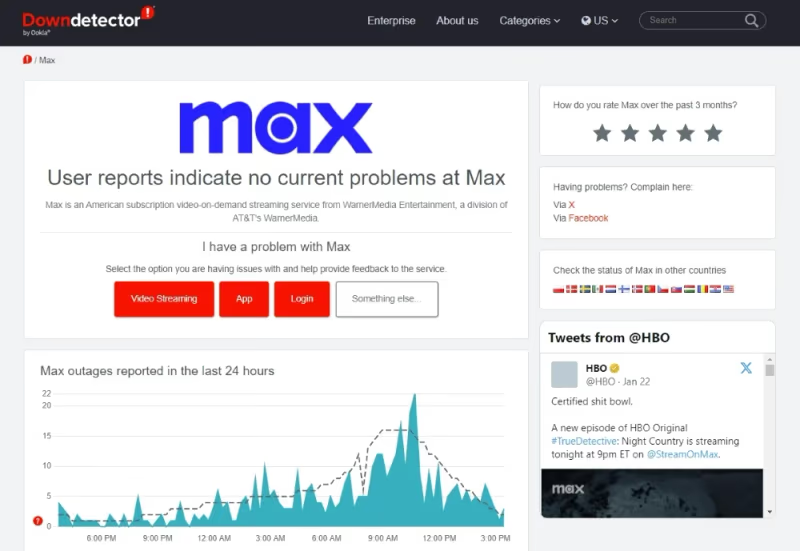
Visit Downdetector and search “HBO Max” to check for any reported problems from other users in the last 24 hours:
If significant outage reports are showing, HBO Max engineers are likely working to address system failures. Avoid unnecessary app troubleshooting and just wait for service restoration.
Bookmark their @HBOMaxHelp Twitter feed for real-time updates too.
#2. Confirm Internet Speeds Are Adequate
Laggy, jumpy streaming points to insufficient internet speeds. HBO Max recommends a minimum 5 Mbps broadband connection for HD quality and 25 Mbps for 4K UHD.
Run a Speedtest to check your actual speeds:
If speeds fall below HBO Max guidelines above, improve connectivity using these tips:
-
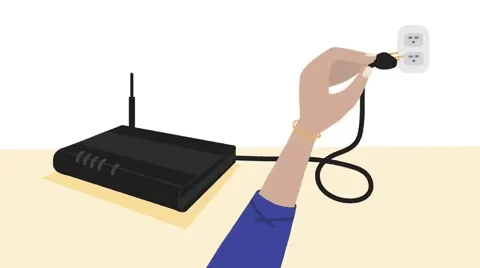
Reset modem and router: unplug, wait 30 seconds, reconnect.
-
Connect Apple TV directly to router via Ethernet instead of Wi-Fi.
-
If Wi-Fi is your only option, move Apple TV closer to the router.
-
Close bandwidth-heavy apps and devices using the same network.
-
Contact your internet provider about upgrades if needed.
After addressing connectivity, run another Speedtest to confirm better performance before retrying HBO Max.
For the most reliable speeds, connect your Apple TV to ethernet whenever possible. Wi-Fi interference from walls and other devices can throttle your bandwidth below what HBO Max needs.
#3. Update the HBO Max App
Like any app, HBO Max can become outdated or bug-ridden over time.
-
Open the App Store on Apple TV
-
Search for “HBO Max”
-
Tap Update if available.
Also enable Automatic App Updates:
-
Go to Settings > Apps
-
Turn on “Automatically Update Apps”
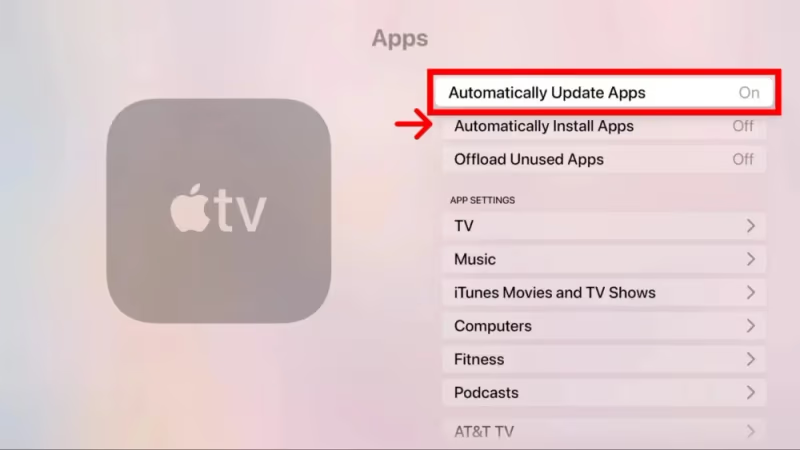
This keeps the HBO Max app on the latest stable version.
#4. Force Quit HBO Max
Sometimes apps end up in a frozen state that only a force quit can fix. Here’s how to force close on Apple TV:
-
Double click TV button to open app switcher
-
Locate HBO Max app preview
-
Swipe up on Touch surface on remote
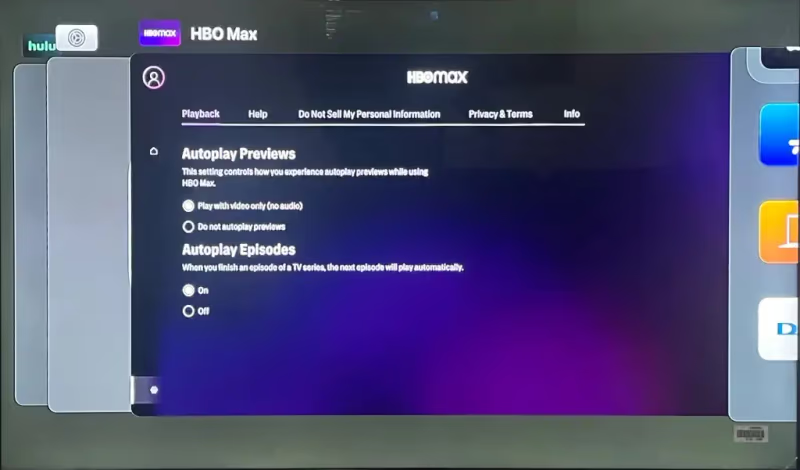
Then reopen HBO Max and test playback again.
#5. Sign Out, Then Sign In HBO Max
Corrupt user data or authorization tokens can sometimes interfere with streaming.
As a reset, sign out completely from HBO Max:
-
Go to app Settings
-
Select Sign Out
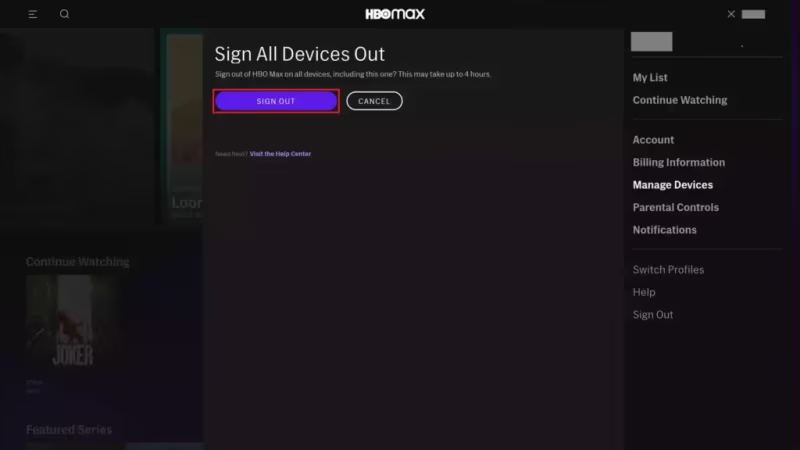
Then input your credentials again to sign back in. Try playback as usual.
#6. Delete and Reinstall HBO Max
If nothing else works, deleting HBO Max entirely then reinstalling can purge any corrupt app data or bad settings causing trouble.
Here are the steps to remove and re-add on Apple TV:
-
Navigate to HBO Max icon on Home screen
-
Press and hold Touch surface on remote until all icons jiggle
-
With HBO Max selected, press Play/Pause to bring up options
-
Choose Delete to remove
-
Open App Store and reinstall a fresh copy
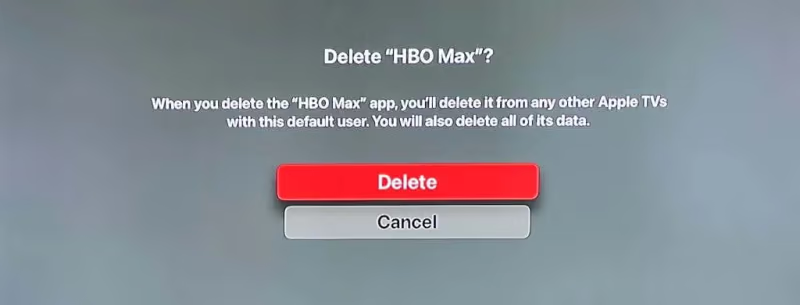
This acts as a total reset for the app. Most stubborn playback issues clear up after a clean reinstall.
#7. Restart the Apple TV
Sometimes your Apple TV just needs a cold reboot to clear out system-level issues causing HBO Max problems.
- Go to Settings > System > Restart
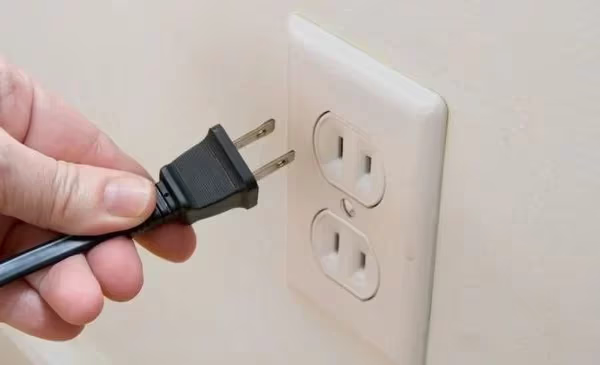
Or power cycle the Apple TV directly:
-
Unplug power cable from electrical outlet
-
Wait 30 seconds
-
Plug back into power outlet
-
Turn on Apple TV and relaunch HBO Max
#8. Update tvOS Software
Check if your Apple TV needs any tvOS system software updates. Bug fixes and performance improvements help HBO Max and other apps run smoothly.
-
Navigate to Settings > System > Software Updates
-
Select Update Software if update available
-
Wait for Apple TV to download, then automatically reboot and install
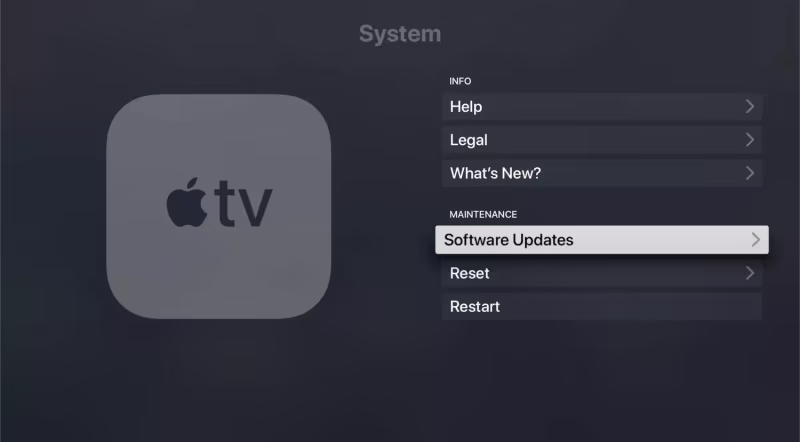
Enable Auto Software Updates too so you never fall behind.
#9. Switch Audio Settings
Here’s an odd workaround that has resolved playback problems for some users.
If HBO Max fails only when playing 5.1 surround sound audio, try changing audio mode to Stereo:
-
Go to Settings > Video & Audio > Audio Format
-
Change from Dolby Digital 5.1 to Stereo
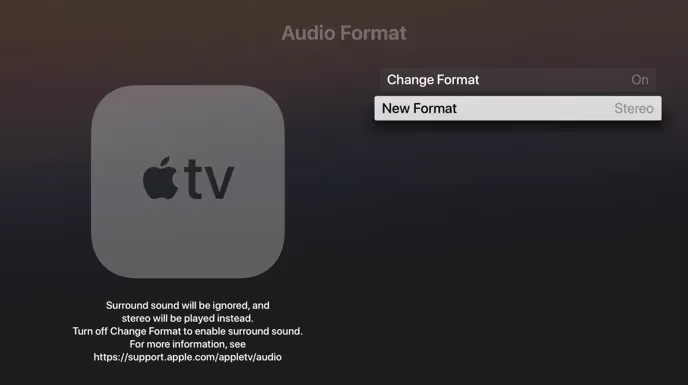
If that stabilizes things, it points to an audio incompatibility issue needing attention.
#10. Adjust Streaming Settings
Prevent future buffering or choppy playback by lowering streaming resolution or enabling Data Saver mode:
-
Inside HBO Max, visit Settings
-
Select either:
-
Change Streaming Quality to lower resolution
-
Enable Data Saver mode
Reducing bandwidth usage can help if internet speeds fluctuate routinely.
#11. Free Up Storage Space
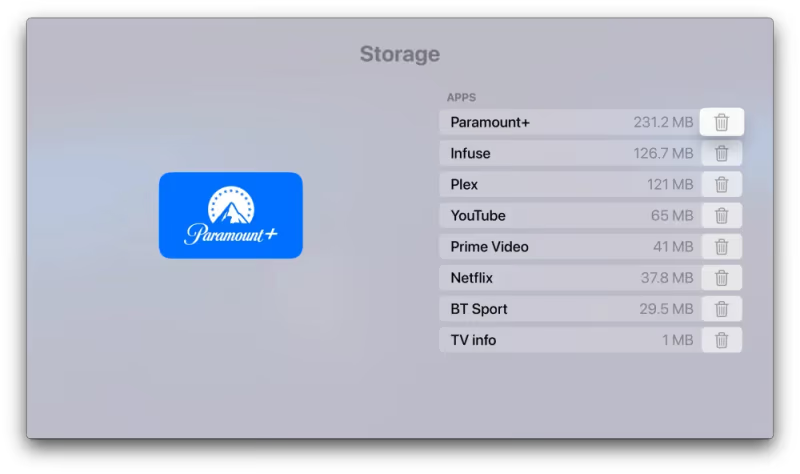
Lack of sufficient built-in storage space can contribute to app instability. Although unusual, make sure there’s breathing room:
-
Go to Settings > General > Storage
-
Check available space hasn’t dropped below 10% free
-
Delete unused apps or media if space is tight
#12. Contact HBO Max Customer Support
If all else fails, reach out to the HBO Max support team describing your Apple TV issues in detail, including key troubleshooting steps tried.
They may suggest further specialized fixes or escalate technical issues related to Samsung TVs, LG TVs, Vizio TVs or Insignia TVs.
-
@HBOMaxHelp on Twitter
Write down the model number and OS version of your Apple TV too. This helps support determine compatibility or narrow down the cause.
#How Can You Prevent Future HBO Max Issues on Apple TV?
Once you fix HBO Max playback problems, keep smooth streaming with these preventative measures:
-
Check Apple TV system requirements before future tvOS updates. Avoid unsupported versions.
-
Bookmark Downdetector and @HBOMaxHelp on Twitter to monitor server status.
-
Enable Auto App Updates and Auto Software Updates in settings.
-
Periodically restart Apple TV to clear memory leaks over time. This resolves app crashes too.
-
Connect Apple TV via Ethernet if relying on unstable Wi-Fi.
-
Set HBO Max streaming quality to just HD, not 4K, if internet speeds fluctuate. Adjust quality on Roku devices too.
#Bottom Line
To recap, follow this checklist if HBO Max has problems on your Apple TV:
-
Verify HBO Max servers are online and not down for maintenance.
-
Run a Speedtest to confirm internet speeds meet 25 Mbps recommended minimum.
-
Update both HBO Max app and Apple TV software, if out of date.
-
Delete and reinstall HBO Max app to purge corrupt data.
-
Adjust streaming quality settings for available bandwidth.
#Frequently Asked Questions
#Why does HBO Max keep buffering on my Apple TV?
Insufficient internet speeds below 25 Mbps usually cause endless buffering. Connect via Ethernet, reduce streaming quality, and disconnect other devices from the same network. Running a speed test first confirms whether bandwidth is actually the bottleneck.
#How can I get HBO Max to work on older Apple TV models?
HBO Max only works natively on Apple TV HD (4th generation) and later. On unsupported models, use AirPlay from your iPhone or iPad to mirror HBO Max content to your TV. There is no workaround to install the app directly on 3rd generation or earlier hardware.
#Does using a VPN fix HBO Max playback problems on Apple TV?
Generally no. Free VPNs often make streaming quality and speeds worse because they route traffic through congested servers. Focus first on improving your base internet connection before trying a commercial VPN service. If you do use a VPN, choose one with dedicated streaming servers.
#Why does HBO Max crash immediately after opening on Apple TV?
This usually happens when cached app data becomes corrupt after an incomplete update. Delete the HBO Max app from your Apple TV, restart the device, then reinstall from the App Store. Signing in fresh after reinstallation clears any broken authorization tokens.
#Can I watch HBO Max in 4K on Apple TV?
Yes, but only on Apple TV 4K models. You also need an active HBO Max subscription at the ad-free tier and an internet connection of at least 25 Mbps. Make sure your TV supports 4K HDR and that the HDMI cable is rated for 4K output.
#What should I do if HBO Max shows a black screen on Apple TV?
A black screen typically means the app loaded but video playback failed. Force quit HBO Max by double-clicking the TV button, swiping up on the app preview, then reopening it. If the black screen persists, switch your audio settings from Dolby Digital 5.1 to Stereo under Settings > Video & Audio, as audio incompatibility triggers this issue on some setups.
#How do I check if HBO Max servers are down?
Visit Downdetector and search for HBO Max to see real-time outage reports from other users. You can also follow @HBOMaxHelp on Twitter for official status updates. If outage reports spike in the last hour, the problem is on HBO Max’s end and no local troubleshooting will help.
#Does restarting my Apple TV fix HBO Max issues?
Restarting fixes a surprising number of streaming problems. It clears temporary memory, resets network connections, and forces background processes to reload cleanly. Go to Settings > System > Restart, or unplug the power cable for 30 seconds and plug it back in.