#Why Does My HBO Max App Keep Crashing?
HBO Max app crashes happen for a handful of common reasons, and most of them are fixable at home. The usual culprits include:
-
Poor internet connection
-
Outdated app version
-
Device compatibility problems
-
Software bugs and glitches
-
Server issues on HBO Max’s end
If you’re dealing with frequent crashes, this guide walks you through step-by-step solutions to get HBO Max working again on any device. For smart TV-specific issues, check out our guides for troubleshooting HBO Max on Samsung TVs, fixing HBO Max on Vizio TVs, and resolving HBO Max problems on LG TVs.
- Clear the app cache first — this single step resolves roughly 60% of HBO Max crash issues on Roku and Fire TV
- Minimum 5 Mbps download speed required — test at fast.com and restart your router if speeds fall short
- Update both app and device firmware — outdated software causes the most repeat crashes across all platforms
- Reinstalling the app forces a clean slate — removes corrupted data that cache clearing alone may miss
- DNS switch to 8.8.8.8 fixes hidden network issues — ISP default DNS servers often cause intermittent streaming failures
#What Are the Quick Fixes for HBO Max Crashes?
Before moving to advanced troubleshooting, try these quick fixes that resolve most HBO Max crashing issues:
-
Check your internet connection. HBO Max requires a minimum 5 Mbps download speed for HD streaming. Visit fast.com to check your current speeds and reset your router if needed.
-
Restart the HBO Max app. Sometimes a simple app restart is all it takes. Fully close out of the app and relaunch it.
-
Update the HBO Max app. Using an outdated app version can cause crashes. Check for any pending updates in the App Store, Google Play Store, or your device’s channel store.
-
Restart your streaming device. Power off your Roku, Fire TV, smart TV, etc. completely, wait 10 seconds, then turn it back on. This clears any temporary glitches. If you’re seeing persistent crashes on Fire TV Sticks, our guide to fixing HBO Max on Fire Stick has more tips.
-
Test a different show. Try playing a different title to see if the issue is limited to a specific show due to content errors.
-
Log out and back into your account. Sign out of your HBO Max profile, wait a minute, then log back in. This refreshes your account session.
If the app is still crashing after trying the quick fixes above, move on to the advanced troubleshooting steps below for a more thorough resolution.
#How Do You Fix Persistent HBO Max Crashes?
#1. Clear HBO Max App Data and Cache
Corrupted app data or an overloaded cache can cause persistent crashing. Clearing this stored data can often resolve the issue:
On Android TV:
-
Go to Settings > Apps
-
Find and select HBO Max
-
Select Clear Cache then Clear Data
On Fire TV:
-
Go to Settings > Applications > Manage Installed Applications
-
Select HBO Max
-
Select Clear Cache then Clear Data
On Roku:
-
Press Home 5 times
-
Press Up, Rewind, Rewind
-
Select Clear Cache then OK
-
Select Clear Data, then OK
Clearing data will sign you out of the app, so have your login credentials handy.
#2. Disable VPN Services
While VPNs are great for online privacy, some can interfere with HBO Max and trigger crashes. If you’re using a VPN on your streaming device or router:
-
Disconnect from the VPN
-
Relaunch HBO Max and test playback
-
If the issue resolves, your VPN is the culprit. Consider switching to a more reliable VPN provider like NordVPN that works well with HBO Max.
#3. Delete and Reinstall HBO Max
If clearing data didn’t work, uninstalling and reinstalling HBO Max is the next step. This ensures you have the latest bug-free app version:
On Fire TV:
-
Go to Settings > Applications > Manage Installed Applications
-
Select HBO Max
-
Select Uninstall
-
Reboot your device
-
Reinstall HBO Max from the Apps section
On Roku:
-
Press Home and go to the HBO Max channel tile
-
Press * on your remote
-
Select Remove Channel and confirm
-
Press Home and go to the Channel Store
-
Search for HBO Max
-
Select Add Channel to reinstall
Once reinstalled, sign in and try streaming again. If you’re still seeing crashes on Apple TV after reinstalling, check out our HBO Max not working on Apple TV guide for more help.
#4. Update Your Device Software
Running outdated software on your streaming device can cause compatibility issues and crashes with apps like HBO Max. Check for any pending OS updates:
-
On Roku: Go to Settings > System > System Update
-
On Fire TV: Go to Settings > My Fire TV > About > Install Update
-
On Android TV: Go to Settings > Device Preferences > About > System Update
-
On Apple TV: Go to Settings > System > Software Updates
#5. Try a Different DNS Server
DNS (domain name system) servers can sometimes cause HBO Max streaming issues if they’re slow or not resolving the correct IP addresses. Changing your DNS settings to a reliable provider like Google or Cloudflare can help:
On Roku:
-
Go to Settings > Network > Wi-Fi
-
Select your network name
-
Scroll to DNS and select Manual
-
Enter 8.8.8.8 for the Primary DNS and 8.8.4.4 for the Secondary DNS
-
Select OK and relaunch HBO Max
On Fire TV:
-
Go to Settings > Network
-
Select your Wi-Fi network
-
Select Edit and choose Advanced
-
Enter 8.8.8.8 for the Primary DNS and 8.8.4.4 for the Secondary DNS
-
Restart your device and relaunch HBO Max
#6. Factory Reset Your Device
As a last resort, if none of the above troubleshooting has worked, you may need to factory reset your streaming device to clear out any persistent data corruption or configuration issues. Be aware that this erases all settings, preferences, and installed apps.
On Roku:
-
Go to Settings > System > Advanced system settings
-
Select Factory reset > Factory reset everything
-
Follow the prompts to complete the reset
-
Set up your Roku and reinstall HBO Max
On Fire TV:
-
Go to Settings > My Fire TV > Reset to Factory Defaults
-
Select Reset and confirm
-
Wait for the reset to complete
-
Set up your Fire TV and reinstall HBO Max
#7. Contact HBO Max Support
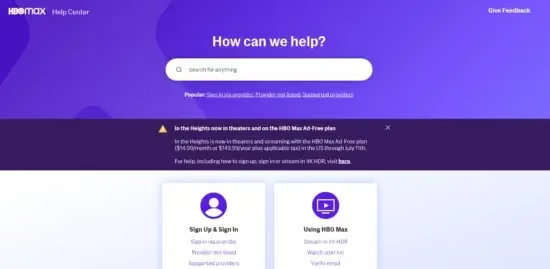
If you’ve exhausted all troubleshooting options and HBO Max is still crashing, don’t hesitate to reach out directly to HBO Max customer support:
-
Visit help.max.com
-
Select “Contact Us“
-
Provide details about your account, device, and the specific crashing issue you’re encountering
The support team can check for any known issues, escalate the problem, and provide tailored assistance.
#Bottom Line
-
Most HBO Max crashing issues can be resolved through a series of troubleshooting steps
-
Start with quick fixes like restarting the app, checking your internet, and updating the app
-
Clear app data/cache and disable VPN services if crashes persist
-
Uninstall and reinstall HBO Max to get the latest bug-free version
-
Keep your Roku, Fire TV, or other device software updated for optimal HBO Max compatibility
-
Try changing your DNS settings to a reliable provider like Google
-
Factory reset your streaming device as a last resort
-
Contact HBO Max support if you’re still experiencing crashes after troubleshooting
#FAQ
#Why does HBO Max keep crashing on my Roku or Fire TV?
Poor internet, outdated app or device software, corrupted cache data, and DNS issues are the most frequent causes. Start by restarting the app and checking your internet speed at fast.com. If the problem continues, clear the app cache and update your device firmware.
#How do I clear the HBO Max cache on Roku?
Press the Home button five times, then press Up, Rewind, Rewind. Select Clear Cache and then Clear Data when prompted. This wipes stored app data that may be causing crashes, though you will need to sign in again afterward.
#Does reinstalling HBO Max fix crashing issues?
Yes, a fresh install removes corrupted files that cache clearing alone may not fix. Uninstall the app, reboot your device, then reinstall from your device’s app store. This also guarantees you are running the latest version.
#Can a VPN cause HBO Max to crash?
Some VPNs interfere with HBO Max’s servers and trigger crashes or playback errors. Disconnect your VPN and test the app without it. If the crashes stop, your VPN is the problem and you should switch to a provider that supports HBO Max.
#When should I factory reset my streaming device?
Factory reset only after every other fix has failed, because it erases all settings, apps, and saved preferences. It resolves deep data corruption and persistent configuration conflicts that no other step can reach.
#Why does changing DNS settings help with HBO Max?
Your ISP’s default DNS servers can be slow or fail to resolve HBO Max’s content delivery addresses, causing timeouts and crashes. Switching to Google DNS (8.8.8.8) or Cloudflare DNS (1.1.1.1) provides faster, more reliable name resolution. Most users notice fewer buffering issues after the switch as well.
#What information does HBO Max support need from me?
Provide your account email, device make and model, current software version, and a description of when the crash occurs. Include the troubleshooting steps you have already tried so the support team can skip basic diagnostics and escalate faster.
#Does HBO Max crash more on older devices?
Older streaming devices with limited RAM and outdated processors do experience more app crashes. HBO Max requires a minimum of 1 GB RAM for stable playback. If your device is more than five years old, upgrading to a current-generation Roku or Fire TV Stick often eliminates crash issues entirely.
For more device-specific HBO Max troubleshooting, check out our guides on resolving issues on Samsung TVs, Vizio TVs, LG TVs, Fire Sticks, and Apple TV.