Have you ever tried using your Roku device only to be prompted for a PIN you don’t remember setting up? Don’t worry – you can easily update and reset your forgotten Roku PIN right from their website. Logging out of your Roku TV and back in can also help if you’re locked out.
- Reset takes under 2 minutes — visit my.roku.com, sign in, and update your 4-digit PIN from PIN Preferences
- No old PIN required — Roku lets you override the forgotten PIN without entering the previous code
- PIN protects 3 areas — purchase authorization, parental controls, and saved payment method security
- Factory reset is a last resort — it wipes all synced preferences, channels, and account data from the device
- No reset limit exists — you can change your Roku PIN as many times as needed through the website
#What is a Roku PIN and Why Set One Up?
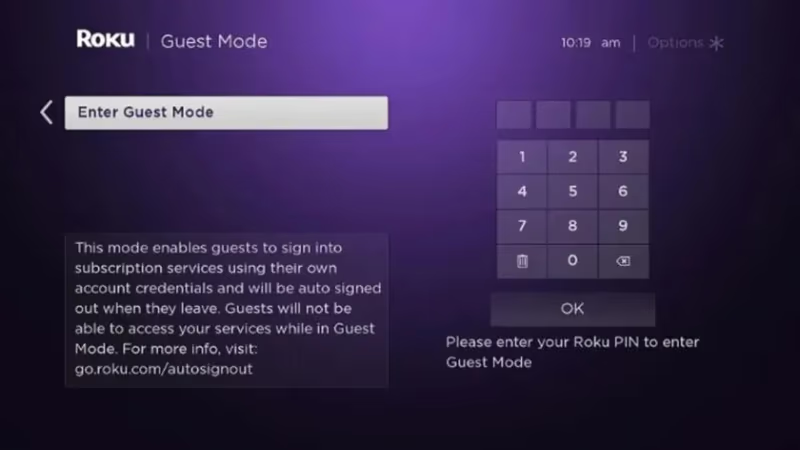 A Roku PIN (Personal Identification Number) is an optional 4-digit code you can create to manage purchases, subscriptions, parental controls and other services on your Roku device.
Once enabled, your PIN must be entered to authorize any financial transaction or access certain types of content. It adds an extra layer of security and control.
Here are some of the main reasons to use a Roku PIN:
-
Prevent Unauthorized Purchases: With a PIN in place, no one can add paid channels, make in-app purchases or buy movies and TV shows without the code.
-
Manage Parental Controls: By enabling parental control options, you can restrict access to mature content and set viewing time limits for kids profiles based on your PIN.
-
Secure Saved Payment Methods: Even free channel additions and downloads will require a PIN entry if you have a saved payment on your Roku account to prevent misuse.
-
Share Your Roku Without Worry: Set up a PIN to allow house guests or babysitters to safely access your Roku device’s kid-friendly content.
While using a Roku PIN is optional, it’s highly recommended to enable control, security and peace of mind. The hassle is worth preventing surprise charges or inappropriate content access. And with features like universal remote compatibility and Disney+ access, Roku provides a great entertainment experience.
#How to Easily Change Your Forgotten Roku Pin
If you’ve forgotten your Roku PIN, don’t stress. Resetting or changing your Roku PIN is simple since you don’t need to remember your old one – just your Roku account login.
Follow these quick steps to update a forgotten Roku PIN from their website:
- Visit my.roku.com and login to your Roku account using your email address and password.
If you’ve also forgotten your password, select “Forgot Password” to reset it first.
-
Click on your Account icon in the top right and choose “PIN Preferences” in the drop down menu.
-
Under the PIN Preferences section, click the blue “Update” button.
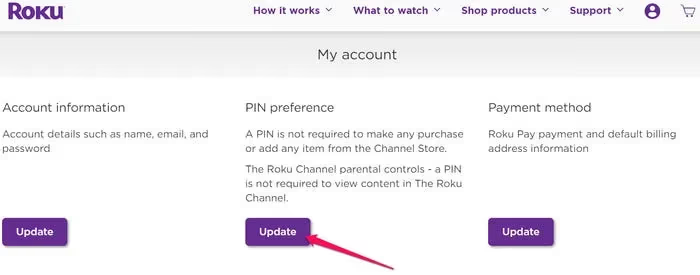
- Enter your new 4-digit PIN and confirm it in the provided fields.
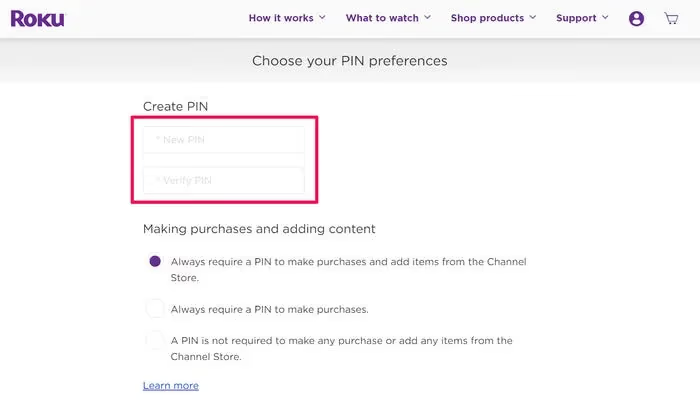
- Select your preferred PIN usage settings. You can enable the PIN for purchases, parental controls or turn off requirements.
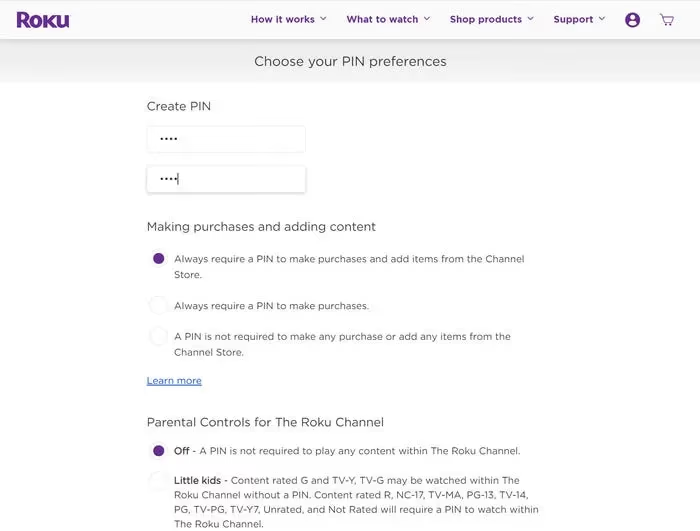
- Finally, click “Save Changes” for your new PIN and preferences to take effect.
And that’s it! Within a few minutes your Roku will sync the updated PIN and settings so you can start securely streaming again.
#Tips for Choosing a Roku PIN
When creating a Roku PIN, follow these tips:
-
Avoid repetition or patterns: Don’t use PINs like 0000, 1234, or 2525 which are easier to guess.
-
Don’t use personal info: Avoid using numbers from your birthday, address or other easy-to-find info.
-
Pick a random sequence: For the most secure PIN, choose a random string of 4 numbers.
-
Write it down temporarily: Jot down your new PIN somewhere safe until memorized to avoid forgetting again.
#How Do You Enable Purchase Protection With Your Roku PIN?
One of the main benefits of a Roku PIN is it allows you to password protect purchases and subscription-based channels.
This prevents others from accessing your saved payment methods to buy content without your approval.
When updating your PIN, enable this feature by toggling “Require a PIN for purchases” under PIN Usage Preferences.
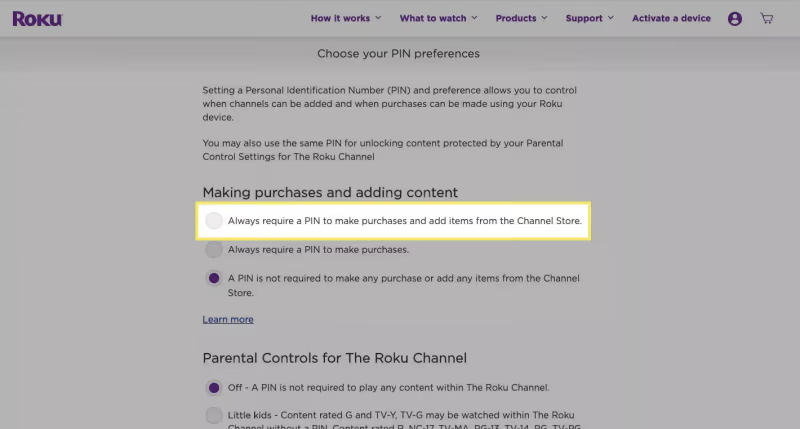
Then when attempting to purchase media or subscribe to paid streaming channels on your Roku, you’ll be prompted to enter the PIN first.
Purchase protection could come in handy if you’ve cut cable in favor of Roku streaming or are comparing Roku vs DirecTV costs.
#How Do You Use Your PIN to Manage Parental Controls?
Along with purchase protection, a Roku PIN lets you restrict access to content above a certain maturity rating.
This parental controls feature ensures kids can only view age-appropriate shows and movies based on the PIN-protected preferences you set.
To enable:
-
Check the “Require a PIN to access certain content” option when updating your PIN.
-
Select your desired parental control level:
Little Kids
-
Young Kids
-
Teens
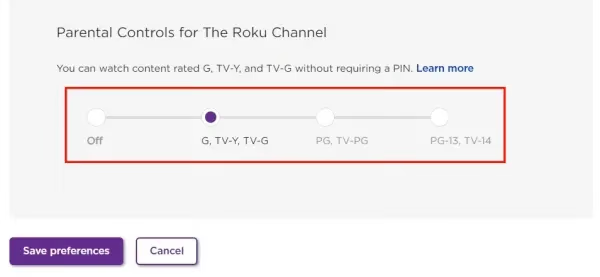
- Roku will now block content above the selected rating on your home screen until the PIN is successfully entered.
Without a PIN set, no parental control restrictions can be enabled.
#Resetting a Roku PIN By Signing Out of Your Account
If for some reason you are completely locked out of your Roku account and cannot login to my.roku.com – there is another way to reset your PIN.
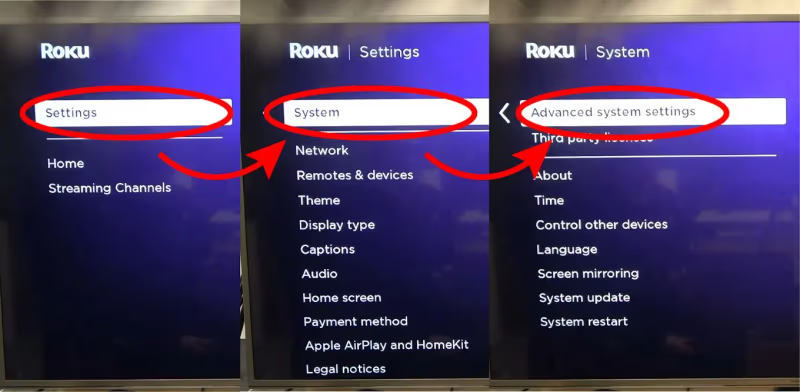
- On your Roku device, go to Settings > System > Advanced System Settings
-
Choose “Sign out of your Roku account” to remove the associated username.
-
Set up the Roku again and create a new account from scratch using your email address.
-
You can then visit my.roku.com and update the PIN without needing the old one.
Just keep in mind this signs you out and resets ALL sync’d preferences – so only use this method as a last resort if locked out of your account.
#What To Do If You Forget Your Roku PIN Again
To avoid forgetting your Roku PIN again after resetting:
-
Store it in a password manager like LastPass or 1Password for easy lookup later.
-
Write it down somewhere very safe like a hidden notebook or locked safe if not using a password manager.
-
Change Numbers Sequentially when resetting so it’s easier to remember the update.
And you can always repeat the steps to reset your Roku PIN if you ever forget it again – with no limit to the number of times you can update your PIN.
Just visit the Roku website, login to your account, access PIN preferences and reset to a new, memorable number combination.
#Alternative Ways to Remove a Forgotten Roku PIN
If for whatever unlikely reason you cannot login to your Roku account to update the PIN – here are a couple last ditch alternatives that may work:
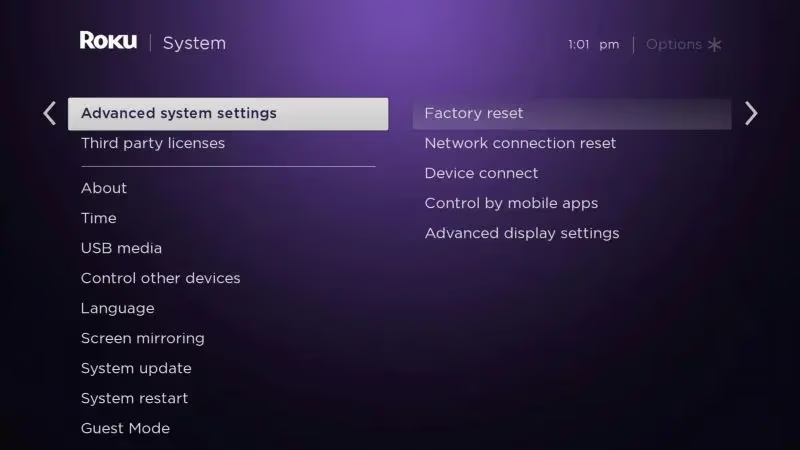
- Perform a factory reset on the Roku device by going to Settings > System > Advanced System Settings > Factory Reset. Warning: this will sign you out and wipe all sync’d preferences.
- Call Roku support to see if they can remove the PIN requirement from their end or fully reset your account credentials.
But in most cases, simply visiting the my.roku.com website and updating your PIN there after logging into your account is the easiest and most direct route.
Whether you’re a Roku vs Chromecast, Apple TV or Firestick fan, properly setting up a PIN can enhance security. Even if you’ve lost your remote, you can still update the Roku PIN online.
#Frequently Asked Questions About Updating a Roku PIN
#What happens if I factory reset my Roku without updating the PIN online?
Factory resetting your Roku device without changing your PIN on my.roku.com first will sign you out of your account and remove all saved preferences, including the set PIN. You will need to set up the device again from scratch. The upside is that you can create a new PIN during the fresh setup process.
#Do I need to enter my old PIN anywhere when updating to a new one?
No, you do not need your current or old Roku PIN to change it. The Roku website lets you override previously set PINs without entering the active one, which makes the process straightforward even if you have no memory of the original code.
#Can someone else change my Roku PIN if they have my login information?
Yes, anyone with access to your my.roku.com account can update the PIN. Keep your Roku login credentials private from untrusted users. A strong, unique password adds another layer of protection. You should also enable two-factor authentication on your Roku account if available.
#Will changing my Roku PIN affect any of my other saved settings?
No. Updating your PIN only changes the 4-digit access code used for purchases and parental controls. All other preferences, installed channels, and saved payment methods remain untouched.
#Is there a limit to how many times I can change or reset my Roku PIN?
There is no limit. You can update your Roku PIN on the website as often as you need to. Roku does not lock you out or impose a cooldown period between PIN changes.
#Why am I not being prompted for my Roku PIN when downloading certain apps?
Free channels and apps do not trigger a PIN prompt unless you have specifically enabled the option to require a PIN for all channel additions. Check your PIN preferences on my.roku.com to confirm that purchase protection is turned on. If you only enabled parental controls but not purchase protection, free content downloads will skip the PIN step entirely.
#Can I remove my Roku PIN entirely instead of resetting it?
Yes, you can disable the PIN requirement altogether. Go to my.roku.com, navigate to PIN Preferences, and select the option that says “A PIN is not required to make purchases or add items from the Channel Store.” This removes the PIN prompt from all transactions on your Roku device.
#Does my Roku PIN sync across multiple Roku devices on the same account?
Your Roku PIN is tied to your Roku account, not to a specific device. Any change you make on my.roku.com applies to every Roku player, TV, or Streambar linked to that account. The sync typically happens within a few minutes of saving your new PIN.
#Bottom Line
-
You can easily change or reset a forgotten Roku PIN by visiting my.roku.com, signing in to your account and accessing “PIN Preferences”.
-
Unlike most passwords and PINs, you do NOT need to enter or remember your old Roku PIN to change it.
-
Setting up an optional PIN provides enhanced security, control over purchases and the ability to manage parental controls.
-
While using a Roku PIN is not required, it’s highly recommended to prevent unauthorized content access or transactions.
So in just minutes from your computer or mobile browser you can login, update your PIN, re-enable preferences and continue enjoying your Roku device. And now the hassle of a blocked screen due to a forgotten PIN will be history!