That frozen Fire TV Stick screen? The fix usually takes under a minute. Unplug the device from power, wait 30 seconds, and plug it back in. This works for most freezing issues because it clears temporary memory and restarts all background processes.
If a restart does not solve it, the problem likely runs deeper. This guide walks you through six proven fixes and explains how to stop your Fire TV Stick from freezing again.
- Power cycling fixes most freezes — unplug the Fire TV Stick from the wall for 30 seconds, not just from the TV
- Storage fills up fast on 8GB models — clearing cached data under Manage Applications frees space immediately
- Background apps drain resources — double-press the Home button to find and close unused apps
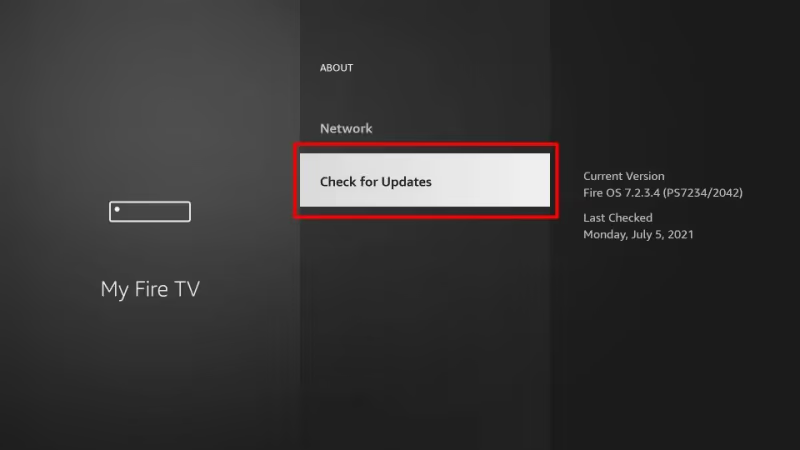
- Outdated Fire OS causes instability — check Settings > My Fire TV > About > Check for Updates after every freeze
- Factory reset is the last resort — it wipes all data but resolves persistent software bugs causing repeated freezes
#What Causes a Frozen Fire Stick?
Before jumping into solutions, it helps to understand what might cause your Fire TV Stick to freeze. Here are the most common culprits:
Limited Storage Space: The Fire Stick has very limited onboard storage, usually 8GB. Filling this up with apps and cached data causes sluggish performance and freezing.
Too Many Background Apps: Leaving too many apps running in the background puts extra strain on the Fire Stick’s resources, increasing the likelihood of freezing.
Software Bugs: Bugs, glitches, or crashes in apps and the Fire OS software itself can result in temporary freezes. Outdated software makes this worse.
Connectivity Issues: Slow internet, using extenders/splitters, or low quality HDMI cables impacts connectivity. This can freeze video streaming mid-playback.
Hardware Defects: In rare cases, a hardware defect might be to blame for repeated freezing issues.
Now that you know the causes, here is how to fix it.
#How Do You Fix a Frozen Fire Stick?
#1. Restart Your Fire TV Stick
The first troubleshooting step for any frozen device is a restart. Here is how:
-
Unplug the power adapter from the wall outlet (not just the TV).
-
Wait 10-30 seconds.
-
Plug the Fire TV Stick power back in and wait for it to reboot.
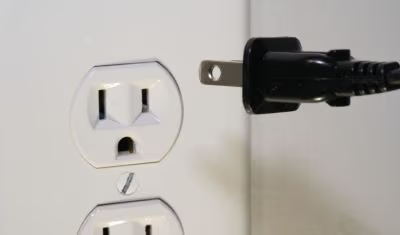
This clears temporary memory, ends background processes, and re-establishes connections. A restart alone fixes most intermittent freezing issues.
Pro Tip: You can also restart via the remote by holding Select + Play/Pause for 20 seconds.
#2. Check for Software Updates
Outdated software can introduce performance issues and bugs that lead to freezing. Keeping your Fire OS current prevents this.
Navigate to Settings > My Fire TV > About > Check for Updates. Download any available updates.
#3. Free Up Storage Space
The Fire Stick only has 8GB or 16GB of onboard storage. When this fills up, performance drops and freezing starts. Here is how to free space:
-
Go to Settings > Applications > Manage Installed Applications.
-
Select unused apps and choose Clear Cache and Clear Data.
-
Fully uninstall apps you no longer need.
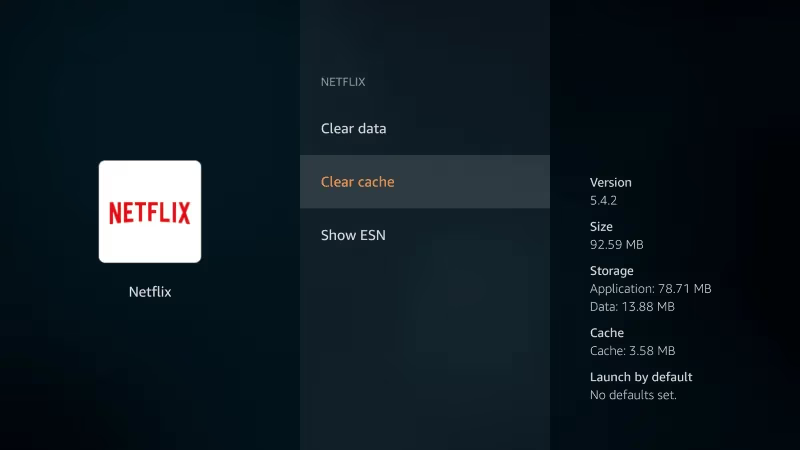
This clears cached data bogging down your system. Only reinstall apps as you need them to keep available storage high.
#4. Close Background Apps
Too many apps running at the same time strain system resources. Force closing background apps prevents this. Try:
-
Press the Home button twice to see background apps.
-
Highlight any unwanted apps with the remote.
-
Press down to close them completely.
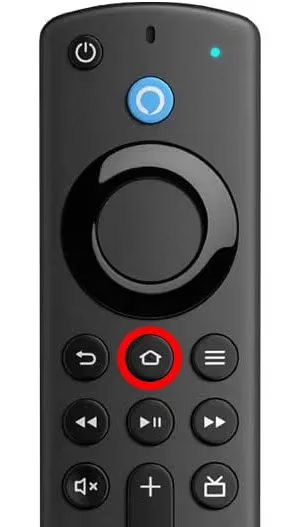
Repeat periodically to keep only your active app open. This prevents the system from getting overloaded.
#5. Check Internet Connection
Weak Wi-Fi interrupts video streaming and can freeze playback. Make sure you have a strong, high-speed internet connection for smooth Fire TV Stick performance.
Consider moving the Stick closer to your router, upgrading internet speeds, or trying wired Ethernet for the most reliable connectivity.
#6. Factory Reset Your Fire Stick
If constant freezing continues after trying the above steps, a factory reset may be needed. This resets the Fire OS to its default state.
Your personal data can be backed up to your Amazon account if you select this option once the reset completes. You will need to redownload apps afterwards.
To Factory Reset:
-
Go to Settings > My Fire TV
-
Select Reset to Factory Defaults
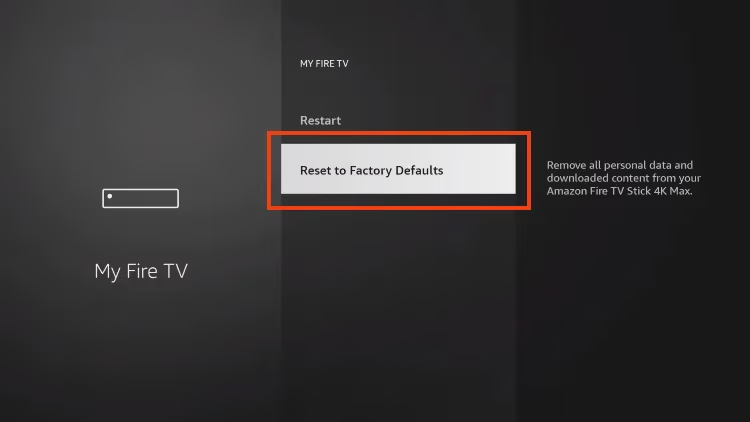
This wipes any underlying software bugs causing freezes. Watch for new issues after setting the device back up.
#How Do You Prevent Future Fire TV Stick Freezing?
You have fixed the current frozen Fire Stick issue. But how do you stop it from happening again? Follow these habits:
-
Close apps fully after using them instead of just minimizing them.
-
Check for and install updates for both the Fire OS and apps.
-
Periodically clear cached app data under Manage Applications.
-
Only download essential apps you will actually use.
-
Use the best Fire Stick VPN to protect connectivity.
-
Maintain ample storage space on the Fire Stick.
-
Connect your Stick directly to the TV instead of through an intermediary.
Following these practices for maintaining your Amazon Fire TV Stick reduces the chances of dealing with annoying freezing issues.
As you troubleshoot your frozen Fire Stick, check out guides on other common Fire TV issues like a blinking orange remote light, a white box showing on screen, and troubleshooting Fire Stick slowness.
#Bottom Line
-
A frozen Fire Stick is often caused by connectivity problems, limited storage, software issues, or too many background apps.
-
First try restarting your Fire TV Stick and checking for software updates.
-
Free up storage space and close background applications.
-
Check internet speeds. Wired Ethernet gives the most reliable connection.
-
Factory reset the Fire Stick if troubleshooting does not resolve freezing.
-
Minimizing background app usage, maintaining storage space, and installing prompt updates all help avoid future freezing issues.
With these troubleshooting methods, you have several ways to get an unresponsive Fire Stick working again. Stay proactive with device maintenance, and freezing problems should stay away for good.
#FAQ
#How do I unfreeze my Fire Stick when the remote is not responding?
Hold the power button on the remote for 20 seconds. If the remote itself is unresponsive, unplug the Fire TV Stick directly from the wall outlet for 30 seconds. Plugging it back in forces a full reboot without needing the remote at all.
#Why does my Fire Stick keep freezing on the home screen?
The home screen freeze usually happens when storage is nearly full or too many apps are running in the background. Go to Settings > Applications > Manage Installed Applications and clear the cache for your largest apps. Uninstall anything you no longer use.
#Can a bad HDMI cable cause the Fire Stick to freeze?
Yes. A damaged or low-quality HDMI cable can cause signal drops that look like freezing. Try a different HDMI port on your TV first, then swap the cable if the problem continues. Amazon recommends using a high-speed HDMI cable rated for 4K if you have a Fire TV Stick 4K.
#Will a factory reset delete my purchased apps and subscriptions?
A factory reset removes all downloaded apps and local settings, but it does not cancel your subscriptions. Your purchased apps stay linked to your Amazon account. After the reset, sign back in and redownload them from the Appstore at no extra charge.
#How much storage does a Fire TV Stick actually have available?
The Fire TV Stick advertises 8GB of storage, but only about 5GB is available to users after the operating system takes its share. The Fire TV Stick 4K Max offers 16GB, with roughly 12GB usable. Keep at least 500MB free to avoid performance issues.
#Does restarting a Fire Stick delete anything?
No. Restarting your Fire TV Stick does not delete apps, settings, or account information. It only clears temporary memory and stops running processes, which is why it is the safest first step when your device freezes.
#Should I use an Ethernet adapter instead of Wi-Fi for my Fire Stick?
An Ethernet adapter gives a stable, wired connection that eliminates Wi-Fi interference. This is worth it if your Fire Stick freezes during streaming or if your router is far from the TV. Amazon sells an official Ethernet adapter for Fire TV devices that plugs into the micro-USB port.
#How often should I clear the cache on my Fire Stick?
Clear the cache every two to three weeks if you use your Fire Stick daily. Apps like Netflix, YouTube, and Prime Video build up cached data quickly. Clearing it regularly keeps the system responsive and prevents the storage-related freezes that happen when the drive gets too full.