Your Amazon Fire TV Stick keeps crashing, freezing, or restarting on its own. This is a common problem with several possible causes, from power supply issues to outdated firmware. The good news: you can fix most reboot loops yourself without replacing the device.
- Power adapter problems cause most reboot loops — always use the original 5V adapter that came with your Fire TV Stick
- Clearing app cache frees storage — bloated cache data from streaming apps triggers crashes on devices with limited memory
- Overheating forces automatic restarts — keep your Fire TV Stick horizontal with open airflow, away from other electronics
- HDMI-CEC conflicts restart connected devices — disable CEC in your TV settings if reboots happen when switching inputs
- Factory reset fixes persistent software corruption — use this as a last resort since it erases all saved data and app logins
#Why Does Your Fire TV Stick Keep Restarting?
Here’s a quick rundown of the top fixes covered in this article:
-
Update Fire TV software
-
Clear app cache and data
-
Check internet connection
-
Reduce video resolution
-
Disable HDMI-CEC
-
Use official power adapter
-
Remove USB drives or hubs
-
Switch HDMI ports
-
Reset remote pairing
-
Disable VPNs
-
Prevent overheating
-
Reinstall apps
-
Factory reset
Read on for steps to implement each fix, plus additional troubleshooting for stubborn reboot issues.
#1. Update Fire TV Software
Start with the basics. Make sure your Fire TV Stick is running the latest firmware version. Outdated software can cause stability issues and random reboots.
To update:
-
Go to Settings > My Fire TV > About
-
Select Check for Updates
-
Install any available updates
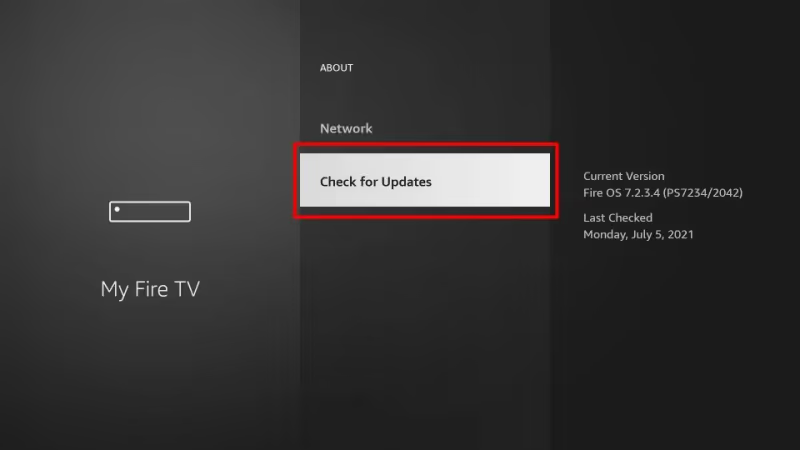
Firmware updates fix bugs and improve performance. Keeping your Fire TV Stick updated is an easy first step toward preventing crashes.
#2. How Do You Clear App Cache on Fire TV Stick?
Over time, cached data from apps builds up and slows things down. Clearing this data forces closed apps to start fresh, which can prevent crashing.
To clear cache/data for an app:
-
Go to Settings > Applications > Manage Installed Applications
-
Select sorting option for App Size
-
Choose an app and select Clear Cache followed by Clear Data
-
Repeat for other apps, especially larger ones
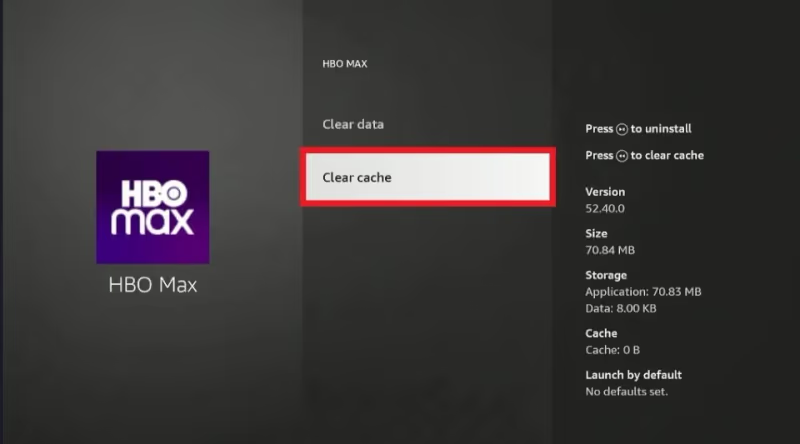
This frees up storage space and removes corrupted data that could be causing app instability.
#3. Check Internet Connection
An unstable internet connection can also trigger frequent Fire TV Stick crashes.
Verify that your Wi-Fi network is working properly and that the signal strength is strong where your Fire TV Stick is located.
To check connection:
-
Go to Settings > My Fire TV > Network
-
Select your Wi-Fi network
-
Confirm status shows “Connected”
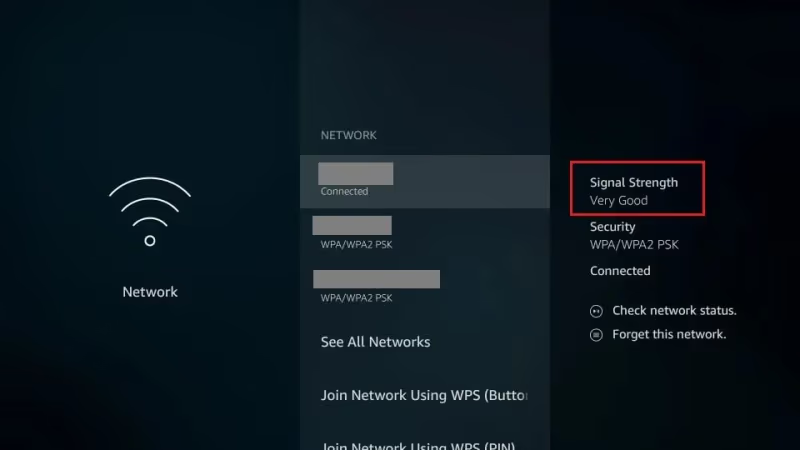
Switch networks or move your Stick closer to the router if the connection seems weak.
#4. Reduce Video Resolution
If you typically stream HD or 4K video related to NFL on Fire TV streaming issues, try lowering video resolution settings to see if it stabilizes performance. High-resolution streams take more processing power and could overtax an aging device.
To reduce video resolution:
-
Go to Settings > Display & Sounds
-
Select Video Resolution
-
Choose a lower setting like 720p and test
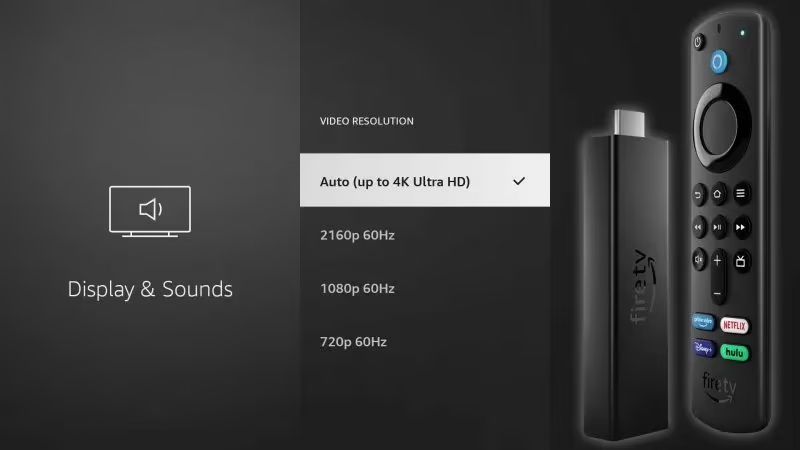
HD videos may work fine after reducing load with lower resolution. You can bump it back up if crashes persist.
#5. Disable HDMI-CEC
This feature allows HDMI devices to communicate and control one another. It can also unexpectedly restart connected devices like Fire TV Sticks.
To turn off HDMI-CEC:
-
Go to your TV settings menu
-
Locate Options for HDMI-CEC
-
Disable HDMI-CEC control
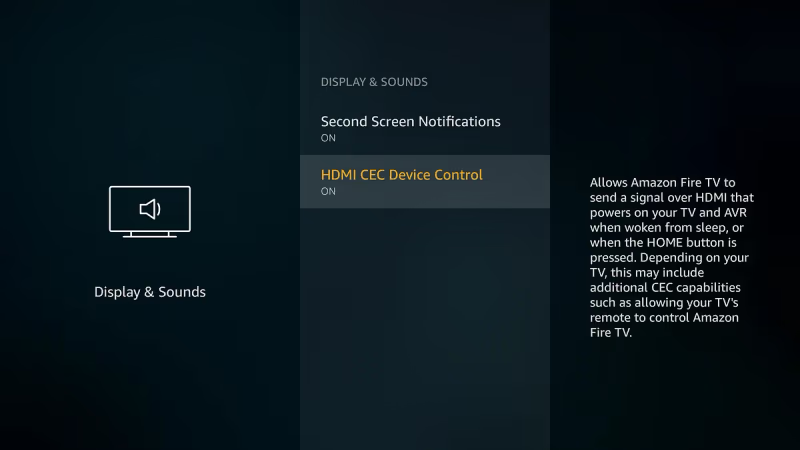
If your TV lacks this option, you may need to switch to an HDMI port that does not have HDMI-CEC enabled.
#6. Use Official Power Adapter
Using an underpowered or incompatible power adapter can lead to reboot issues. Always use the 5V adapter that came with your device.
You may also need to remove any power splitters or extenders between the wall outlet and your Fire TV Stick, as these can reduce voltage delivery.
#7. Remove USB Drives or Hubs
Attached USB devices may conflict with the hardware and software, triggering crashes or reboots similar to issues with universal remote compatibility. Disconnect USB hubs, flash drives, or other attached devices and test again.
#8. How Do You Switch HDMI Ports on Fire TV Stick?
HDMI ports can go bad over time. If you’ve ruled out other issues, try inserting your Fire TV Stick into a different HDMI port on your TV to see if the problem continues.
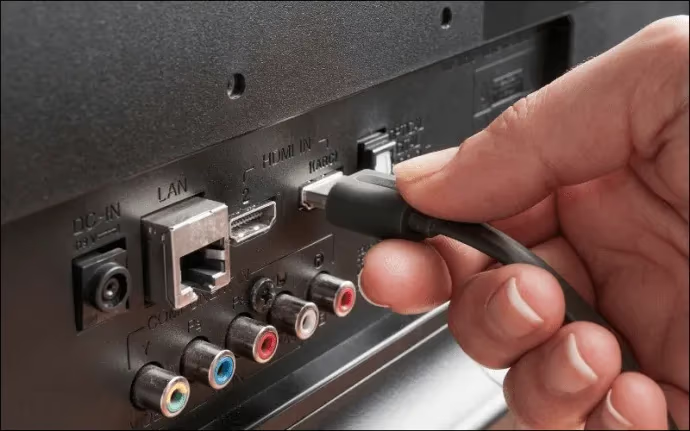
Use the HDMI extender cable that Amazon includes in the box. It gives the Stick more breathing room behind the TV and reduces heat buildup from being plugged directly into the port.
#9. Reset Remote Pairing
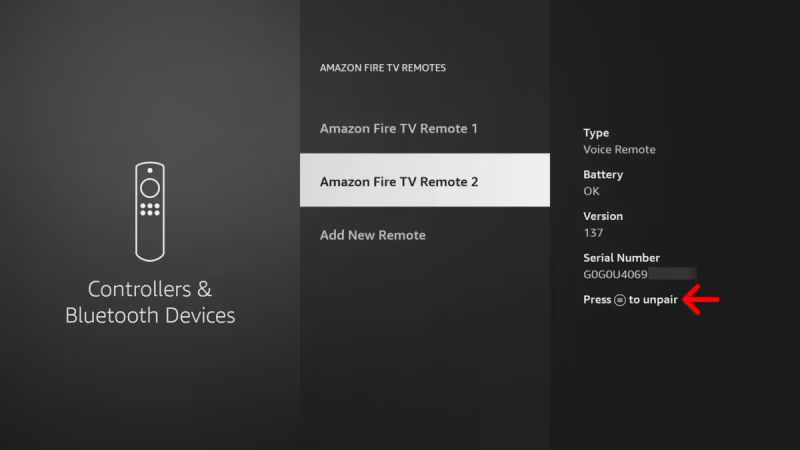
A remote pairing issue that blocks communication could show up as random reboots or disconnects.
To reset remote pairing:
-
Go to Settings > Controllers & Bluetooth Devices > Other Bluetooth Devices
-
Select Amazon Fire TV Remote > Unpair
-
Then select Pair Remote and follow the prompt
#10. Disable VPN Services
Active VPN connections can interfere with streaming devices like Fire TV Stick. Check Settings to see if any VPN apps are enabled that could be disrupting connectivity.
To check for VPN apps:
-
Go to Settings > Applications > Manage Installed Applications
-
Look for any VPN or Proxy apps listed
-
Select option to disable or uninstall VPN services
#11. Prevent Fire TV Stick From Overheating
Excess heat causes crashes and reboots. Make sure your Fire TV Stick has enough ventilation to stay cool during long streaming sessions.
-
Position horizontally to allow for airflow
-
Keep away from other hot electronics
-
Use a small fan to increase ventilation
-
Switch to an HDMI port with less heat transfer
#12. Reinstall Problem Apps
If crashes seem isolated to particular streaming apps, try uninstalling and reinstalling them, just like fixing Fire TV Stick loading issues. This overwrites any corrupted app files.
To uninstall/reinstall an app:
-
Go to Settings > Applications > Manage Installed Applications
-
Find the problematic app and select Uninstall
-
Then browse the app store to reinstall a fresh copy
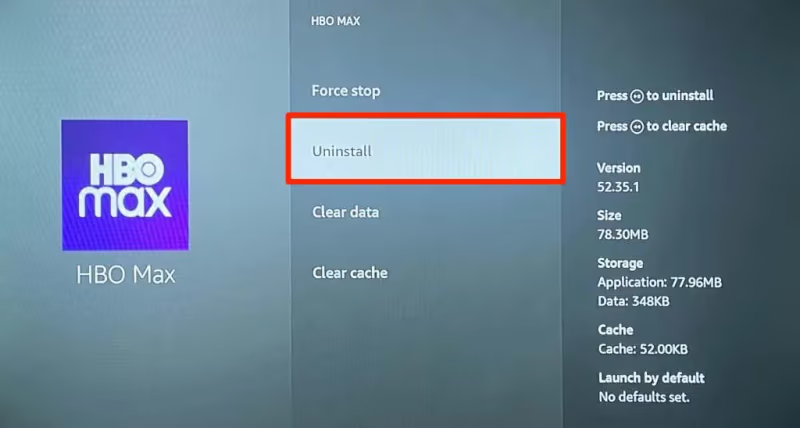
See if a clean reinstallation helps stabilize performance of crashing apps.
#13. Factory Reset Your Fire TV Stick
A factory reset erases all data and resets software to its default state. This should resolve any underlying software issues causing crashes, at the expense of losing your personal settings and app logins.
To factory reset:
-
Go to Settings > My Fire TV > Reset to Factory Defaults
-
Select Reset and confirm
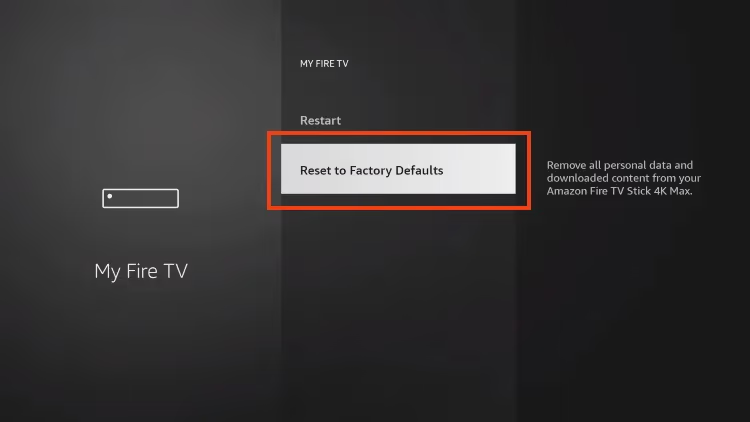
After completing the reset, run the software update again to get the latest firmware.
#Additional Troubleshooting Tips
If your Fire TV Stick still crashes or reboots after trying the fixes above, here are a few more things to check:
-
Try using a different HDMI cable
-
Test Fire TV Stick on another TV
-
Contact Amazon Support for further troubleshooting help
-
Consider replacing the device if all else fails
If you’ve tried everything and your Fire TV Stick keeps having problems, it may be time to replace it, just like when dealing with a Roku that keeps restarting.
#Bottom Line
-
Keep Fire TV firmware up-to-date
-
Clear app cache/data to free up storage
-
Verify a stable internet connection
-
Reset remote pairing if disconnected
-
Check for overheating issues
-
Factory reset fixes software corruption
With constant restarts disrupting your streaming, finding the cause is the priority. In most cases, these troubleshooting steps will identify the issue and get your Fire TV Stick working reliably again.
#FAQ
#Why does my Fire TV Stick keep restarting on its own?
The most common cause is an underpowered USB adapter. Many people plug the Fire TV Stick into a TV USB port instead of a wall outlet, which does not supply enough power. Use the original 5V/1A adapter from the box to rule this out first.
#Can overheating cause a Fire TV Stick to crash?
Yes. The Fire TV Stick has no active cooling, so it relies entirely on passive airflow. If it’s enclosed in a tight space behind your TV or stacked near a cable box, internal temperatures can spike and trigger automatic shutdowns. Move it to an open area or use the included HDMI extender for better ventilation.
#Will a factory reset fix Fire TV Stick reboot loops?
A factory reset resolves most software-related reboot loops by wiping corrupted data and restoring default settings. Keep in mind that you will lose all installed apps, saved passwords, and personalized settings. Re-download your apps and sign in again after the reset completes.
#How do I clear the cache on my Fire TV Stick?
Go to Settings, then Applications, then Manage Installed Applications. Select the app causing problems and tap Clear Cache. This removes temporary files without deleting your login data. Repeat for any other large apps that may be filling up your device storage.
#Does HDMI-CEC cause Fire TV Stick to restart?
HDMI-CEC lets your TV send control signals to connected devices. On some TV models, these signals can trigger unwanted restarts when you switch inputs or turn the TV off. Disabling HDMI-CEC in your TV settings stops this cross-device communication and often eliminates random reboots.
#How do I know if my Fire TV Stick needs to be replaced?
If your device still reboots after a factory reset, firmware update, and switching to a known-good power adapter, the hardware is likely failing. Fire TV Sticks typically last 3-5 years with regular use. Persistent overheating even in well-ventilated spaces is another sign that internal components are wearing out.
#Can a VPN app cause Fire TV Stick crashes?
VPN apps route all network traffic through external servers, which adds processing overhead. On older Fire TV Stick models with limited RAM, this extra load can cause freezes and reboots during high-bandwidth streaming. Disable or uninstall VPN apps to test whether they are the source of the problem.