ESPN+ works on Samsung Smart TVs through the ESPN app, which is free to download from the Samsung Apps store. Once you install the app and activate your ESPN+ subscription, you get access to thousands of live sports events, original shows, and on-demand replays right on your TV.
- ESPN+ costs $9.99/month or $99.99/year and works on Samsung Smart TVs from 2016 onward
- The ESPN app is required to access ESPN+ content on your Samsung TV
- Activation uses a code system where you link your TV at espn.com/activate from any browser
- One subscription covers multiple devices including phones, tablets, computers, and other smart TVs
- Live sports include MLB, UFC, college football, and soccer plus 30 for 30 documentaries and original shows
#What Does ESPN+ Offer on Samsung Smart TV?
Before getting into the setup steps, here is a quick rundown of what ESPN+ includes.
ESPN+ gives you access to:
-
Thousands of live sports events - From MLB to UFC to college football, ESPN+ airs games and matches you will not find on ESPN’s regular TV channels.
-
Original shows and films - Exclusive ESPN+ originals like Detail with Kobe Bryant, Peyton’s Places, and 30 for 30 documentaries.
-
On-demand replays - Missed a live game? Full event replays are available on-demand anytime.
One subscription gives you access across devices, so you can also watch ESPN+ on your phone, tablet, computer, or even LG TV when away from your Samsung device. At $9.99/month, it is a solid deal for sports fans.
#How Do You Download the ESPN App on a Samsung Smart TV?
The first step is downloading the ESPN app since that is where you access all ESPN+ content. Here is how:
-
Click the Home button on your Samsung TV remote.
-
Select the Apps icon.
-
Type “ESPN” into the search bar.
-
Highlight the ESPN app.
-
Click Install.
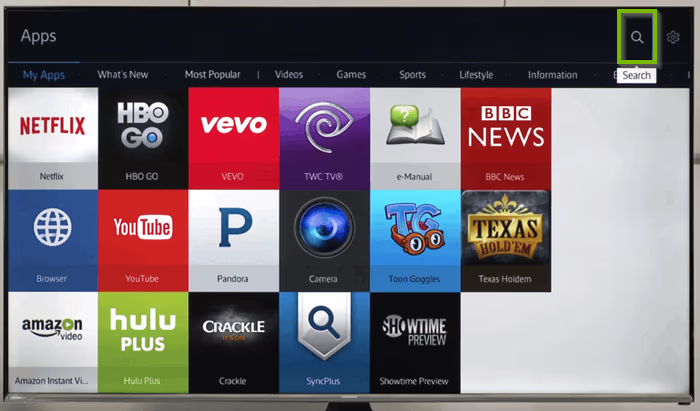
The ESPN app downloads onto your Smart TV in under a minute. Once installed, you can open it anytime from the Apps menu.
Next, you need an ESPN+ subscription.
#Signing Up for an ESPN+ Subscription
Before you can start watching, you need an active ESPN+ subscription. It takes about two minutes to sign up:
-
Go to plus.espn.com from any browser or mobile device.
-
Click Subscribe to ESPN+ only.
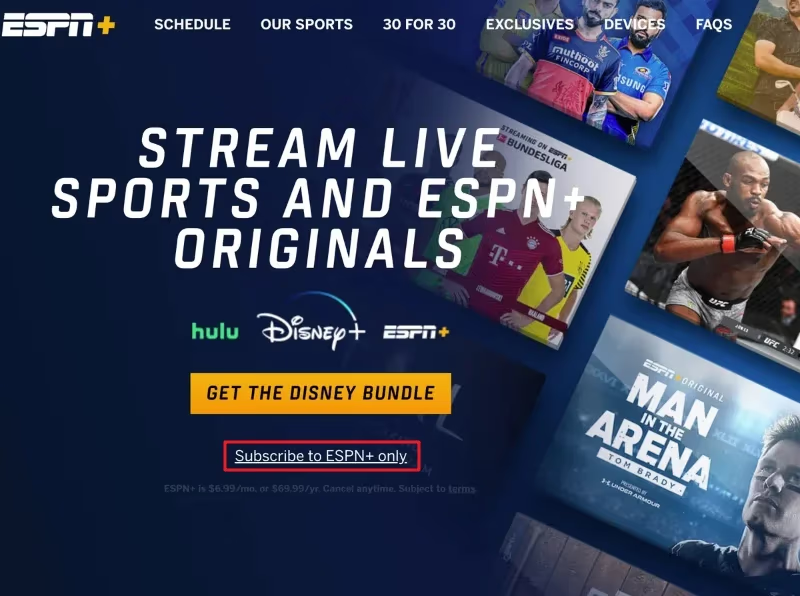
- Click SIGN UP and enter your details.
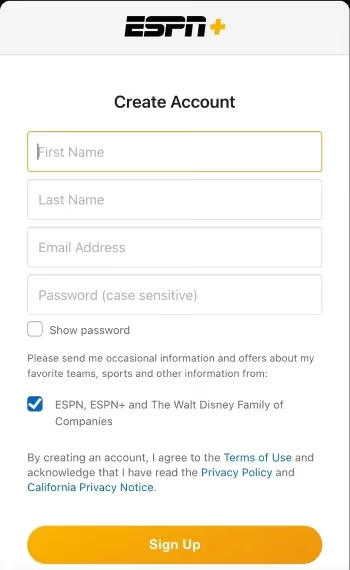
-
Click Continue.
-
Enter your payment method and click Subscribe Now.
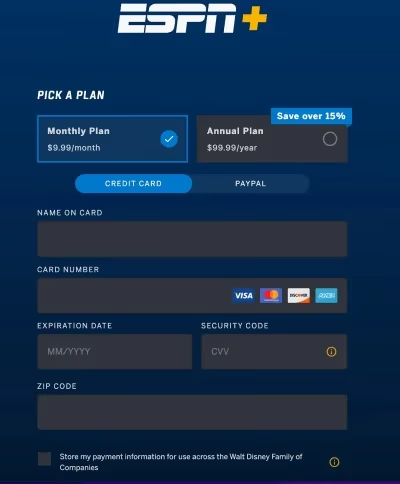
Your ESPN+ subscription is now linked to your account. Time to connect it to your TV.
#How Do You Log Into ESPN+ on Your Samsung Smart TV?
Now for the fun part. Here is how to activate ESPN+ on your Samsung TV:
-
Open the ESPN app on your Samsung TV.
-
Click on your user icon in the top-right corner of the screen.
-
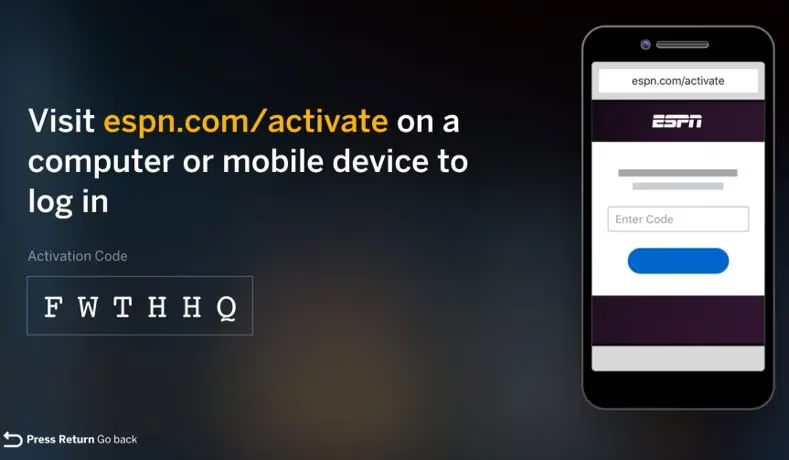
Click Get Activation Code under ESPN+.
-
Write down the verification code displayed on screen.
-
From any device, go to espn.com/activate.
-
Enter the verification code to link your TV.
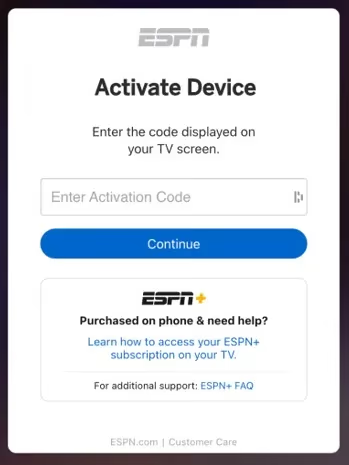
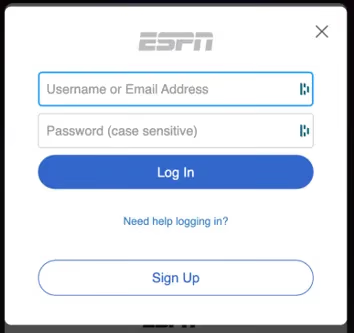
- Follow the prompts and enter your ESPN account email and password.
- You will see a confirmation message once your TV is linked.
You are now fully logged into ESPN+ on your Samsung Smart TV.
#Start Watching ESPN+ on Samsung Smart TVs
To start watching, open the ESPN app from your Samsung TV’s Apps menu and navigate to the ESPN+ tab at the top. Select any live event or show from the listings and hit play.
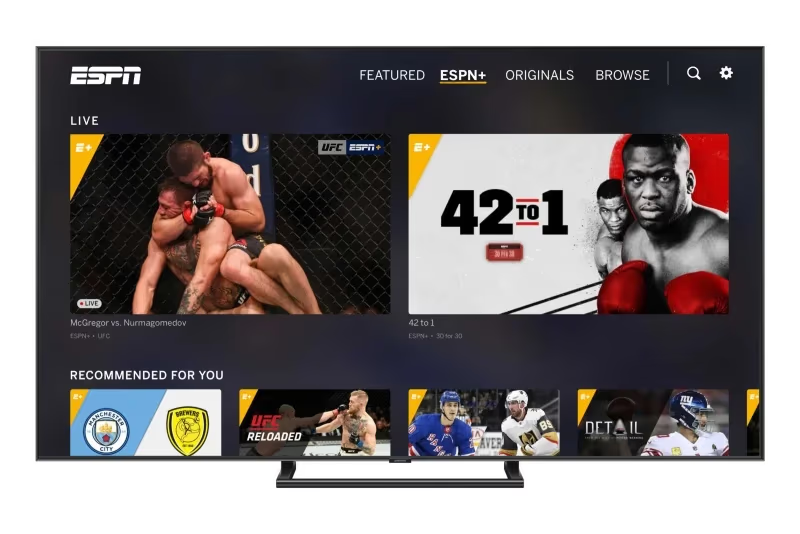
From live soccer matches to MMA fight nights to original documentaries, your ESPN+ library is ready to go. You can also access ESPN+ on live TV streaming platforms like DirecTV, Dish TV, fuboTV, and ad-supported services like Pluto TV.
#Bottom Line
Getting ESPN+ running on your Samsung Smart TV takes about five minutes total. Download the ESPN app, sign up for a subscription, and activate your TV with a code from espn.com/activate. Once linked, you have instant access to live events, original shows, replays, and more on your big screen.
#FAQ
#How much does ESPN+ cost on Samsung TV?
ESPN+ costs $9.99 per month or $99.99 per year. The subscription works across all your devices, not just your Samsung TV. There is also a Disney Bundle option that includes Disney+, Hulu, and ESPN+ at a discounted rate.
#Can I watch ESPN+ on older Samsung Smart TVs?
Most Samsung Smart TVs released from 2016 onward support the ESPN app and ESPN+ streaming. If your TV is older than 2016, you can still watch by connecting a Roku, Fire TV Stick, or Chromecast and running the ESPN app from there.
#Why can’t I find the ESPN app on my Samsung TV?
Try running a firmware update on your Samsung TV first. Go to Settings > Support > Software Update > Update Now. If the app still does not appear, check Samsung’s website to confirm your TV model supports the ESPN app. Some region-locked models may not have access.
#Is ESPN+ the same as ESPN?
No. ESPN is the traditional cable TV channel, while ESPN+ is a separate streaming subscription. ESPN+ has exclusive content you will not find on cable ESPN, including UFC pay-per-view events, out-of-market games, and original documentaries. You need the ESPN app to access both, but they require different subscriptions.
#What sports can I watch on ESPN+ on my Samsung TV?
ESPN+ carries MLB, NHL, UFC, MLS, college sports, PGA Tour golf, Grand Slam tennis, and international soccer leagues. The exact lineup changes by season, but there are typically 20+ live events available on any given day.
#How do I fix ESPN+ buffering on my Samsung TV?
Close other apps running in the background on your TV first. Then check your internet speed — ESPN+ recommends at least 5 Mbps for HD streaming. For the most stable connection, plug your Samsung TV directly into your router with an Ethernet cable instead of relying on Wi-Fi.
#Can I share my ESPN+ account on multiple Samsung TVs?
Yes. ESPN+ allows streaming on up to three devices at the same time. You can log into the ESPN app on multiple Samsung TVs using the same account, and each TV goes through the same activation code process at espn.com/activate.
#Does ESPN+ include live local games on Samsung TV?
ESPN+ does not carry local market games due to regional blackout rules. If you want to watch your local NBA, MLB, or NHL team, you will need a separate service like YouTube TV or Hulu + Live TV. ESPN+ focuses on out-of-market and nationally broadcast events instead.