Your Element TV has no sound. It happens more often than you’d think, and most fixes take under five minutes. Below you’ll find 14 reasons your Element TV lost audio and step-by-step solutions to get it working again.
- Mute and volume checks fix most cases — always rule these out before digging deeper
- Loose HDMI or RCA cables cause roughly half of all no-sound complaints on Element TVs
- A 60-second power cycle clears temporary software glitches that silence the speakers
- Roku-based Element TVs have a special reboot sequence (Home ×5, Up, Rewind ×2, Fast Forward ×2)
- If only one app has no audio, the problem is app-specific — reinstall or reset the app data
#What Causes No Sound on Element TVs?
Before jumping into troubleshooting steps, it’s helpful to understand what might cause sound to cut out on your Element TV in the first place.
#Top 7 Reasons an Element TV Would Have No Sound
-
TV is muted
-
Volume turned down
-
Loose, damaged, or disconnected cables
-
Faulty speakers/audio hardware failure
-
App or streaming platform audio issue
-
Outdated software/firmware
-
System software glitch
Issues with cables, hardware failures, and software glitches account for most instances of Element TVs losing audio. Thankfully, many of these problems can be fixed yourself without expensive technician fees.
#How Do You Fix No Sound on an Element TV?
Below are 14 practical troubleshooting tips for restoring sound on your silent Element TV. We’ll start with the simplest solutions first and progress to more advanced techniques if needed.
##1 Check If TV Is Muted
Before anything else – check if your Element TV is muted! Press either the physical Mute button on remote or highlight the speaker icon on screen to toggle mute on and off.
Pro Tip: Sometimes TV will display the speaker icon even when sound is turned off completely. Don’t rely solely on screen icons to determine if audio works.
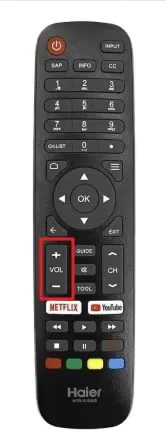
##2 Toggle Volume Up/Down
Along the same lines, make sure volume isn’t just set to zero. Repeatedly press Volume Up/Down buttons on your remote to see if bars change.
##3 Inspect All Connections
Faulty cables account for many no audio issues. Thoroughly inspect connections to external devices like DVD players, sound bars, and gaming consoles.
-
Firmly reconnect any loose HDMI, RCA, optical or other cables at both ends
-
Test cables to confirm audio works through each one alone
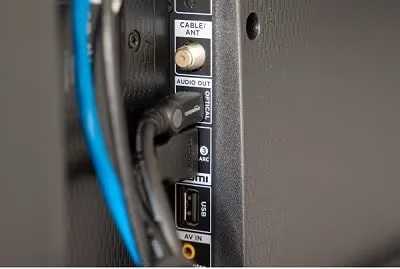
Pro Tip: Most sound problems with HDMI connections can be fixed by unplugging and firmly reinserting cable ends.
While troubleshooting cables, you may need to dig up your original Element TV remote or a universal remote. Here are Element universal remote control codes for various models.
##4 Reset Connected Devices
If you have external media players, streaming sticks, or sound equipment plugged into the Element TV also power cycle these devices after checking wires. Reset connected equipment before moving on to troubleshoot the TV itself.
##5 Check Audio Settings
Access Audio Settings through the Settings Menu to:
-
Confirm TV speakers are enabled
-
Adjust audio offsets for synchronization
-
Change default audio input device
-
Reset audio settings to default
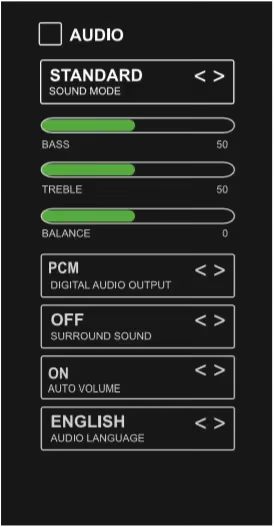
Faulty configurations here can block sound output.
##6 Perform Forced TV Resets
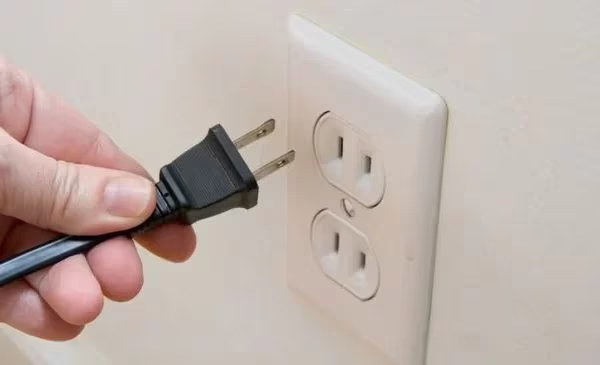
Soft resetting an Element TV clears temporary data/fixes software glitches that may silence audio. Try forced restarts even if TV seems to power on normally.
#Soft Reset
Unplug TV power cable > Wait 1 minute > Reconnect cable
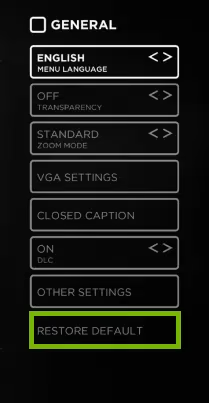
#Factory Reset
Resets TV software to default > TV Settings > General > Restore Default
##7 Install Software Updates
Outdated Element TV software can also cause no audio issues.
-
Navigate to Settings > System > System Update
-
Download latest update
-
Install updates and restart
Continually updating your software ensures maximum compatibility, bug fixes and features.
##8 Adjust App/Streaming Service Settings
No sound from a particular streaming channel or app typically indicates a platform-specific rather than TV hardware issue.
-
Launch the problematic app/channel
-
Access audio settings – enable sound
-
Reset app data/defaults
-
Reinstall app if issues persist
Apps like Disney+ are known culprits of streaming audio problems – adjust accordingly.
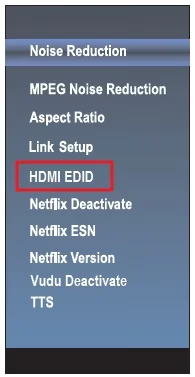
##9 Verify HDMI EDID Version
EDID is data that enables your Element TV to communicate with connected devices about optimal display resolutions and audio formats.
If HDMI source and TV have mismatched EDID versions, it can prevent sound transmission.
Most issues are fixed by simply unplugging and reconnecting the HDMI cable ends. Otherwise, manually update source/display EDID data if possible.
If you are also encountering video issues like a black screen along with no audio, see this guide on fixing Element TV black screen problems.
##10 Rule Out Wi-Fi Interference
Wireless interference in the vicinity of your Element TV can disrupt audio signals. To test this:
-
Temporarily disable Wi-Fi on TV
-
Connect via wired Ethernet instead
-
Toggle off nearby electronics that emit interference
If sound returns, Wi-Fi was the likely culprit. Tweak router placement and frequency channels.
##11 Isolate Audio Board Failure
Rarely, the built-in audio processing board inside an Element TV may fail, preventing all sound playback through speakers.
To test for audio board issues:
-
Connect external computer speakers via headphone jack
-
Set audio source to TV tuner/antenna
If computer speakers DO output sound, there is likely an internal hardware problem with TV sound components. Seek professional repair or replacement.
##12 Roku TV Special Reboot Sequence
Many Element TVs run on the Roku smart platform. For models with Roku integration, this special reboot sequence often resolves system-level audio bugs:
-
Press Home button 5 times fast
-
Press UP once
-
Press REWIND twice
-
Press FAST FORWARD twice
-
TV will reboot itself
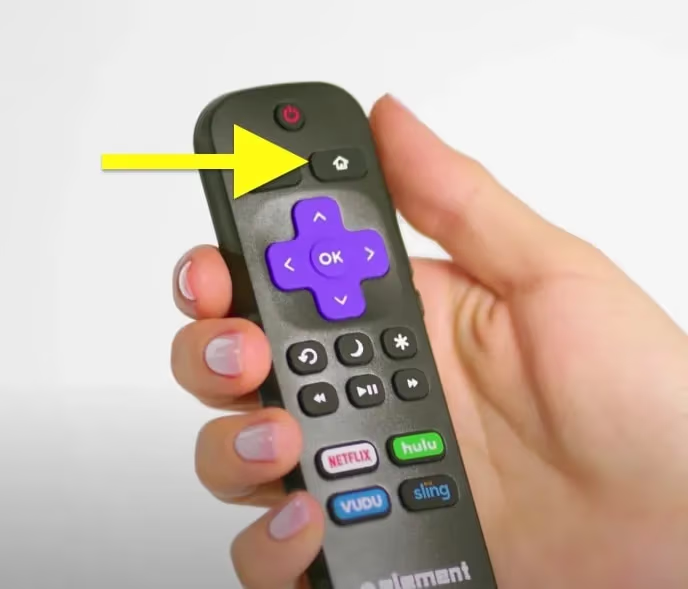
Attempt this methodical reboot to refresh the Roku software before trying more drastic measures.
##13 Attempt HDMI Hot Plug Fix
One solution for stubborn, unexplained HDMI sound issues is to trigger hot plug detection:
-
With TV powered OFF, disconnect HDMI cable
-
Power on TV and reconnect HDMI cable
-
TV will reinitialize connection, potentially fixing audio
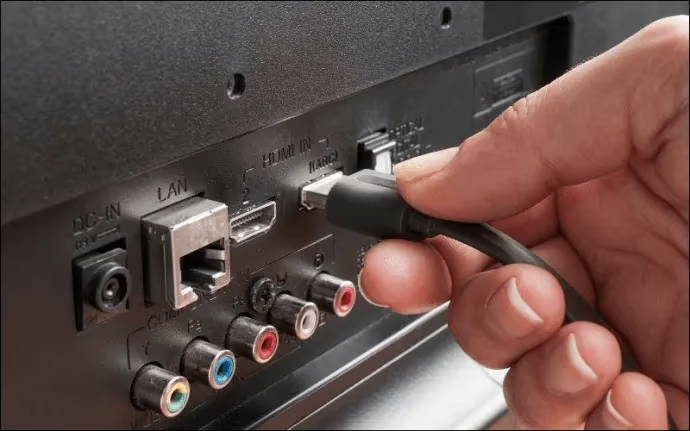
HDMI hot plug forces devices to re-handshake and negotiate the best mutual audio settings.
##14 Contact Customer Support
Still no luck getting sound from your Element TV after trying the above tips? Reach out to Element Electronics customer support by phone or online chat.
Provide detailed information on troubleshooting steps attempted. Tech specialists can further diagnose the issue and arrange repair options if necessary.
Pro Tip: For Element/Roku TV issues specifically, Roku’s customer service team are often more knowledgeable in software-related audio fixes.
#How Can You Prevent Sound Loss on Element TVs?
A bit of preventative maintenance goes a long way in minimizing headaches from no audio problems down the road.
#5 Tips to Maintain Optimal Sound Quality
-
Keep TV firmware updated
-
Only use certified HDMI cables
-
Carefully reconnect cords to prevent loosening
-
Limit prolonged high volume levels
-
Allow proper ventilation around TV
Taking these basic precautions will help enhance longevity of audio components and minimize cuts in sound over years of use.
A standalone sound bar or speaker system gives you higher quality, independent audio that won’t rely on your Element TV’s built-in speakers.
For no sound problems with other popular smart TV brands like Vizio, Hisense, Sharp or Philips models, check out these specialized troubleshooting articles we’ve published:
#FAQ
#Why does my Element TV have picture but no sound?
The most common cause is a muted TV or volume set to zero. Check both the remote mute button and the on-screen volume indicator. If neither is the issue, a loose HDMI or optical cable is the next likely culprit.
#How do I reset the audio on my Element TV?
Go to Settings > Audio and select “Reset to Default.” This restores all audio output settings to factory values without erasing your other preferences. If that doesn’t work, try a full factory reset under Settings > General > Restore Default.
#Does a power cycle fix Element TV sound problems?
Yes. Unplug the TV from the wall outlet, wait 60 seconds, then plug it back in. This clears temporary data stored in the TV’s memory and resolves most software-related audio glitches.
#Can a bad HDMI cable cause no sound on Element TV?
Absolutely. A damaged or loosely connected HDMI cable can transmit video while failing to carry the audio signal. Swap in a known working cable and make sure both ends click firmly into place.
#Why does only one app have no sound on my Element TV?
App-specific audio loss usually means that app’s internal audio settings are wrong or its data is corrupted. Open the app’s settings, check audio output, and try clearing the app cache. Reinstalling the app is the fastest fix if the cache clear doesn’t help.
#How do I know if my Element TV speakers are broken?
Plug headphones or external speakers into the TV’s headphone jack. If you hear audio through the external speakers but not the built-in ones, the internal speakers or audio board have likely failed and need professional repair.
#What is the Roku reboot sequence for Element TVs?
Press Home 5 times quickly, then Up once, Rewind twice, and Fast Forward twice. The TV will restart on its own. This sequence forces a full software refresh on Roku-based Element TVs and clears audio bugs that a normal restart might miss.
#Bottom Line
-
Always first check for mute/volume and faulty cables
-
Attempt both soft resets and factory resets
-
Isolate if problem stems from hardware or software
-
Update all TV/app software and firmware
-
Special steps for Roku TV model reboots
-
Contact support for unresolved hardware faults
Following the structured audio troubleshooting checklist above will help accurately diagnose and fix sound loss from your Element TV.
Bookmark this page so you can quickly restore sound the next time audio drops out on your Element TV.