Element TV game mode reduces input lag and speeds up response time for console and PC gaming. Most Element models from 2018 onward include this setting under the Picture menu, and activating it takes less than a minute. If your games feel sluggish or controls seem delayed on your Element TV, game mode is the first setting to check.
- Input lag drops to roughly 20ms when game mode is active on most Element TV models
- Game mode disables motion smoothing and noise reduction automatically, removing processing that slows response time
- 1080p at 60Hz is the best input signal for Element TVs since most panels max out at this resolution and refresh rate
- Connect your console directly to the TV instead of routing through a soundbar or AV receiver to avoid extra lag
- Rename your HDMI input to “Game Console” so the TV can auto-activate game mode when that source is selected
#What Does Game Mode Do on an Element TV?
Game mode on an Element TV changes how the panel processes the video signal from your console or PC. Under normal viewing, Element TVs apply motion smoothing, noise reduction, and color enhancement filters. These filters look good for movies. They add processing delay that hurts gaming.
When you turn on game mode, the TV skips most of that post-processing. The result is a faster signal path from your controller input to what appears on screen. On most Element models, input lag drops from around 50-70ms in standard mode down to roughly 20ms in game mode.
Here is what game mode changes specifically:
- Disables motion smoothing (reduces blur but eliminates the “soap opera effect”)
- Turns off noise reduction processing
- Locks the refresh rate to match the input signal
- Reduces color and contrast post-processing
The trade-off is a slightly less polished picture compared to movie mode. For gaming, the speed improvement is worth it. You will notice the difference immediately in fast-paced shooters, fighting games, and platformers where split-second timing matters.
#How Do You Turn On Game Mode on an Element TV?
Activating game mode is straightforward on any Element TV with a standard remote:
- Press the Menu button on your Element remote
- Navigate to Picture settings
- Scroll down to find Game Mode
- Set it to On
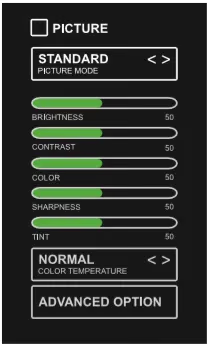
On some older Element models (2017 and earlier), the option may be listed under Advanced Picture Settings instead of the main Picture menu. If you do not see Game Mode at all, your model may not support it. Check your model number on the Element Electronics website to confirm feature availability.
Once game mode is on, the TV applies the setting only to the current HDMI input. Switch to a different input and normal picture processing returns. This is useful if you use one HDMI port for gaming and another for a streaming stick.
If you run into audio problems after changing picture settings, check our guide on Element TV no sound issues for troubleshooting steps.
#Best Picture Settings for Gaming on Element TV
Game mode is the starting point, but a few additional tweaks can improve your experience. These settings work well on Element ELFW5017 and ELST5016S models, though similar adjustments apply across the lineup.
#Brightness and Contrast
Set brightness to 50 and contrast to around 75-80. Higher contrast values can wash out dark areas in games like horror titles or stealth sections. Lower contrast helps you spot enemies hiding in shadows.
#Sharpness
Turn sharpness down to 0 or close to it. The sharpness filter on Element TVs adds artificial edge enhancement that creates a “halo” effect around objects. Games already render at their native resolution, so extra sharpening does more harm than good.
#Color Temperature
Use the Warm preset for gaming. It produces more accurate colors and makes dark scenes easier to read. The Cool preset skews blue and can make skin tones look unnatural.
#Backlight
Set backlight to 70-80% for gaming in a lit room. Drop it to 40-50% for dark room sessions. Maximum backlight causes eye strain during long gaming sessions and does not improve response time.
#Motion Settings
Game mode should disable these automatically. Double check that Motion Smoothing and Noise Reduction are both off. If either stays on while game mode is active, turn them off manually. These two settings add the most processing delay of any picture option.
#How to Test if Game Mode Is Working
After enabling game mode, you want to confirm it actually reduced lag. Here are three practical ways to check.
Controller response test. Load a game with a responsive menu (any fighting game works well). Tap a button and watch how quickly the on-screen action follows. Then turn game mode off and repeat. The difference should be obvious.
Side-by-side comparison. If you have a second TV or monitor, connect the same console to both using an HDMI splitter. Play the same game on each screen and compare responsiveness. The Element TV in game mode should feel nearly as fast as a gaming monitor.
Input lag measurement. For precise numbers, use a tool like the rtings.com input lag test methodology. Their database includes measurements for several Element TV models if you want to see published results before testing yourself.
If game mode does not seem to make a difference, power cycle your Element TV by unplugging it for 30 seconds. Plug it back in and re-enable game mode. Some Element models need a full restart for the setting to take effect properly.
#Connecting Consoles for the Lowest Lag
The physical connection matters as much as the software settings. Follow these guidelines for the best results.
Use HDMI directly. Plug your PS5, Xbox, or Nintendo Switch dock straight into the Element TV. Running the signal through a soundbar, AV receiver, or HDMI switch adds processing delay at each stop. Even 5-10ms of extra lag from an AV receiver stacks on top of the TV’s own latency.
Pick the right HDMI port. Some Element models process HDMI 1 differently than other ports. Try each port and test responsiveness. The port labeled “HDMI 1” or “ARC” sometimes has different processing than HDMI 2 or 3.
Use a recent HDMI cable. Element TVs with 4K support need a High Speed HDMI cable (HDMI 2.0) to handle 4K at 60Hz. An older cable may force the signal down to 30Hz, which feels noticeably worse during gameplay. If you are having display problems on your Element TV, our Element TV black screen troubleshooting guide covers common HDMI-related issues.
Set the correct resolution on your console. Most Element TVs are 1080p panels. Sending a 4K signal to a 1080p Element TV forces the panel to downscale, which adds processing time. Set your console output to match the TV’s native resolution for the fastest path.
#Game Mode Versus Other Picture Modes
Element TVs typically offer Standard, Movie, Vivid, Sports, and Game modes. Here is how game mode compares for different uses.
| Setting | Input Lag | Color Accuracy | Best For |
|---|---|---|---|
| Game Mode | ~20ms | Moderate | Console/PC gaming |
| Standard | ~55ms | Good | General TV watching |
| Movie | ~60ms | Best | Films, streaming shows |
| Vivid | ~50ms | Low (oversaturated) | Showroom display |
| Sports | ~45ms | Moderate | Live sports |
Game mode wins on lag by a wide margin. If you care about color accuracy for story-driven games where visuals matter more than reaction speed, Movie mode is an alternative. The extra 40ms of lag will not bother you in turn-based RPGs or visual novels.
For competitive multiplayer games, game mode is the only real choice. The lag difference between 20ms and 55ms affects your ability to react in online shooters, fighting games, and racing titles.
Curious about game mode on other brands? See our guides for VIZIO TV game mode and Sharp TV game mode to compare how different manufacturers handle this feature.
#Bottom Line
Turn on game mode in your Element TV’s Picture settings to cut input lag to around 20ms. Set sharpness to zero, contrast to 75-80, and use the Warm color temperature preset. Connect your console directly to the TV with a quality HDMI cable and match the console output resolution to your TV’s native panel. If game mode does not seem to help, power cycle the TV and re-enable the setting. These adjustments take five minutes and make a noticeable difference in every genre from shooters to platformers.
#FAQ
#Does game mode reduce picture quality on Element TV?
Game mode disables some post-processing filters, so colors may look slightly less saturated compared to Standard or Movie mode. The difference is minor on most Element panels. For gaming, the 30-40ms reduction in input lag is a better trade-off than marginally richer colors.
#Can I use game mode for watching movies?
You can, but it is not ideal. Game mode skips motion smoothing, which makes fast camera pans in films look slightly less fluid. Switch back to Movie or Standard mode when you finish gaming for the best viewing experience.
#Why is there no game mode option on my Element TV?
Some older Element models manufactured before 2017 do not include a dedicated game mode. Check under Advanced Picture Settings first. If it is not there, you can manually lower the sharpness, turn off noise reduction, and disable motion smoothing to approximate game mode behavior. You will not get the same input lag reduction, but it helps.
#Does game mode work with all gaming consoles?
Yes. Game mode works with PlayStation, Xbox, Nintendo Switch, and PC connections over HDMI. The TV does not differentiate between sources when game mode is active. It applies the same processing shortcuts regardless of which device is connected.
#Should I rename my HDMI input for gaming?
Renaming the HDMI input to “Game Console” or “PC” on some Element models triggers automatic game mode activation for that port. This saves you from toggling the setting manually each time you switch inputs. Not all Element models support this feature, but it is worth checking in your Input Settings menu.
#Does game mode affect sound output?
Game mode only changes picture processing settings. It does not alter audio output, volume levels, or sound profiles. If you notice audio issues after enabling game mode, the cause is likely a separate setting. Our Element TV no sound guide covers common audio fixes.
#What input lag does Element TV have with game mode off?
Most Element TV models show 50-70ms of input lag with game mode disabled, depending on the picture mode selected. Vivid and Standard modes fall in the 50-55ms range, while Movie mode is typically the slowest at around 60-65ms. Enabling game mode brings this down to approximately 20ms on tested models.
#Can I use an Element TV for competitive gaming?
Element TVs work for casual to moderate competitive gaming with game mode enabled. The 20ms input lag is acceptable for most online multiplayer games. Serious competitive players who need sub-10ms response times should consider a dedicated gaming monitor from rtings.com’s recommended list, as no Element TV panel currently reaches that speed.