Wondering how to delete your Disney Plus watch history? With over 160 million global subscribers, Disney’s popular streaming service offers an endless catalog of movies, shows, and originals.But like other platforms, Disney+ tracks everything you watch to make recommendations. For some, this self-updating watch history can get cluttered with titles they’d rather keep private or simply no longer care to see.
So is there a way to clear your recently watched queue on Disney Plus? Let’s dig in…
- No full history deletion — Disney+ does not provide a view or delete option for your complete watch history, unlike Netflix or Hulu
- Continue Watching removal — you can remove individual titles from the Continue Watching row by clicking the X icon on each thumbnail
- Skip-to-end trick — fast forwarding a video past the credits removes it from Continue Watching without manually deleting it
- Watchlist bulk cleanup — removing items from your Watchlist also clears them from your viewing activity in most cases
- Profile reset is permanent — deleting your Disney+ profile erases all watch history, preferences, and progress with no recovery option
#Can You Remove Your Disney+ Viewing Activity?
Unlike Netflix and Hulu, Disney+ currently does not have an option to view or delete your full watch history.
While inconvenient, this isn’t too surprising given the platform’s relative infancy compared to veteran streamers. There are workarounds, but no direct way to erase every Disney+ title you’ve ever viewed.
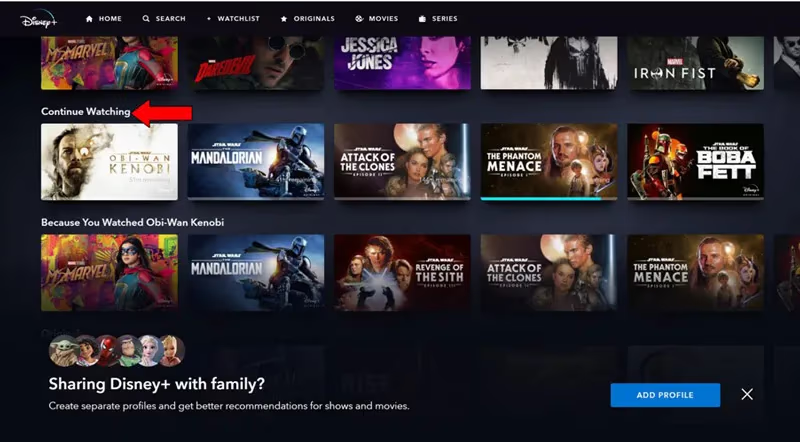
However, you can remove individual items one-by-one from the Continue Watching row on your homepage. This section shows unfinished movies, episodes, and series you’ve recently watched.
Below I’ll explain different methods to curate your Continue Watching queue, plus steps to delete your entire user profile if you want a completely fresh start.
#Method 1: Remove Titles Individually
You can delete Disney+ titles from Continue Watching by following these steps:
-
Log into Disney+ and go to the Continue Watching row on your homepage.
-
Hover over a title’s thumbnail that you wish to remove.
-
Click the “X” icon in the top corner to delete that entry.
-
Repeat for any other titles you want gone from the list.
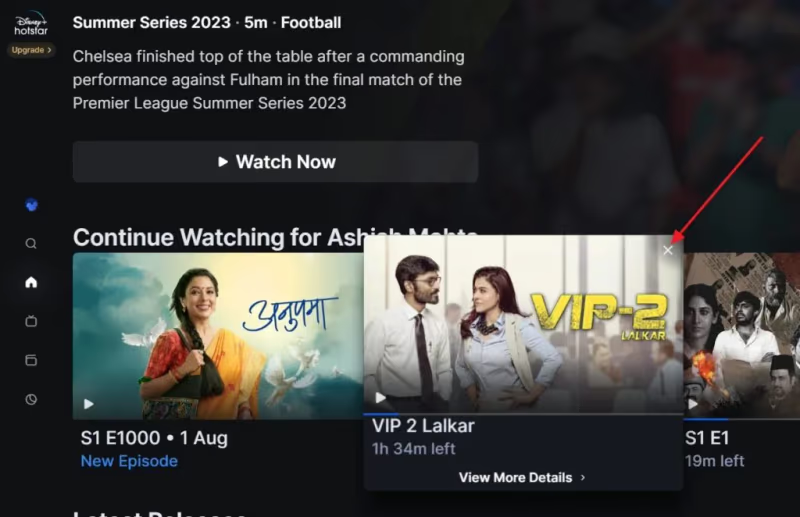
This allows precise control to prune your Continue Watching queue one-by-one. However, it can be tedious if you have many watch history entries built up over time.
Let’s look at more efficient ways to tidy up your homepage.
#Can You Skip to the End of a Video to Clear It?
Here is another handy trick to remove Disney+ titles from Continue Watching:
- Select the video you want gone from your viewing history.
- Skip or fast forward to the very end past the credits.
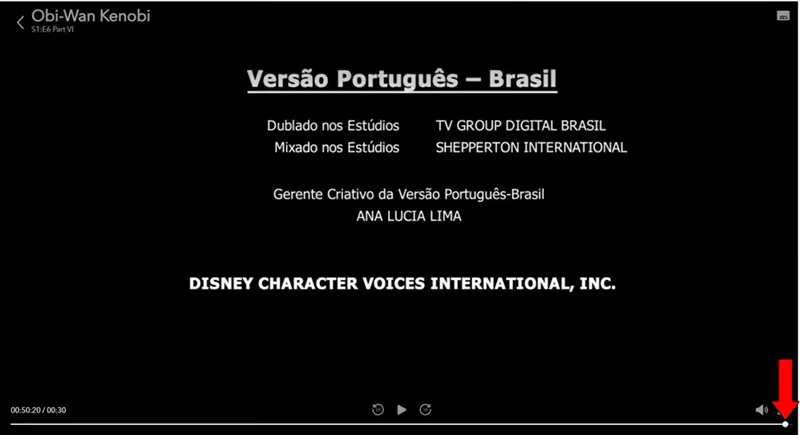
- The title should then disappear from your queue.
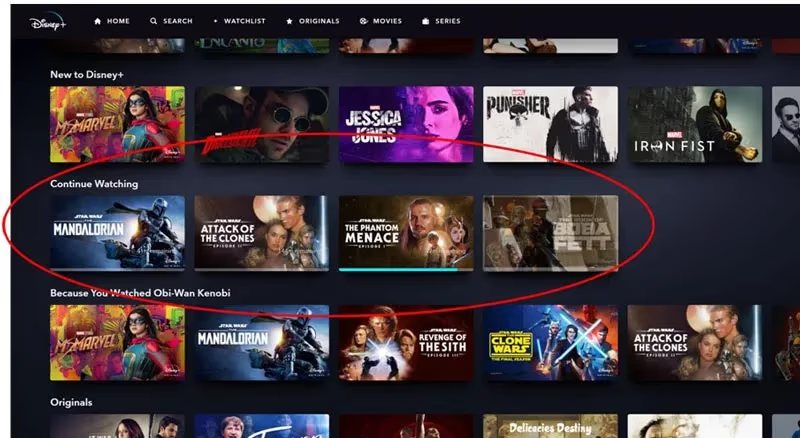
However, it only works on a per-title basis. Binge watchers with long queues may need to use another blanket solution, like fixing Disney Plus loading errors.
#Method 3: Remove All Titles from Your Watchlist
Disney+ also offers a Watchlist feature to bookmark content for later viewing. You can bulk remove videos from your Watchlist as follows:
-
Go to the Watchlist tab at the top of Disney+.
-
Click the checkmark icon on videos you want eliminated.
-
The title will be removed instantly from the Watchlist.
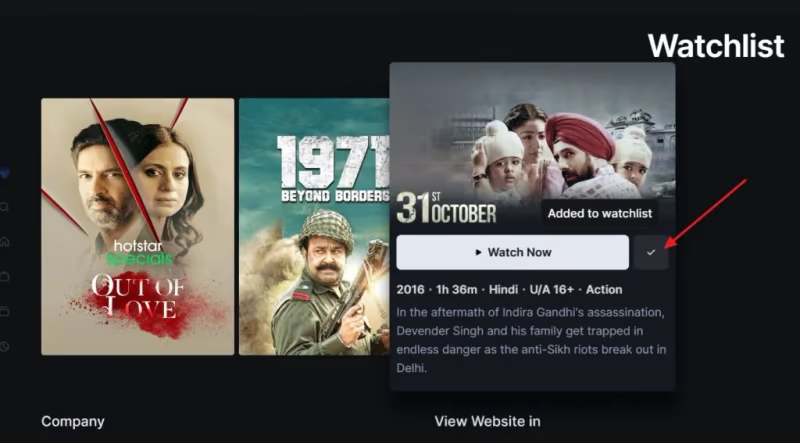
Purging your entire Watchlist provides a fresh start and may also prune some Continue Watching entries. But it’s still not a catch-all delete viewing history option that platforms like Netflix offer.
For the nuclear option, read on!
#What Happens if You Delete Your Disney+ Profile?
The most definitive way to erase your Disney+ watch history is:
-
Delete your profile
-
Create a brand new profile
-
This will completely reset your viewing activity, suggestions, and Continue Watching list
-
It also removes saved preferences and restarts any viewing progress
Before taking this drastic step, consider creating a secondary temporary profile just for wiping your slate clean. This avoids losing your primary profile’s configurations and viewing progress.
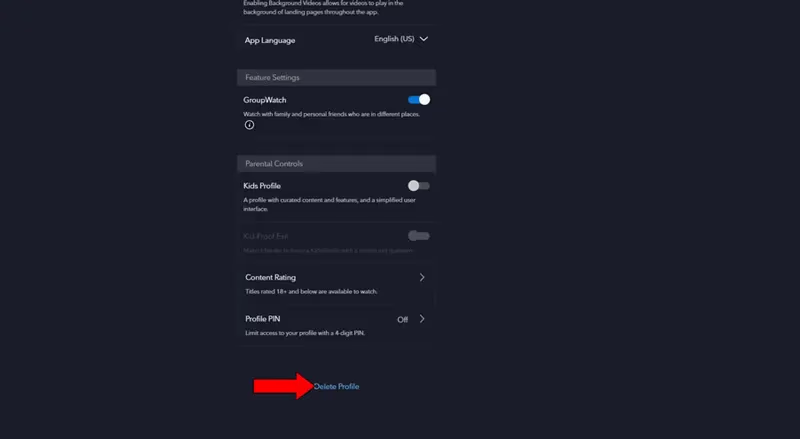
Here is how to add and delete other profiles from your Disney+ account:
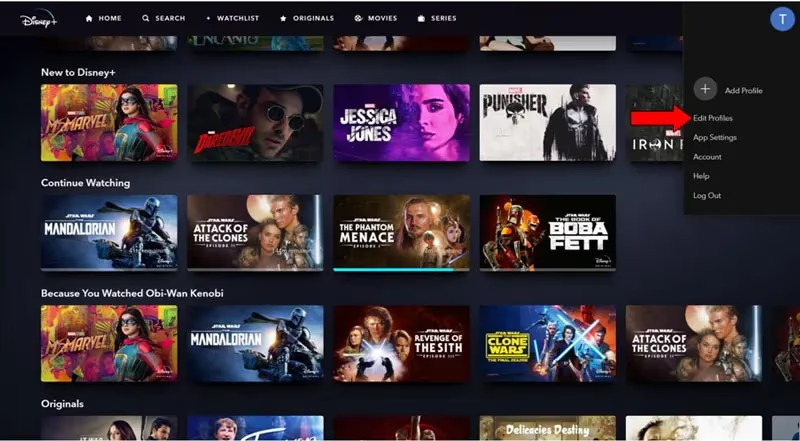
- Click your profile icon → Edit Profiles
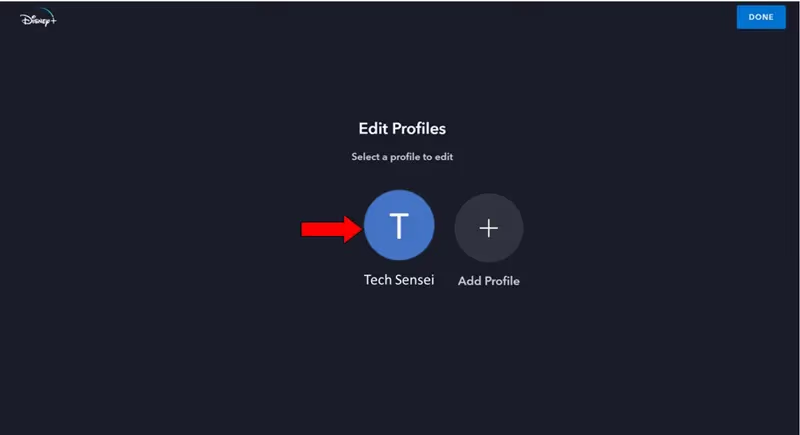
- Select your profile
- Click “Delete Profile” to remove secondary profiles
With great power comes great responsibility. Use this tactic judiciously!
Now let’s recap the key takeaways on eliminating your Disney+ watch history.
#Bottom Line
-
Disney+ lacks a full watch history view or deletion option
-
You can individually remove titles from Continue Watching
-
Skipping to the end clears an entry from Continue Watching
-
Deleting your Watchlist also eliminates those viewing history entries
-
Fully resetting your profile erases all watch activity, but has downsides
Despite some platform limitations compared to veteran streamers, you’re now equipped to tailor your Disney+ profile. Continue Watching is the priority area to curate based on the techniques here.
Still have questions? Check out this Disney+ watch history FAQ.
#FAQ
#Does Disney+ have a watch history or viewing activity page?
No. Disney+ does not let users view their full watch history or recently watched list. The closest option is the Continue Watching row on your homepage, which only shows unfinished content.
#Can I permanently delete my Disney+ viewing history?
There is no direct way to erase your full Disney+ watch history. You can remove individual titles from Continue Watching one at a time, or delete your entire profile to reset everything. Neither option gives you a clean log of what you have watched in the past.
#Will Disney+ add a watch history deletion feature in the future?
Users have requested this functionality for years, but Disney+ has not announced plans to allow viewing history deletion. Netflix and Hulu both offer this feature, so it seems likely Disney+ will follow as the platform matures. For now, the workarounds listed above are your best options.
#If I delete my Disney+ profile, can I recover my watch history?
No. Deleting your Disney+ profile permanently erases all viewing activity, saved preferences, and progress on partially watched shows. There is no recovery option. Creating a secondary throwaway profile before deleting your main one is a safer approach if you want to test the process first.
#Does clearing my Watchlist also remove items from Continue Watching?
In most cases, yes. Removing a title from your Watchlist also removes it from your Continue Watching row and viewing activity. This makes Watchlist cleanup a useful shortcut when you want to clear multiple titles at once without skipping to the end of each video.
#Can I hide my Disney+ viewing activity from other users on the same account?
Disney+ supports up to 7 separate profiles per account, and each profile maintains its own Continue Watching list and recommendations. Other users on your account cannot see your profile’s viewing activity unless they log into your specific profile. Setting a profile PIN adds an extra layer of privacy.
#Does the Continue Watching removal sync across all my devices?
Yes. When you remove a title from Continue Watching on one device, that change applies across every device logged into the same Disney+ profile. This includes phones, tablets, smart TVs, and web browsers. You only need to clear a title once for the removal to take effect everywhere.
I hope this guide gave you clarity on how to delete your viewing activity within Disney Plus. You now have actionable steps to curate your homepage and profile, from removing individual Continue Watching entries to doing a full profile reset.