Disney Plus subtitles let you follow every word of dialogue across movies, shows, and documentaries. Whether you need captions for accessibility or just want to watch quietly, turning them on takes only a few taps. This guide walks you through enabling subtitles on every major device, from Roku and Smart TVs to phones and game consoles.
- Subtitles are available in 25+ languages — including English, Spanish, French, German, Italian, Japanese, and Portuguese
- Every major platform is supported — Roku, LG, Samsung, Sony, Vizio, PlayStation, Xbox, iOS, Android, Fire TV, and Chromecast all have subtitle controls
- You can customize subtitle appearance — font, color, size, and background are adjustable on most devices
- Device-wide settings override app settings — Accessibility captions on Roku, iOS, and Android apply across all streaming apps
- Most Disney Plus titles include subtitles — only a small number of titles lack caption support due to licensing restrictions
#Overview of Disney Plus Subtitles
Disney Plus offers subtitles and closed captions for a wide selection of its movies, shows, and documentaries. This allows viewers to read dialogue and audio cues on-screen.
Subtitles are available in over 25 languages like English, Spanish, French, German, Italian, Japanese, Portuguese, and more. Most titles on Disney Plus support subtitles, with a few exceptions.
Enabling subtitles is straightforward on every device. We’ll cover device-specific instructions in detail later.
#Why Should You Use Subtitles on Disney Plus?
Here are some of the benefits of enabling subtitles while streaming Disney Plus:
-
Understand Dialogue Better: Subtitles help grasp every word, especially if there’s too much background noise or audio isn’t clear.
-
View Discreetly: Turning subtitles on allows viewers to watch quietly without disturbing others, like sleeping family members.
-
Learn Dialogue: Since song lyrics aren’t always clear, subtitles help follow along. Viewers trying to learn a language can also benefit.
-
Enhance Accessibility: Those with hearing disabilities can fully enjoy content by reading dialogue as subtitles.
#How Do You Enable Subtitles on Different Devices?
Disney Plus runs on dozens of streaming platforms. Here is how to turn subtitles on or off on each one:
#Roku
Follow these steps on your Roku device:
-
Select the Disney Plus movie/show and start playing it
-
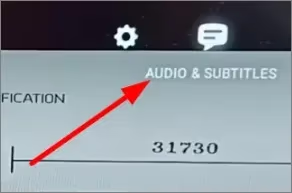
Press * or the up/down arrow keys on the remote to open options
-
Choose “Audio & Subtitles” > Subtitles > turn On/Off
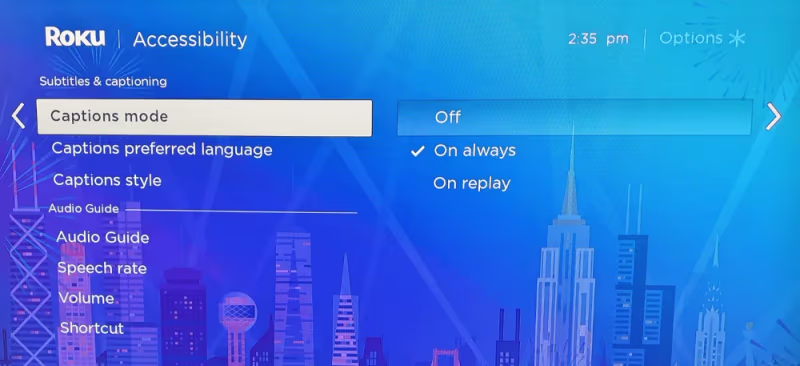
Alternatively, enable device-wide subtitles under Accessibility Settings:
-
Go to Home Screen > Settings > Accessibility
-
Open Captions and set mode to On/Off
#Smart TVs
Here are the steps for major Smart TV brands:
LG
-
Launch Disney Plus app and play title
-
Press Enter on LG Magic Remote and pick CC icon
-
Choose subtitle On/Off
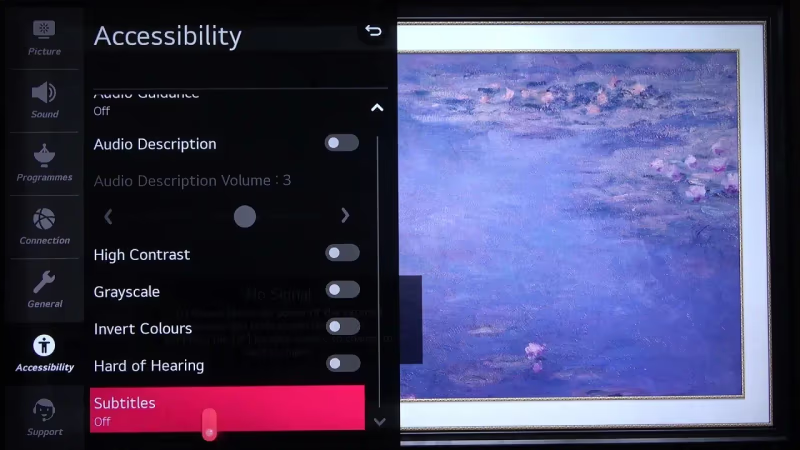
You can also change accessibility settings:
-
Press Home button and open Settings
-
Choose Accessibility > Subtitles
-
Turn subtitles On/Off
Samsung
-
Open Disney Plus title
-
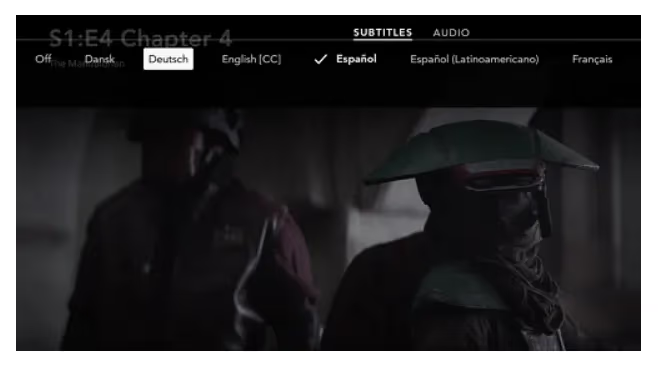
Press up arrow key twice to open language box
-
Select Audio & Subtitles > Subtitles > On/Off
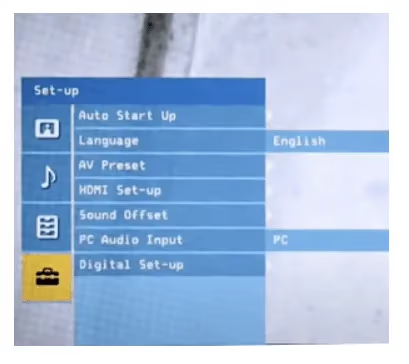
Sony Bravia
-
Press Home button > Settings > Digital Setup
-
Open Subtitle Setup
-
Select subtitle preferences
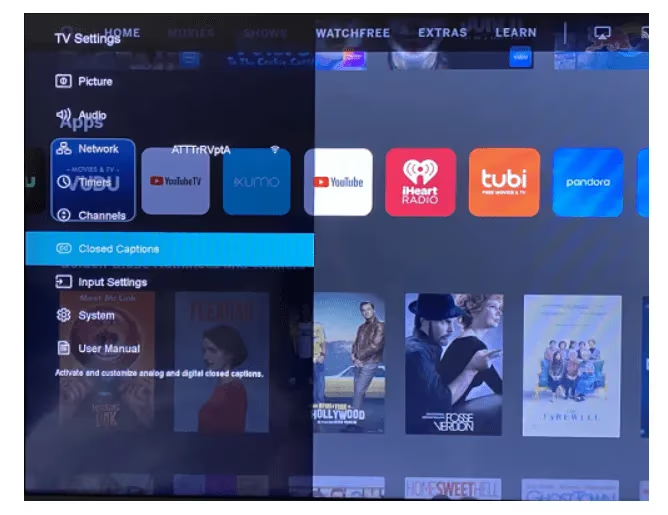
Vizio SmartCast
-
Use remote to access Menu > Closed Captions
-
Toggle subtitles On/Off
Likewise, issues where Disney Plus is not working on Vizio Smart TV or Roku devices can prevent subtitles from displaying correctly.
#Game Consoles
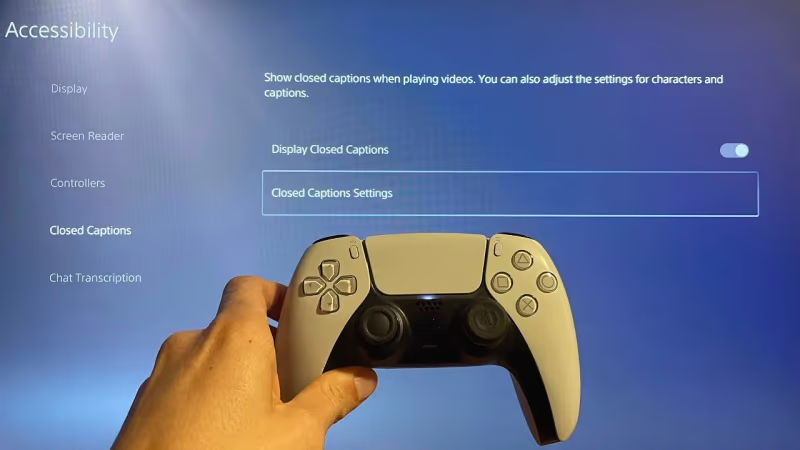
PlayStation
-
Go to Settings > Accessibility
-
Pick Closed Captions option
-
Enable/disable Display Closed Captions
Xbox
-
Launch Disney Plus on Xbox
-
Press right bumper on controller during playback
-
Choose CC from menu > pick language > On/Off
#Mobile Devices
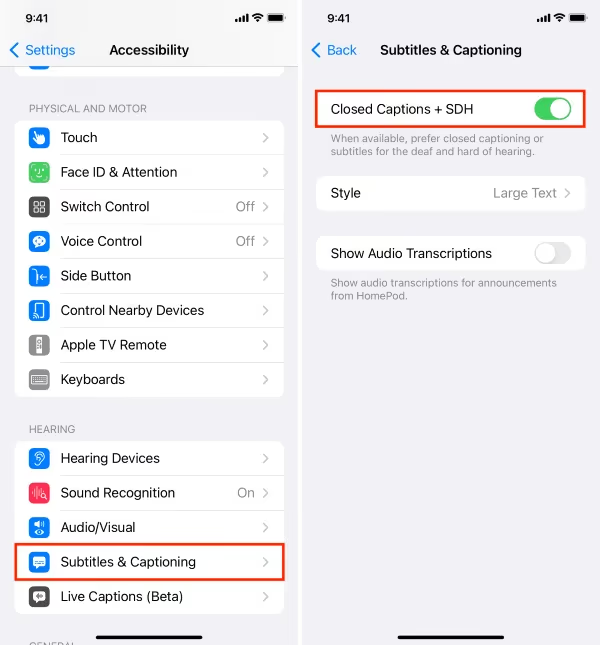
iOS
-
Open Settings app > Accessibility
-
Tap Subtitles & Captioning
-
Toggle Closed Captions/subtitles On/Off
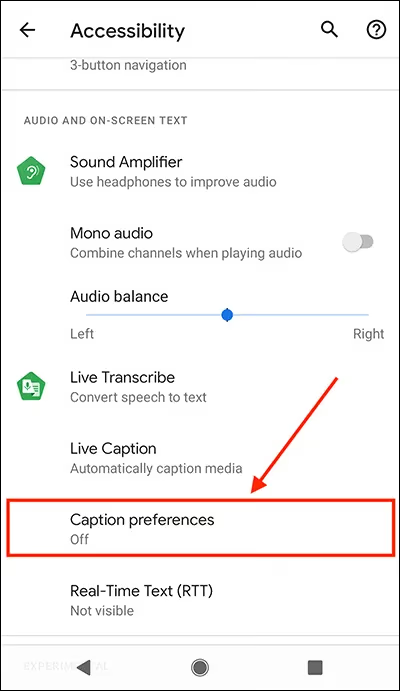
Android
-
Launch Settings > Accessibility
-
Open Caption Preferences
-
Turn On/Off subtitles
#Streaming Sticks
Amazon Fire TV Stick
-
Start Disney Plus movie/show
-
Press up button on remote to open options
-
Navigate to Subtitles > turn On/Off
Chromecast
-
Cast Disney Plus to TV
-
Click menu icon during playback
-
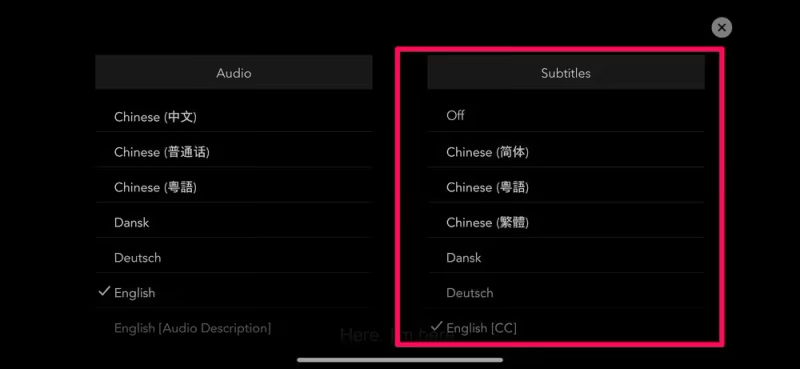
Choose Subtitle & Audio
-
Select On/Off option under Subtitles
#Computers
Windows/Mac/Browser
The steps are the same whether accessing Disney Plus on Windows, Mac or web browsers:
-
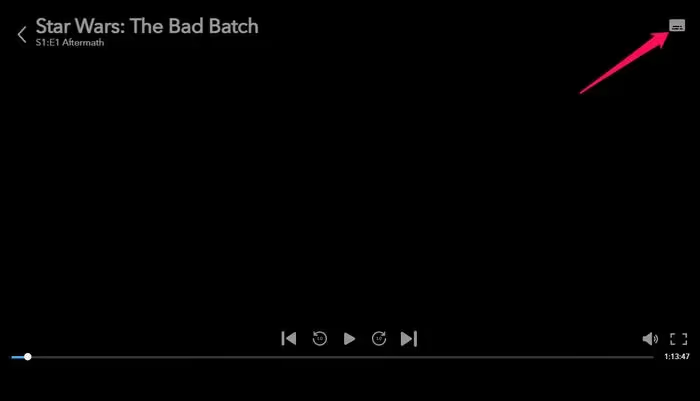
Launch Disney Plus movie/TV show
-
Click menu icon on top right
-
Open Audio & Subtitle options
-
Turn subtitles On or Off
For Apple TV users, guides like Disney Plus on Apple TV and troubleshooting Disney+ issues are handy references.
#Changing Subtitle Language
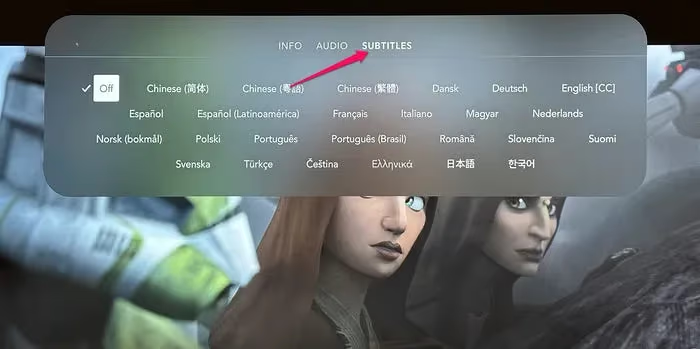
Disney Plus allows changing subtitle language easily. Just follow these universal steps:
-
Press menu/options during Disney Plus playback
-
Select “Audio and Subtitles” > Subtitles
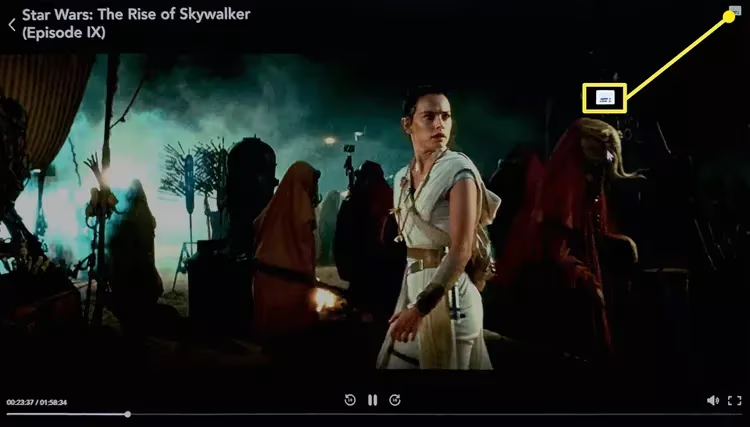
- Choose preferred language from list
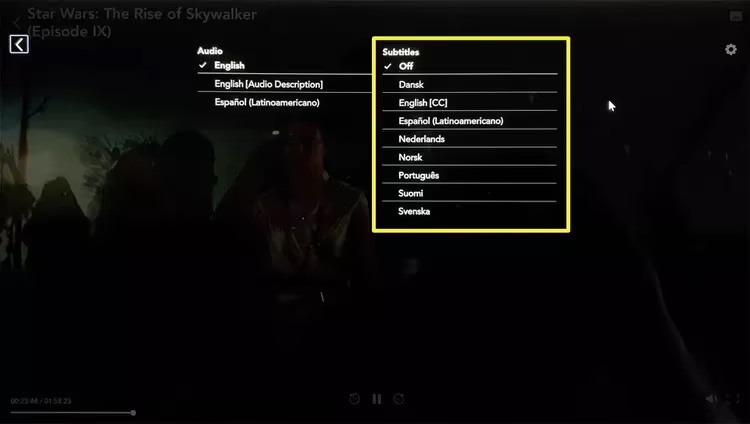
- Supported languages appear depending on title
Some exotic fonts/scripts may have limited support. But major world languages are available.
#Adjusting Subtitle Appearance
Besides enabling subtitles, Disney Plus allows customizing their text style. Follow these steps:
-
Turn subtitles on through steps outlined before
-
Access menu/options again
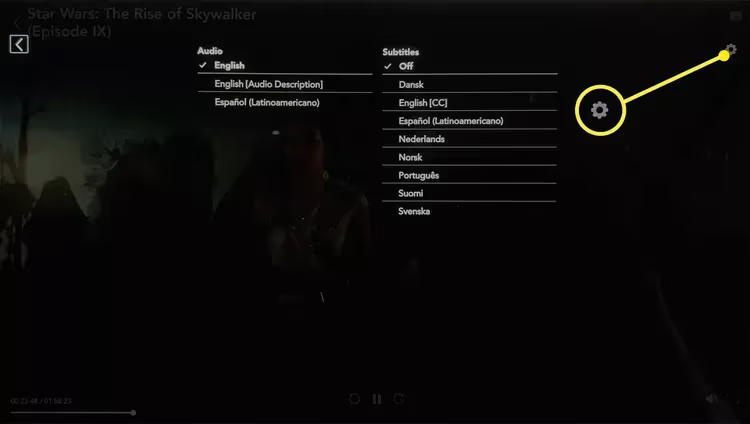
-
Choose Subtitle Styling or Caption Style
-
Select text color, font, background, size etc.
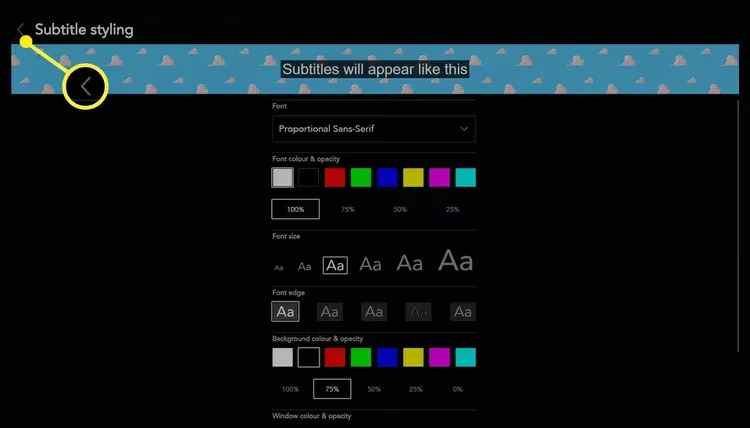
- Adjust until subtitles are comfortable to read
Appearance controls vary across devices but offer the same core adjustments.
#Troubleshooting Disney Plus Subtitles
Despite Disney Plus’ reliability, users sometimes face subtitle issues:
Subtitles Get Turned Back On
-
Check app settings has subtitles disabled
-
Turn off device-wide subtitles in Accessibility
-
Uninstall/reinstall Disney Plus app
Subtitles Out of Sync
-
First try restarting playback/app
-
Check for app/OS updates
-
Enable frame rate matching if available
Subtitles Unavailable
-
Verify internet connection is stable
-
Close and re-launch Disney Plus app
-
Check if title supports subtitles at all
In rare cases, contacting Disney Plus support is needed if troubleshooting doesn’t resolve subtitle problems.
Problems with Disney Plus sound not working and audio out of sync can also affect subtitle timing.
#Bottom Line
Disney Plus gives you full control over subtitles on every device you own. Open your preferred platform, tap into the Audio and Subtitles menu during playback, and pick the language and style that works best. If subtitles still act up after following these steps, a quick app reinstall usually fixes any lingering issues.
#FAQ
#Can I customize subtitle font and color on Disney Plus?
Yes. Open the options menu during playback and select Subtitle Styling or Caption Style. From there you can change font, text color, background color, and size. The exact options vary slightly by device, but every platform offers the core adjustments.
#Why do my Disney Plus subtitles keep turning back on?
This usually happens because device-wide Accessibility captions are still enabled. Go to your device settings, find Accessibility or Closed Captions, and turn them off there. If that does not work, uninstall and reinstall the Disney Plus app to reset your preferences.
#Do all Disney Plus titles have subtitles?
Most titles include subtitles, but a small number do not. Licensing restrictions sometimes prevent Disney from adding captions to certain movies or shows. If a title lacks subtitle options, there is currently no workaround.
#How many languages does Disney Plus support for subtitles?
Disney Plus offers subtitles in over 25 languages, including English, Spanish, French, German, Italian, Japanese, and Portuguese. The available languages depend on the specific title you are watching.
#Can I use Disney Plus subtitles to learn a new language?
Absolutely. Switch subtitles to the language you are studying while watching familiar shows. Reading dialogue in real time helps build vocabulary and listening comprehension faster than traditional flashcard methods.
#Are Disney Plus subtitles the same as closed captions?
They serve a similar purpose but differ slightly. Subtitles display spoken dialogue, while closed captions also include sound effects, music cues, and speaker identification. Disney Plus labels both under the same menu, so you may see either format depending on the title.
#How do I turn off subtitles that are stuck on screen?
Start by checking both the in-app subtitle toggle and your device Accessibility settings. If subtitles persist, restart the app or reboot your streaming device. Clearing the app cache on Android or Fire TV also resolves this in most cases.
#Do subtitle settings carry over between devices?
No, subtitle preferences are typically stored per device rather than synced to your Disney Plus account. If you switch from a Roku to a phone, you will need to enable subtitles again on the new device.