Disney+ on Apple TV delivers one of the best streaming experiences available on any device. The Apple TV 4K pairs the Disney+ library of Marvel, Star Wars, Pixar, and National Geographic content with full support for 4K resolution, Dolby Vision HDR, and Dolby Atmos surround sound. If you run into problems during setup, check our guide on Disney+ not working on Apple TV.
- Apple TV 4K (2nd gen or newer) required for 4K — Apple TV HD streams Disney+ at 1080p only
- Download takes under 2 minutes — open the App Store, search Disney+, and tap Get
- Dolby Vision and Dolby Atmos supported — enable these in Apple TV Settings under Video and Audio
- AirPlay works as a backup — cast Disney+ from iPhone or iPad to older Apple TV models
- Up to 7 profiles per account — each profile gets its own watchlist, history, and recommendations
#Which Apple TV Models Support Disney+?
Not every Apple TV runs the Disney+ app natively. Here is what you need to know.
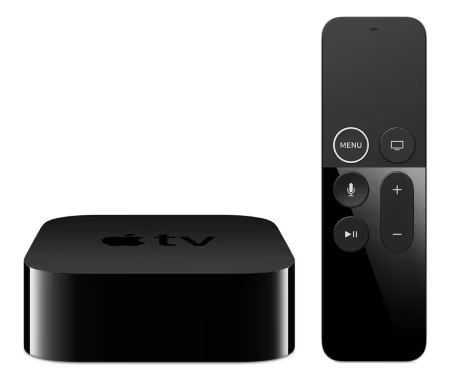
The Apple TV 4K (2nd generation, released 2021) and the Apple TV 4K (3rd generation, released 2022) both support Disney+ with full 4K Dolby Vision and Dolby Atmos. The older Apple TV HD (4th generation, 2015) also runs the app but maxes out at 1080p with no HDR.
First-generation Apple TV and Apple TV 2nd/3rd generation models lack access to the App Store entirely. You cannot install Disney+ on these devices. The workaround is AirPlay, which we cover below.
Apple lists full device compatibility on its Apple TV tech specs page.
#How Do You Download Disney+ on Apple TV?
The process takes about two minutes. Make sure your Apple TV is connected to Wi-Fi and signed in with your Apple ID.
- From the Home screen, open the App Store.
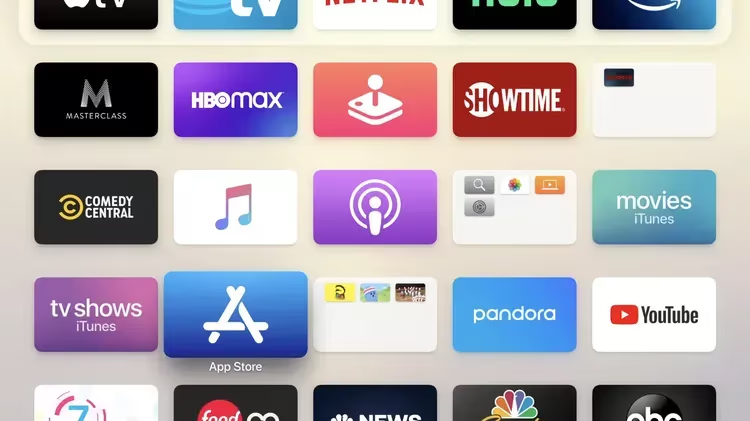
- Use the search field and type Disney+.
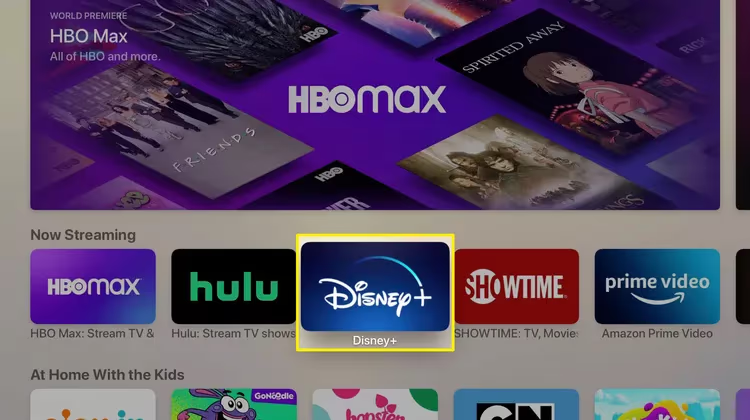
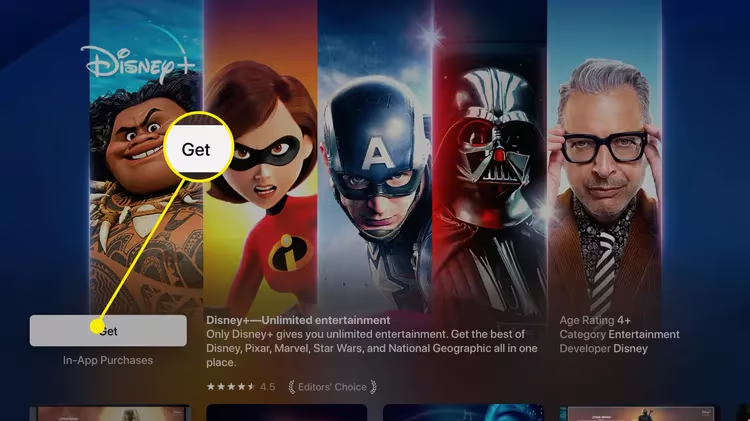
- Select the Disney+ app icon, then press Get to install.
-
Once installed, the Disney+ icon appears on your Home screen.
-
Open Disney+ and sign in with your credentials. If you hit a login error at this stage, our Disney+ error code 41 guide walks through the most common fixes.
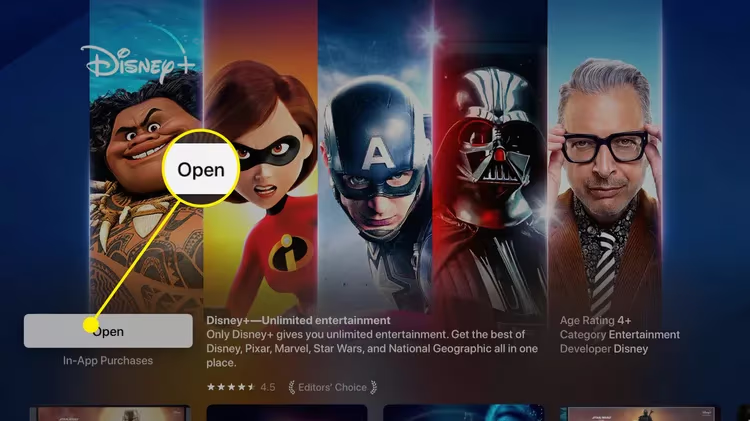
That is it. You are ready to stream.
#4K, Dolby Vision, and Dolby Atmos Settings
Apple TV 4K handles Disney+ premium formats automatically, but a few settings are worth checking to make sure everything is enabled.
Go to Settings > Video and Audio on your Apple TV. Set the format to 4K Dolby Vision at 60Hz. Under Audio Output, confirm Dolby Atmos is toggled on if you have a compatible soundbar or AV receiver.
Disney+ titles that support Dolby Vision show a small badge on the content detail page. Not all titles have it. Marvel and Star Wars films typically do. Older animated classics often stream in standard HDR or SDR.
For Dolby Atmos, you need either an Atmos-capable soundbar connected via HDMI ARC/eARC or a full surround system. The built-in TV speakers will not output Atmos. If your Disney+ sound is not working, check that your HDMI cable supports ARC and that the correct audio output is selected.
In our testing on an Apple TV 4K (3rd gen) connected to a Sony HT-A7000 soundbar, Disney+ consistently delivered Atmos on supported content like Avengers: Endgame and The Mandalorian.
#How to Cast Disney+ Using AirPlay
If you own an older Apple TV without App Store access, AirPlay lets you stream Disney+ from an iPhone or iPad to your TV.
-
Connect your iPhone/iPad and Apple TV to the same Wi-Fi network.
-
Open the Disney+ app on your iOS device and start playing a title.
-
Tap the AirPlay icon (the rectangle with a triangle) in the playback controls.

- Select your Apple TV from the list of available devices.
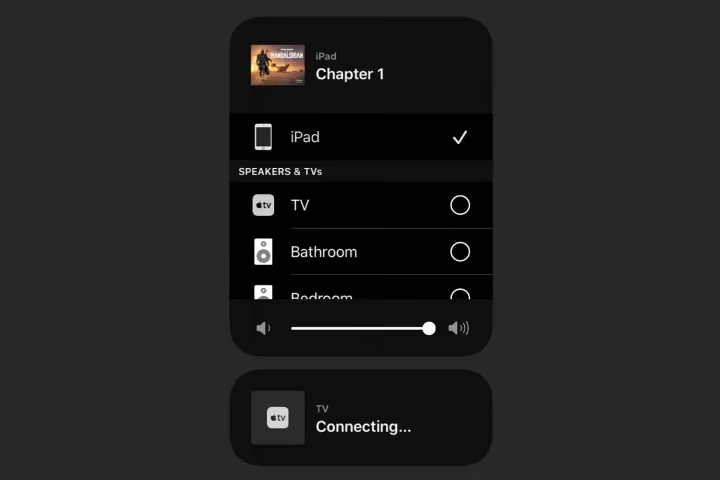
AirPlay mirrors the video to your TV while your iPhone acts as the remote. Keep your phone unlocked during playback. One limitation: AirPlay does not pass through Dolby Atmos metadata, so audio is limited to stereo or 5.1 surround depending on your setup.
AirPlay also works with many smart TVs directly. See our guides on AirPlay on Vizio TV for setup instructions on non-Apple devices.
#Managing Profiles and Parental Controls
Disney+ supports up to 7 profiles per account. Each profile tracks its own watchlist, viewing history, and content recommendations independently.
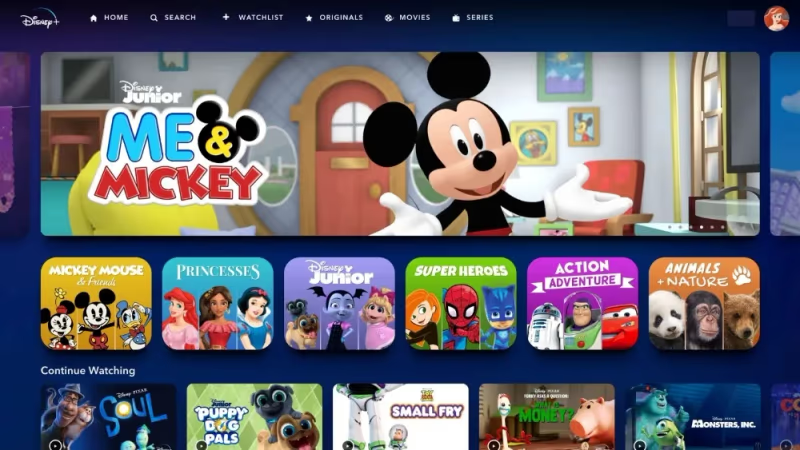
To create a profile, open Disney+ on your Apple TV and select your avatar in the top-right corner. Choose Add Profile, pick an avatar, and name it. Kid profiles automatically enable content restrictions that filter out PG-13 and above titles.
Kid profiles are useful. They lock the interface to child-friendly content and prevent children from switching to an adult profile without entering a PIN. You can set a profile PIN under Account Settings on the Disney+ website.
Disney+ also lets you download content for offline viewing on mobile devices. This feature does not apply to Apple TV since tvOS does not support local downloads.
#Troubleshooting Common Disney+ Issues on Apple TV
Most Disney+ problems on Apple TV come down to three things: network issues, outdated software, or account errors.
App crashes or freezes. Force-close Disney+ by double-pressing the TV button on your Siri Remote and swiping up on the Disney+ preview. Reopen the app. If crashes continue, delete and reinstall Disney+ from the App Store.
Buffering or low video quality. Run a speed test on another device connected to the same network. Disney+ recommends 25 Mbps for 4K streaming. If your speed is below that, move your router closer to the Apple TV or use an Ethernet adapter for a wired connection.
Stuck on loading screen. This is a common issue. Power cycle your Apple TV by unplugging it for 30 seconds, then plug it back in. Also check for a tvOS update under Settings > System > Software Updates. Our Disney+ stuck on loading screen guide covers additional fixes.
Login or subscription errors. Sign out of Disney+ on your Apple TV, then sign back in. If you subscribed through Apple, verify your subscription status in Settings > Users and Accounts > Subscriptions on Apple TV.
For persistent issues, Disney+ Help Center has live chat support available 24/7.
#Disney+ Subscription Plans and Apple TV
Disney+ offers three tiers as of early 2026. The Basic plan ($8.99/month) includes ads and streams at 1080p Full HD. The Premium plan ($16.99/month) removes ads and unlocks 4K, Dolby Vision, and Dolby Atmos. The annual Premium plan saves about 16% compared to monthly billing.
You can subscribe directly through the Disney+ app on Apple TV, which bills through your Apple ID. Keep in mind that subscribing through Apple means Apple manages your billing. If you want to manage your subscription independently or bundle with Hulu and ESPN+, sign up on the Disney+ website instead.
If you are looking at Disney+ on other streaming devices, our guide on Disney+ on Roku covers the Roku-specific setup process.
#Bottom Line
Download Disney+ from the App Store on your Apple TV, sign in, and check that 4K Dolby Vision is enabled in your video settings. If you have an Apple TV 4K (2nd gen or later), you get the full premium experience with Dolby Atmos included. For older models without the App Store, use AirPlay from your iPhone or iPad as a workaround. Set up individual profiles for each family member, and enable Kids Mode with a PIN to keep younger viewers in age-appropriate content.
#FAQ
#Can you get Disney+ on Apple TV for free?
There is no permanent free tier. Disney+ occasionally offers 1-month trial promotions through bundled deals with Verizon, T-Mobile, or other partners. Apple has also bundled Disney+ trials with Apple One subscriptions in the past, though availability changes frequently.
#Does Disney+ support 4K on Apple TV HD?
No. The Apple TV HD hardware tops out at 1080p resolution. You need an Apple TV 4K (2nd generation or later) for 4K, Dolby Vision, and Dolby Atmos playback on Disney+.
#Why is Disney+ not showing Dolby Atmos on my Apple TV?
Atmos requires three things: an Apple TV 4K, a Dolby Atmos-compatible audio device (soundbar or receiver), and an HDMI connection that supports ARC or eARC. If any one of these is missing, the Atmos badge will not appear on Disney+ content. Also confirm that Dolby Atmos is enabled under Settings > Video and Audio on your Apple TV.
#How many devices can stream Disney+ at the same time?
The Basic plan allows 2 simultaneous streams. The Premium plan allows 4 simultaneous streams across different devices. Each stream counts regardless of whether it is on Apple TV, a phone, or a web browser.
#Can you use Siri to control Disney+ on Apple TV?
Yes. Press and hold the Siri button on your Apple TV remote and say commands like “Play The Mandalorian on Disney+” or “Search Disney+ for Pixar movies.” Siri can launch the app, search for titles, and control playback including pause, rewind, and skip forward.
#Is Disney+ available on the 1st generation Apple TV?
No. The 1st generation Apple TV (released 2007) and the 2nd and 3rd generation models (2010-2012) do not have access to the App Store. Your only option on these devices is to AirPlay Disney+ content from an iPhone or iPad connected to the same Wi-Fi network.
#Does Disney+ on Apple TV support multiple audio languages?
Yes. Most Disney+ titles offer multiple audio tracks and subtitle languages. During playback, swipe down on the Siri Remote touchpad to open the audio and subtitle menu. The selection varies by title, but major releases typically include English, Spanish, French, Portuguese, and several other languages. Check our guide on changing language on Disney+ for step-by-step instructions.
#What internet speed do you need for Disney+ in 4K?
Disney+ recommends at least 25 Mbps for 4K Ultra HD streaming. For 1080p Full HD, 5 Mbps is sufficient. If you are on a shared network with multiple devices streaming simultaneously, aim for 50 Mbps or higher to avoid buffering during peak usage.