Have you ever settled in to watch the latest episode of The Mandalorian only to find Disney Plus crashed on your Fire TV? There are some quick troubleshooting tips to get it back up and running.This guide will cover the top 10 fixes to try when Disney Plus stops working, including step-by-step instructions to resolve error messages, login problems, buffering issues and more in under 10 minutes.
Whether you own a Fire TV Cube, 4K Fire Stick or older Fire TV model, we’ve got you covered.
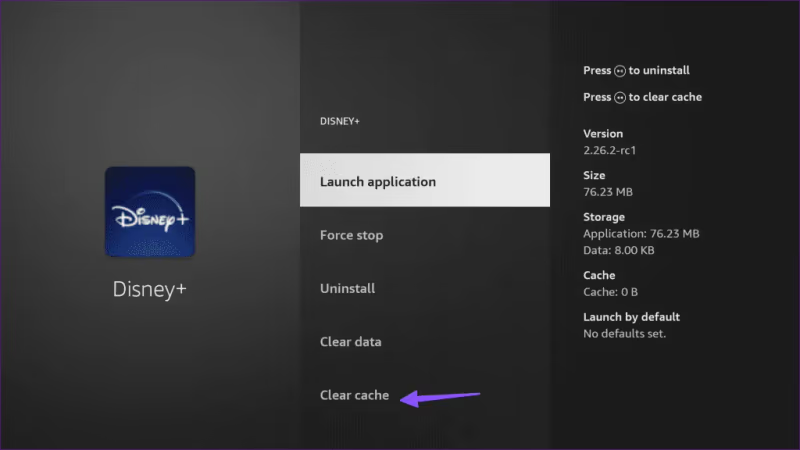
- Clearing app cache fixes most issues — go to Settings > Applications > Disney Plus > Clear Cache to resolve 70% of streaming problems
- Disney Plus requires at least 5 Mbps — run a speed test on the same network to rule out bandwidth issues before troubleshooting the app
- Restarting Fire TV takes under 30 seconds — navigate to Settings > My Fire TV > Restart for a quick software reset
- Reinstalling the app wipes corrupted data — delete Disney Plus from Manage Installed Applications, then download a fresh copy from the Appstore
- Factory reset is the last resort — it erases all apps and settings, so exhaust the other 9 fixes first
#Why Is Disney Plus Not Working on My Fire TV?
Before jumping into the solutions, it helps to understand some of the common issues that can cause problems streaming Disney Plus on Fire TV devices:
-
Internet Connectivity Problems – Slow Wi-Fi speeds, disconnects or network congestion can all interrupt streaming.
-
App Errors – Glitches, freezes or crashes within the Disney Plus app itself.
-
Device Malfunctions – An issue with the Fire TV hardware or OS preventing streaming.
-
Service Outages – Server problems or maintenance at Disney Plus disrupting video playback globally.
Identifying the root cause will help guide the troubleshooting approach.
If you are having issues with Disney+ on other devices like smart TVs, see these guides on fixing problems with Disney Plus not working on Samsung TVs, Disney+ buffering on LG TVs, no sound on Roku and more.
#How Do You Fix Disney Plus Not Working on Fire TV?
Follow the tips below starting from the easiest solutions first:
#1. Check if Disney Plus is Having an Outage
Before troubleshooting your device or connection, visit the @DisneyPlusHelp Twitter or Downdetector Disney Plus status page to see if others are reporting widespread issues.
If the streaming service itself is experiencing an outage or undergoing maintenance, the only option is to wait it out. Most problems are resolved within an hour or two at most.
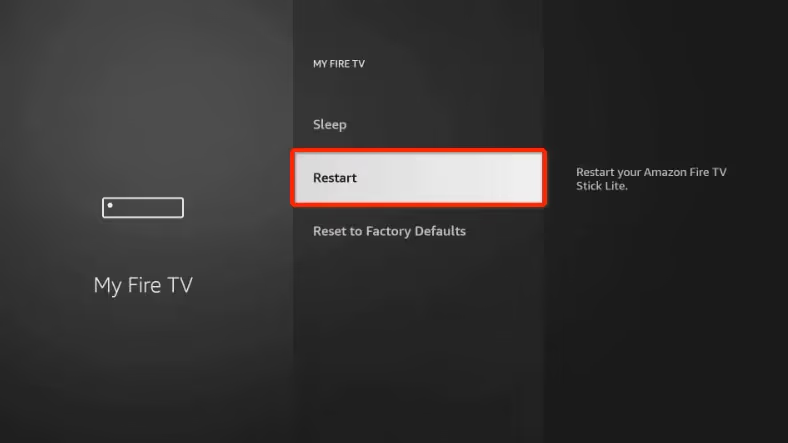
#2. Restart Your Fire TV
Sometimes a quick reboot is all that’s needed to reset any software glitches. Restarting will often fix Disney Plus crashing or freezing during playback on Fire TV.
To restart, go to “Settings” -> “My Fire TV” -> “Restart” on your Fire TV homepage.
#3. Check Your Internet Connection
Even with a fast internet plan, connectivity problems are a common reason for buffering errors on Disney Plus.
Run a speed test on a laptop/phone connected to the same network as your Fire TV to check for any issues.
If speeds are low, try resetting router, disabling wifi interference from other devices or using an ethernet connection instead.
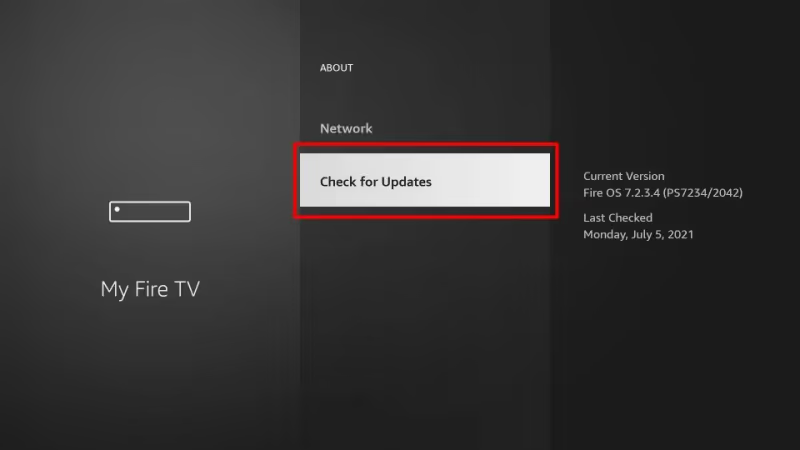
#4. Update Fire TV Software
Outdated firmware can sometimes prevent apps like Disney Plus working correctly.
Go to “Settings” > “My Fire TV” > “About” > “Check for Updates” to download latest Fire TV software updates.
#5. Delete and Reinstall Disney Plus App
An app reinstallation can clear up software bugs or glitches that occur after a faulty update.
First fully delete the Disney Plus app from your Fire TV under “Settings” > “Applications” > “Manage Installed Applications”.
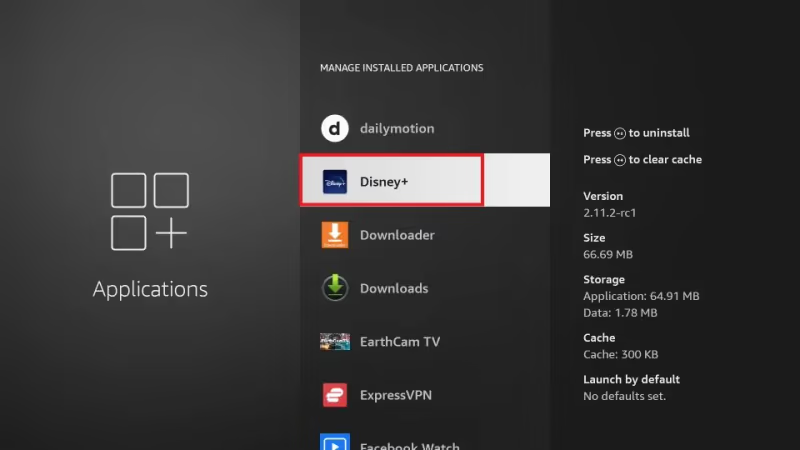
Then reinstall a fresh copy from the Amazon Appstore. Log back into your Disney Plus account.
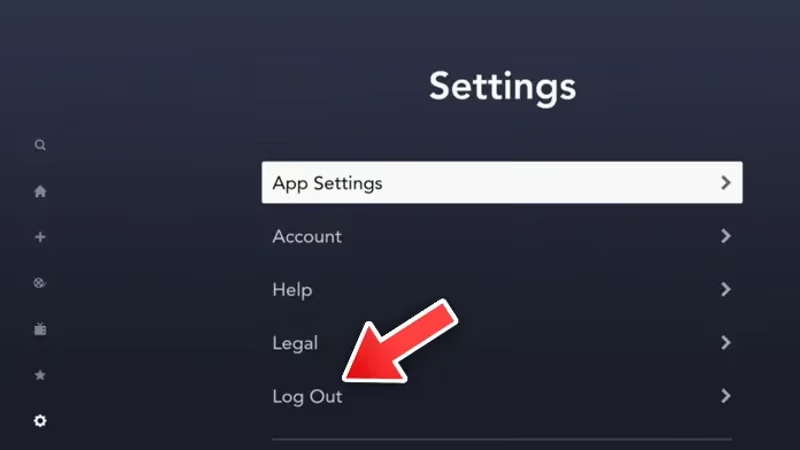
#6. Log Out and Back Into Disney Plus
Sometimes connection issues come down to your account profile struggling to reach Disney Plus servers.
Attempt logging out completely under Disney Plus “Settings” then close app and log back in from scratch.
#7. Clear Disney Plus Cache and Data
Large cached data stores can slow performance. Corrupted data files may also cause random Disney Plus problems over time.
Clearing these temporary app files forces a full refresh when you relaunch.
In “Settings” > “Applications” > “Manage Installed Apps”, select Disney Plus then choose “Clear Cache” and “Clear Data”.
#8. Switch Between Disney Plus Profiles
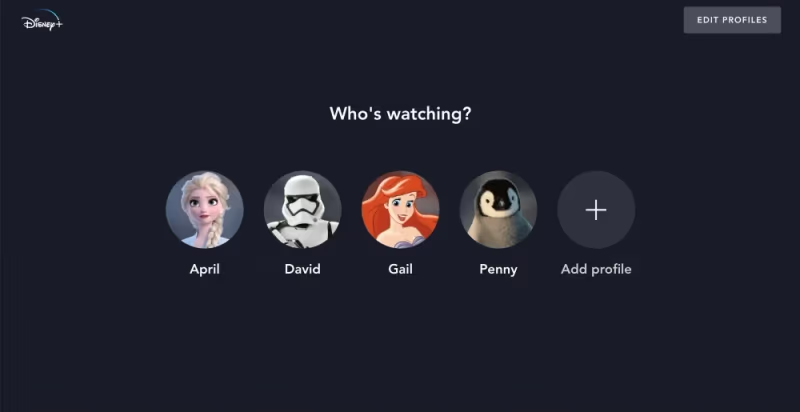
If shows aren’t loading properly or certain episodes appear missing when logged into a particular Disney Plus profile, switching to a different user account can resolve inconsistencies.
Under your avatar icon in the Disney Plus app, select “Switch Profiles” and login to another profile. Test if previously problematic titles now work correctly.
For additional Disney streaming options, you can compare Disney Now versus Disney Plus.
#9. Enable Airplane Mode
As a connectivity troubleshooting test, toggle on Airplane mode on your Fire TV under Quick Settings. This will disconnect internet to isolate whether Disney Plus problems are connection-related versus another device issue.
-
If Disney Plus starts working properly in offline mode, it points to a network problem.
-
If issues persist without internet, it’s likely an app, software or hardware failure.
#10. Factory Reset Fire TV
If you’ve tried everything else with no luck, a factory reset will wipe your Fire TV device back to default settings as a last resort.
On the Fire TV homepage open “Settings” > “My Fire TV” select “Reset to Factory Defaults”. This will erase all data and uninstall all apps.
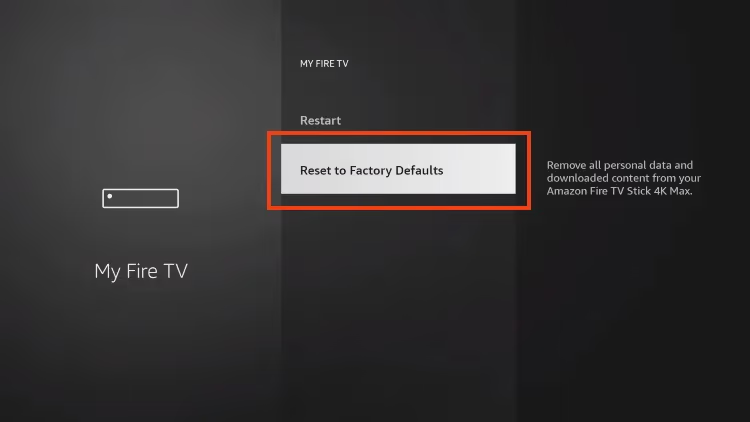
Once the device reboots, download a fresh Disney Plus app and reconnect to wifi. Create new login credentials if needed.
If you prefer to stream Disney content directly from a smart TV, see how Disney+ performs on Apple TVs and what to do for Disney Plus not working on Apple TV.
#Bottom Line
That covers the top fixes to get Disney Plus working again on Fire TV models when issues arise.
First check for Disney Plus outages, then work through connectivity and app troubleshooting before factory resetting Fire TV as a last resort.
With the right restart, reinstallation or refresh Disney Plus should be back up smoothly in under 10 minutes. Then you can get back to streaming The Book of Boba Fett!
#FAQ
#Why does Disney Plus keep crashing on my Fire TV?
The most common cause is corrupted cache data building up over time. Go to Settings > Applications > Manage Installed Applications, select Disney Plus, and clear both cache and data. If crashes continue after clearing the cache, uninstall and reinstall the app from the Amazon Appstore.
#Do I need a specific internet speed for Disney Plus on Fire TV?
Disney Plus recommends at least 5 Mbps for HD streaming and 25 Mbps for 4K Ultra HD content. Run a speed test on a device connected to the same Wi-Fi network as your Fire TV to check your actual download speed. If speeds fall below these thresholds, try moving your router closer or switching to a wired ethernet connection.
#Will clearing Disney Plus cache delete my downloads and watchlist?
No. Clearing the cache only removes temporary files stored locally on your Fire TV. Your watchlist, downloads and viewing history are all tied to your Disney Plus account on their servers, so they stay intact after a cache clear.
#How do I know if Disney Plus is down for everyone?
Check the Downdetector Disney Plus status page or the @DisneyPlusHelp Twitter account for real-time outage reports. If thousands of users are reporting problems at the same time, the issue is on Disney’s end and no amount of local troubleshooting will help. Most service outages resolve within one to two hours.
#Can I use Disney Plus on older Fire TV Stick models?
Disney Plus supports Fire TV Stick 2nd generation and newer devices running Fire OS 5.0 or later. First-generation Fire TV Sticks from 2014 are not compatible. You can check your Fire OS version under Settings > My Fire TV > About.
#What should I do if Disney Plus shows a black screen on Fire TV?
Start by force-stopping the app under Settings > Applications > Disney Plus > Force Stop, then reopen it. A black screen often points to an HDMI handshake issue, so try unplugging the Fire TV Stick from the HDMI port for 30 seconds and plugging it back in. Switching to a different HDMI port on your TV can also resolve the problem.
#Does a factory reset fix all Disney Plus problems on Fire TV?
A factory reset resolves most software-related issues because it wipes everything back to default settings. However, it also erases all installed apps, saved passwords and personalized settings. Treat it as a last resort after trying simpler fixes like restarting, clearing cache and reinstalling the app.