Disney Plus not working on Apple TV usually comes down to an app glitch, outdated software, or a network hiccup. The Disney+ loading wheel spinning forever is one of the most common Apple TV streaming complaints.
This guide walks you through 17 proven fixes, starting with quick restarts and working up to a full factory reset if needed.
- Force closing and reopening the Disney+ app fixes most random crashes and loading errors on Apple TV
- Outdated tvOS or Disney Plus app versions cause playback failures, so check for updates under Settings > System > Software Updates
- Switching from Wi-Fi to Ethernet eliminates buffering issues and provides stable 4K HDR streaming on Apple TV
- Deleting and reinstalling Disney Plus clears corrupt cache data that builds up over time
- Contacting Disney+ support at (888) 905-7888 is the fastest way to resolve account-level errors after device troubleshooting
#Does Disney Plus Have an Outage?
Before troubleshooting problems with Disney+ on your Apple TV, first go check Downdetector to see if there’s an outage.
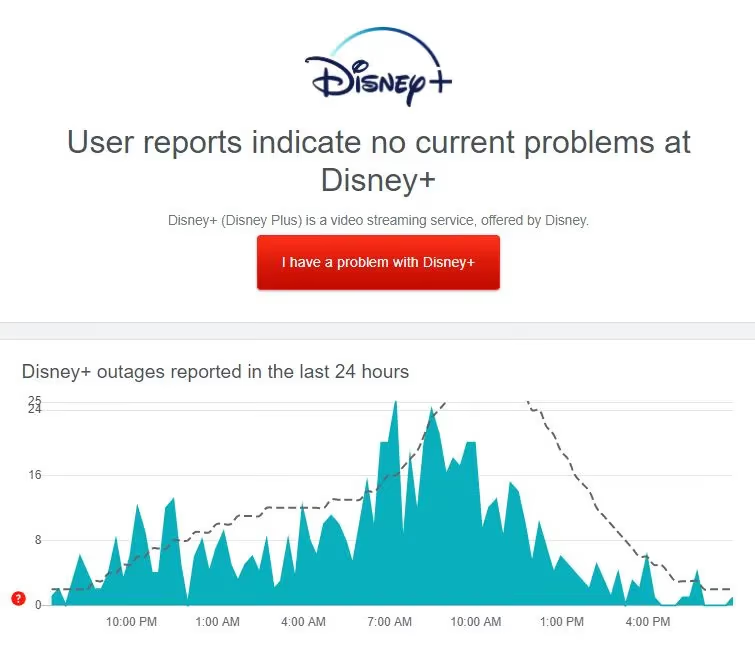
With over 118 million global subscribers as of 2024, heavy traffic can occasionally cause Disney Plus server issues. Site outages typically last under an hour.
While you can’t fix Disney+ server outages, at least you’ll know it’s a temporary widespread issue instead of your device. Be patient, take a break, or switch to other streaming apps in the meantime.
#Is Your Internet Connection Working?
Next, confirm the Disney Plus app issues are not being caused by internet connectivity problems with your Apple TV.
Go check a site like Fast.com to test your overall download speeds. For streaming, you’ll want speeds above 25 Mbps (Megabits per second). If your internet is very slow across multiple sites and devices, contact your Internet Service Provider.
Alternatively, disconnect and reconnect to your Wi-Fi network on Apple TV. Go to Settings > Network > Wi-Fi to select and reconnect to your network. Slow speeds? Try switching wireless channels on your router, or use a Wi-Fi analyzer app to detect interference issues.
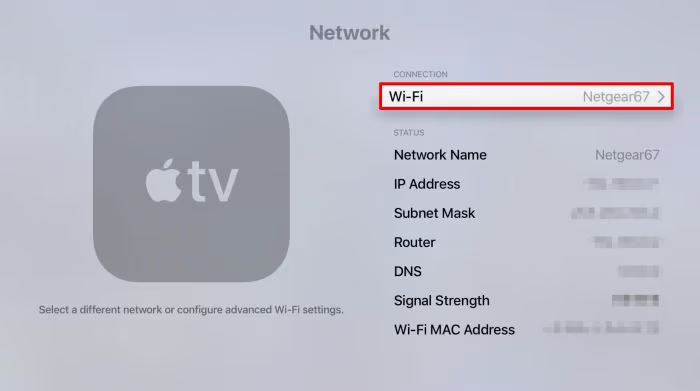
You can also try connecting your Apple TV directly to your router with an Ethernet cable instead of using Wi-Fi as a test.
Once you’ve confirmed general internet connectivity is fine, continue troubleshooting the Disney Plus app itself next.
#Close and Reopen Disney Plus App
Before getting too complex, try quickly force closing the Disney Plus app and reopening it. This refresh often fixes random app glitches and quick memory leaks.
To close Disney Plus app on Apple TV:
-
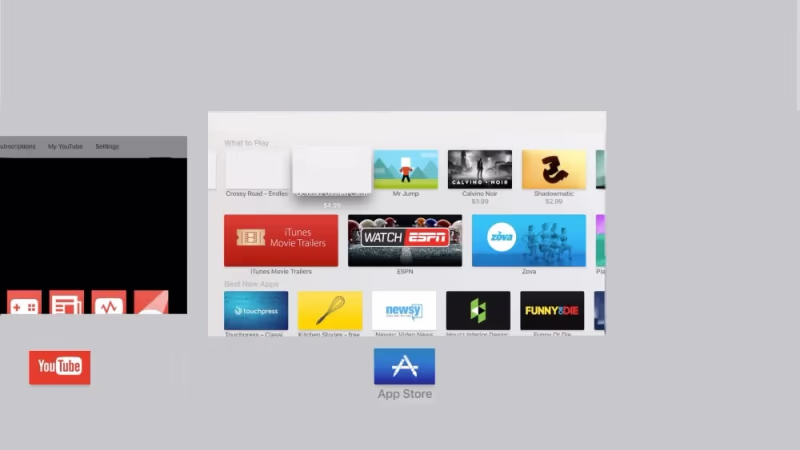
Go to the app switcher by swiping down from top of Apple TV remote touchpad
-
Swipe left to highlight the Disney+ app
-
Swipe up on the remote pad to close Disney Plus app
-
Press menu button again to reopen Disney Plus
Still getting the spinning wheel or errors? Okay, let’s dig deeper into troubleshooting…
#Update Software and Disney Plus App
Just like your iPhone or computer, your Apple TV also needs occasional software updates for bug fixes, speed boosts, and new features.
Go to Settings > System > Software Updates to check you have the latest tvOS version installed. If not, run the system update first. Give your Apple TV a quick restart after updating too for good measure.
Next, check the App Store for any available Disney Plus updates:
-
Open App Store on Apple TV
-
Go to Updates section
-
Install any Disney Plus update shown
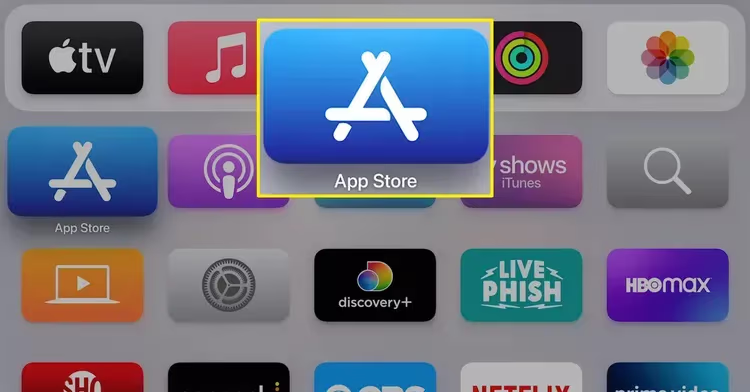
App and OS updates often resolve Disney+ connection issues and playback failures. Fingers crossed this does the trick!
#Lower Video Quality for Disney Plus
Getting the Disney Plus loading screen for an extended time before videos play? This buffering is usually caused by a weak or overloaded internet connection.
You can reduce buffering delays by lowering the streaming resolution quality under Disney Plus settings:
-
Go to your Profile icon
-
Select App Settings
-
Choose Playback Quality
-
Set to Standard Definition instead of 4K HDR
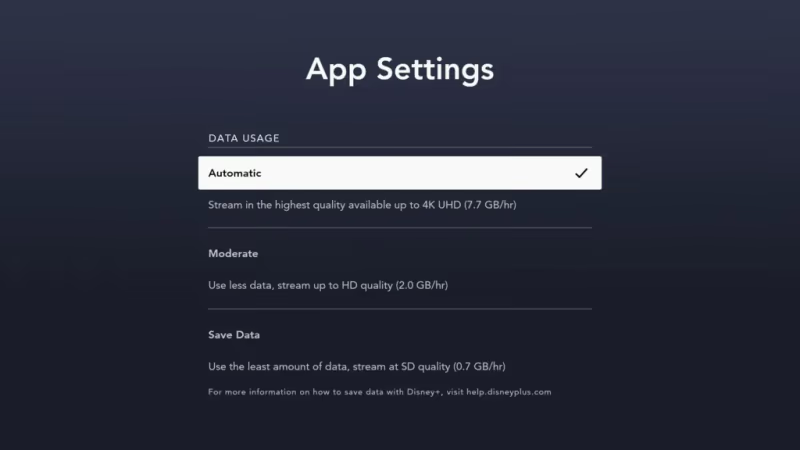
This bandwidth adjustment lowers data usage significantly. But if videos still get stuck buffering, continue troubleshooting…
Check out essential Disney+ settings to configure for the optimal viewing experience on Apple TVs.
#Delete and Reinstall Disney Plus
Over time, corrupt app data or cache files can slow down streaming and cause Disney Plus crashes. Deleting and reinstalling the app gives you a fresh start.
On Apple TV, go to your Home Screen. Then:
-
Highlight Disney Plus app icon
-
Press and hold select/play button
-
Choose Delete App option in pop-up
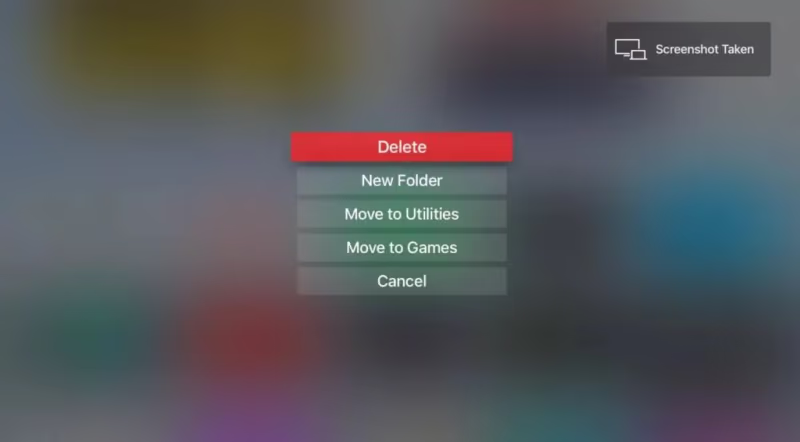
Next, open the App Store, search for Disney Plus, and reinstall a clean version.
This Disney+ app reset forces all new data to download and often resolves quirky software glitches.
To track down missing titles, check your Disney+ viewing history which has moved to the Disney Bundle accounts hub.
#Sign Out and Back Into Disney Plus
Sometimes your user account config can get corrupted, blocking access to Disney Plus media libraries.
Simply signing out and signing back into the Disney Plus fixes account conflicts without losing your profiles or watch history.
-
Go to your Profile icon in Disney Plus
-
Choose Log Out
-
Sign back into Disney+ account
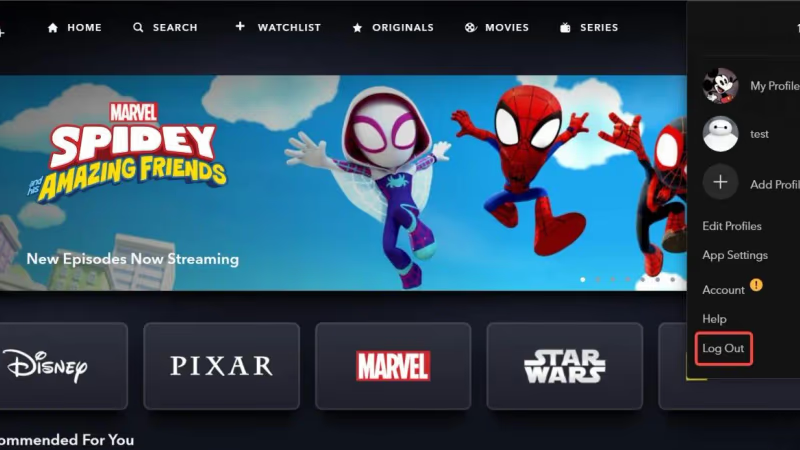
If it works, resume watching Disney Plus on Apple TV! If not, let’s confirm your connectivity next…
If Disney Plus displays content in the wrong language changing it is quick.
#Check Airplane Mode and Do Not Disturb
It seems simple, but don’t forget to disable Airplane Mode on your Apple TV. Having connectivity in flight mode disabled blocks all network access for Disney Plus app.
Go to Settings > Network then turn Airplane Mode off.
Also check if Do Not Disturb is enabled under Settings > General. This blocks notifications which could conflict with streaming apps. Toggle off DND mode too.
#Restart Your Apple TV
Did you try turning it off and back on again? Restarting your Apple TV refreshes system memory, ends background processes, and reconnects network modules.
To quickly reboot Apple TV 4K or HD:
-
Go to Settings
-
Select System
-
Choose Restart
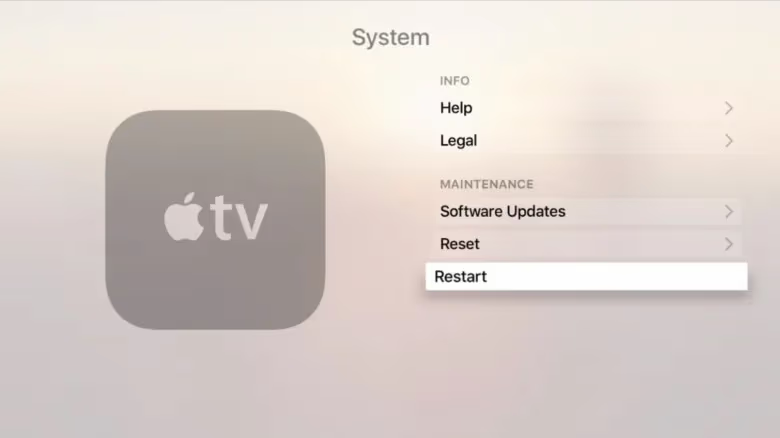
Give it a minute or so after boot up to reopen Disney Plus app. This classic restart fix is effective in renewing transient glitches.
#Reset Your Apple TV
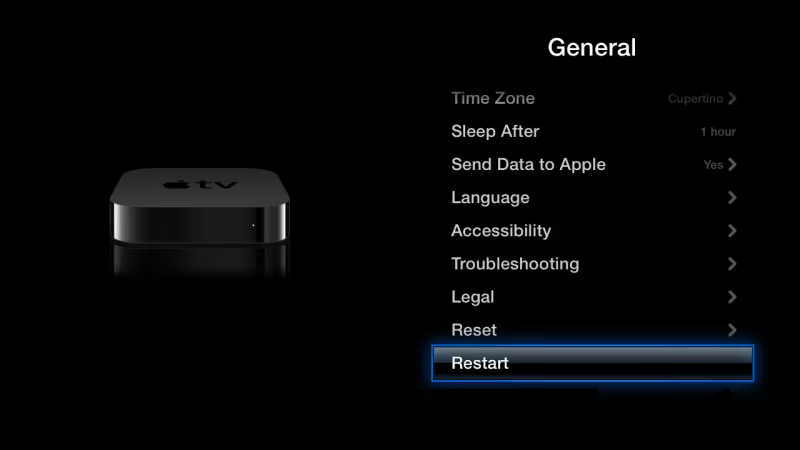
If restarting alone didn’t help Disney Plus problems on Apple TV, try a deeper reset option:
-
Go to Settings
-
Choose General
-
Select Reset
- Pick Reset and Update
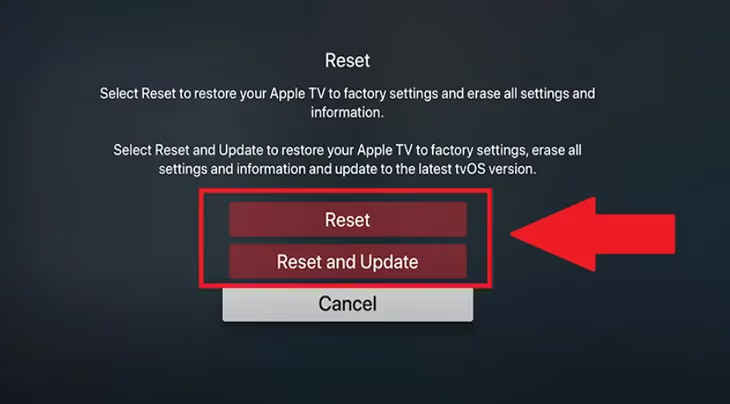
This resets your Apple TV back to factory settings without fully wiping it. Your apps and accounts stay installed for convenience.
After resetting, launch Disney Plus app and see if streaming works properly again.
#Use Ethernet Instead of Wi-Fi
Unstable Wi-Fi connections can disrupt Disney Plus streaming, even if general internet browsing seems fine on Apple TV.
Switching to wired Ethernet instead of wireless Wi-Fi is an easy way to test. Using a physical network cable boosts speeds, reduces latency and prevents dropouts.
Simply connect an Ethernet cord from your router LAN port to the Apple TV port. Then under Settings > Network, choose Wired connection.
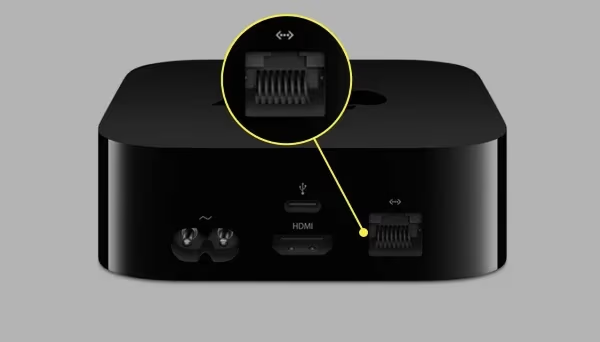
This hardwired setup provides max network throughput for smooth Disney+ HD and 4K UHD streaming. Consider upgrading your Wi-Fi if you continue getting wireless issues.
#Factory Reset Apple TV
If all else fails, the nuclear option to fix persistent Disney Plus problems is completely factory reset your Apple TV.
Warning: This erases all settings, accounts, and stored app data.
Factory reset instructions:
- Go to Settings > System > Reset
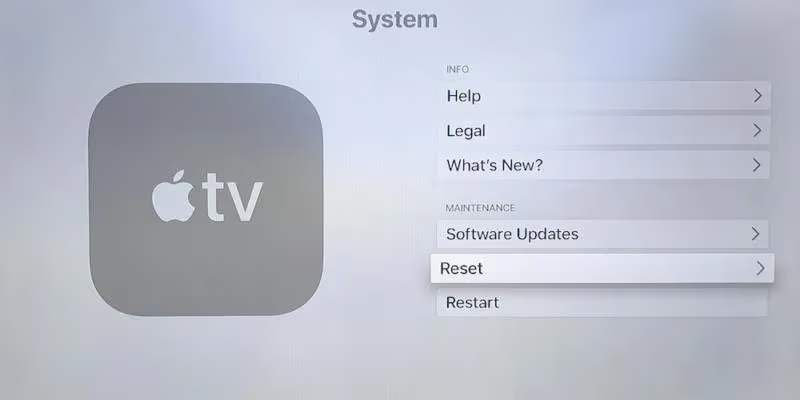
- Select Reset All Settings
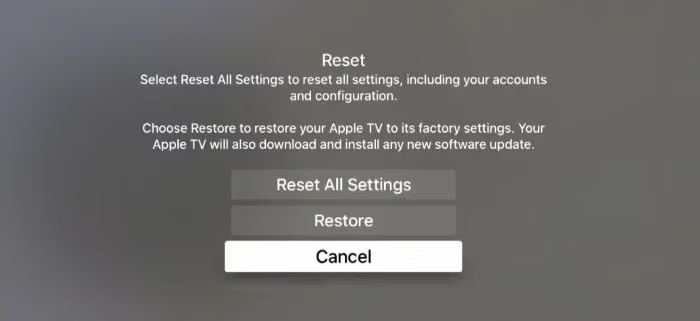
You’ll have to set up Apple TV like new, sign into accounts, reconfigure settings, and reinstall apps afterwards.
But this total wipe has the highest probability of resolving even stubborn Disney+ glitches or crashes long term.
Now enjoy your fresh start with Disney Plus on Apple TV!
#Disable Location Services
As a long shot troubleshooting step, consider disabling Location Services for the Disney Plus app on your Apple TV.
The app uses location to check mobile device streaming access and detect VPN connections across regions. But bugs with GPS positioning can confuse Disney Plus authorization.
To turn off location access just for Disney Plus app:
-
Go to Settings > Apps > Disney Plus
-
Select Location
-
Choose Never Allow
Now retry loading Disney+ content without location checks interfering.
#Should You Turn Off Automatic App Updates?
Frequent Disney Plus automatic updates in the background can possibly corrupt app file data on some Apple TVs.
You can stop autoupdates as a test:
-
Go to Settings > Apps
-
Select Automatically Update Apps
-
Toggle switch off
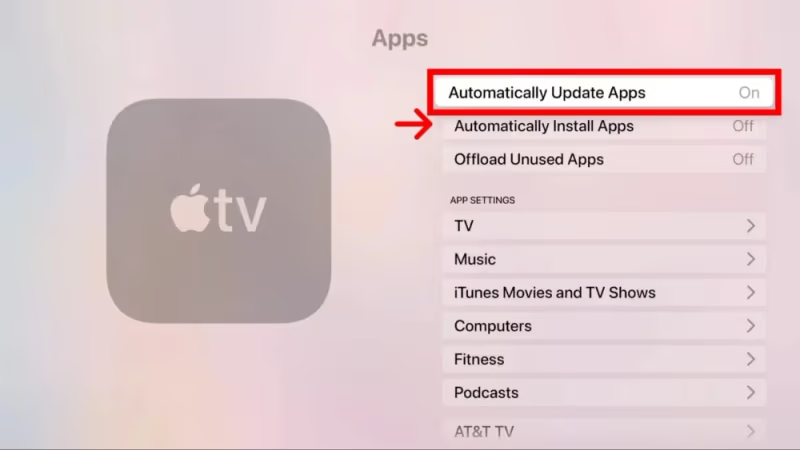
Then manually update Disney Plus only when necessary to avoid background glitches.
#Create New Apple ID
In very rare cases, your Apple account configuration itself related to App Store, iCloud, Game Center, and Media can conflict with Disney Plus authorization or streaming.
As a last resort, you might need to create an entirely new Apple ID just for using your Apple TV after factory resetting:
-
Go to Settings > Accounts > iTunes & App Store
-
Select Sign Out
-
Choose Create New Apple ID
-
Enter details for new account credentials
-
Sign into App Store then redownload Disney Plus
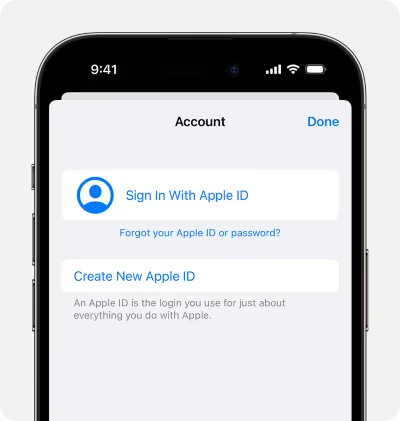
Setting up fresh Apple ID removes any corruption on previous account that could cause Disney+ login problems or video errors.
#Contact Apple Support
If all the troubleshooting steps here don’t resolve Disney Plus issues on your Apple TV, contact Apple Support directly for further assistance.
Apple’s technicians can help diagnose if hardware, software, authentication, or account problems are disrupting Disney Plus app on your device after troubleshooting.
If needed, Apple Support can facilitate warranty service requests, returns, exchanges or repairs.
#Contact Disney Plus Support
You can also directly contact the Disney Streaming Services support team for personalized help getting Disney Plus working smoothly on Apple TV again:
-
Online Support Site – Get 24/7 self-help on Disney’s Help Center site
-
Chat – Talk to a Disney Plus advisor online
-
Phone – Call the Disney Plus support line at (888) 905-7888
Explain your Apple TV troubleshooting steps attempted and error messages seen. Disney Support can reset accounts, offer streaming adjustments if needed, or escalate technical issues affecting services on end.
Does Disney+ crash or show loading errors on Fire TV devices? We break down the top Disney Plus Fire TV problems and their solutions.
#Bottom Line
You now have 17 tested troubleshooting steps to fix Disney Plus loading, lag, crashing, and playback problems on Apple TV. Bookmark this guide for the next time Disney+ acts up.
-
Check Disney Plus Status site during outages
-
Lower streaming resolution quality fixes buffering
-
Restart device and reset Disney Plus app to refresh
-
Update Apple TV OS and Disney Plus app version
-
Factory reset Apple TV completely removes corrupt files
-
Contact Apple or Disney Plus support lines for extra help
#FAQ
#Why does Disney Plus keep buffering on my Apple TV?
Buffering on Disney+ is almost always a network issue. Connect your Apple TV to your router with an Ethernet cable instead of Wi-Fi. If that fixes it, your wireless signal is too weak or congested for stable streaming.
#Why does Disney Plus crash on Apple TV?
Crashes usually come from outdated software or corrupt app data. Update both tvOS and the Disney+ app first. If crashes continue, delete the app and reinstall it from the App Store to clear corrupted cache files. A full factory reset is the last resort if nothing else works.
#Why does Disney Plus say unable to connect on Apple TV?
This error points to an account authentication problem or network outage. Check Downdetector to rule out a server-side outage first. Then sign out of Disney+ and sign back in to refresh your authorization token. If you use a VPN, disable it since Disney+ actively blocks VPN connections.
#How do I fix Disney Plus error code 83 on Apple TV?
Error code 83 means Disney+ can’t connect to its servers from your device. Restart your Apple TV, check that your internet connection is active, and make sure your Disney+ subscription is current. If the error persists, delete and reinstall the Disney+ app.
#Can I watch Disney Plus in 4K on older Apple TV models?
Only the Apple TV 4K (2017 and later) supports 4K HDR streaming on Disney+. The Apple TV HD maxes out at 1080p. You also need an internet speed of at least 25 Mbps for stable 4K playback.
#Does Disney Plus work on Apple TV 3rd generation?
No. Disney+ dropped support for the 3rd-generation Apple TV. You need an Apple TV HD (4th generation) or any Apple TV 4K model to run the Disney+ app. The only workaround for older models is AirPlay mirroring from an iPhone or iPad, but quality and reliability vary.
#Why is there no sound on Disney Plus on my Apple TV?
Missing audio on Disney+ is often caused by an incompatible audio output setting. Go to Settings > Video and Audio and change the audio format to Stereo instead of Dolby Atmos or Dolby Digital. If your sound system supports surround sound, check that your HDMI cable is plugged into the ARC or eARC port on your TV.
#How do I contact Disney Plus support for Apple TV issues?
Call Disney+ support directly at (888) 905-7888 for the fastest help. You can also use the live chat option on the Disney+ Help Center website. Have your Apple TV model, tvOS version, and any error codes ready before you call.