Experiencing Disney+ audio lagging behind video? This frustrating issue has multiple potential causes and solutions. As a streaming platform expert and Disney+ power user, I put together this troubleshooting guide so you can get back to enjoying your favorite shows.
- Network speed matters most — Disney+ needs at least 25 Mbps for 4K and 5 Mbps for HD streaming without sync issues
- A cold reboot fixes most cases — unplug your device for 60 seconds to clear memory leaks causing audio delay
- HDMI cables are a hidden culprit — damaged or loose HDMI connections disrupt time-sensitive A/V data flow
- Lowering resolution works as a quick fix — drop to 480p to test whether your device lacks the processing power for higher quality
- Bluetooth adds inherent latency — wired headphones eliminate the 100-300ms delay that wireless connections introduce
#Why Does Disney+ Audio Go Out of Sync?
Before jumping into fixes, it helps to understand what causes the Disney+ app’s audio and video to lose sync in the first place.
#Buffering and Internet Issues
The most common root of AV sync problems is buffering difficulties leading to video starting before the audio data fully loads. Contributing network factors include:
-
Weak or unstable connections
-
Congested Wi-Fi bands
-
Using mobile data in poor coverage areas
-
Too many devices connected to one network
-
Outages or throttling from Internet Service Providers
Disney+ recommends a minimum 25 Mbps connection for best 4K streaming experience. For 1080p/HD, 5 Mbps bandwidth is needed.
#Software Bugs
Sometimes a bug in the Disney+ app itself interrupts audio processing, like when:
-
The app wasn’t updated
-
A new update introduced software issues
-
Platform-specific coding problems occur
-
DRM issues occur with downloaded content
Reinstalling or force quitting and clearing app cache can fix software-based sync problems.
#Device Performance Issues
Underpowered, outdated, or malfunctioning devices can also prevent proper A/V sync, including:
-
Using older smartphone, TV, console, or PC hardware
-
Having many resource-intensive apps and services running
-
Experiencing device OS bugs or crashes
-
Connecting displays via faulty cables or ports
Updating devices and disconnecting/reconnecting cables helps with device-centric lag problems. Similar performance bottlenecks cause issues like a slow Fire TV Stick.
#Content Processing Glitches
In rare cases, a specific show or movie on Disney+ has intrinsic encoding issues on the platform’s backend, causing everyone viewing it to experience out-of-sync problems not solvable on the user end.
#How Do You Fix Disney+ Audio Sync Issues?
Below are the top troubleshooting tips, from easy home remedies to technical steps for advanced users. Following these guides sequentially will help you narrow down then resolve your Disney+ AV delay.
#1. Check Internet Connection Quality
Since network issues like buffering and ISP throttling cause most syncing problems, first confirm your internet is strong enough for streaming.
-
Run speed tests during peak usage times
-
Toggle airplane mode on/off on mobile devices
-
Power cycle home routers and modems
-
Contact internet provider to ask about area outages
-
Disconnect extra devices using your home Wi-Fi
Target at least 25 Mbps connections for 4K Disney+ or 5 Mbps for HD.
On mobile? Limit nearby obstruction between device and router, disable battery saver mode, use 5 GHz over 2.4 GHz bands if possible.
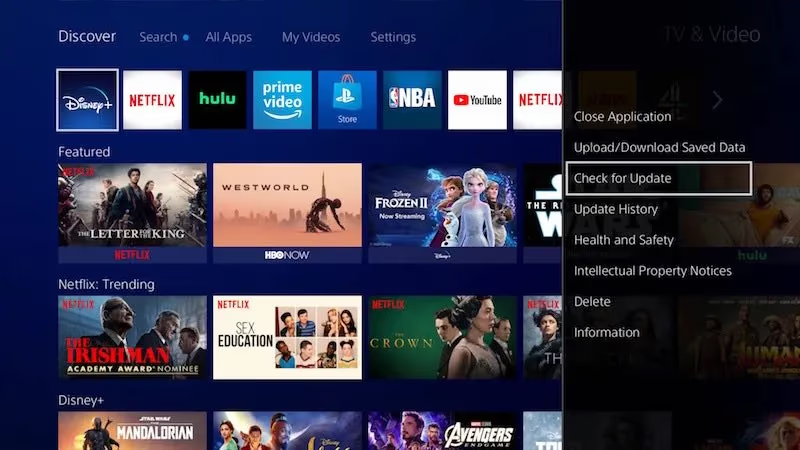
#2. Update Disney+ App
Using an outdated Disney+ version introduces risks of unpatched bugs.
Confirm you have the latest version installed.
To update Disney+ app:
-
On mobile, check your device’s app store updates tab
-
On Smart TVs, use system menu to find/install app updates
-
On streaming boxes, check for firmware updates
-
On PC browsers, hard refresh page or clear caches
#3. Restart Devices
Before getting too technical, quickly rebooting hardware and internet gear may clear any transient glitches causing Disney+ to get stuck buffering and losing AV sync.
Follow device restart best practices:
-
Phones/tablets: Power down completely, wait a minute, restart
-
Computers: Shut down then boot back up (don’t just sleep/wake)
-
Streaming boxes: Unplug, wait 30s, replug back in
-
Smart TVs: Pull power cord, wait 1 minute minimum before reconnecting
-
Internet modem+router: Unplug both over 5+ minutes
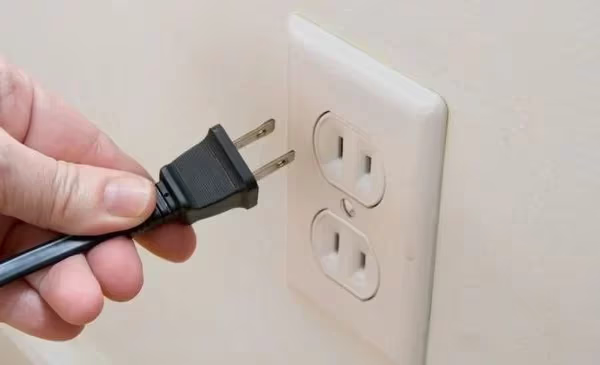
Allow devices to fully cold boot to clear memory leaks before relaunching Disney+.
#4. Disconnect and Reseat Cables
It’s surprising how reseating connectors can fix finicky hardware syncing issues.
Unplug then firmly replug the following Disney+ device cables:
-
HDMI cables linking players, audio systems, and displays
-
Power cords of streaming devices, TVs, and receivers
-
Audio cables like optical or RCA plugged into speakers
-
Network cables from modems and routers
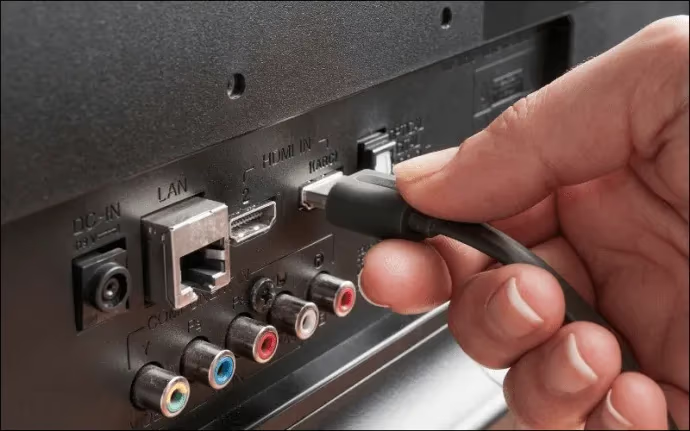
Examine cables for any damage too. Bent pins, frayed fabric, and cracked connectors can all disrupt time-sensitive A/V data flows. A bad HDMI cable can also cause Roku no signal errors.
#5. Lower Streaming Resolution
Streaming 4K or 1080p content taxes device resources much more heavily than SD video.
Does Disney+ only lose sync when viewing hi-res content? Streaming at a lower resolution may resolve this.
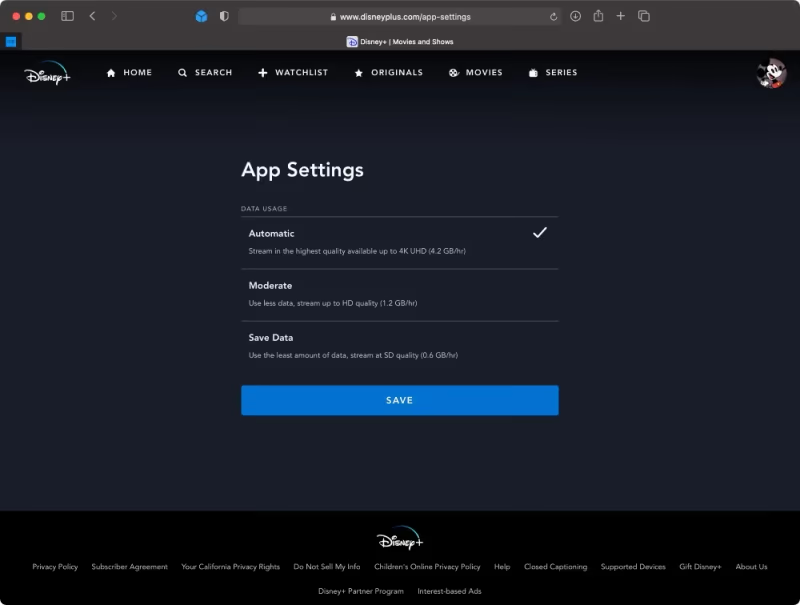
Adjust streaming quality via Disney+ settings:
#On Mobile/PC Browsers:
-
Tap/click your profile icon > App Settings
-
Select lower Data Usage threshold
#On TVs:
-
From Details page of any show, access Audio and Subtitles
-
Choose language then reduce Quality
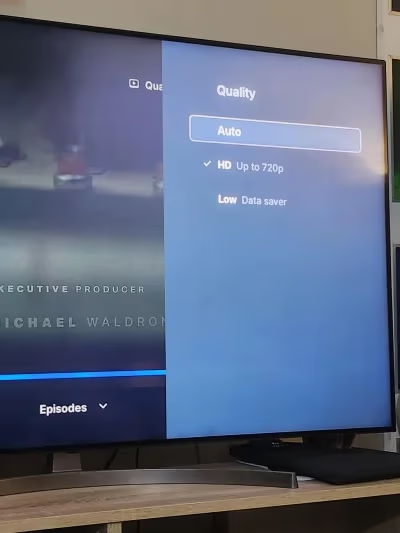
Target 480p or below. If sync issues disappear, slowly raise quality back up to find the sweet spot based on device and network capabilities.
#6. Can Resetting Audio Settings Fix the Delay?
Sometimes speaker configurations get corrupted, causing persistent A/V sync troubles. Reset audio back to factory defaults.
Reset audio on various devices:
#Media Streamers:
-
Access Audio settings from device menus
-
Turn off surround sound
-
Set speakers to Stereo or default
#Smart TVs:
-
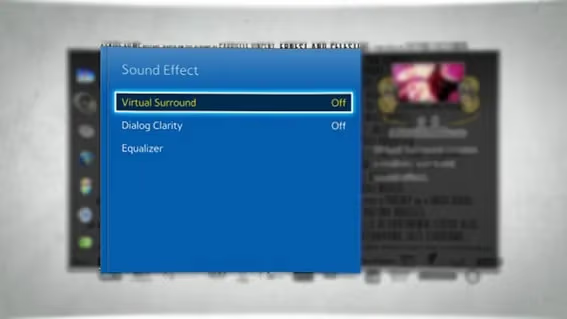
Enter System/Device Settings, locate Audio/Sound menu
-
Turn off virtual surround effects
-
Reset speakers to default TV configuration
#PCs:
-
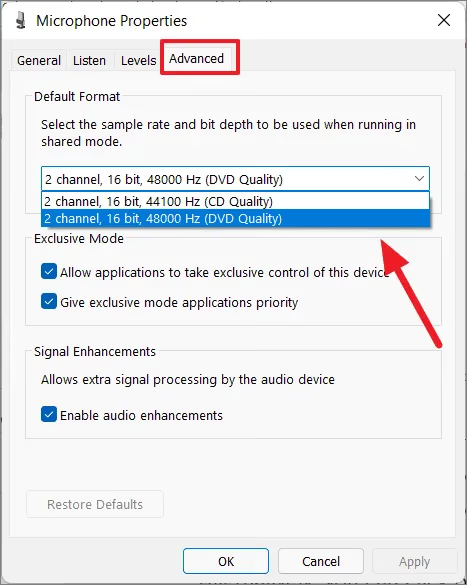
Access sound control panel properties
-
Under advanced sound options, set audio quality to CD level 16-bit, 44.1 kHz
#Mobile:
- Use standard smartphone speaker instead of Bluetooth accessories
Test Disney+ audio sync before and after the reset using the same content and streaming quality.
#7. Delete and Reinstall Disney+ App
If you’ve tried everything else with no improvements, deleting then fresh installing the Disney+ app eliminates any deeply entrenched data corruption or caching issues.
-
Back up favorites list in case they don’t sync back
-
Delete Disney+ app from device home screen/menu
-
Redownload latest app version from official stores
-
Login and re-setup streaming preferences
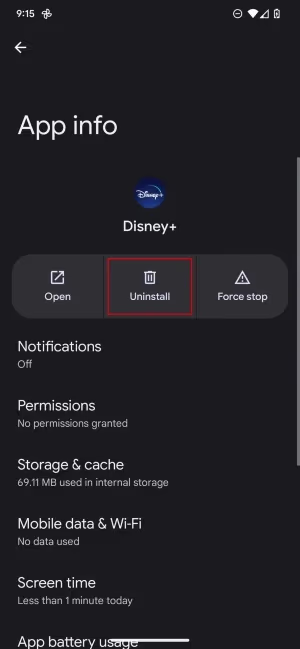
Test a few different movies and series to see if the problem persists across all content or just certain videos. You can also try Disney+ on a Roku device or Chromecast to isolate whether the issue is device-specific.
#8. Contact Disney+ Support
After methodically trying the above troubleshooting steps, if Disney+ audio is still consistently out of sync on perfectly capable hardware across different shows, the issue may actually stem from a deeper platform-side encoding flaw.
In this case, directly contact Disney+ support via:
-
Live chat on Disney+‘s help site
-
Emailing support@disneyplus.com
-
Calling (888) 905-7888
Provide specific examples of media consistently exhibiting AV sync lag so they can log and diagnose the issue on their backend.
If enough users report problems with certain shows, Disney engineers can reprocess the files to permanently resolve media playback issues at the root.
#Bottom Line
Getting Disney+ audio back in sync takes some sleuthing but fixes usually come down to:
-
Upgrading internet speeds or minimizing nearby device interference
-
Keeping Disney+ app updated and rebooting devices before streams
-
Reseating finicky HDMI and audio cables
-
Lowering streaming resolution based on device capability
-
Deleting and reinstalling Disney+ as last resort
Proactively avoiding sync headaches:
-
Set Disney+ to default lowest streaming resolution
-
Close extra apps and browser tabs before streaming
-
Buy certified premium HDMI cables within 6 ft max length
-
Connect devices via Ethernet vs Wi-Fi when possible
-
Set Disney+ downloads to Wi-Fi-only to prevent mobile data buffering
Now you have a full troubleshooting roadmap. Follow steps sequentially until Disney+ audio smoothly matches the video once again. Taking these preventative measures also minimizes future syncing frustrations.
#Frequently Asked Questions
#Why does my TV lose audio sync only when streaming Disney+?
This typically points to an HDMI handshake issue between your media player or streaming stick and TV. Try connecting devices directly via TV’s built-in software vs another box. You should also manually adjust TV settings to match the source device rather than relying on auto-detection.
#Why does Disney+ buffer more than other streaming apps on the same connection?
Disney+ prioritizes maximum visual quality, which demands more bandwidth than competitors. Netflix can stream well at 3 Mbps speeds while Disney+ needs 5 Mbps minimum. Check Disney+‘s data usage limiter settings to cap rates based on your network capability. Set video quality lower consistently, not just when buffering occurs.
#Does Bluetooth cause Disney+ audio delay?
Yes, Bluetooth connections add 100-300ms of latency compared to wired connections. Use the audio delay adjustment slider within your Bluetooth device settings to realign timing, or switch to wired headphones. Sitting closer to your TV also reduces wireless interference that worsens the delay.
#My internet tests above 25 Mbps but Disney+ still loses sync. Why?
Raw download speeds don’t tell the full story. Packet loss, latency jitter, and congestion also affect real-time streaming. Your provider may throttle traffic during peak hours or route Disney+ content inefficiently. Use Ethernet instead of Wi-Fi, optimize modem placement, and upgrade your router if it’s more than 3-4 years old.
#Will lowering video quality permanently fix audio sync on Disney+?
Lowering quality is more of a workaround than a permanent fix. It reduces the processing load on your device, which can prevent sync drift. If 480p streams fine but 4K doesn’t, your device likely lacks the processing power for high-resolution playback. Consider upgrading your streaming hardware for a lasting solution.
#Can a factory reset fix Disney+ audio sync problems?
A factory reset clears all cached data and corrupted settings that might cause sync issues. Before doing a full reset, try clearing just the Disney+ app cache first. If that doesn’t work, a factory reset of your streaming device or TV is worth trying as a last step before contacting support.
#Does Disney+ audio sync affect downloaded content too?
Downloaded content can have sync issues if the download was interrupted or corrupted. Delete the downloaded video and re-download it over a stable Wi-Fi connection. If the same title plays fine when streaming but not when downloaded, the local file is the problem. DRM processing during offline playback can also introduce slight delays on older devices.