Watching Dish Network on your Roku TV puts all your favorite programming in one place. Roku does not offer a native Dish app, but four workarounds let you get satellite content on any Roku TV model.
- No official Dish app on Roku — you need to cast, mirror, or use HDMI to watch Dish satellite content
- Casting from the Dish Anywhere app — the fastest wireless method, works from any iOS or Android device
- Screen mirroring from Windows or Chrome — sends your full desktop to the Roku TV over WiFi
- HDMI connection delivers the best quality — supports full 4K resolution and stable audio unlike wireless options
- All methods require the same WiFi network — your Roku TV and casting device must share one network for wireless setups
#An Introduction to Dish Network and Roku TV
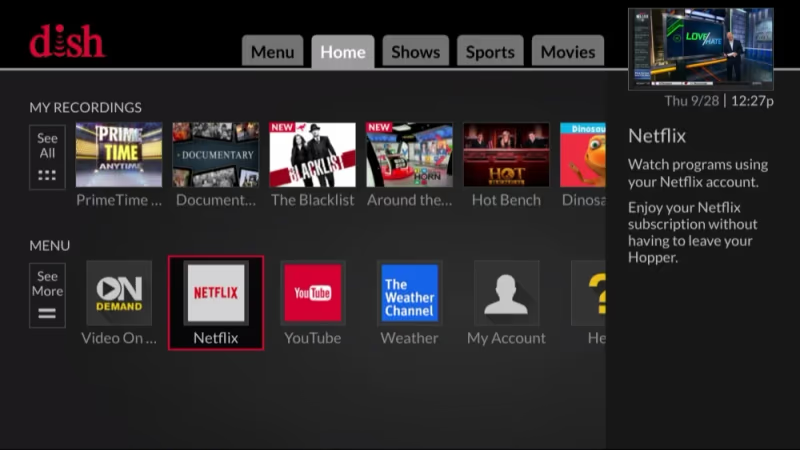
Dish Network is one of the largest satellite TV providers in the US, offering customers access to hundreds of popular cable channels, exclusive programming packages, DVR capabilities, On Demand content libraries and more.
Roku TVs integrate America’s #1 streaming platform directly into the display. Roku TV models come equipped with an easy-to-use remote, the Roku home screen and access to thousands of streaming channels.
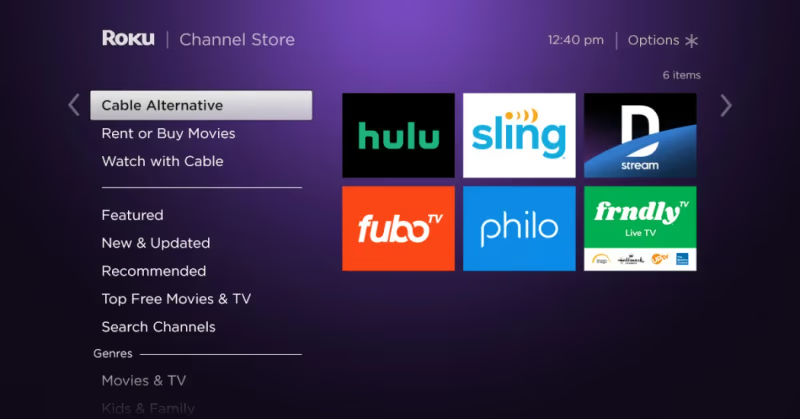
Unfortunately, there’s no official Dish Network channel available on Roku. But with a few workarounds, Dish subscribers can enjoy access to their satellite programming on compatible Roku TV models.
#Why Connect Dish Network to Roku TV?
Integrating Dish with your Roku TV consolidates access to all of your entertainment into a single, user-friendly platform. Benefits include:
-
Watch live, DVR recordings and On Demand shows from Dish using Roku’s interface
-
Eliminates the need to switch inputs or TV remotes. Control everything with your Roku remote
-
Enjoy Roku streaming channels alongside Dish satellite programming all in one place
-
Quickly find your favorite shows without having to reference a separate On screen guide
-
Roku TVs provide excellent 4K, HDR and advanced audio support
From sports and movies to news and family programming, getting Dish on Roku keeps all the shows you love easy to access.
#4 Ways to Connect Dish Network to Roku TV
While an official Dish channel for Roku doesn’t exist, using your Roku TV for satellite does remain possible through these methods:
#1. Cast the Dish Anywhere App from Your Phone or Tablet
The Dish Anywhere app allows satellite subscribers to stream live channels, DVR recordings and On Demand titles from iOS and Android mobile devices.
To display Dish on your Roku TV:
-
Confirm both devices connect to the same WiFi network
-
Download the Dish Anywhere app on your phone or tablet
-
On Roku, enable Screen Mirroring under Settings > System > Screen Mirroring
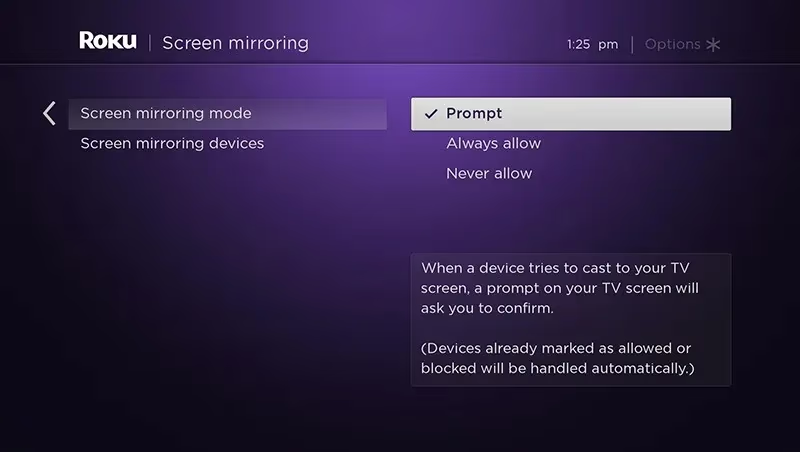
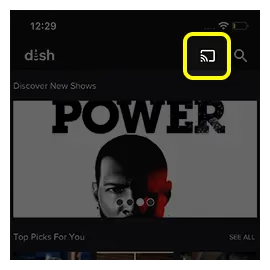
- Open Dish Anywhere App, initiate Casting, choose your Roku and enjoy Dish programming on the big screen!
Connected a Dish Network satellite box or Hopper DVR receiver into open HDMI ports remains the most direct option to enable Dish on a Roku TV. Obtain necessary cables and in some cases, Digital audio adapters for older equipment relying on analog RCA ports.
#2. Screen Mirror a Windows PC
Windows 10 PCs equipped with Miracast technology can wirelessly mirror to compatible Roku TVs. To Screen Mirror Dish Network from your Windows desktop or laptop:
-
Connect PC and Roku to the same home network
-
Under Windows Settings / System / Projecting to this PC, enable wireless projection
-
Open Dish Anywhere on the computer
-
Click “Connect” from the Project menu on Windows desktop
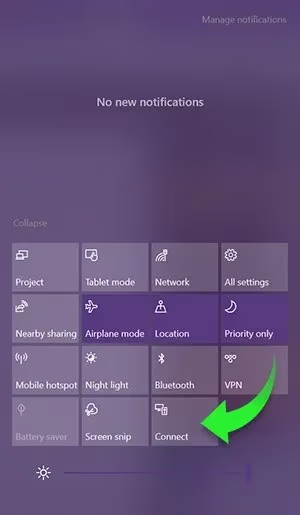
- Choose your Roku TV as the wireless display and begin viewing
Screen Mirroring Dish via Windows Desktop provides responsive streaming but interacting with the Dish interface remains tied to your computer.
#3. Chromecast Dish Browser Tabs from a Laptop
Google Chrome running on Mac, Windows or Chromebook laptops allows easy streaming through Chromecast. To get Dish on the big screen:
-
Install the Google Chrome browser if needed and sign into your Google account
-
Connect laptop and Roku TV to the same WiFi
-
Navigate to Dish.com and login to Dish Anywhere
-
Select “Cast” icon from Chrome Menu > choose Roku device > select “Always Allow” on Roku prompt
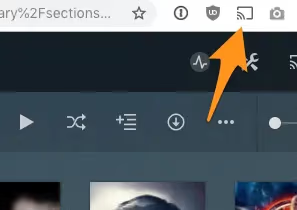
- Dish Network starts streaming directly through the Chromecast functionality
Chromecasting Dish via laptop provides reliable streaming. Navigation and controls stay tied to your computer but it works well.
#4. Connect a Dish Set Top Box into Roku TV HDMI
Connecting a Dish Network satellite box or Hopper DVR receiver into open HDMI ports remains the most direct option to enable Dish on a Roku TV.
-
Obtain Digital Ot Analog audio adapter cables for RCA red/white audio ports if needed
-
Connect HDMI cable from Dish box output to Roku TV HDMI input
-
Under Roku TV input menu, choose the newly connected HDMI source
-
Disable Roku TV autoplay “Auto-detect HDMI” under Settings > TV inputs if needed
-
Full Dish functionality achieved by controlling set top box using original satellite remote
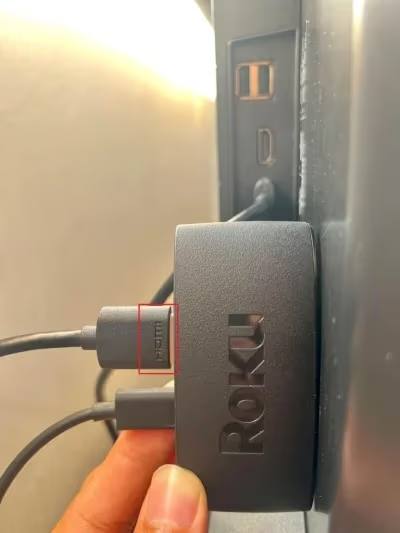
Wired connections provide maximum compatibility but require keeping your Dish remote handy alongside the Roku controller.
#What Are the Key Differences Between Casting, Mirroring and HDMI?
How Dish gets displayed on your Roku TV – wirelessly versus HDMI cables – makes a key difference in certain areas:
Picture Quality
-
Wireless casting and mirroring capped at 720p
-
HDMI connections support full 4K resolution
Responsiveness
-
Slight streaming delays common for wireless
-
Wired HDMI eliminates lag, ideal for sports
Audio Quality
-
Potential sync issues or drops with casting
-
HDMI maintains consistency
Navigation
-
Casting ties controls to your mobile device
-
HDMI keeps default Dish remote usage
On Demand Access
-
Mobile apps unlock entire VOD catalog
-
Set boxes may limit available titles
Overall, wireless casting Dish from the Dish Anywhere mobile app rates as the top choice for convenience and flexibility.
Mirroring from a Windows laptop or Chrome browser remains quick and capable as well. HDMI connections maximize compatibility but require juggling multiple remotes.
#Step-by-Step Setup Instructions
Ready to integrate Dish access into your Roku TV? Follow these step-by-step tutorials for activating each connection method.
#How To Cast Dish from iOS or Android App to Roku
-
Download Dish Anywhere mobile app on your iPhone, iPad or Android device
-
Under Roku TV System settings, ensure Screen Mirroring enabled
-
Connect streaming player and mobile device to the same WiFi network
-
Open the Dish Anywhere app, login and start a program
-
Tap Cast icon from Anywhere app > choose Roku > Allow permission
-
Dish app transforms into a remote. Enjoy your channels!
Casting provides the quickest and easiest setup. Controlling Dish via your Roku removes the need to juggle multiple remotes as well.
#Screen Mirror Dish Network to Roku TV from Windows PC
Prerequisites include a Windows 10 notebook/desktop, Roku TV with mirroring capabilities and active Dish subscription. Then:
-
Under Windows Settings > System > Enable wireless “Project to This PC”
-
Login online to Dish Anywhere programming on your Windows web browser
-
Click “Connect to Wireless Display” from Windows Project Menu
-
Choose Roku TV model as the mirroring destination
-
Allow permission prompt on Roku
-
Dish starts displaying as mirrored from your PC to the big screen
Windows handles casting well. Just know controlling Dish still relies on your computer itself. Closing apps or powering down desktop cuts streaming.
#How to Chromecast Dish from Your Laptop via Browser
-
Install latest Google Chrome browser on Mac, Windows notebook or Chromebook
-
Set up both computer and Roku on same WiFi network
-
Within Chrome, head to Dish.com and sign in to access Dish Anywhere
-
Initiate Cast mode from the Chrome Menu icon
-
Select your Roku TV model as the casting destination
-
Allow connection permission on Roku
-
Sit back as Dish programming now streams from your laptop browser!
Chromecast setup runs very smoothly. Just like Windows mirroring, your computer retains control over Dish functionality itself. If you run into buffering issues with Dish, check out some tips for fixing Dish TV black screen problems.
#Connect Dish Set Top Box HDMI Direct to Roku
Establishing a direct HDMI integration from Dish Device to Roku constitutes the most involved but compatible hookup method:
-
Obtain necessary Digital audio adapter cables for older Dish equipment RCA ports
-
Connect HDMI cable from Dish receiver box output to open Roku TV HDMI input
-
Disable “Auto-detect HDMI” on Roku if needed under Settings > TV Inputs
-
Access newly connected HDMI input tile from Roku TV input menu
-
Dish starts displaying on Roku screen but requires Dish remote to control
Wired HDMI connections provide maximum streaming quality and optionality. Just bear in mind needing Dish device remote alongside the Roku controller.
#How Do You Fix Dish Integration Problems with Roku?
Don’t panic if running into trouble getting Dish access set up on your streaming Roku TV. Common issues and fixes include:
-
Roku losing wireless signal – Ensure Dish equipment connects to the same WiFi network as your Roku. Routers broadcasting both 2.4GHz and 5GHz bands under the same SSID often confuse matters.
-
External device not permitted for casting – Double check Roku display allowing screen mirror permissions via prompt (or under System / Screen mirroring settings)
-
New HDMI device not being detected – Turn off auto detect function from Roku TV input settings
-
Pixelation or buffering on Dish streams – Close extra apps on your casting device. Move Roku and Dish gear closer if possible to maximize wireless throughput.
-
No audio when devices connected – Obtain Digital audio adapters for older Dish equipment relying on analog RCA ports
-
Unable to sign into Dish Everywhere – Confirm subscription remains in good standing by reviewing your Dish account online
Contact Dish customer service about account issues affecting accessibility. For functionality inquiries, take advantage of Roku’s superb customer support resources via phone, email, chat or social channels.
#Alternative Options for Satellite Fans Seeking Roku Capabilities
While budget cord cutters and streaming purists gravitate towards Roku players and smart TVs, satellite subscribers needing specialized equipment do maintain other options:
-
The Orby TV service and custom box basically combines satellite Dish programming with Roku streaming capabilities into one user-friendly platform.
-
Select Dish-compatible Smart TVs from Sharp and Sony ship with Dish app integration along with built-in Roku interfaces. For Sony models search “Sony Dish TVs” on sites like Amazon, Best Buy or Walmart.
-
Existing Dish account holders qualify for steep savings on new Orby equipment provided activating year-long contracts. Contact Dish support for current discount promotions when adding TVs.
Access popular channels like ESPN on Dish TV and even Paramount Plus on Dish TV by signing into individual Roku apps using your base Dish credentials. Consider Dish Network on Apple TV for another casting option.
#FAQ
#Is there an official Dish Network app for Roku?
No. Dish Network has not released a dedicated Roku channel. You can still watch Dish on a Roku TV by casting from the Dish Anywhere mobile app, screen mirroring from a PC or Chrome browser, or plugging a Dish receiver into the TV’s HDMI port.
#What does the Dish Anywhere mobile app include?
The app gives subscribers access to live channels, tens of thousands of On Demand titles, and full DVR management. It works on both iOS and Android. The built-in casting feature makes it the easiest way to send Dish content to a Roku TV.
#Can I stream Dish on Roku while traveling?
Away from your home WiFi, the Dish Anywhere app limits streaming to recorded DVR content for about 100 minutes. After that, live channels become restricted. If you travel often, a separate service like Sling TV on Roku works from any location.
#Which Roku TV brands work with Dish?
TCL, Hisense, Sharp Aquos, and Insignia Roku TVs all support Dish through casting, mirroring, or HDMI. Any Roku TV with screen mirroring enabled and an available HDMI input will work.
#Does HDMI give better quality than wireless casting?
Yes. HDMI connections support full 4K resolution and HDR, while wireless casting from the Dish Anywhere app tops out at 720p without HDR. HDMI also eliminates audio sync issues and input lag, which matters for live sports.
#Can I use my Dish login to activate apps on Roku?
Many channel apps on Roku accept Dish credentials for sign-in. HBO, Showtime, CBS, FOX, NBC, and ESPN all activate through your base Dish subscription without extra fees. This lets you watch individual channels through their own Roku apps instead of casting.
#How does Hopper DVR work with a Roku TV?
Connecting a Dish Hopper3 to your Roku TV through HDMI gives you full DVR features: pause and rewind live TV, record up to 16 shows at once, store 500 hours of content, and skip commercials. You control the Hopper with its own remote while using the Roku remote for streaming apps.
#Bottom Line
While Roku doesn’t natively support Dish network integration through an official channel, satellite programming happily streams using the Dish Anywhere mobile app combined with Roku’s excellent screen mirroring capabilities.
Casting Dish from an iPhone or Android device provides the easiest setup without needing laptops. Dish functionality transforms your smartphone into a handy universal remote as well.
Consider a TCL Roku TV paired with the latest Dish Hopper for a future-proof Dish/Roku combination delivering gorgeous 4K HDR programming alongside intuitive access to thousands of streaming apps.