DAZN on Sony TV gives you access to live boxing, MMA, and soccer from a single app. Sony Bravia models from 2016 onward run Android TV or Google TV, and both platforms support the DAZN app through the Google Play Store. This guide walks you through installation, account setup, casting options, and fixes for common streaming problems.
- DAZN works on Sony Bravia TVs from 2016 and newer — any model running Android TV or Google TV can install the app from Google Play
- Installation takes under 3 minutes — search for DAZN in the Google Play Store, tap Install, and sign in
- Chromecast and AirPlay offer alternatives — cast from your phone if you prefer not to use the native TV app
- A stable 5 Mbps connection is the minimum — DAZN recommends 8 Mbps for HD and 15 Mbps for 4K sports streams
- Buffering issues usually trace back to DNS or Wi-Fi signal — switching to Google DNS (8.8.8.8) and using a wired ethernet connection fixes most problems
#Is DAZN Available on All Sony Smart TVs?
DAZN is available on Sony Smart TVs that run Android TV or Google TV. That includes most Sony Bravia models from 2016 onward. Older Sony TVs running a proprietary operating system (pre-2015 models) do not have access to the Google Play Store and cannot install DAZN natively.
Here are some confirmed compatible series:
- Sony X750H, X800H, X900H, X950H (2020)
- Sony X80J, X85J, X90J, X95J, A80J (2021)
- Sony X80K, X85K, X90K, A80K (2022)
- Sony X77L, X80L, X85L, X90L, A80L (2023)
- Sony Bravia 7, Bravia 8, Bravia 9 (2024-2025)
Not sure which OS your TV runs? Press the Home button on your Sony remote. If you see the Google TV or Android TV interface with rows of content recommendations and a Google Play Store icon, your TV supports DAZN.
#How Do You Install DAZN on a Sony TV?
The installation process is the same whether your Sony TV runs Android TV or Google TV. Follow these steps:
- Press the Home button on your Sony remote
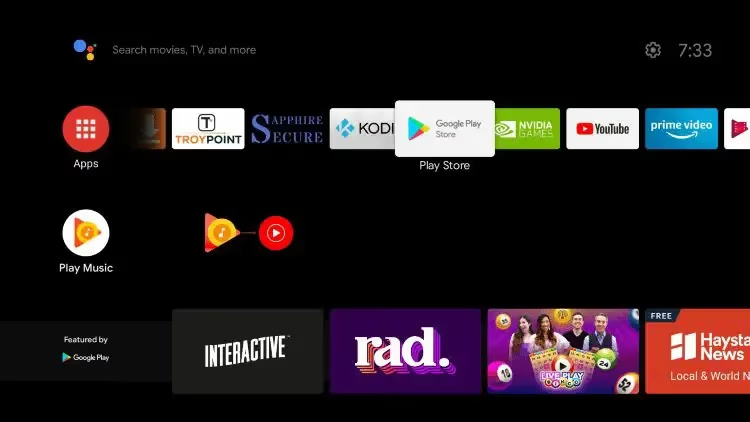
- Open the Google Play Store (look for the Play Store icon on your home screen)
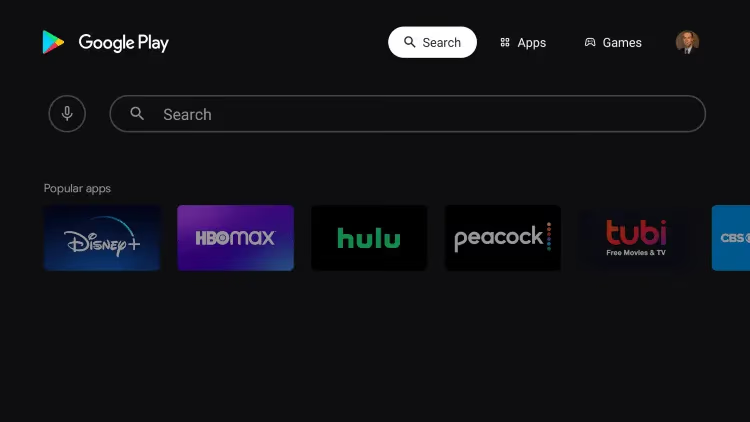
- Select the search bar and type DAZN
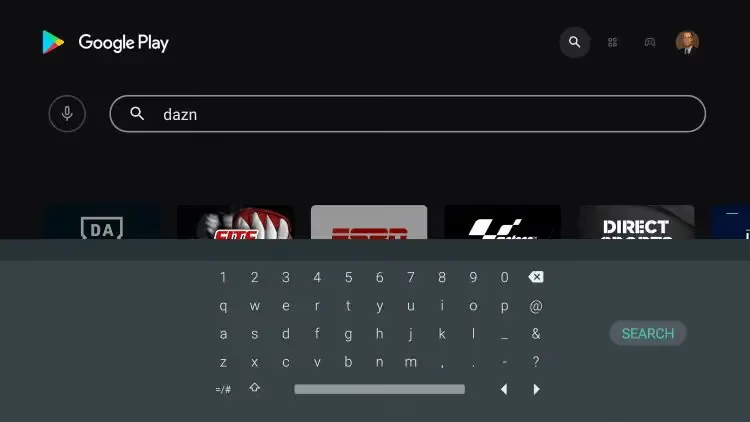
- Select DAZN from the search results
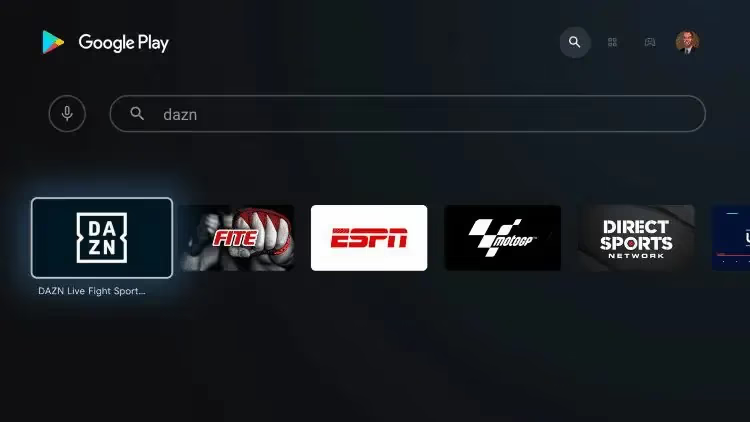
- Click Install and wait for the download to finish
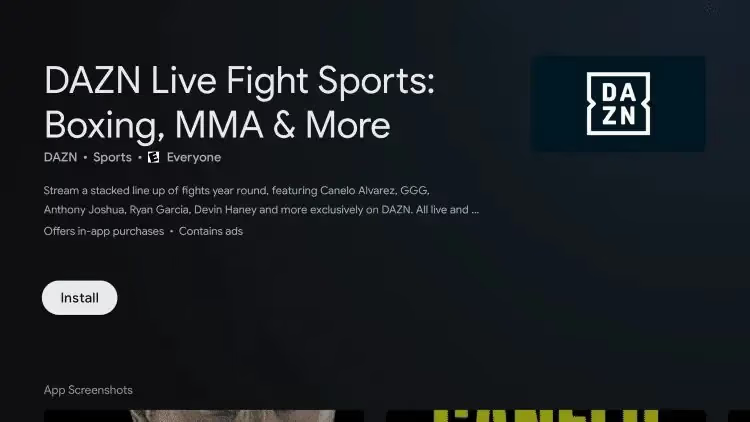
- Click Open to launch the app
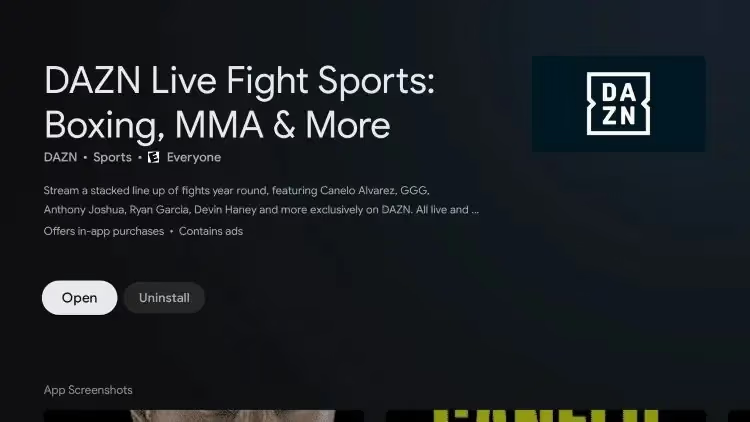
- Sign in with your DAZN credentials or create a new account
The whole process takes about 2 minutes on a decent Wi-Fi connection. Once installed, DAZN appears in your app list on the home screen.
#Setting Up Your DAZN Account
If you do not have a DAZN account yet, you can create one directly on your Sony TV or sign up through the DAZN website on your phone or computer first. Signing up on a mobile device is often faster because typing with a remote control is slow.
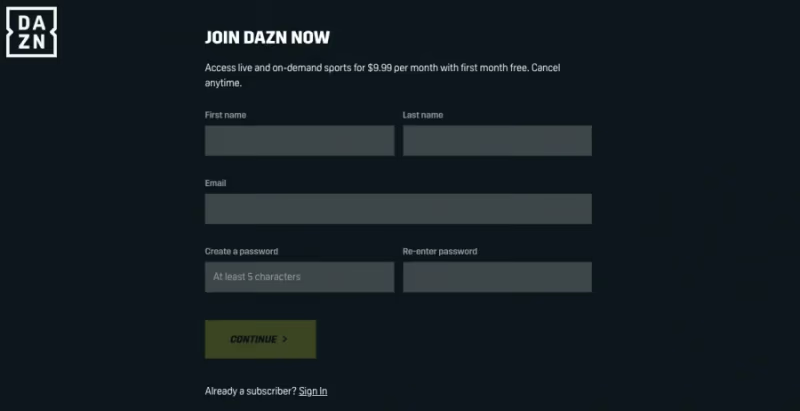
DAZN pricing varies by country and changes frequently. In the US, plans start at $19.99 per month, with annual subscriptions around $149.99 per year. Some regions offer tiered plans with different content access levels.
| Plan | US Price | What You Get |
|---|---|---|
| DAZN Start | $19.99/month | Select live events, on-demand library |
| DAZN Unlimited | $29.99/month | All live events including PPV |
| Annual | $149.99/year | Full access, saves vs monthly billing |
Check the DAZN website for current pricing in your region, as rates differ significantly between countries. If DAZN is not available in your area, consider checking out DAZN alternatives for other sports streaming options.
#Casting DAZN to Your Sony TV
You do not need to install the DAZN app on your TV at all if you prefer casting from your phone. Sony TVs support two casting methods: Chromecast built-in (for Android devices) and AirPlay (for Apple devices).
#Chromecast Built-in
Every Sony Android TV and Google TV has Chromecast built in. No extra hardware needed.
- Open the DAZN app on your Android phone or tablet
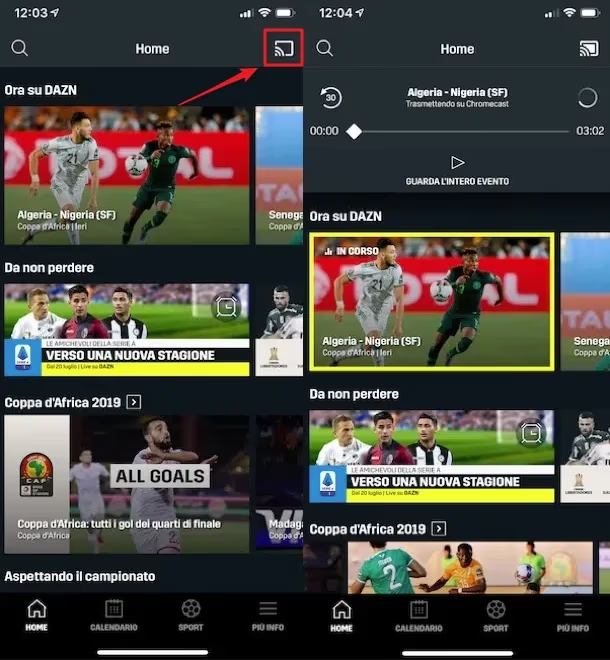
- Tap the Cast icon in the top-right corner
- Select your Sony TV from the device list
- Start playing your content
Your phone acts as the remote control during casting. You can pause, rewind, or switch events without picking up the TV remote.
#AirPlay From iPhone or iPad
Sony TVs from 2019 onward support AirPlay 2. To cast from an Apple device:
- Make sure your iPhone/iPad and Sony TV are on the same Wi-Fi network
- Open the DAZN app on your Apple device
- Start playing a stream, then tap the AirPlay icon
- Choose your Sony TV
If AirPlay does not appear as an option, check that AirPlay is enabled in your Sony TV settings under Settings > Apps > Apple AirPlay & HomeKit. For more on screen mirroring with Apple devices, see our guide on screen mirroring iPhone to Sony TV.
#Navigating the DAZN App on Sony TV
The DAZN interface on Sony TV is organized into several sections that make finding live and upcoming events straightforward.
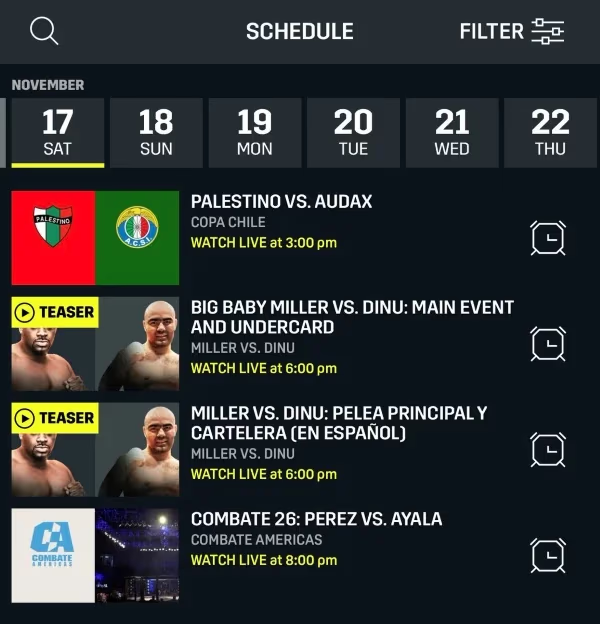
#Live and Upcoming Events
The home screen shows events currently live at the top. Scroll down to see scheduled upcoming fights, matches, and tournaments. The Replays section stores full event replays for at least 30 days after airing.
#Playback Controls
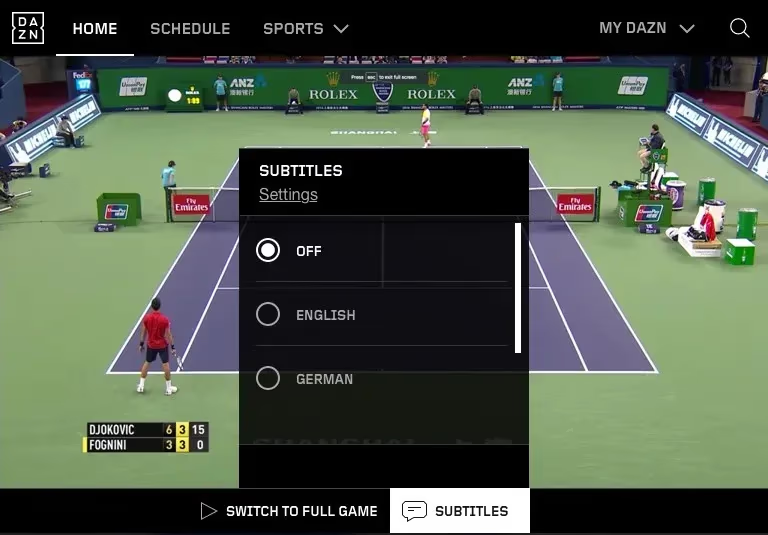
During a live stream, you can pause and rewind up to 2 hours. DAZN also lets you enable subtitles and switch audio languages for select events. Access these options by pressing the down arrow on your remote during playback.
#Cross-Device Viewing
DAZN tracks your watch progress across devices. Start a boxing match on your Sony TV, pause it, and pick up exactly where you left off on your phone during your commute. This works across all DAZN-supported platforms automatically.
#How Do You Fix DAZN Streaming Issues on Sony TV?
Buffering, app crashes, and black screens are the most common DAZN problems on Sony TVs. Work through these fixes in order:
Step 1: Check your internet speed. Open a browser on your Sony TV and visit fast.com (Netflix’s speed test). You need at least 5 Mbps for standard definition and 8 Mbps for HD streams.
Step 2: Restart the app. Press the Home button, go to Settings > Apps > DAZN > Force Stop, then reopen the app. This clears temporary glitches without losing your login.
Step 3: Clear app cache. Go to Settings > Apps > DAZN > Clear Cache. Do not tap “Clear Data” unless you want to sign in again.
Step 4: Update the app. Open Google Play Store, search for DAZN, and check if an update is available. Outdated app versions often cause playback failures after DAZN pushes server-side changes.
Step 5: Update your TV firmware. Navigate to Settings > Device Preferences > About > System Update. Sony releases firmware updates that fix app compatibility issues. Check Sony’s support page for your model’s latest firmware version.
Step 6: Switch DNS servers. Go to Settings > Network & Internet > your Wi-Fi network > IP Settings > Static and change DNS to 8.8.8.8 (primary) and 8.8.4.4 (secondary). Some ISPs throttle streaming traffic, and Google DNS can help bypass this.
Step 7: Use a wired connection. If Wi-Fi is unstable, connect an ethernet cable directly to your Sony TV. Wired connections eliminate interference from other devices and walls.
If none of these steps work, try casting from your phone instead of using the native app. If DAZN keeps freezing across all methods, check our DAZN keeps freezing guide for more targeted fixes.
#DAZN on Sony TV vs Other Platforms
DAZN is available on many devices beyond Sony TVs. If you own multiple TVs or streaming devices, here is how the experience compares:
| Platform | App Available | 4K Support | Casting |
|---|---|---|---|
| Sony Android TV / Google TV | Yes (Google Play) | Yes | Chromecast + AirPlay |
| Samsung Smart TV | Yes (Samsung App Store) | Yes | AirPlay only |
| LG Smart TV | Yes (LG Content Store) | Yes | AirPlay only |
| Amazon Fire TV Stick | Yes | Yes (4K model) | No |
| Roku | Yes | Yes | No |
The Sony TV experience is one of the best because it supports both Chromecast and AirPlay casting, giving you flexibility regardless of whether you use Android or iOS. For setup guides on other platforms, check our articles on DAZN on LG Smart TV and DAZN on Fire TV Stick.
#Bottom Line
Getting DAZN running on your Sony TV takes just a few minutes. Install the app from Google Play, sign in, and you are ready for live boxing, MMA, and soccer. If the native app gives you trouble, casting from your phone through Chromecast or AirPlay works just as well. Keep your TV firmware and DAZN app updated to avoid most playback issues. For the best streaming quality, use a wired ethernet connection and make sure your internet speed hits at least 8 Mbps.
#Frequently Asked Questions
#Does DAZN work on older Sony TVs from before 2016?
No. Sony TVs made before 2016 typically run a proprietary smart TV platform without access to the Google Play Store. Your best option is to connect an Amazon Fire TV Stick or Chromecast with Google TV to the HDMI port, then install DAZN on that device instead. Both streaming sticks cost under $40 and give you full DAZN functionality.
#Can you watch DAZN in 4K on a Sony TV?
Yes, DAZN streams select events in 4K on Sony TVs that have a 4K panel. Your TV must support HDCP 2.2, and you need a stable internet connection of at least 15 Mbps. Not all DAZN content is available in 4K, but major boxing PPV events and some soccer matches typically get the 4K treatment.
#How many devices can stream DAZN at the same time?
DAZN allows two simultaneous streams on the standard plan. If someone else in your household is already watching on their phone, you can still stream on your Sony TV without interruption. The DAZN Unlimited plan supports more concurrent streams depending on your region.
#Why does DAZN keep buffering on my Sony TV?
Buffering almost always points to a network issue rather than a problem with DAZN itself. Test your speed at fast.com and confirm you are getting at least 8 Mbps. Switch to a wired ethernet connection if possible, and change your DNS settings to Google DNS (8.8.8.8). If the problem only happens during peak hours, your ISP may be throttling streaming traffic.
#Is DAZN free on Sony TV?
No, DAZN requires a paid subscription. There is no permanent free tier, though DAZN occasionally offers free trial periods for new subscribers in select markets. Check the DAZN app or website to see if a trial is currently available in your country.
#Can you cancel DAZN and keep watching until the billing period ends?
Yes. When you cancel your DAZN subscription, your access continues until the end of the current billing cycle. You will not be charged again after cancellation. To cancel, go to your account settings on the DAZN website or app, select Subscription, and follow the cancellation steps. See our DAZN cancel subscription guide for a full walkthrough.
#What sports are available on DAZN?
DAZN’s library depends heavily on your country. In the US, the focus is on boxing (including Matchroom and Golden Boy promotions) and MMA. In Europe, DAZN carries major soccer leagues including Serie A, La Liga, and Ligue 1. Other regions get NFL Game Pass, cricket, and motorsports. Check DAZN’s content catalog for your specific location before subscribing.
#How do you sideload DAZN on a Sony TV that does not have Google Play?
You cannot sideload apps on Sony TVs that run a non-Android operating system. The sideloading method (downloading an APK file and installing it via USB) only works on Android-based Sony TVs that already have Google Play access. For non-Android Sony TVs, use an external streaming device like a Fire TV Stick or Chromecast to access DAZN.