Looking to stream live sports on your Hisense TV? DAZN is the go-to streaming service for premium live sports, offering extensive coverage of soccer, boxing, MMA, cricket and more on a wide range of devices. And much more handy info to help you get DAZN running smoothly on your Hisense TV! Let’s get started…
- DAZN supports 6 Hisense TV platforms — Android TV, Google TV, Roku TV, Fire TV, VIDAA, and XClass all have native app access
- Installation takes under 2 minutes — search for “DAZN” in your platform’s app store and tap Install
- 10+ Hisense TV series are compatible — including the U7, U8, U9, A6, A7, H8, and H9 lineups
- VIDAA users need the VEWD app store — unlike other platforms, VIDAA TVs access DAZN through the VEWD store in My Apps
- Ethernet beats Wi-Fi for live sports — a wired connection reduces buffering and delivers more stable streams during high-motion events
#Which Hisense Smart TVs Are Compatible With DAZN?
DAZN is a premium live sports streaming service that offers extensive coverage of soccer, boxing, MMA, cricket and more live and on-demand sports.
The DAZN app comes pre-installed on some Hisense smart TV models. It is also available for easy one-click installation from the app store across these Hisense TV platforms:
-
Android TV
-
Google TV
-
Roku TV
-
Amazon Fire TV
-
VIDAA TV
-
XClass TV
This means you can install and start watching DAZN on newer models of the following Hisense TV series:
-
U7
-
U8
-
U9
-
A6
-
A7
-
HS214
-
H55
-
H65
-
H8
-
H9
And many other models. Confirm your specific TV model supports the relevant app platform before installing.
#Step-By-Step: How to Download and Install DAZN on Hisense TV
The process to install the DAZN app varies slightly depending on your exact Hisense smart TV model and operating system.
Here are detailed steps to install DAZN across each platform:
#Installing DAZN on Hisense Android TV
-
Turn on your Hisense Android TV and go to the Home screen.
-
Go to Settings > Network and connect your TV to your WiFi network.
-
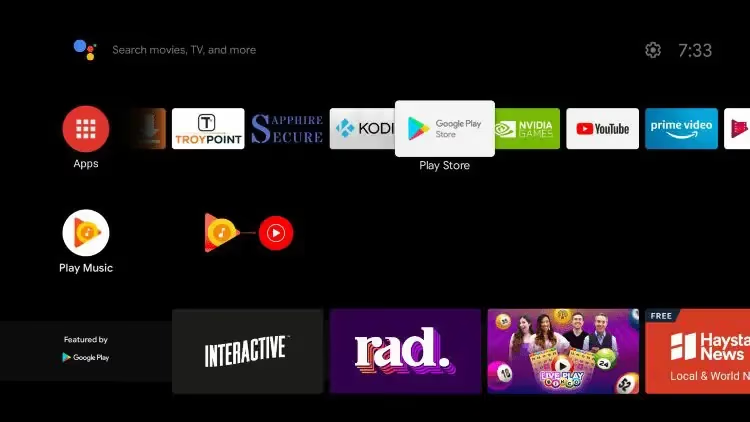
Return to the Home screen and open the Google Play Store app.
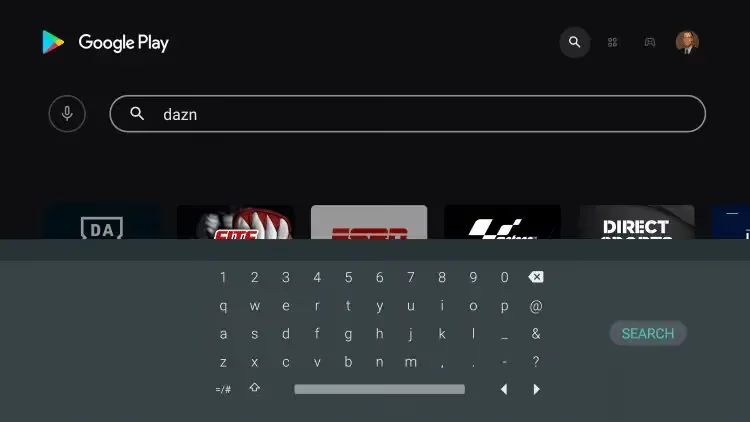
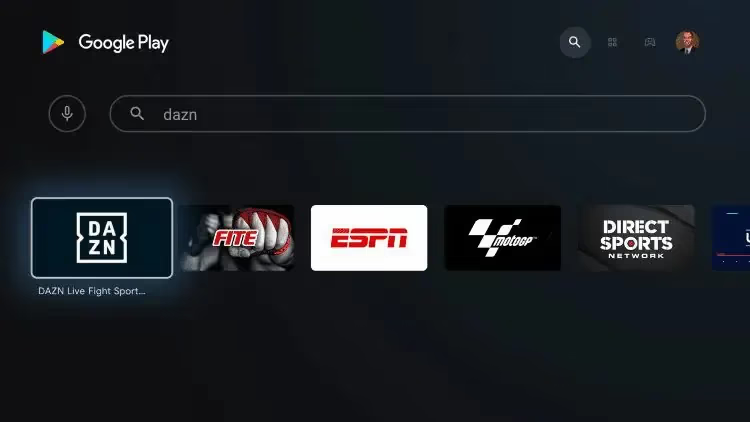
- Search for “DAZN” and select the DAZN app from search results.
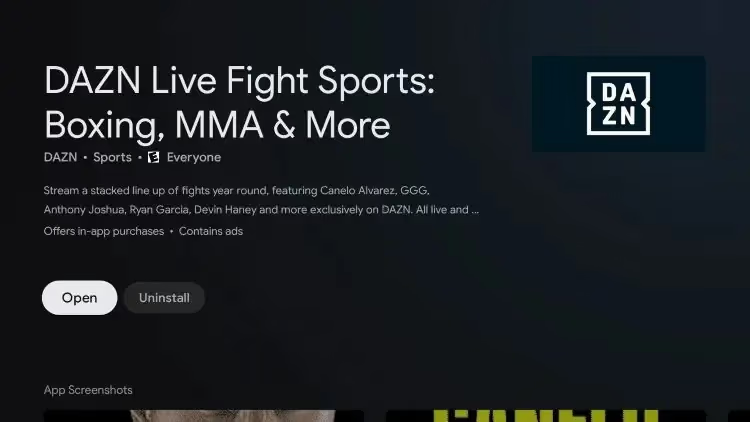
- Tap “Install”. Once installed, tap to open the app.

#Downloading DAZN on Hisense Google TV
-
Power on your Hisense Google TV and connect to a WiFi network.
-
On the home screen, select the Search option.
-
Use the on-screen keyboard to type in “DAZN” and search for the app.
-
Choose the DAZN app and tap “Install”.
-
After installing, open the DAZN app.
#Adding DAZN on Hisense Roku TV
-
From your Hisense Roku TV’s home screen, go to Streaming Channels.
-
Select Search Channels.
-
Type “DAZN” using the on-screen keyboard.
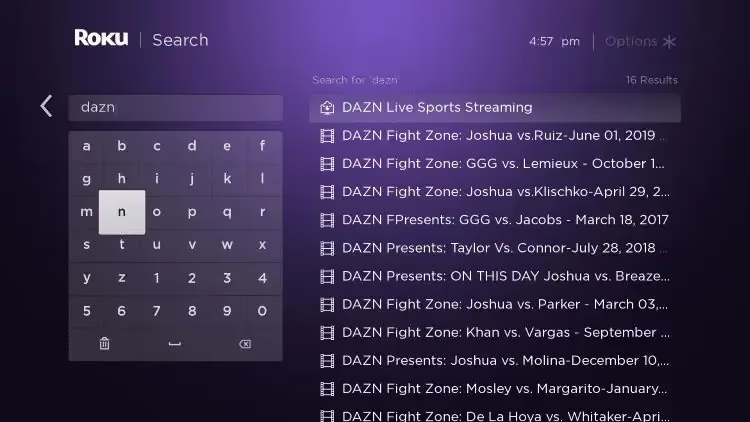
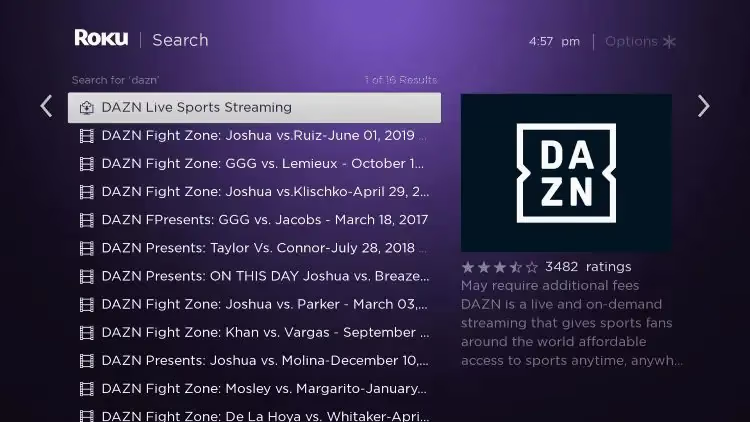
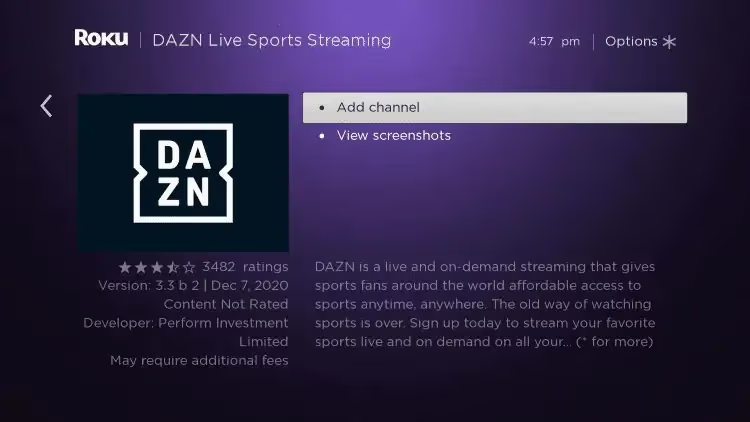
- Select DAZN app > Add Channel to install.
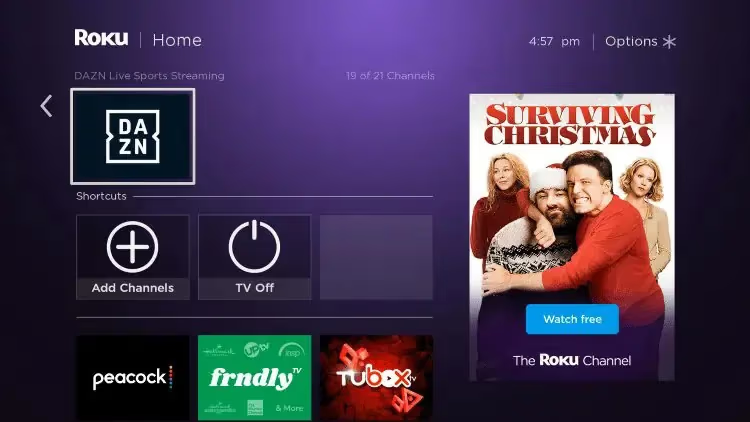
- Launch the DAZN channel to open app after installing.
#Getting DAZN on Hisense Fire TV
-
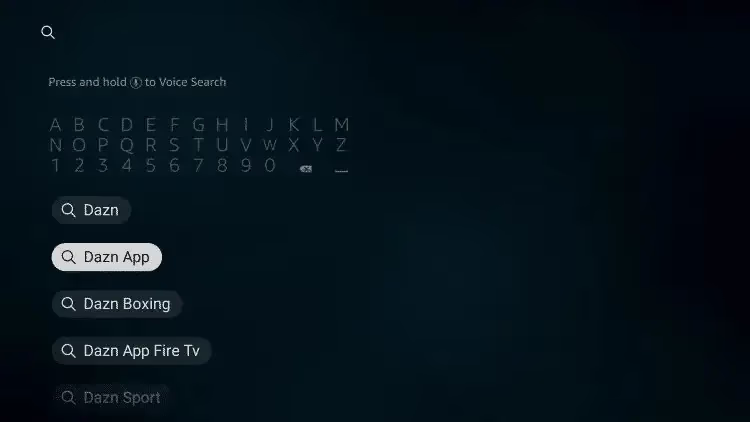
From home screen, select the Fire TV Search icon.
-
Search for “DAZN”. Choose DAZN app.
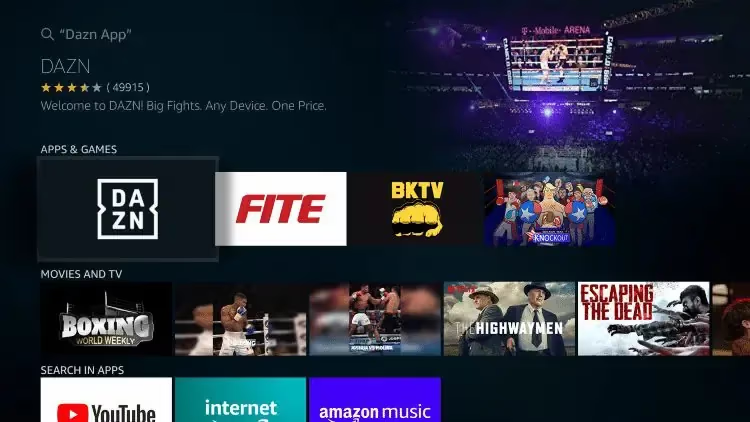
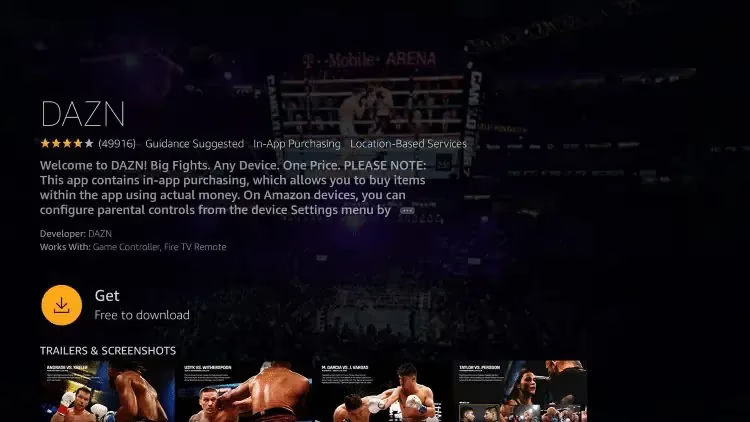
- Tap Download/Get to install app.
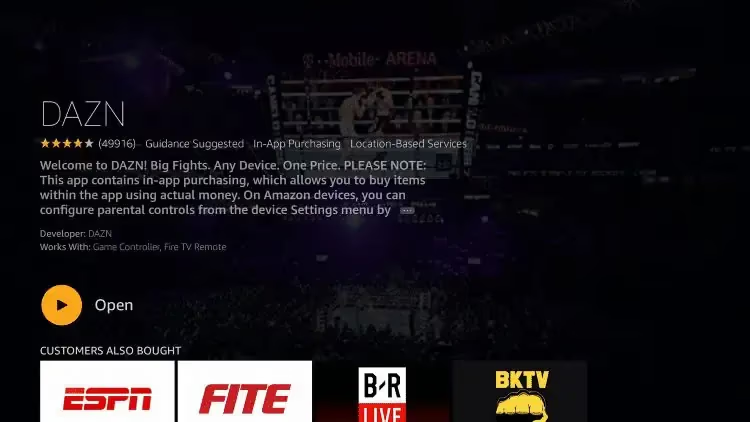
- Open DAZN after installation completes.
#Installing DAZN on Hisense VIDAA TV
- On your Hisense VIDAA TV’s home screen, go to My Apps.
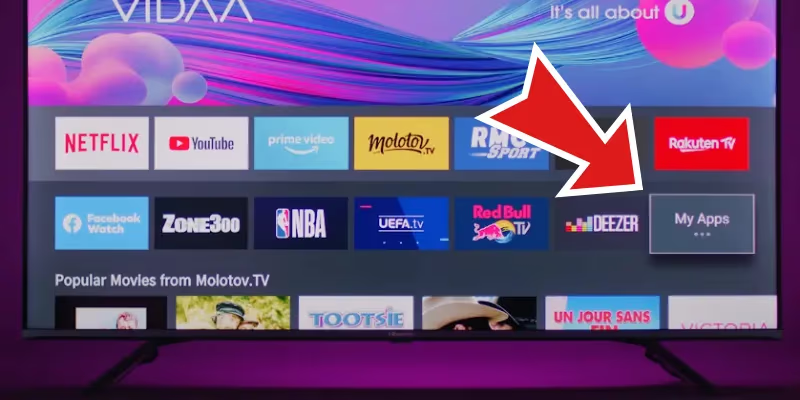
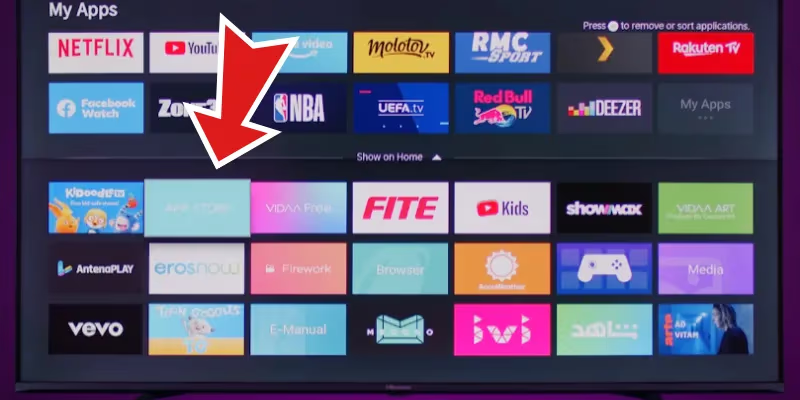
- Open the VEWD app store.
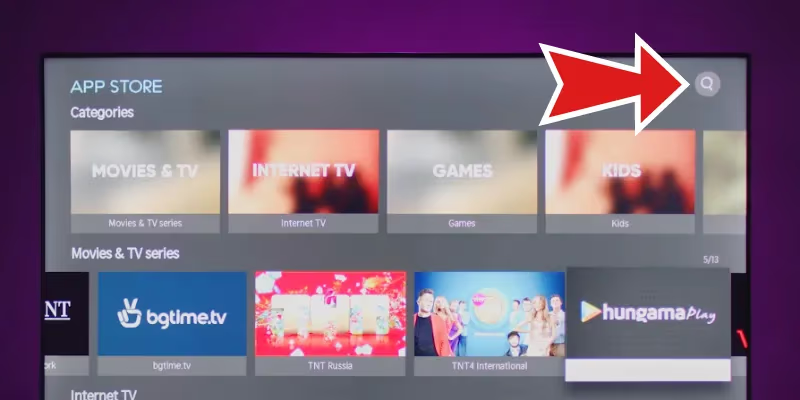
- Use search bar to find “DAZN”. Select app.
-
Tap Install to download DAZN app.
-
Launch the app after installing.
#Adding DAZN to Hisense XClass TV
-
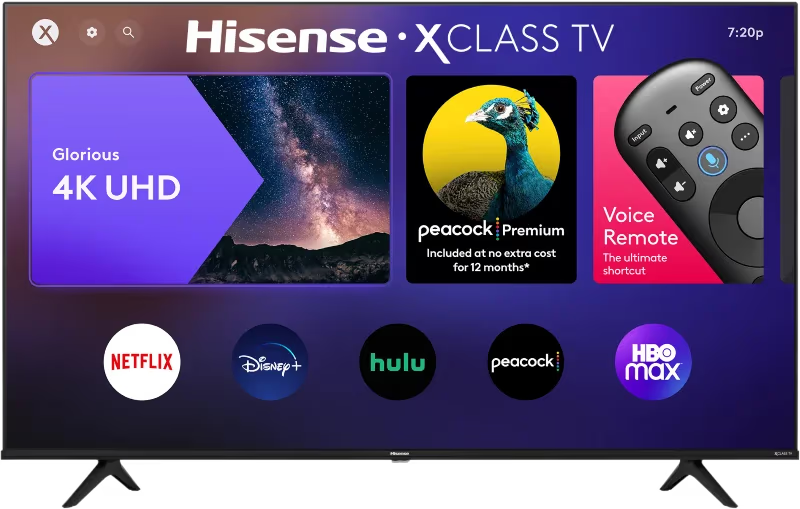
Go to home screen on your XClass TV.
-
Scroll down and select View All apps.
-
Under Sports section, select DAZN app to install.
-
Open DAZN after it finishes installing.
#How Do You Sign Up for a DAZN Account on Hisense Smart TV?
To start streaming sports after installing DAZN app on your Hisense TV, you’ll need to create a paid DAZN account if you don’t already have one.
Here are the steps to sign up right from your TV:
-
Launch the DAZN app on your Hisense smart TV.
-
Select Sign Up or Sign In if prompted.
-
On the next page, enter your email and create password.
-
Fill in your payment details when prompted.
-
Click Start Subscription to complete sign-up process.
And that’s it! You can now access all DAZN sports content on your Hisense TV.
Tip: Already have a DAZN account? Simply sign in with your existing credentials instead.
If you decide DAZN is not for you after signing up, you can easily cancel your DAZN subscription directly through the app.
#How Can You Optimize DAZN Streaming on Your Hisense TV?
Follow these handy tips for the best DAZN streaming experience on your Hisense smart TV:
-
For fastest streaming speeds, connect your TV to your router using an Ethernet cable instead of WiFi.
-
Keep your TV’s software and apps up-to-date by enabling auto updates in Settings.
-
Check the DAZN status page if having issues to see if an outage is causing streaming problems.
-
Change streaming quality in DAZN app settings based on your bandwidth.
-
Close any demanding apps running in background before streaming DAZN.
If you find DAZN lacking certain sports coverage, consider supplementing with alternatives like ESPN or FuboTV. See how DAZN compares to Fubo and ESPN vs DAZN.
#Troubleshooting Guide: DAZN Not Working on Hisense TV?
Can’t get DAZN working right on your Hisense? Try these troubleshooting tips:
DAZN app missing from Hisense TV app store
-
Confirm your Hisense TV model supports DAZN and has required Android/Roku/Fire TV etc platform. Update TV software if needed.
-
Try searching for DAZN again using exact name only. Close and re-launch app store before searching again.
DAZN app installed but doesn’t load streams
-
Check internet connection working correctly on TV.
-
Force close DAZN app and re-launch. Sign out then back into DAZN account.
-
Restart your Hisense smart TV and modem/router if needed.
Error codes when trying to play DAZN channel
-
Note down the specific error code and search for steps to resolve it.
-
Try clearing cache/data for DAZN app and reinstall if other fixes don’t work.
Other issues with DAZN on Hisense TV
For any other problems, it’s best to contact DAZN customer support directly for troubleshooting assistnace.
Problems getting DAZN on other devices? Check our guide for DAZN not working on Apple TV or DAZN on Roku TV setup.
Streaming issues on other smart TV brands? See fixes for DAZN not working on Samsung TV or steps for getting DAZN on LG TV.
I hope this guide gives you everything you need to know to successfully watch DAZN on your Hisense TV! Let me know if you have any other questions.
#FAQ
#Is DAZN available on all Hisense smart TVs?
Not every Hisense model supports DAZN. The app works on Hisense TVs running Android TV, Google TV, Roku TV, Fire TV, VIDAA, or XClass operating systems. Older models without one of these platforms cannot install the DAZN app natively, though you can still stream by connecting an external device like a Roku stick or Fire TV Stick.
#How much does a DAZN subscription cost?
DAZN pricing varies by country and plan tier. In most regions, monthly plans start around $19.99 while annual subscriptions offer a discount. Check the DAZN website or app for current pricing in your area, since rates change periodically.
#Can I watch DAZN for free on my Hisense TV?
DAZN does not offer a permanent free tier. Some regions occasionally have free trial periods or free-to-watch events, but regular access requires a paid subscription. You will need to enter payment details during sign-up even if a trial is available.
#What internet speed do I need for DAZN on Hisense TV?
DAZN recommends a minimum of 5 Mbps for standard definition and 8 Mbps for HD streaming. For the smoothest experience during fast-paced live sports, aim for at least 15 Mbps. An Ethernet connection is preferable over Wi-Fi to avoid buffering during peak action.
#Why does DAZN keep buffering on my Hisense TV?
Buffering usually points to a slow or unstable internet connection. Try restarting your router and switching to a wired Ethernet connection if possible. Closing other apps running in the background on your TV can also free up resources and improve playback stability.
#Can I use a VPN with DAZN on my Hisense TV?
DAZN actively blocks most VPN connections and will display an error if it detects one. If you travel frequently, you may lose access to your home region’s content library. The most reliable approach is to watch DAZN from the country where your account is registered.
#How do I update the DAZN app on my Hisense TV?
Open your TV’s app store (Google Play Store, Roku Channel Store, or Amazon Appstore depending on your model) and search for DAZN. If an update is available, you will see an “Update” button instead of “Install.” Enabling auto-updates in your TV settings keeps the app current without manual checks.