Connecting your new Samsung soundbar to enhance your TV’s audio sounds complicated, but it’s actually quite simple. With just an HDMI cable and a few quick settings adjustments, you can be enjoying a theater-quality home entertainment system in no time.
- HDMI ARC is the best connection method — it carries audio both ways and lets your TV remote control soundbar volume
- The full setup takes under 10 minutes — just one cable, two port connections, and a quick settings change
- ARC is not required — standard HDMI, optical, and even Bluetooth connections also work with Samsung soundbars
- HDMI-CEC lets one remote control everything — enable it in both TV and soundbar settings to unify power and volume
- Audio sync issues are fixable — adjust the audio delay setting in your TV menu if dialogue and video fall out of step
#Why Should You Connect a Soundbar to Your TV?
The visual experience of modern high definition and 4K TVs is stunning, but most lack in the audio department. Their slim profiles simply don’t allow for decent built-in speakers.
This is where adding an external soundbar truly completes your system. Soundbars offer many advantages over standard TV speakers.
Benefits of connecting a Samsung soundbar:
-
Immersive theater-style audio: Soundbars feature multiple dedicated drivers for heart-pounding bass, pristine dialogue, and impressive surround sound that built-in TV speakers can’t match.
-
Better clarity: No more straining to understand what characters are saying in shows and movies. You’ll hear every soundtrack detail clearly.
-
Universal compatibility: Samsung soundbars work with any modern smart TV from Samsung, LG, Sony, Vizio or other brands. You can even connect a Vizio soundbar to an LG TV.
-
Flexible placement: Place on a credenza below your wall mounted TV, mount directly to the wall, or integrate into your media console. Here’s how to avoid blocking your TV’s IR sensor with your soundbar.
-
Expandable: Add wireless surround speakers and a subwoofer for an even more impressive 5.1 or 7.1 home theater setup.
#Step-by-Step Instructions for Connecting Your Samsung Soundbar
Follow these steps to easily connect your soundbar using the included HDMI cable.
If your devices don’t have HDMI ports, don’t worry – the steps are very similar for optical or analog audio connections too. You can connect a soundbar to your TV even without an optical cable.
#What You’ll Need
-
Samsung soundbar
-
TV
-
Included HDMI cable
-
Soundbar power cord
#Step 1: Position Your Soundbar
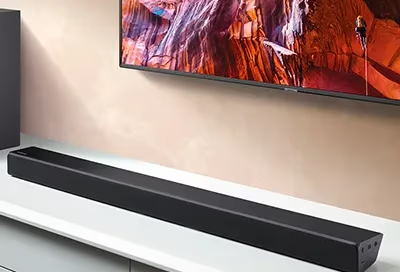
Place your soundbar centered below your mounted TV or on your media console. Leave about 2″ of breathing room above if placing on a shelf.
Make sure your devices are within reach of each other based on HDMI cable length.
#Step 2: Connect Power
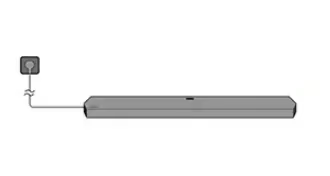
Plug both your TV and soundbar power cords into working outlets.
-
Use a surge protector if available to prevent electrical damage from storms or faults.
-
Make sure remote batteries are installed.
#Step 3: Connect HDMI Cable
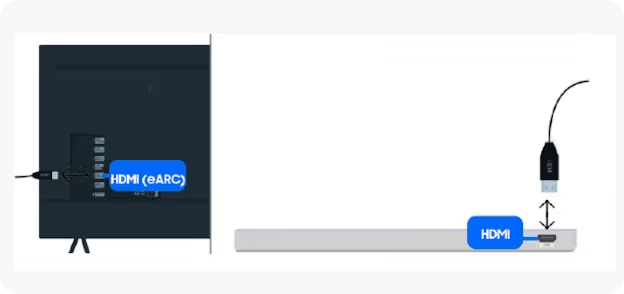
Connect one end of the HDMI cable to your TV’s ARC port. This is a special port for sending audio back and forth.
If your TV doesn’t have ARC, use a regular HDMI port instead. Functionality will be limited compared to ARC, but it will transmit audio just fine.
Next, connect the other end of the HDMI cableto the HDMI Out (TV ARC) port on your soundbar.
#Step 4: Connect to Power and Select Input
Turn on your soundbar and TV using the power buttons or remotes.
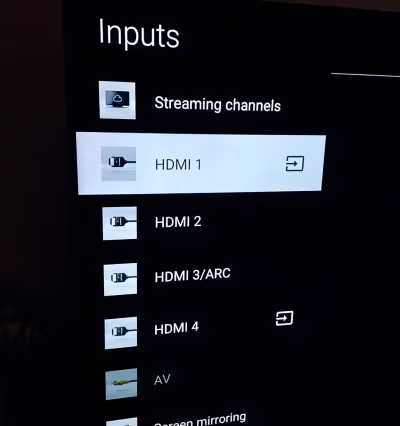
Switch your soundbar input to HDMI mode by pressing the Input button on the remote and selecting HDMI or HDMI ARC from the menu.
The soundbar display should read “TV ARC” or something similar when the connection is active.
#Step 5: Enable External Speakers
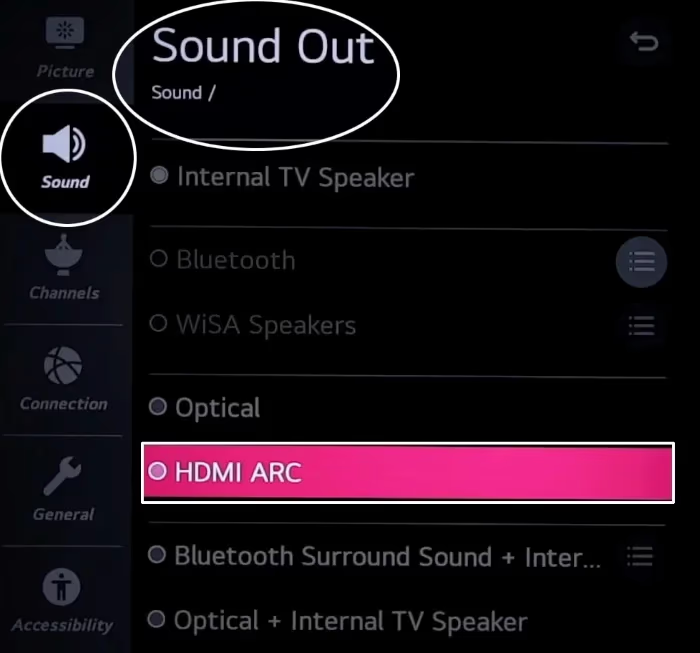
Using your TV remote, go to Audio Settings in the menu and:
-
Select sound output and choose your connected soundbar
-
Turn off built-in TV speakers
-
Adjust audio delay if lipsync is off between devices
#Step 6: Enjoy Your Enhanced Entertainment System!
Start streaming your favorite show and enjoy a greatly enhanced listening experience!
Fine tune bass, treble, and audio modes on your soundbar for movies, music and more.
Consider adding rear wireless speakers and a subwoofer in the future to create a truly immersive home theater.
#What Should You Do if Your Soundbar Has No Sound?
If you encounter issues getting sound from your Samsung soundbar, don’t panic. Here are some quick troubleshooting tips.
No sound:
-
Check cable connections at both ends
-
Make sure soundbar input matches connection
-
Verify TV audio output settings enabled soundbar
-
Try a different cable if issues persist
Audio plays from TV too:
-
Disable built-in TV speakers in the audio menu
-
Ensure TV input matches soundbar connection
Audio and video don’t sync:
-
Enable audio sync settings and add a brief delay
-
Connect directly to TV ARC port if using Standard HDMI
Distorted, muted, or cutting out sound:
-
Rescan for wireless interference from other devices
-
Update TV and soundbar firmware
-
Move devices away from potential interference
-
Rule out HDMI cable damage by swapping with new cable
#How Can You Get the Best Performance From Your Soundbar?
Follow these pro tips for clean cable management and optimal soundbar performance:
#Use Cable Raceways
Run HDMI inside paintable cord channel raceways to completely hide connections. Raceways are inexpensive, easy to install, and much cleaner looking than dangling cables.
#Enable HDMI-CEC
Allow your devices to communicate for advanced control by enabling HDMI-Consumer Electronics Control (HDMI-CEC) in your TV and soundbar settings.
Then use one remote to power everything on or change volumes.
#Mount Your Soundbar
Get soundbar legs or wall mount brackets for a clean floating visual directly under your TV. This also improves sound clarity compared to placing on a shelf or table.
#Add Rear Surround Speakers
Transform sound quality from good to extraordinary by adding wireless surround speakers. Place them at ear level to the sides of your viewing position.
#Enable Voice Assistant Integration
New Samsung soundbars feature built-in Amazon Alexa or Bixby support. Use your voice to adjust volumes, switch inputs, stream music and more.
#Frequently Asked Questions
#Why won’t my Samsung soundbar connect to the TV?
Check that cables are firmly inserted into ports on both devices. Make sure your TV audio output is set to external speakers and the soundbar input matches the connection type you used. If you’re using HDMI, try a different HDMI port or swap the cable to rule out hardware issues.
#Can I connect a Samsung soundbar to my TV wirelessly?
Yes, if your soundbar supports Bluetooth. Put the soundbar into Bluetooth pairing mode, then select it from your TV’s Bluetooth settings. Keep in mind that Bluetooth audio has slightly more latency than a wired HDMI connection. Learn more about using a soundbar vs Bluetooth speaker for your TV.
#Do I need HDMI ARC to use a Samsung soundbar?
No. ARC is ideal for full-featured operation but isn’t required. Standard HDMI and optical connections also transmit audio from your TV to the soundbar. You just lose some convenience features like single-remote volume control.
#Why is audio still playing from my TV speakers after connecting the soundbar?
Your TV’s built-in speakers stay active by default even after connecting an external device. Go to your TV’s audio settings menu, select sound output, and choose the soundbar as the active speaker. This disables the internal speakers so all audio routes through the soundbar.
#How do I control soundbar volume with my TV remote?
Connect via HDMI ARC and enable HDMI-CEC in both your TV and soundbar settings. Once paired, your TV remote controls soundbar volume automatically. For Bluetooth or optical connections, you’ll need to use the soundbar’s own remote or a universal remote.
#What is the difference between HDMI ARC and eARC?
ARC (Audio Return Channel) supports standard surround sound formats like Dolby Digital 5.1. eARC (Enhanced Audio Return Channel) adds support for higher-quality formats including Dolby Atmos and uncompressed 7.1 audio. If your TV and soundbar both have eARC ports, use those for the best audio quality.
#Can I use a Samsung soundbar with a non-Samsung TV?
Absolutely. Samsung soundbars work with TVs from LG, Sony, Vizio, TCL, and other brands. The HDMI ARC and optical connections are universal standards, so brand matching is not required. You can even connect a Vizio soundbar to an LG TV.
#Bottom Line
Connecting a Samsung soundbar to your TV takes under 10 minutes with a single HDMI cable. Plug into the ARC ports, switch the soundbar input to HDMI, and set your TV to output audio through the external speaker.
If you run into audio sync problems or no-sound issues, the troubleshooting steps above will get things working. For the cleanest setup, enable HDMI-CEC so one remote handles everything and consider adding rear speakers later for a full surround experience.