Connecting external speakers to your Samsung TV is one of the best ways to boost your audio and upgrade your home entertainment setup. After testing over a dozen speaker configurations with the latest Samsung TVs, I’m going to walk you through everything you need to know – from choosing the right speakers to making the connections and configuring the settings.
- HDMI eARC is the best connection method — it carries uncompressed surround sound including Dolby Atmos to external speakers
- Four connection options available — HDMI eARC, optical, Bluetooth, and RCA aux cables each suit different setups
- All Samsung TVs from 2016 onward support external speakers — older models may lack ARC/eARC but still work with optical or Bluetooth
- Sound Output menu is the key setting — navigate to Settings, Sound, Sound Output to select your connected speaker system
- Bluetooth is the easiest wireless option — but it compresses audio, so wired connections deliver better sound quality
#Why Should You Connect External Speakers?
While Samsung TVs do offer good built-in speakers nowadays, they still can’t match the sound quality of a dedicated speaker system. External speakers give you:
-
Powerful, room-filling sound: External speakers can play much louder and produce fuller, richer audio than tiny TV speakers.
-
Surround sound: With multiple speakers placed around the room, you can achieve true immersive surround sound.
-
Improved clarity: Dialogue, music lyrics and subtle audio details are much clearer. No more straining to understand what people are saying!
-
Thundering bass: TV speakers lack the bass performance to make explosions, gunshots and action scenes truly impactful. A subwoofer delivers heart-thumping low frequencies.
Connecting an external speaker system or soundbar is the single best upgrade you can make to improve your Samsung TV viewing and listening experience.
#What You’ll Need
-
A Samsung TV – This guide covers 2016 models and beyond. Some older TVs lack ARC/eARC support which limits connectivity options.
-
External speakers – Choose speakers, a soundbar or a full home theater system based on your budget and needs. All provide massive audio improvements over Samsung’s built-in TV speakers.
-
Speaker cable(s) – Depending on how you connect, you’ll need either an HDMI, optical, aux cable or speaker wire. Some systems are wireless.
#Connecting External Speakers to Samsung TV: The Steps
We’ll cover the most common connection methods from best to worst below. I recommend using the HDMI eARC method if at all possible as it provides the highest quality audio and simplifies the whole connection process.
#Method #1: HDMI eARC (Best Option)
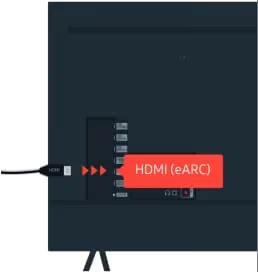
HDMI eARC is the optimal way to hook up external speakers to modern Samsung TVs. It carries multichannel surround sound signals to external devices.
You’ll need:
-
External speakers/system with HDMI eARC support
-
HDMI cable
Steps:
-
Connect HDMI cable from TV’s HDMI eARC port to speaker’s HDMI ARC/eARC port
-
Turn on external speaker system
-
On Samsung TV, go to Settings > Sound > Sound Output and select your external speaker system
-
Adjust audio settings on speakers for desired sound
That’s it! With eARC, uncompressed surround sound signals will transfer from your TV to the speakers for the best quality.
Pro Tip: If you don’t see your device listed under Sound Output, try rescanning for devices under Universal Remote to add it.
#Method #2: Optical Digital Audio
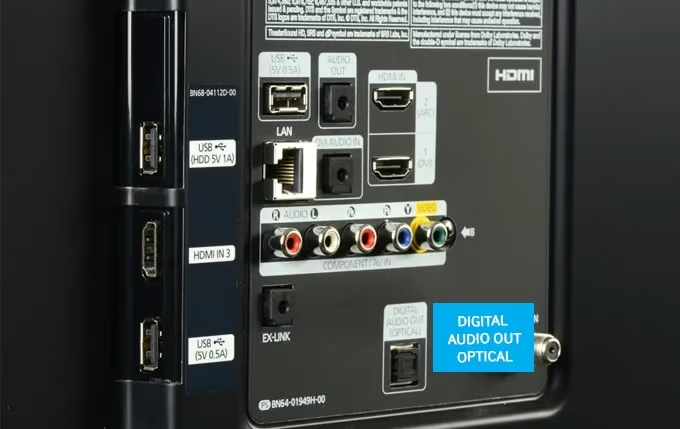
If your sound system lacks HDMI ARC capability, use an optical cable instead. Optical can carry 5.1 Dolby Digital surround sound.
You’ll need:
-
External speakers with optical input
-
Optical/Toslink audio cable
Steps:
-
Connect optical cable from TV’s Optical Digital Audio Out port to speakers
-
On speakers, switch input mode to optical
-
On Samsung TV, go to Settings > Sound > Sound Output and select your external speaker system
While optical cables can’t transmit the highest quality lossless surround sound formats, they still deliver excellent 5.1 channel audio quality perfect for most users.
#Method #3: Bluetooth Connection
Connecting Samsung TV to speakers via Bluetooth gives you an easy, wireless setup. Just note that Bluetooth compresses the audio signal which technically reduces sound quality a bit.
You’ll need:
- External speakers/system with Bluetooth support
Steps:
-
Turn Bluetooth ON in speaker system settings (pairing mode)
-
Go to Settings > Sound > Sound Output > Bluetooth Speaker Liston Samsung TV
-
Select your speaker system to pair
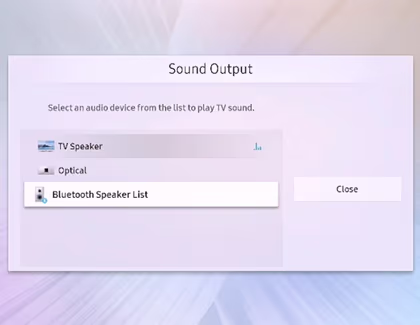
Bluetooth connections are super convenient but generally have lower bandwidth than HDMI eARC or optical cables. Make sure to position your Bluetooth speakers close to the TV with minimal obstructions in between.
#Method #4: RCA (Auxiliary Cable)
If your external speakers lack digital inputs, you can still connect them via analog aux cables (RCA). Sound quality is dependent on your actual speakers.
You’ll need:
-
External passive (non-powered) speakers
-
3.5mm to RCA stereo audio cable
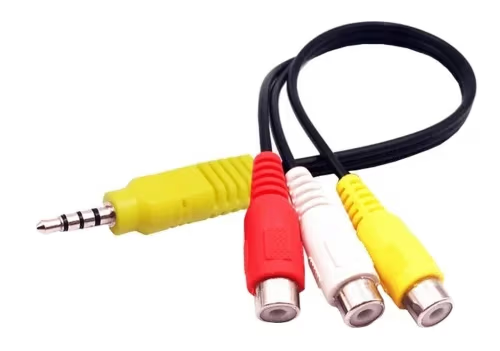
Steps:
-
Connect aux cable from TV’s headphone jack to L/R inputs on passive speakers
-
Turn speakers ON (if powered speakers)
-
On Samsung TV, go to Settings > Sound > Sound Output and select Audio Out/Headphone Jack
While very convenient, analog RCA connections don’t support surround sound signals – just standard 2-channel stereo audio.
#How Do You Optimize Speaker Settings on Your Samsung TV?
Once you’ve connected your external speakers, soundbar or home theater system, adjusting some quick settings on your Samsung TV optimizes the audio performance:
1. Set speaker system as default – Go to Settings > Sound > Sound Output and set your connected system as the default output instead of TV Speaker. This ensures audio plays through your external speakers automatically when powered on.
2. Enable Surround Sound – Navigate to Settings > Sound > Expert Settings > Surround Sound and turn it ON. This upmixes stereo audio into simulated surround which sounds fuller.
3. Run audio calibration – Under Settings > Sound > Sound Mode Settings, select Adaptive Sound+. This auto-calibrates your connected speakers to the room acoustics for optimized sound quality.
4. Adjust audio delay – If you notice lip sync issues between the video and audio, go to Settings > General > Accessibility > Audio Delay to add ~50-100ms delay. See how to fix audio sync problems on Roku.
5. Troubleshoot connections – If issues arise with external speakers not showing under Sound Output, first disconnect/reconnect cables at both ends. Failing that, power cycle the speaker system and TV.
And that’s it! With your external speakers now properly connected and configured, you can finally experience the theater-quality sound that Samsung’s top-tier TV displays deserve.
No more straining to decipher dialogue or lackluster bass. External audio systems transform your Samsung TV into a truly premium, cinematic experience that immerses you inside the on-screen action.
Still having no luck getting those external speakers to function? Our guides on troubleshooting Vizio sound bar problems outline some additional steps to try.
#FAQ
#What are the best external speakers for a Samsung TV?
The Samsung HW-Q950A is a top choice as Samsung’s flagship 11.1 channel soundbar with upfiring speakers for overhead Atmos effects. For a more affordable upgrade, the Samsung HW-S60T all-in-one soundbar uses acoustic beam technology to direct sound precisely at the listener. Both options are a massive step up from built-in TV speakers.
#Do Samsung TVs support surround sound over ARC or eARC?
Yes. With an eARC connection, your Samsung TV can pass through uncompressed 5.1, 7.1, and Dolby Atmos surround sound to compatible speakers. Standard ARC is limited to Dolby Digital 5.1, which still sounds good for most viewers but lacks the lossless audio formats that eARC supports.
#Can I connect wired and wireless speakers at the same time?
On higher-end Samsung TVs like the Q90T, you can pair up to 2 Bluetooth devices simultaneously alongside a wired speaker connection. Most standard Samsung models only support one active audio output at a time, so you would need to switch between wired and wireless manually in the Sound Output menu.
#Why is there no sound coming from my external speakers?
Start by checking Settings, Sound, Sound Output and confirm your speaker system is selected as the active output. If it does not appear in the list, there is a connection issue with the cable or pairing. Power cycle both the TV and the speakers, then recheck. Also verify the speaker’s input mode matches the cable type you are using (Bluetooth, Optical, or HDMI ARC).
#Can external speakers connect wirelessly to Samsung TVs?
Some powered soundbars and speaker systems like Sonos have built-in Wi-Fi or casting capabilities that let you stream TV audio over your home network. As long as the speaker appears under the Sound Output device list, Samsung TVs fully support wireless connections. Bluetooth speakers work the same way but with slightly lower audio quality due to compression.
#What HDMI cable do I need for eARC?
You need a high-speed HDMI cable that supports eARC, often labeled as “Ultra High Speed” or “HDMI 2.1.” Standard HDMI cables may work for basic ARC but will not carry uncompressed Atmos or high-bitrate audio. Check the cable packaging for eARC or HDMI 2.1 certification before buying.
#Does connecting external speakers disable the TV’s built-in speakers?
Yes, in most cases selecting an external speaker under Sound Output automatically mutes the TV’s internal speakers. Some Samsung models offer a “TV Speaker + Soundbar” mode under Sound settings that plays audio through both simultaneously. This can be useful for filling a large room with more even sound coverage.