Can you use Roku and Firestick on the same TV? Many streaming fans ask this question, especially when they want access to apps from both platforms on a single screen.
The good news is that both Roku and Firestick work on the same TV. All you need is a TV with two available HDMI ports, and each device runs on its own separate input without any conflict.
This article walks you through how to set up both devices, explains the differences between them, and covers the steps to switch between Roku and Firestick on one TV.
- Roku and Firestick work on any TV — both devices only need one HDMI port each, so a TV with 2+ HDMI ports supports both at once
- The two devices do not communicate — they run on separate inputs, so there is zero interference between them
- Firestick offers deeper Alexa smart home control — you can operate lights, cameras, and thermostats through Fire TV voice commands
- Roku treats all streaming apps equally — unlike Firestick, which prioritizes Amazon Prime Video in search results and menus
- Setup takes under 5 minutes per device — plug each stick into an HDMI port, connect to Wi-Fi, and switch inputs with your TV remote
#What Makes Amazon Firestick Different from Roku?
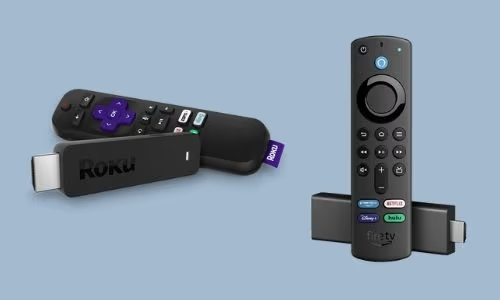
To get to your preferred streaming services, you may use either Fire TV or Roku devices. Their applications are compatible with a wide range of services.
For instance, they work with Hulu and Netflix as well as Apple TV Plus and YouTube. As a bonus, they both offer a simple method to control your TV with your voice.
It is more difficult to discern the distinctions between the two software systems today.
-
Both apps have all the top streaming providers.
-
That said, certain lesser-known applications may be available only on one or the other.
-
Are you familiar with the developer tools so you can sideload programs? If so, you can easily install all Android apps on your Firestick.
-
The menus and remote controls of these options are also different.
-
However, the smart home integration differences between Fire TV and Roku are of the utmost importance to the user.
#Is Roku Better Than Firestick or Vice Versa?
The main question discussed here is, “Can you use Roku and Firestick on the same TV.”
Before we get to that point, first, let’s explain some other information that might be useful for you. The menus on Roku have an intuitive interface.
Also, it is more of a simplified option over Firestick. The search function of Roku is much better than Firestick.
In addition to that, Roku treats streaming apps in the same manner. However, as you can easily understand, Firestick prefers Amazon Prime regarding video streaming.
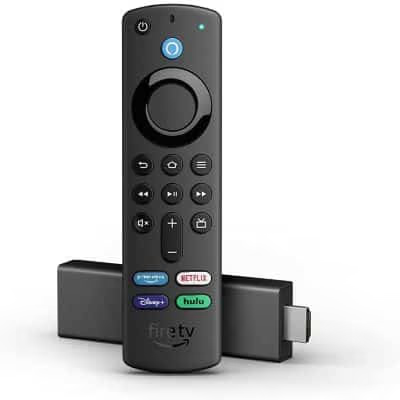 Firestick
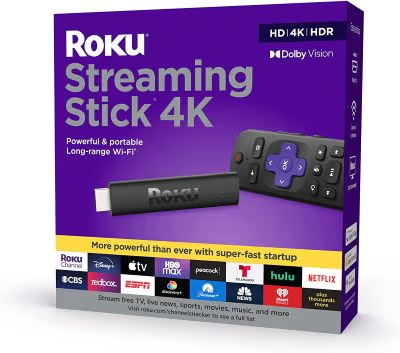 Roku
Roku
#Smart Home Integration
Anyone using Amazon Alexa in their smart home will find the Firestick to be an invaluable tool.
Fire TV’s voice commands of Alexa will be used to operate your Firestick through your Echo speaker.
Using the Firestick’s remote or the built-in microphone of the Fire TV Cube, you can control home automation designs.
Well, a wide variety of devices are available for Fire TV and Roku users. Roku Stick 4K is a good option for most people, but the Roku Ultra is best for hardcore users.
To get the best of both worlds, the Fire TV and the Firestick are both excellent alternatives.
In addition, it’s very frustrating when your ESPN Plus is not working. This article has the most practical solutions to try if your ESPN+ is not working.
#Can You Use Roku and Firestick on the Same TV?
Now, let’s get to the main point; can you use Roku and Firestick on the same TV? The straightforward answer is yes. You can use Firestick and Roku on the same TV unit.
However, the TV unit must have two HDMI slots vacant to accomplish that. What you should remember is that these devices don’t necessarily interact.
So, there will not be an issue if you install both devices on the same unit. These two devices (Roku and Firestick) don’t communicate.
All you need is to switch the inputs when you need to change from one stick to the other. The process is simple, so you don’t have to worry much about it.
By the way, here, let’s discuss common troubleshooting tips to fix the Hisense Roku TV black screen at home quickly without spending money on repairing services.
#What’s Your Preference?
Most streaming stick users usually use only one streaming device instead of multiple devices.
If you fall into that category, what’s your preference? There are many aspects to consider when choosing one over the other. You will not get plenty of different options if you own both. However, on the other hand, there are exceptions to consider.
The above scenario can be compared to the situation in which games have to choose between Xbox and PlayStation.
If you have to pick one, will you choose Firestick over Roku or vice versa? They do have some exclusive options.
Besides, Firestick remote volume not working is a common problem many Firestick users face. Here, we will talk about 14 solutions to solve this issue easily.
#Reasons to Select Both Streaming Sticks Instead of Having One:
-
If you don’t want to lose any of your favorite apps (by means of entertainment).
-
You want to experience the best of home automation through Amazon Firestick with an excellent Roku interface.
-
You will want to access all the apps that are made exclusively on each platform.
-
You want to sideload apps on Fire TV without clashing with other apps.
To be frank, you may want to try both options and perform some tweaks as well.
Can you use a Firestick on a Roku TV? Absolutely yes, specifically if you are a tech enthusiast.
#Is It Possible to Use Fire Stick TV on Your Roku?
Roku isn’t only a streaming device; it’s also accessible as an app. Roku may be pre-installed on TVs. Roku-enabled TVs from Hisense, Insignia, and TCL are available. One TV from Walmart and other lesser-known manufacturers also have it.
Connecting a Firestick to one of those Roku TVs is easy because they behave like conventional smart TVs.
The Firestick simply requires a single HDMI port. On top of that, you’ll be able to use both the Roku and Firestick operating systems simultaneously.
#Is It Possible to Use Your Roku Stick on Fire TV?
Pre-loaded with Fire TV’s OS, FireOS, you will be able to buy TVs with Fire TV built-in. That is pretty similar to your Roku; to name a few brands, Toshiba, Insignia, and LG make these televisions.
Assume that you already own a Fire TV. You may still use one of that unit’s HDMI ports to install your Roku Streaming Stick.
Afterward, you can swap between the TV’s HDMI and primary input to access Roku and Fire TV.
#What Else Can You Expect?
If it isn’t obvious, Roku and Amazon Firesticks can be used with any television.
-
You could even use Firestick to install an outdated, not even smart television.
-
These sticks are also portable. That means you could take your Roku or Firestick Streaming Stick on a trip with you.
-
You can use it to access your smart TV applications wherever you go.
-
More can be done with new streaming gadgets than you may have previously thought.
-
Bluetooth is not available on all smart TVs. However, it is available on Fire TV and Roku devices.
-
It doesn’t matter if you choose one gadget or both. You can still have them link your preferred headsets for listening once your lover has gone to bed.
-
You might also consider adding a pair of affordable Echo dots by Amazon or a “Sonos One” speaker. That will make your sound system even more powerful.
#How to Configure Firestick on Your Roku TV?
Below are the steps if you need to configure the Firestick device on Roku TV.
-
First, you should plug your Firestick into an available HDMI port.
-
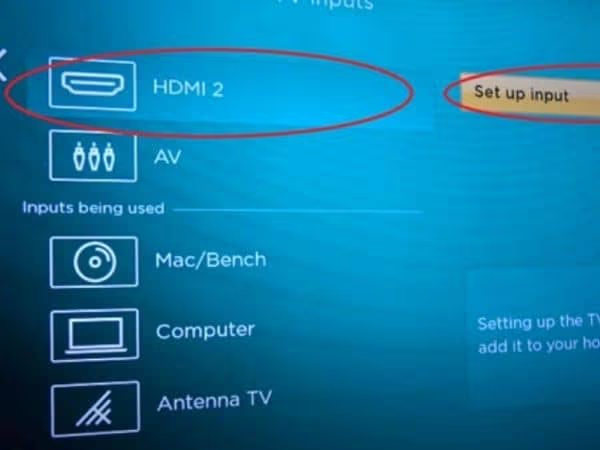
After that, on your Roku TV, go to “Settings.” Then, scroll down and choose TV Inputs. After that, you should go to Set Up input. Then, you will see the HDMI icon.
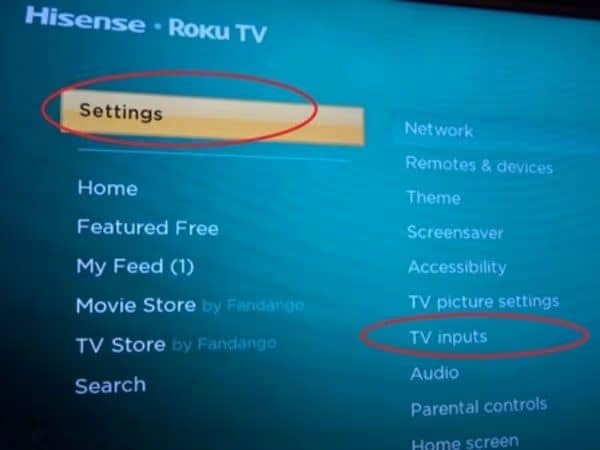
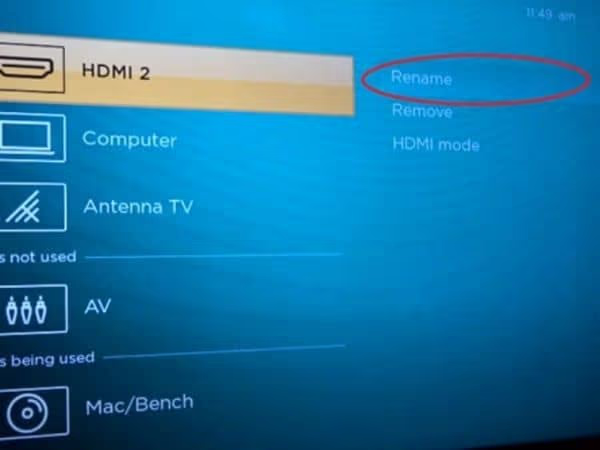
- It is better to name the HDMI input of Firestick for easy identification. You can do that by going to “Settings” and choosing TV Inputs and HDMI.
- Now, choose Rename from the available options. Then, go to “Edit custom name and icon.”
-
Now, you should enter a custom name as needed. Choose “OK” to proceed. Afterward, select a specific icon to recognize the input and choose “OK” to proceed.
-
Now, you should return to your RokuTVs’ main screen. Now, you’ll be able to see the new icon; choose it to access the respective Firestick device.
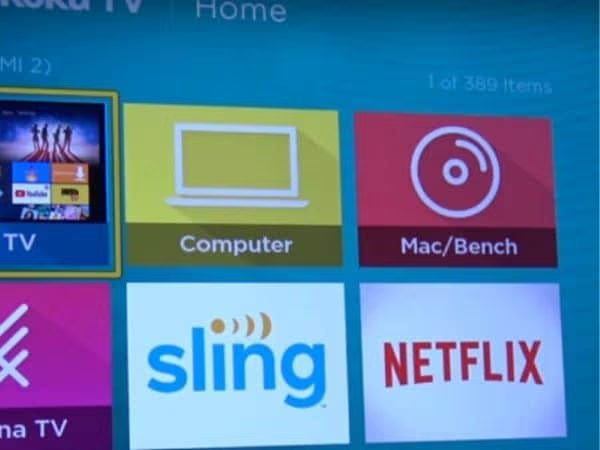
- Now, you can use the remote and browse.
#FAQ
#Can Roku and Firestick interfere with each other?
No, Roku and Firestick do not interfere with each other. They work independently on different HDMI ports, and each device has its own operating system, remote, and Wi-Fi connection. Plugging both in at the same time causes zero conflicts.
#Can I use the same remote for Roku and Firestick?
Each device ships with its own remote, and they are not interchangeable. However, you can buy a universal remote like the Logitech Harmony or SofaBaton U1 and program it to control both devices. Some TV remotes with HDMI-CEC support can also handle basic navigation on either stick.
#Do I need two separate internet connections for Roku and Firestick?
No, both devices connect to the same Wi-Fi network without any issues. They each maintain their own connection to your router, so one device streaming in 4K will not automatically disconnect the other. Just make sure your internet plan has enough bandwidth to handle simultaneous streams if you plan to use both at once.
#Are there apps exclusive to either Roku or Firestick?
Yes, some apps are platform-exclusive. Roku has The Roku Channel with free ad-supported movies and TV shows, while Firestick gives you tighter integration with Amazon Prime Video, Luna cloud gaming, and Alexa-controlled smart home dashboards. Most major apps like Netflix, Hulu, Disney+, and YouTube are available on both.
#Can I set parental controls on both devices?
Both Roku and Firestick offer built-in parental controls. On Roku, you can set a PIN to restrict purchases and content ratings through Settings > Parental Controls. Firestick lets you restrict app launches, purchases, and specific content types through Settings > Preferences > Parental Controls, and you can also set viewing time limits for kids’ profiles.
#Which device is better for smart home integration?
Firestick has a clear advantage here if you already use Amazon Alexa. You can view security camera feeds on your TV, control smart lights, and check doorbell cameras directly from the Fire TV interface. Roku added some smart home features through the Roku Smart Home ecosystem, but Alexa integration on Firestick is more mature and supports a wider range of third-party devices.
#Do both devices support 4K and HDR streaming?
Not all models support 4K and HDR. The Roku Streaming Stick 4K and Roku Ultra both handle 4K HDR content, while on the Amazon side, the Fire TV Stick 4K and Fire TV Stick 4K Max offer the same capability. The base models of each device max out at 1080p, so check the model number before buying if 4K matters to you.
#Bottom Line
Using Roku and Firestick on the same TV gives you access to a wider range of streaming apps and smart home features on a single screen. Plug each device into its own HDMI port, switch inputs when needed, and enjoy the strengths of both platforms without any conflicts.