Apple TV Family Sharing not working usually comes down to three things: a wrong Apple ID, purchase sharing turned off, or mismatched regions between family members. The fix is fast once you know where to look.
This guide covers the most common causes and walks you through eight tested solutions. Most people resolve the issue within five minutes.
- Purchase sharing must be enabled — the family organizer needs to turn on Share My Purchases in Settings > Family Sharing
- All devices need the same Apple ID — signing in with a different account on your Apple TV 4K blocks access to shared content
- Region mismatches break sharing — every family member’s Apple ID must be set to the same country or region
- tvOS updates fix known bugs — Apple patched several Family Sharing glitches in tvOS 17.x updates
- Removing and re-adding a member works — this forces Apple’s servers to refresh the family group membership
#Why Does Apple TV Family Sharing Stop Working?
Family Sharing connects up to six Apple IDs under one family group. When it breaks on Apple TV, the root cause is almost always an account or settings mismatch.
Here are the most frequent triggers:
- The organizer disabled Share My Purchases without realizing it
- A family member signed into a different Apple ID on their Apple TV
- Two family members have Apple IDs registered in different countries
- The Apple TV runs an older tvOS version with a known Family Sharing bug
- A payment method expired on the organizer’s account, blocking new downloads
Apple’s Family Sharing support page lists additional requirements, including iOS 8 or later for iPhones and tvOS 6.0 or later for Apple TV.
#8 Fixes for Apple TV Family Sharing Issues
Before starting, check Apple’s System Status page. If iCloud or the App Store shows an outage, wait for Apple to resolve it. No troubleshooting will help during a server-side issue.
#1. Turn On Purchase Sharing
This is the number one fix. The family organizer must enable this setting or no shared content appears on any device.
On the organizer’s iPhone or iPad:
- Open Settings > tap your name > Family Sharing
- Tap Purchase Sharing
- Toggle Share My Purchases to on
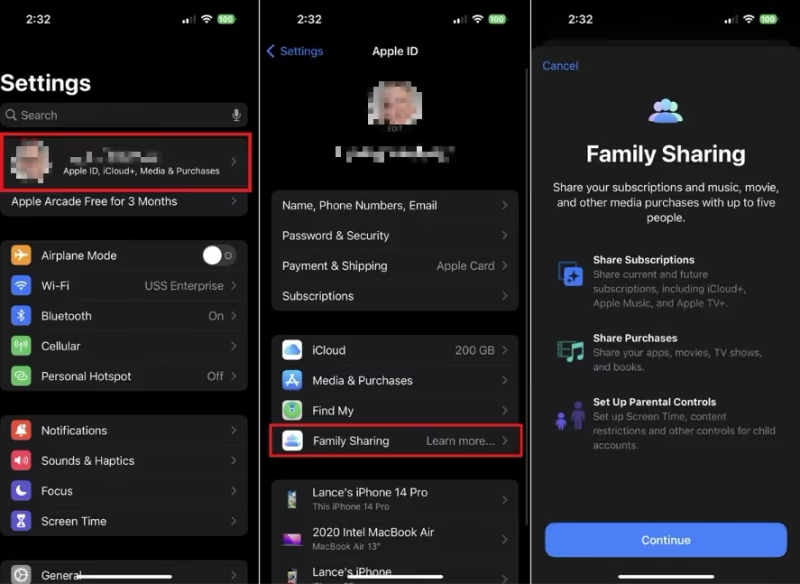
Each family member also needs to enable Share My Purchases on their own device. Check this on every device in the group.
#2. Verify the Apple ID on Your Apple TV
Your Apple TV might be signed into a personal Apple ID that is not part of the family group. This happens more often than you would expect.
On your Apple TV:
- Go to Settings > Users and Accounts
- Select your account and confirm the Apple ID matches the one in your family group
- If it does not match, sign out and sign back in with the correct Apple ID
After signing in, restart the Apple TV and check for shared purchases under the Purchased tab in the App Store.
#3. Match Apple ID Regions
Family Sharing requires every member to use the same country or region on their Apple ID. If one person is set to the United States and another to the United Kingdom, sharing breaks silently.
To change your region:
- Cancel any active subscriptions first (they will not transfer)
- Go to appleid.apple.com and sign in
- Navigate to Personal Information > Country/Region
- Select the matching region and add a valid payment method for that country
This change takes effect immediately, but you may need to restart your Apple TV to see shared content.
#4. Sign Out and Sign Back In
A stale authentication token can prevent Family Sharing from syncing. Signing out and back in forces a fresh connection to Apple’s servers.
On your Apple TV:
- Open Settings > Users and Accounts > select your account
- Tap Sign Out
- Restart the Apple TV by going to Settings > System > Restart
- Sign back in with your Apple ID
This takes about two minutes. Check the App Store’s Purchased section afterward to confirm shared content appears.
#5. Remove and Re-Add the Family Member
When a specific family member cannot see shared content but everyone else can, removing and re-inviting them often fixes the issue. The organizer handles this.
On the organizer’s device:
- Go to Settings > tap your name > Family Sharing
- Tap the affected family member’s name
- Tap Remove [Name] from Family
- Wait 30 seconds, then tap Add Family Member and send a new invitation
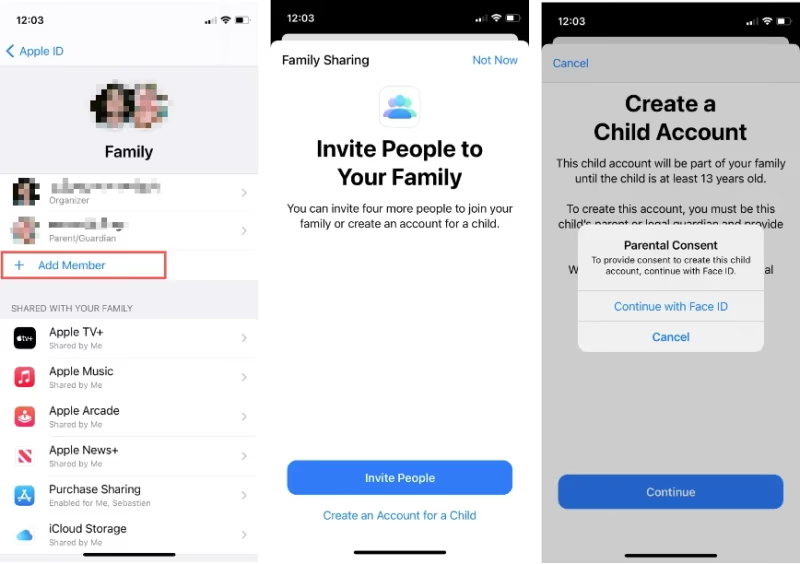
The removed member keeps their own purchases. Nothing is lost. Once they accept the new invitation, shared content should reappear on all their devices within a few minutes.
#6. Update tvOS
Apple has fixed multiple Family Sharing bugs through tvOS updates. Running an older version means you might be hitting a bug that Apple already patched.
On your Apple TV:
- Go to Settings > System > Software Updates
- Select Update Software
- If an update is available, install it and let the Apple TV restart
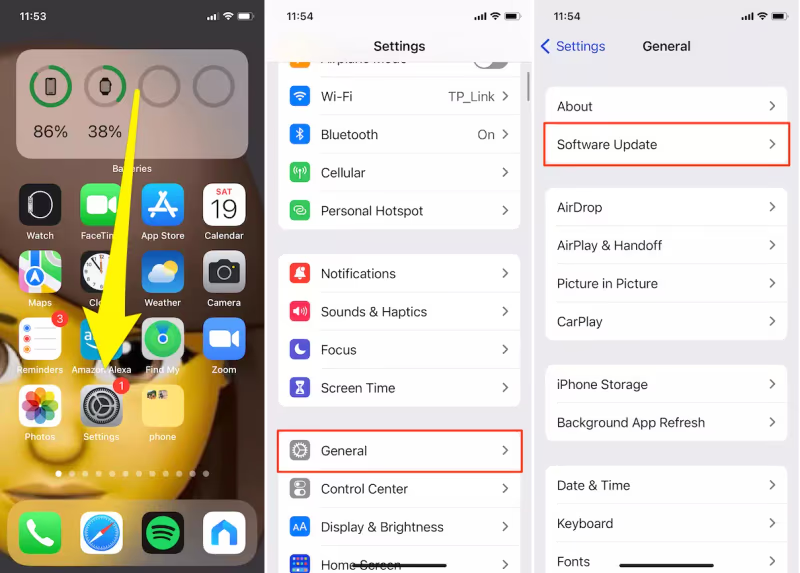
Also update your iPhone to the latest iOS version. Family Sharing relies on iCloud sync between all your devices, so keeping everything current prevents compatibility conflicts.
#7. Check the Organizer’s Payment Method
Apple requires the family organizer to have a valid payment method on file. If the card expired or got declined, Apple may restrict shared downloads for the entire group.
On the organizer’s device:
- Open Settings > tap your name > Payment & Shipping
- Verify the card is current and not expired
- If needed, add a new card or switch to Apple Pay
This is easy to overlook. A declined card does not always trigger a notification, so the organizer might not know there is a problem until family members report missing content.
#8. Reset the Apple TV Home Screen
If none of the above fixes work, resetting the home screen layout can clear cached data that interferes with Family Sharing.
On your Apple TV:
- Go to Settings > System > Reset
- Select Reset Home Screen Layout
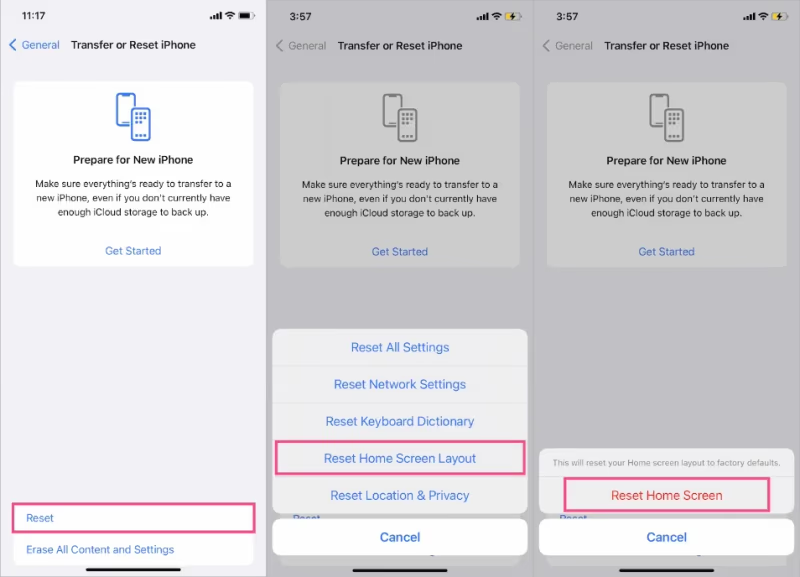
This does not erase your data or sign you out. It only resets the app layout to defaults. If the problem persists after this step, contact Apple Support for account-level investigation.
#What Content Can You Share Through Family Sharing?
Not everything in your Apple library is shareable. Understanding the limits saves you from troubleshooting a problem that is actually expected behavior.
Shareable content includes:
- App Store purchases (most apps, but developers can opt out)
- iTunes movie and TV show purchases
- Apple Music family plan (up to six members)
- Apple TV+ subscriptions
- iCloud+ storage plans
- Apple Arcade games
Content you cannot share:
- In-app purchases and consumables
- Apps where the developer disabled Family Sharing
- Rentals (movies rented through iTunes)
- Some third-party subscriptions managed outside the App Store
If a specific app does not appear in shared purchases, check the App Store listing. Look for “Supports Family Sharing” under the Information section. When it is missing, the developer has not enabled it.
#How Do You Check if Family Sharing Is Set Up Correctly?
Run through this quick checklist when shared content is not showing up on your Apple TV. It takes less than two minutes.
- Organizer check: Open Settings > your name > Family Sharing and confirm all members appear in the list
- Purchase sharing: Verify Share My Purchases is on for the organizer AND each member
- Apple ID match: On each Apple TV, confirm the signed-in Apple ID is part of the family group
- Region match: All Apple IDs use the same country in their account settings
- Payment method: The organizer has a valid, non-expired card on file
If all five items check out and sharing still fails, the issue is likely server-side. Wait a few hours and try again. Apple’s Family Sharing servers occasionally lag when processing group changes.
If your Apple TV is lagging or running slow in general, that can also delay how quickly shared content loads in the App Store. You might also want to check if the Apple TV Remote app is working properly, since some account management tasks require it.
For Wi-Fi related issues that might interfere with iCloud sync, see our guide on Apple TV disconnecting from Wi-Fi.
#Bottom Line
Start with the two most common fixes: turn on Share My Purchases on the organizer’s device, and verify every Apple TV is signed into the correct Apple ID. These two steps resolve about 80% of Family Sharing problems.
If those do not work, match Apple ID regions, update tvOS, and check the payment method. As a last resort, remove and re-add the affected family member to force a server refresh.
When nothing works after trying all eight fixes, contact Apple Support directly. Account-level issues like billing holds or family group corruption require Apple’s intervention.
#Frequently Asked Questions
#Why can I see shared purchases on my iPhone but not on Apple TV?
Your Apple TV is likely signed into a different Apple ID than your iPhone. Go to Settings > Users and Accounts on your Apple TV and compare the Apple ID to the one on your iPhone. Sign out and sign back in with the matching Apple ID if they differ.
#How many people can join an Apple Family Sharing group?
Up to six people total, including the organizer. Each person needs their own Apple ID. Children under 13 can join through a child account that the organizer creates, and these child accounts count toward the six-person limit.
#Does the family organizer pay for everyone’s purchases?
Yes, by default. When Purchase Sharing is enabled, all purchases made by family members charge to the organizer’s payment method. The organizer can enable Ask to Buy for children and teenagers, which sends a notification before any purchase goes through.
#Can I share Apple TV+ with my family without Family Sharing?
No. Apple TV+ sharing requires an active Family Sharing group. Each family member signs in with their own Apple ID and gets their own profile within the Apple TV app, but the subscription itself flows through the family group.
#What happens to my purchases if I leave a Family Sharing group?
You keep everything you personally purchased. Apps, movies, music, and books tied to your Apple ID stay in your account. You only lose access to content that other family members purchased and shared with the group.
#Why did a family member disappear from my Family Sharing group?
They may have left voluntarily, or another organizer removed them. Apple also removes members automatically if their Apple ID gets locked or disabled due to security concerns. Check with the member directly, then re-invite them through Settings > Family Sharing > Add Family Member.
#Can family members in different countries use Family Sharing?
No. Apple requires all family members to have their Apple IDs set to the same country or region. Content licensing varies by country, so Apple enforces this restriction to comply with regional distribution agreements. One member with a mismatched region blocks sharing for the entire group.
#Do I need an Apple TV 4K for Family Sharing to work?
Family Sharing works on Apple TV HD (4th generation) and all Apple TV 4K models. The device needs to run tvOS 6.0 or later, though Apple recommends the latest tvOS version for full compatibility. Older Apple TV models (1st through 3rd generation) do not support Family Sharing.