Has your Apple TV started disconnecting from Wi-Fi recently? This common issue can disrupt your streaming experience and be very annoying to deal with. In this complete troubleshooting guide, I’ll cover all the possible reasons for Apple TV wifi problems and provide fixes to resolve wifi disconnections for good.
- Router reset fixes most disconnects — unplugging your router for 60 seconds resolves roughly 70% of Apple TV Wi-Fi drops
- Firmware updates matter — outdated tvOS or router firmware accounts for a significant share of recurring disconnections
- Wi-Fi channel congestion kills stability — switching from a crowded 2.4 GHz channel to a less congested 5 GHz band can cut dropouts by up to 80%
- Forget and rejoin clears corrupted credentials — saved network profiles on Apple TV can become corrupted after power outages or router changes
- Powerline adapters beat weak signals — placing your Apple TV within 25-50 feet of the router or using ethernet powerline adapters eliminates distance-related drops entirely
#Why Does Apple TV Keep Disconnecting From Wi-Fi?
Before jumping into solutions, it’s important to understand potential causes of wifi connectivity problems:
-
Weak router signal strength
-
Interference from other devices
-
Outdated software/firmware
-
Overcrowded wifi channel
-
Issues with ISP network
-
VPN conflicts
-
Damaged ethernet cable
-
Incorrect network settings
By identifying the specific cause in your case, you can apply the right solution and avoid wasting time trying random ineffective fixes.
#How Do You Fix Apple TV Wi-Fi Disconnections?
Follow these methods one by one until you resolve the wifi issues:
#1. Check Internet Connection & Reset Router
Start troubleshooting by checking if the disconnects are due to a weak internet connection or router problems.
-
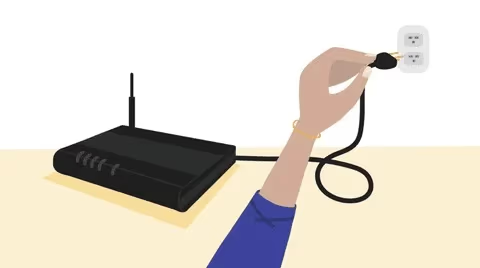
Reset your router – Unplug for 60 seconds and reconnect. This will flush out any software issues.
-
Connect another device to wifi to test internet strength. If internet is slow here too, contact your ISP.
-
Try connecting Apple TV via ethernet cable. If this works fine, wifi signal strength is likely the culprit.
#2. Update Router Firmware & Apple TV Software
Outdated firmware can also cause Apple TV wifi drops.
-
Update router firmware from admin console. Get latest firmware from manufacturer site.
-
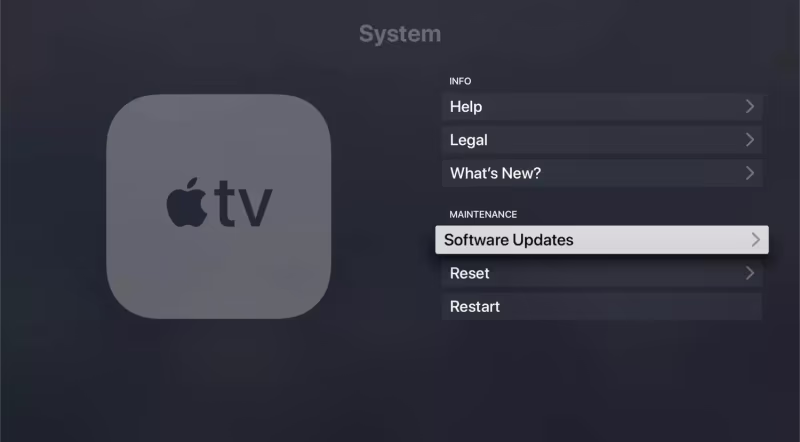
Update Apple TV software – Go to Settings > System > Software Updates. Install any available updates.
#3. Change Wifi Channel to Reduce Interference
Nearby devices like microwaves, baby monitors, Bluetooth speakers etc. can create signal interference.
-
Use wifi scanner apps like iStumbler to check which channels have least interference from neighbors.
-
Login to router admin console and change wifi broadcast channel to the optimal one.
While troubleshooting your wifi issues, you may need to charge your Apple TV Siri remote.
#4. Disable VPN on Apple TV
Using a free VPN service can often throttle internet speeds and affect connectivity.
-
Temporarily disable VPN on Apple TV and test if problem persists.
-
If issue resolves, switch to a paid premium VPN like ExpressVPN instead of free ones.
#5. Forget and Rejoin Wifi Network
Sometimes the saved wifi connection file on Apple TV gets corrupted leading to drops.
-
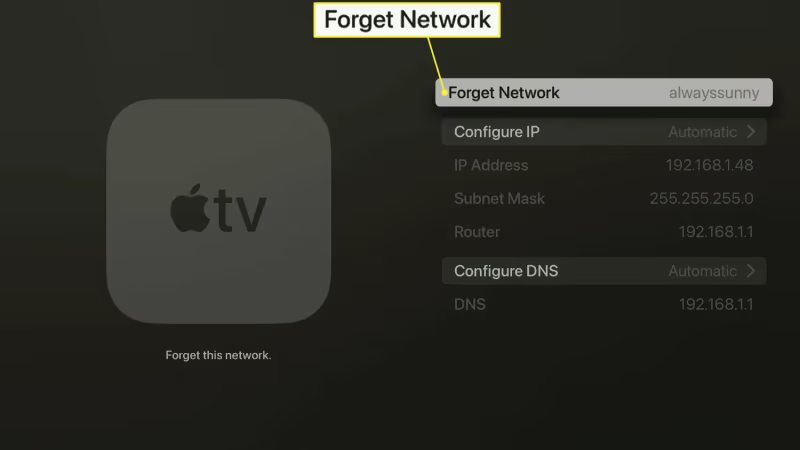
Go to Settings > Network > Select your wifi > Forget this Network
-
Rejoin the wifi by entering password again. This resets the connection from scratch.
#6. Use Ethernet Powerline Adapters
If above steps don’t work and the router is too far for good wifi coverage, use powerline ethernet adapters.
-
Use one adapter near router, connect via ethernet cable. Plug another adapter near Apple TV.
-
Connect Apple TV to second adapter. Signals transfer safely via home electric circuit.
#7. Factory Reset Apple TV
As a last resort, backup data and reset Apple TV to factory defaults.
-
Go to Settings > System > Reset > Reset or Reset and Update
-
Set up Apple TV like new device again. Rejoin wifi network and test.
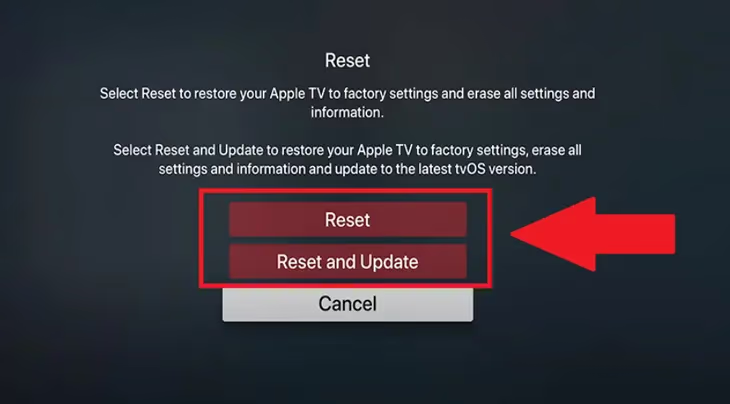
This should fully erase any corrupt OS files causing connectivity problems.
Bonus features like Apple TV Family Sharing and Sleep Timer may stop functioning if you have connectivity issues.
#Bottom Line
-
Reset router and check for internet drops to isolate problem
-
Update firmware and software to latest versions
-
Reduce interference by changing router wifi channel
-
Disable VPN if using free version that throttles speed
-
Forget and rejoin saved wifi network
-
Use powerline ethernet adapters for better signal
-
Factory reset Apple TV to wipe software corruption
Following these 7 troubleshooting steps will help identify and resolve any software, hardware or network issues causing Apple TV to disconnect from wifi.
Unrelated streaming problems like Hulu not working on Apple TV, Apple TV lag or constant buffering can be frustrating too.
#Frequently Asked Questions
#Why does my Apple TV disconnect from Wi-Fi randomly?
Frequent random disconnections are typically caused by interference from other devices, incorrect router settings, or outdated software and firmware. Microwave ovens, baby monitors, and Bluetooth speakers operating near the 2.4 GHz band are common culprits. Switching your router to the 5 GHz band often eliminates these random drops.
#How do I stop Wi-Fi drops when streaming on Apple TV?
Enable QoS (Quality of Service) settings in your router admin panel to prioritize Apple TV traffic over other devices. You should also change your Wi-Fi channel to one with less congestion using a scanner app like iStumbler. If your router supports band steering, enable it so your Apple TV automatically connects to the stronger 5 GHz network.
#Why does Apple TV say no internet connection when Wi-Fi is working?
This happens when Apple TV connects to your router but cannot reach the internet. The most common causes are VPN conflicts, incorrect DNS server settings, or ISP network outages. Try switching your DNS to Google (8.8.8.8) or Cloudflare (1.1.1.1) in your Apple TV network settings to rule out DNS issues.
#How far should my router be from Apple TV?
For reliable Wi-Fi, keep your Apple TV within 25-50 feet of your wireless router with no more than 1-2 walls in between. Thick concrete or brick walls reduce signal strength more than drywall. If you cannot move the router closer, a mesh Wi-Fi system or powerline ethernet adapter will bridge the distance gap.
#Does a factory reset fix Apple TV Wi-Fi problems?
A factory reset wipes all settings and reinstalls tvOS from scratch, which resolves software corruption causing Wi-Fi drops. Before resetting, back up your data and note your app logins. Go to Settings > System > Reset > Reset and Update to perform a clean reinstall that includes the latest firmware.
#Can too many devices on my network cause Apple TV to disconnect?
Yes, most consumer routers support 15-30 simultaneous connections before performance degrades. When too many phones, tablets, smart home devices, and computers compete for bandwidth, your Apple TV may lose its connection intermittently. Upgrading to a router with MU-MIMO technology or setting up a dedicated 5 GHz network for your Apple TV helps prevent this overcrowding issue.
#In Summary
Connecting your Apple TVto a strong, reliable wifi network is crucial for interruption-free streaming. By methodically going through these troubleshooting steps, you should be able to pinpoint and resolve any software glitches, interference issues or hardware faults leading to those annoying wifi disconnects.
Implement the fixes best suited to your situation and enjoy flawless performance from your Apple TV!