Constant buffering and freezing issues make for a frustrating Apple TV viewing experience. If your streaming content keeps pausing to load more video, this guide will help you diagnose the problems and optimize your setup for smooth, uninterrupted streaming.
- Minimum speed for 4K streaming — Apple TV needs at least 25 Mbps download speed for 4K and 8-12 Mbps for 1080p content
- Ethernet beats Wi-Fi every time — wired connections eliminate signal interference and deliver up to 40% more consistent throughput
- Restart both devices weekly — power-cycling your router and Apple TV clears cached errors and refreshes network connections
- Background apps drain bandwidth — closing unused apps on Apple TV frees system resources and reduces network congestion
- Firmware updates fix known bugs — Apple releases tvOS patches that specifically address streaming performance and buffering glitches
#What Causes Apple TV to Keep Buffering?
There are a few common culprits behind persistent Apple TV buffering:
-
Slow Internet Speeds: Apple TV requires fast, steady internet connectivity. For 1080p video, you’ll typically need 8-12 Mbps speeds. 4K video demands even faster speeds around 25 Mbps.
-
Wi-Fi Interference: Walls, floors, appliances and other electronics can all interfere with Wi-Fi signals between your router and Apple TV device. This leads to buffering as data transfer gets interrupted.
-
Too Many Connected Devices: The more devices using your home’s internet simultaneously, the less bandwidth available per device for uninterrupted streaming.
-
Outdated Firmware: Apple TV firmware updates often include bug fixes and performance improvements. Outdated firmware can cause glitches like frequent buffering.
-
Server Issues: Though rare, sometimes buffering issues stem from overwhelmed or glitching servers on Apple or third party streaming apps like Netflix.
#How Do You Fix Apple TV Buffering and Freezing?
Follow these troubleshooting steps to stop interruptions and optimize streaming:
#1. Check Internet Speeds
Use a site like Fast.com or Speedtest.net to test your internet speeds. For smooth 1080p streaming, you’ll want at least 8-12 Mbps download speeds. 4K video requires faster speeds around 25 Mbps.
If your speeds fall below these thresholds, contact your internet service provider about boosting bandwidth to enable uninterrupted Apple TV streaming.
#2. Restart Your Router and Apple TV
Restarting your router and Apple TV refreshes connections which often fixes performance issues like buffering.
To restart your Apple TV device:
-
Go to Settings > System
-
Select Restart

Wait at least 30 seconds before powering your devices back on after restart.
#3. Check Server Status
Sometimes buffering issues arise from problems with Apple’s servers. Visit Apple’s System Status page or sites like Downdetector to check if server outages are causing problems.
#4. Update Firmware
Keeping Apple TV firmware updated ensures you have the latest bug fixes and performance patches.
To manually check for Apple TV updates:
-
Go to Settings > System > Software Updates
-
Select Update Software
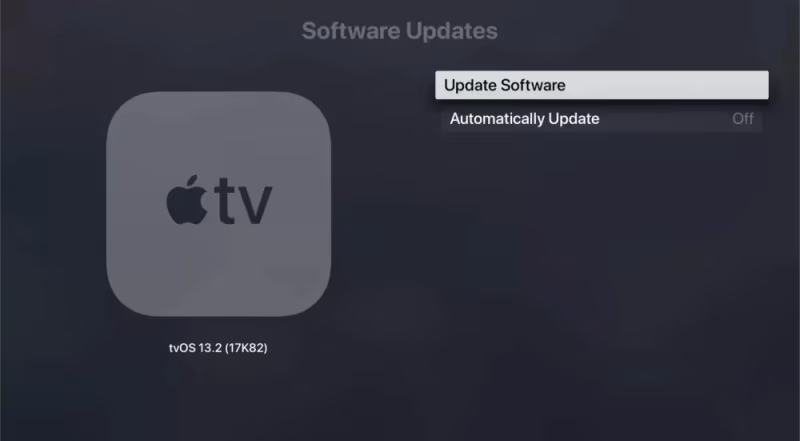
Follow any on-screen prompts to download and install the available Apple TV firmware updates.
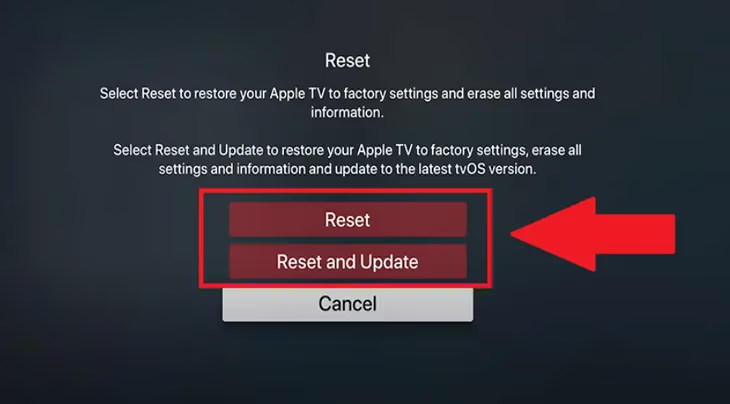
#5. Reset Apple TV
For stubborn buffering issues, restoring Apple TV to factory default settings often helps resolve software glitches.
Warning: Resetting deletes all saved data and preferences.
To reset, head to Settings > System > Reset, then choose either Reset or Reset and Update.
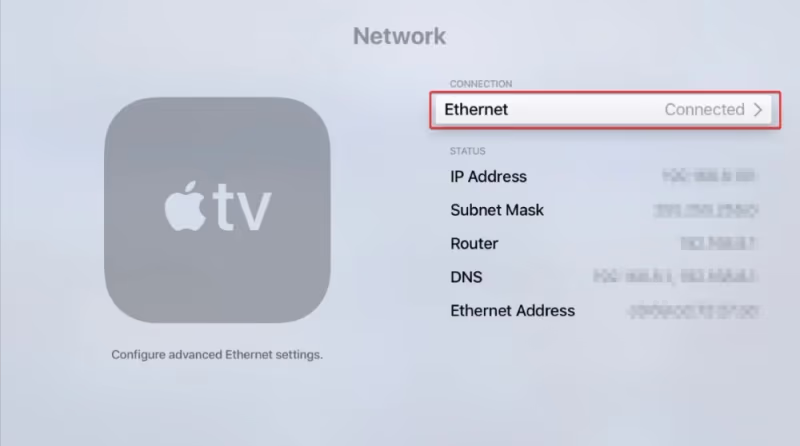
#6. Switch to Ethernet
Wi-Fi signals often fluctuate causing buffering. Using an Ethernet cable instead provides consistently fast, reliable connectivity for streaming.
Connect your Apple TV box to your router via Ethernet cable. Change your connection preferences to Wired under Settings > Network > Choose Your Connection.
#7. Disconnect Extra Devices from Wi-Fi
The more devices using your Wi-Fi simultaneously, the less bandwidth available per device. This leads to buffering when streaming bandwidth-intensive video.
Temporarily disconnect less important Wi-Fi devices like phones or game consoles to free up bandwidth for Apple TV.
#8. Move Apple TV Closer to Router
Walls and distance degrade Wi-Fi signals causing choppy video. Place your Apple TV device closer to your wireless router to strengthen the connection for uninterrupted streaming.
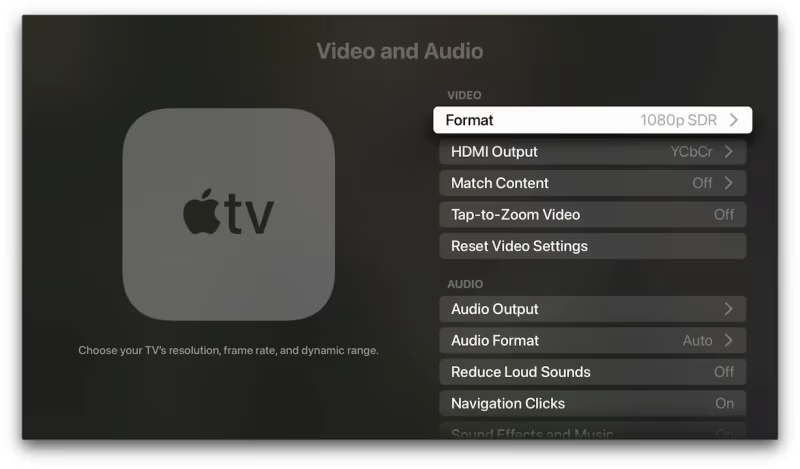
#9. Lower Video Quality
Lower quality video requires less bandwidth to stream without buffering issues. Under video settings, downgrade to 720p rather than 1080p or 4K video which require faster internet speeds.
#10. Close Unnecessary Apps
Apps running in the background consume internet bandwidth and system resources vital for streaming.
Double tap the TV icon on your Apple TV remote and swipe up on unneeded apps. Also force quit video streaming apps before reopening to flush out software issues.

#11. Disable VPN Connection
VPNs encrypt internet traffic reducing speeds. Temporarily disconnect VPN services when streaming Apple TV video to maximize bandwidth allotted for your streaming device.
#12. Contact Apple Support
If you still experience buffering after trying these fixes, contact Apple Support online or by phone. Explain your troubleshooting steps already attempted and work with them to identify any remaining causes.
For more help troubleshooting Apple TV lagging or black screen issues, check out these guides on setting up your Apple TV without a remote, getting the remote app working if unresponsive, and fixing a black screen.
#Bottom Line
-
Use a wired Ethernet connection rather than Wi-Fi whenever possible for fastest speeds.
-
Keep Apple TV firmware updated to fix bugs causing buffering.
-
Restart your router and Apple TV device weekly as a performance safeguard.
-
Lower video quality settings if your internet speeds can’t support HD or 4K video bandwidth needs.
-
Close unused apps and temporarily disconnect extra devices using Wi-Fi when streaming.
Carefully following these fixes and preventative measures will help you minimize annoying Apple TV buffering problems.
Beyond buffering, also be aware of other common Apple TV frustrations like issues with Hulu or Family Sharing not working which require specialized troubleshooting.
#Frequently Asked Questions
#Why does my Apple TV keep buffering on Netflix, Hulu, or other apps?
Slow internet speeds are the most common cause. Each streaming app needs steady bandwidth to deliver video without interruptions. Run a speed test at Fast.com, restart your Apple TV and router, and make sure no other devices are hogging your network.
#Why does my Apple TV keep freezing during playback?
Freezing happens when your device can’t load the next video segment fast enough. Switch to a wired Ethernet connection, lower your video quality to 1080p or 720p, and close background apps. If the problem persists, check for tvOS firmware updates that may patch known streaming bugs.
#How can I speed up my Apple TV?
Delete apps you no longer use and clear cached data to free up system resources. Restarting your Apple TV weekly also helps maintain performance. Upgrading your internet plan to one that delivers at least 25 Mbps will make the biggest difference for 4K streaming.
#Does restarting my Apple TV fix buffering?
Yes, restarting resolves many buffering issues by clearing temporary files and refreshing network connections. Go to Settings > System > Restart, and wait 30 seconds before powering the device back on. Restart your router at the same time for the best results.
#Is Ethernet better than Wi-Fi for Apple TV streaming?
Ethernet provides a more stable and faster connection than Wi-Fi, making it the best option for 4K streaming. Wi-Fi signals weaken through walls and compete with other devices on the network. Connecting your Apple TV directly to your router with an Ethernet cable eliminates these interference problems entirely.
#What internet speed do I need for Apple TV 4K streaming?
Apple recommends at least 25 Mbps for 4K HDR content and 8-12 Mbps for 1080p video. These are minimum thresholds, so aim for higher speeds if multiple people in your household stream at the same time. Run a speed test while other devices are active to get a realistic picture of your available bandwidth.
#Final Recommendations
Persistent Apple TV buffering and freezing ruin the viewing experience. In most cases, this stems from Wi-Fi interference issues, outdated firmware causing software glitches, overloaded internet bandwidth from too many connected devices, or internet speeds too slow to stream HD/4K video smoothly.
Carefully follow the 12 fixes provided in this guide. Pay special attention to checking your internet speeds, transitioning to wired Ethernet connections, closing unused apps, restarting your Apple TVand router device, and updating system software and firmware.
Combining these troubleshooting steps will help minimize buffering problems for smooth, uninterrupted Apple TV streaming. Contact Apple customer support if problems continue to persist after exhausting these fixes.