An Apple TV black screen can stop your streaming night before it starts. You sit down to watch your favorite show, and instead of the latest episode, you get nothing but darkness. As a tech repair shop owner specializing in Apple products for over a decade, I’ve helped hundreds of customers fix this exact problem. The good news? A few simple troubleshooting steps are usually all it takes.
This guide covers the 8 most effective solutions for fixing an Apple TV black screen, starting from the easiest fixes you can do right now through more advanced options if needed.
Whether you’re a tech novice or a seasoned DIY pro, you’ll find clear, actionable steps to diagnose the cause and get your streaming back up and running. And if you’re interested in learning how to set up Apple TV without remote, check out our step-by-step guide.
- Loose HDMI cables — the most common cause, fixed by unplugging and firmly reconnecting both ends
- Restart your Apple TV — hold Menu + Down on the remote until the status light blinks, then unplug power for 10 seconds
- Check TV input settings — pressing the Input button on your TV remote to cycle to the correct HDMI port resolves many cases
- Update tvOS — outdated software causes glitches that lead to black screens on older Apple TV models
- Factory reset works as a last resort — go to Settings > System > Reset if all other troubleshooting fails
#What Causes an Apple TV Black Screen?
Before we jump into the solutions, it helps to understand the most common culprits behind an Apple TV black screen:
-
Loose or faulty HDMI cable connections
-
Incorrect input settings on your TV
-
Charging issues with your remote
-
Apple TV software glitches
-
Outdated tvOS version
Pinpointing the specific cause is key to resolving the issue quickly. As we go through the troubleshooting steps below, we’ll be systematically eliminating each potential cause until we find the one affecting your Apple TV.
And just like Apple TV, Roku TV black screen is another common issue many users face. Check out our top solutions if you’re experiencing a TCL Roku TV black screen error.
#How Do You Fix an Apple TV Black Screen?
Follow these proven troubleshooting tips in order, from simplest to most complex, to efficiently diagnose and resolve your Apple TV black screen issue:
#1. Check Your HDMI Connection
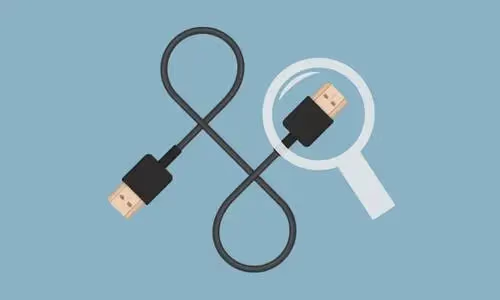
One of the most common causes of Apple TV black screen is a loose or faulty HDMI cable. Here’s how to check it:
-
Disconnect the HDMI cable from your Apple TV and TV.
-
Carefully check the HDMI port on your devices for any debris or damage. Clean out any dust or restart your TV.
-
Firmly reconnect the HDMI cable to your Apple TV and TV.
-
Test a different HDMI cable if you have one handy.
-
Verify the Apple TV input is selected on your TV.
#2. Restart Your Apple TV
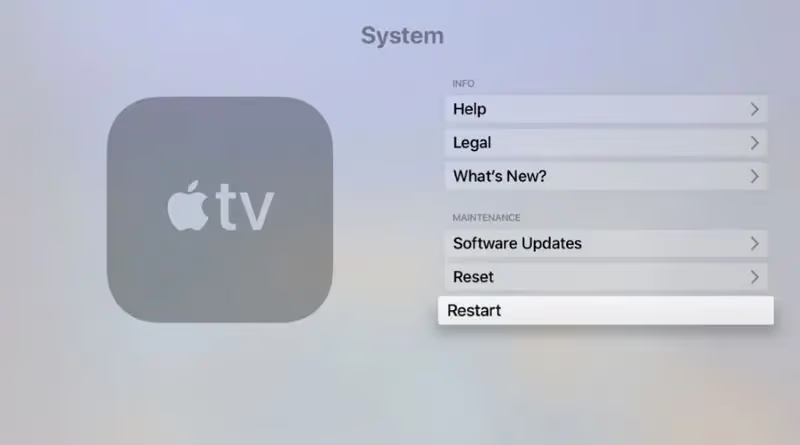
If the HDMI cable seems to be working, the next step is to restart your Apple TV:
-
On your Apple remote, press and hold the Menu and Down buttons simultaneously until the status light on the front of the Apple TV rapidly blinks.
-
Disconnect the power cord from your Apple TV.
-
Wait at least 10 seconds, then reconnect the power cord.
-
Turn your TV back on and wait for the Apple TV to restart.
#3. Update tvOS
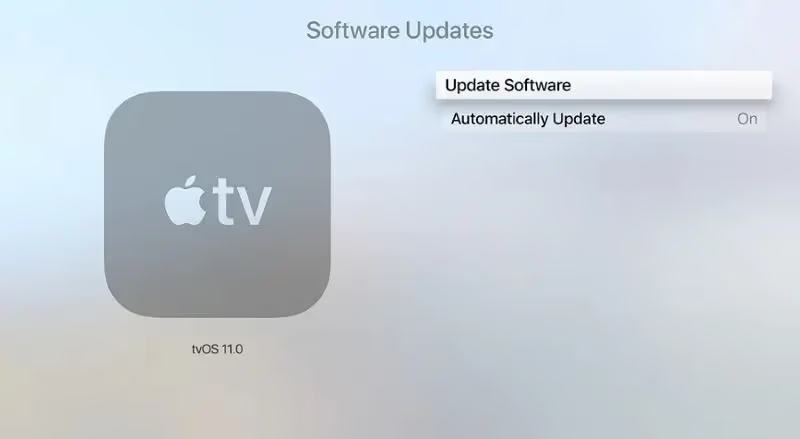
Running an outdated version of tvOS can cause software glitches that lead to black screen. To manually update tvOS:
-
Go to Settings > System > Software Updates.
-
Select Update Software.
-
If an update is available, select Download and Install.
-
Keep your Apple TV connected to power until the update completes.
Keeping your Apple TV updated can also help resolve other common issues like buffering, lagging, and Wi-Fi disconnects.
#4. Charge Your Apple Remote
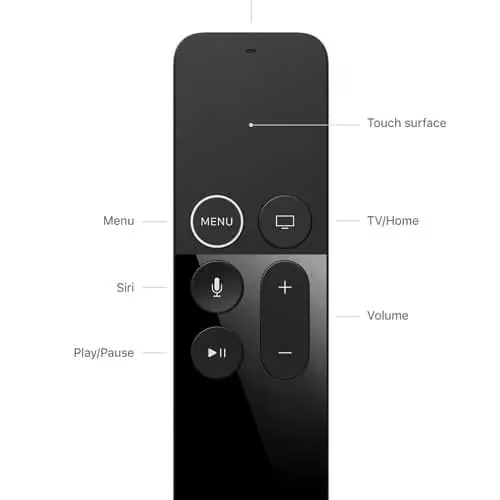
If your Apple remote is unresponsive, it may not have enough charge to turn on your Apple TV. Here’s how to charge your Apple TV remote:
-
Connect your Apple remote to a power outlet using a Lightning to USB cable and a 5W power adapter.
-
Let it charge for at least 30 minutes.
-
Once charged, use your remote to turn on the Apple TV and check if the black screen is resolved.
And if you’re having issues with the Apple TV remote app not working on your iPhone, we have a helpful troubleshooting guide for that too.
#5. How Do You Fix Incorrect TV Input Settings?
Incorrect TV input settings are another easily overlooked cause of Apple TV black screen. To check them:
-
On your TV remote, press the Input button to cycle through available inputs.
-
Stop once you reach the input for your Apple TV. It should be labeled HDMI along with a number like HDMI 2 or HDMI 3 depending on which HDMI port you’re using.
-
If you don’t see the Apple TV input, make sure the correct HDMI port is selected in your TV’s settings menu.
#6. When Should You Restore Factory Settings?
If you still get a black screen after trying the steps above, restoring your Apple TV to factory settings can resolve more complex tvOS issues without losing your data:
-
On your Apple TV, go to Settings > System > Reset.
-
Select Reset.
-
If prompted, enter your passcode.
-
The Apple TV will restart and the reset process will begin. This can take several minutes to complete.
#7. Use Apple Support’s Online Resources
Apple provides a number of helpful online resources for resolving common Apple TV issues:
-
Browse Apple’s Apple TV Support page for user guides, tech specs, and more.
-
Visit the Apple TV Community Forum to see if other users have found solutions to similar problems.
-
Contact Apple Support online or by phone to get expert troubleshooting help from Apple advisors.
-
Check out our guides on fixing Apple TV family sharing not working and setting Apple TV sleep timer for solutions to other frequent Apple TV problems.
#8. Schedule a Genius Bar Appointment
If you’ve tried all the DIY fixes above and still have a black screen, it’s time to consult the experts. Head to your nearest Apple Store or Apple Authorized Service Provider to diagnose and repair any hardware issues.
You can book a Genius Bar appointment online for the fastest service. Once you arrive, a trained technician will run diagnostics on your Apple TV and recommend the best course of action, whether that’s a repair or a replacement.
#Bottom Line
-
Common causes of Apple TV black screen include loose HDMI connections, outdated software, unresponsive remotes, and incorrect TV input settings.
-
Start troubleshooting by checking the HDMI cable and connection, restarting the Apple TV, and charging the remote.
-
More advanced fixes include updating tvOS, restoring factory settings, and scheduling a Genius Bar appointment.
-
Consult Apple’s library of online support resources for further assistance.
#FAQ
#Why is my Apple TV screen black?
The most common causes are problems with the HDMI connection, remote, or tvOS software. Incorrect TV input settings can also be the culprit. Try unplugging the HDMI cable and reconnecting it firmly before moving on to other fixes.
#How do I reset my Apple TV when the screen is black?
Press and hold the Menu and Down buttons on your Apple remote until the status light rapidly blinks, then disconnect the power cord for 10 seconds. Reconnect the power and turn the TV back on. If the remote is unresponsive, charge it for at least 30 minutes first.
#Can I still use my Apple TV if the screen is black?
No. A black screen means the Apple TV is not displaying any picture, so you won’t be able to navigate menus or select content. You need to resolve the underlying issue before you can use the device again.
#Should I unplug my Apple TV if the screen goes black?
Not right away. First try other basic troubleshooting like checking the HDMI connection and remote. If those steps don’t work, then unplug the Apple TV, wait 10 seconds, and plug it back in as part of the restart process.
#How much does Apple charge to fix a black screen issue?
It depends on the specific problem and whether your Apple TV is covered under warranty or AppleCare+. Hardware repairs for out-of-warranty Apple TV units generally start around $149. Contact Apple Support for a precise quote before booking a Genius Bar visit.
#Does updating tvOS fix an Apple TV black screen?
In many cases, yes. Outdated tvOS versions can cause software glitches that result in a black screen or frozen display. Go to Settings > System > Software Updates to check for and install available updates. Keep your Apple TV plugged in during the entire update process.
#Can a faulty HDMI cable cause Apple TV black screen?
Absolutely. A damaged or loose HDMI cable is the single most common cause of Apple TV black screen. Try swapping in a different HDMI cable and testing a different HDMI port on your TV. High-speed HDMI cables rated for 4K are recommended for Apple TV 4K models.
#Will a factory reset delete my apps and data?
A standard reset from Settings > System > Reset will not erase your apps or data. However, if you choose “Reset and Update,” the Apple TV will restore to factory defaults and you’ll need to sign back in and re-download your apps. Always try a basic reset first before choosing the full erase option.