Getting stuck on the loading screen is a common frustration that Amazon Prime Video users face. This troubleshooting guide will help you resolve loading issues so you can get back to streaming your favorite shows.
- Slow internet is the top cause — Prime Video needs at least 5 Mbps for HD and 15 Mbps for 4K streaming
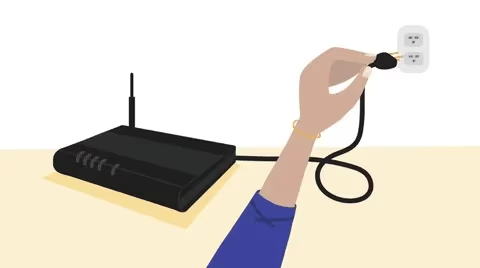
- Router reboot fixes most cases — unplug your router and modem for 60 seconds to reset the connection
- Clearing app cache works fast — corrupted cached data is the second most common reason for stuck loading screens
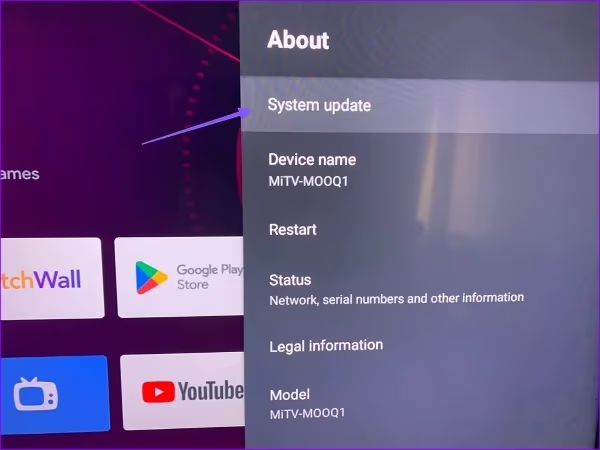
- Outdated firmware causes conflicts — check Settings > System Update on your TV to install the latest version
- Amazon outages happen too — check Downdetector before troubleshooting to rule out server-side problems
#Why Does Amazon Prime Video Get Stuck on the Loading Screen?
There are a few core reasons why you may face endless loading screens on Amazon Prime Video:
-
Poor Internet Connectivity – Slow or unstable connections prevent videos from buffering properly.
-
Amazon Server Outages – Regional disruptions to Amazon’s services cause widespread issues.
-
Software Bugs – Glitches in the app or TV firmware lead to malfunctions.
-
Cache Build-up – Outdated app data gets corrupted and causes conflicts.
-
Device Compatibility Errors – TVs with older software or low storage can face problems.
By identifying the specific reason behind the stuck loading screen on your TV and following suitable troubleshooting steps, you can resolve the problem quickly.
#How Do You Fix Amazon Prime Video Loading Issues?
Follow these 11 steps to troubleshoot and fix endless loading screens on Amazon Prime Video:
#1. Check Your Internet Speed
Using a Speed Test site or app, test your internet connectivity. Prime Video recommends a minimum of:
-
3 Mbps for SD quality
-
5 Mbps for HD quality
-
15 Mbps for 4K/UHD quality
If your speed is lower, contact your ISP to improve bandwidth. Disconnect other devices using your Wi-Fi to allocate more speed for streaming.
#2. Reset Your Wi-Fi Router and Modem
Rebooting these devices re-establishes internet connectivity. Unplug both power cords for 60 seconds before plugging back in.
#3. Update Your TV and App Software
Outdated firmware causes compatibility issues.
On Smart TVs:
Go to Settings > System Update
For Mobile Apps:
Go to App Store/Play Store > Updates
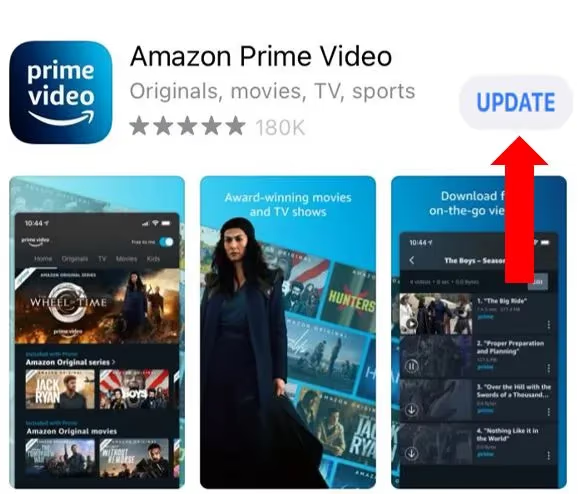
Install any available updates.
#4. Move Your TV Closer to the Wi-Fi Router
Proximity improves signal strength for better connectivity. Use an ethernet cable if possible for the most reliable connection.
#5. Disable Any VPN/Proxy Servers
VPN/Proxy services can interfere with geo-restricted content creating conflicts. Temporarily disable them.
#6. Delete and Re-install Amazon Prime Video App
Corrupted app data gets cleared with a fresh install. This resolves software bugs causing loading issues.
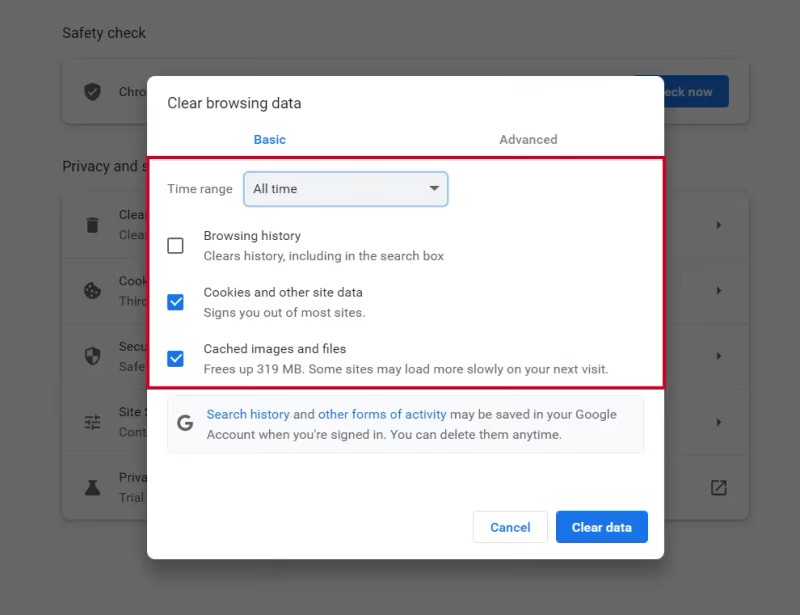
#7. Clear Your Browser Cache and Cookies
If watching via browsers, clear stored browser data which may be outdated or broken.
#8. Try a Different Web Browser
Switch to Chrome, Firefox or Edge. Some browsers have better compatibility than others.
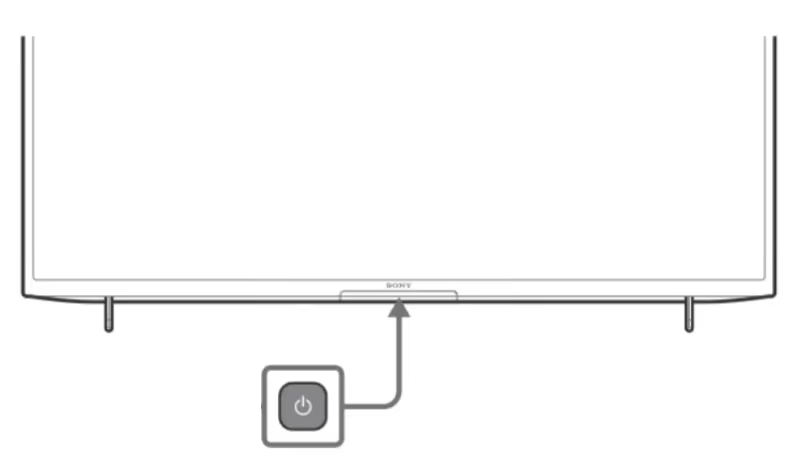
#9. Restart Your TV
A device reboot clears any temporary glitches quickly. Press Power button for 8-10 seconds till options appear.
Loading issues can occur on smart TVs from various brands. If you are facing problems getting Amazon Prime Video to work on your LG TV or Apple TV, additional troubleshooting steps may be needed.
#10. Check if Amazon Prime Video Is Having an Outage
Issues are typically reported on their Service Health dashboard. You can also check third-party sites like Downdetector. Wait for service to resume.
#11. Contact Amazon Prime Video Customer Support
Explain your troubleshooting steps done. Support can run advanced diagnostics and resolve tricky hardware or network-level problems.
Besides loading screens, users also frequently report problems like black screens or difficulties with subtitles. If you face issues like Amazon Prime subtitles not turning off there are fixes for those as well.
#Bottom Line
-
Slow internet speeds are the most common cause of endless loading screens. Run a speed test and upgrade connectivity if needed.
-
Outages due to Amazon Web Services (AWS) disruptions can also lead to loading issues that get fixed when services resume.
-
Resetting modems/routers, updating firmware, re-installing the app and switching browsers are quick ways to fix software problems.
-
Clearing temporary cached files and cookies also helps resolve loading conflicts.
-
For hardware-related troubleshooting, Amazon’s customer support can provide specialized assistance.
#Frequently Asked Questions
#Why does my Amazon Prime Video get stuck buffering on my smart TV?
Slow or unstable internet is the most common cause. Prime Video needs at least 5 Mbps for HD streaming, so run a speed test to check your connection. If speeds are fine, try restarting your router and clearing the app cache.
#Should I delete and reinstall the Amazon Prime Video app?
Yes, reinstalling clears corrupted cached app data that could prevent videos from loading. This is one of the fastest fixes for software-related loading problems on Samsung, LG, and other smart TVs.
#Does using a VPN cause Amazon Prime Video loading issues?
VPNs often conflict with region-based content licensing on streaming platforms. If Prime Video is stuck loading while your VPN is active, disable it temporarily and try again. You can re-enable the VPN after confirming it was the issue.
#How do I fix Amazon Prime Video stuck loading on a Fire TV Stick?
Start by restarting your Fire TV Stick and checking your internet speed. If speeds are adequate, update both the Prime Video app and the Fire TV Stick firmware to the latest version. Clearing the app cache from Settings > Applications can also help.
#What internet speed do I need for Amazon Prime Video?
You need at least 3 Mbps for SD, 5 Mbps for HD, and 15 Mbps for 4K/UHD streaming. If multiple devices share your Wi-Fi, disconnect a few to free up bandwidth for your TV.
#How can I tell if Amazon Prime Video is down?
Check the AWS Service Health Dashboard or third-party sites like Downdetector for reported outages. If the service is down, there is nothing to troubleshoot on your end and you just need to wait.
#Will a factory reset fix Amazon Prime Video loading problems?
A factory reset should be a last resort since it erases all your TV settings and installed apps. Try simpler fixes first like restarting the TV, clearing the app cache, and reinstalling the app. Only consider a factory reset if nothing else works.
#Can outdated TV firmware cause Amazon Prime Video to freeze?
Yes, outdated firmware can create compatibility issues with streaming apps. Go to Settings > System Update on your TV to check for available updates. Keeping your TV software current prevents many loading and freezing problems.