Have you ever tried using AirPlay to mirror your iPhone or iPad to your Samsung TV, only to get the frustrating “Unable to Connect” error? You’re not alone. Lots of Samsung TV owners have trouble getting AirPlay working properly. The good news is that this problem can usually be fixed with a few simple troubleshooting steps.
Below I cover 15 proven solutions to get AirPlay connecting properly on your Samsung TV.
- AirPlay must be enabled — go to Settings > General > Apple AirPlay Settings on your Samsung TV to turn it on
- Same Wi-Fi network is required — your Apple device and Samsung TV must both connect to the same network
- Firmware updates fix most issues — outdated Samsung TV or iOS software causes the majority of AirPlay failures
- 2.4GHz Wi-Fi is more reliable — Samsung TVs sometimes struggle with 5GHz bands, so switching to 2.4GHz often helps
- Factory reset is the last resort — if nothing else works, resetting the TV to defaults clears corrupted settings blocking AirPlay
#What Causes AirPlay Connection Problems on Samsung TVs?
AirPlay is an Apple technology that lets you stream media and mirror screens wirelessly from Apple devices to compatible smart TVs.
To use AirPlay, your Apple device and Samsung TV need to be on the same Wi-Fi network. Interference or software issues can disrupt this connectivity.
Common AirPlay connection problems with Samsung TVs include:
-
Samsung TV not showing up as an AirPlay device option
-
Frequent dropping of AirPlay connection
-
“AirPlay Unable To Connect To Samsung TV” error message
Below I’ll walk through the top fixes for these stubborn AirPlay problems:
#How Do You Fix AirPlay Not Connecting to Your Samsung TV?
#1. Check AirPlay is Enabled on Your Samsung TV
AirPlay may not show up if it’s disabled in your Samsung TV’s settings.
To check:
-
Go to Settings > General > Apple AirPlay Settings
-
Turn on AirPlay
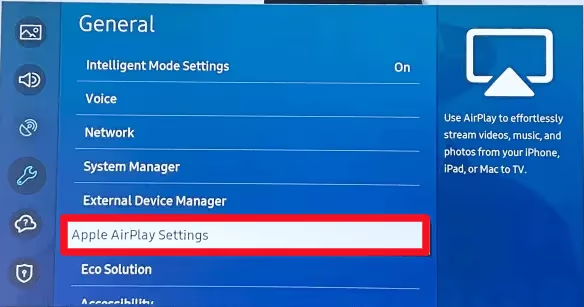
Once enabled, AirPlay should work properly.
#2. Connect Devices to Same Wi-Fi Network
AirPlay relies on Wi-Fi connectivity between your devices. If your Samsung TV and Apple device connect to different networks, AirPlay connections will fail.
Ensure both devices join the same Wi-Fi network.
Also try moving your Wi-Fi router to a more central location to improve signal coverage.
#3. Update Software on Samsung TV
Outdated firmware on your Samsung TV can prevent AirPlay from working properly.
To update:
-
Go to Settings > Support > Software Update
-
Select Update Now
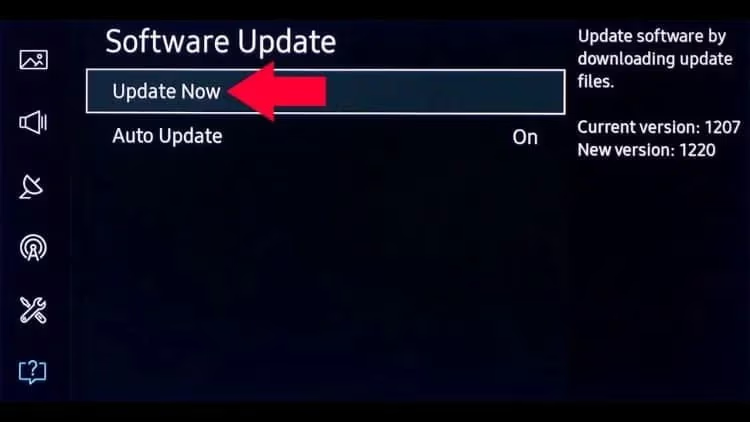
Install the latest firmware update. AirPlay may start working after the TV reboots.
#4. Update iOS Software on Apple Device
Similarly, an outdated iOS version on your iPhone, iPad or iPod touch can disrupt AirPlay connectivity.
Update to the latest iOS software:
-
Go to Settings > General > Software Update
-
Download and install any available updates
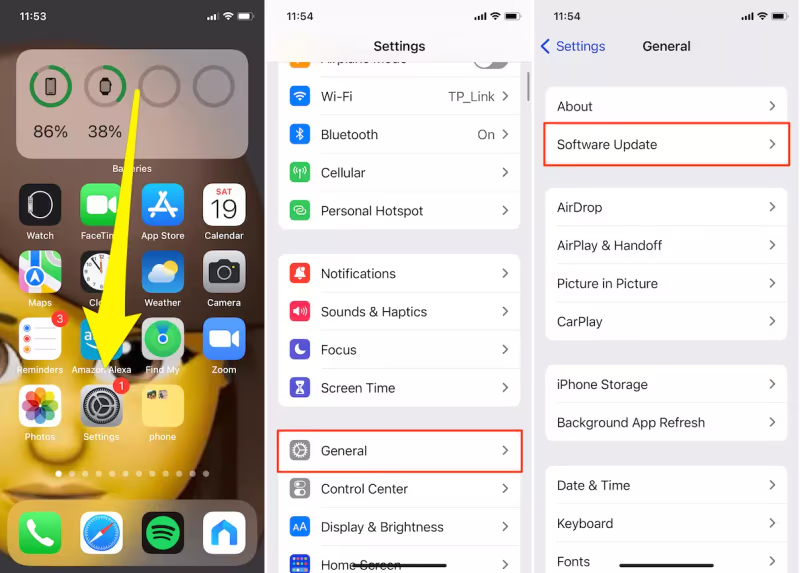
Keep your Apple devices updated to maximize AirPlay compatibility.
#5. Reboot Your Devices
Before troubleshooting further, try simply turning your devices off and on again:
-
Power cycle your Samsung TV and Apple device
-
Reboot your Wi-Fi router
Restarting all devices reinitializes network connections and often resolves flaky AirPlay behavior.
#6. Try Alternate AirPlay Apps
If native AirPlay struggles, third-party apps offer AirPlay alternatives:
-
ApowerMirror – Mirror Android phones to Samsung TVs
-
Google Cast – Cast mobile content to TVs
-
Miracast – AirPlay-like wireless streaming
Test if apps like these work better for your setup.
#7. Disable 5GHz Wi-Fi on Your Router
Samsung TVs sometimes have Wi-Fi connectivity issues on 5GHz bands causing the volume to keep going down.
Switch your router and devices to use 2.4GHz only:
-
Log in to router admin console
-
Turn off 5GHz Wi-Fi
-
Make sure 2.4GHz is enabled
See if forcing 2.4GHz Wi-Fi fixes your flaky AirPlay.
#8. Set TV DNS Server to 8.8.8.8
DNS issues can prevent your TV resolving URLs, causing volume control to get stuck.
-
Go to Settings > General > Network > Network Status
-
Select Edit DNS Server
-
Set to 8.8.8.8
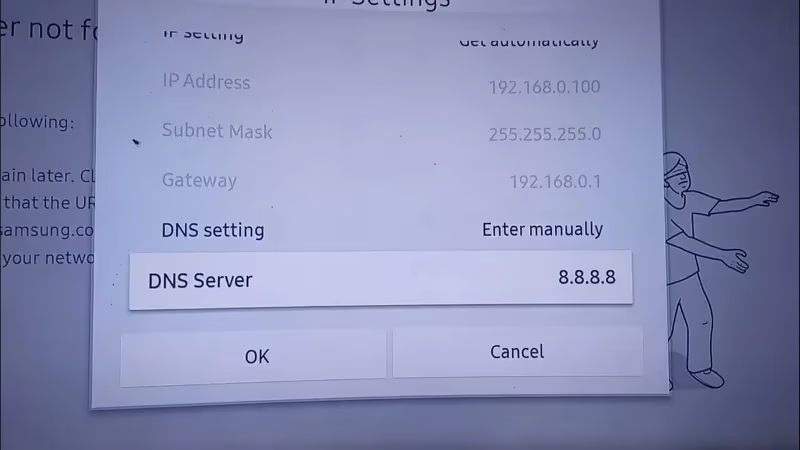
Google’s public DNS may improve AirPlay connectivity.
#9. Toggle Bluetooth On and Off
I know it sounds unlikely, but toggling Bluetooth on and off can sometimes resolve AirPlay persistence issues:
-
Turn off Bluetooth on your Samsung TV
-
Try to enable AirPlay
-
If it fails, turn Bluetooth back on
-
Then attempt AirPlay again
Cycling Bluetooth resets connections, which could help.
#10. Factory Reset Your Samsung TV
If all else fails, resetting your TV to factory defaults will wipe any buggy configuration that could be blocking AirPlay.
Warning: This resets ALL your Samsung TV’s settings.
To factory reset:
-
Go to Settings > General > Reset
-
Enter reset code if prompted
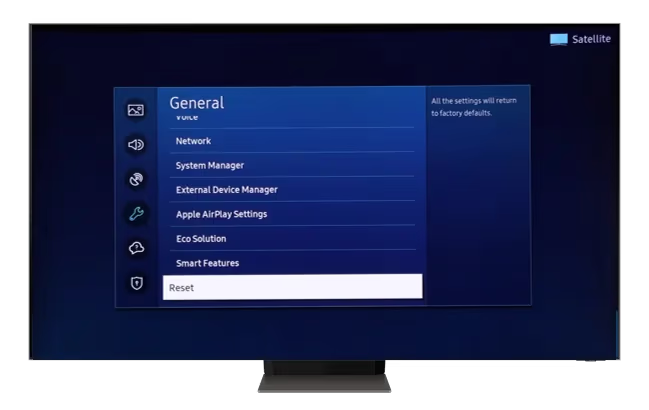
Set up the TV from scratch, reconnect to Wi-Fi, re-enable AirPlay and test.
#11. Try Using Ethernet Instead of Wi-Fi
While AirPlay is designed for wireless streaming, switching to a wired Ethernet connection eliminates Wi-Fi as a point of failure:
-
Connect your Samsung TV to your router via Ethernet
-
Make sure your Apple device uses Wi-Fi
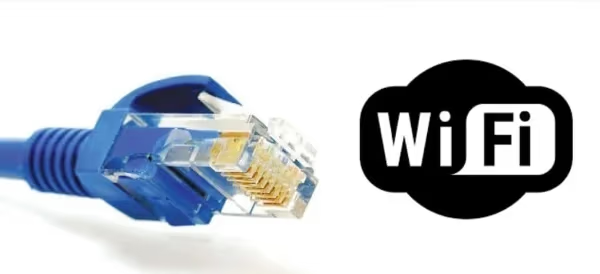
With rock solid wired connectivity in place, AirPlay should work flawlessly.
#12. Update Router Firmware
Just like your TV’s software, a buggy router firmware version could affect connectivity:
-
Log in to your router admin interface
-
Check the current firmware version
-
Look for any available updates and install them
Updating router firmware fixes bugs and improves performance.
#13. Add Samsung TV’s IP Address to Router’s DMZ
Placing your Samsung TV’s IP address into your router’s DMZ (Demilitarized Zone) effectively exposes the TV directly to your Internet connection:
-
Assign your Samsung TV a static (fixed) IP address
-
Look up how to enable DMZ on your router brand
-
Add the TV’s IP address to the DMZ list
DMZ circumvents firewalls and other connectivity issues.
#14. Disable Firewalls Temporarily
Security apps and firewalls can often hinder AirPlay connectivity. As a test:
-
Temporarily disable firewall & security software on ALL devices
-
Try to connect via AirPlay
Re-enable security software afterwards. If AirPlay works properly with firewalls disabled, you’ll need to reconfigure them to allow AirPlay.
#15. Use a Lightning or 30-Pin AV Adapter
If you have to get AirPlay working as a temporary fix, Apple’s AV adapters offer guaranteed screen mirroring by connecting your Apple device directly to your TV’s HDMI port.
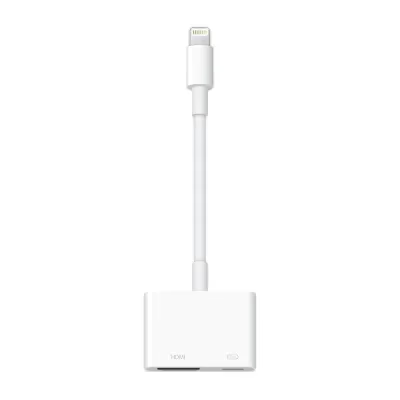
Alternatives like Slimport adapters also work. This gives you a wired path to fall back on when wireless AirPlay fails.
#Why Does AirPlay Disconnect from My Samsung TV?
If AirPlay works initially then keeps disconnecting, Wi-Fi interference or compatibility issues are likely to blame.
To stop random AirPlay dropouts:
-
Position Wi-Fi router closer to TV
-
Reduce sources of RF interference
-
Stick to 2.4GHz Wi-Fi only
-
Update TV firmware and iOS software
-
Toggle Bluetooth on/off
With improved Wi-Fi signal and updated software, AirPlay should connect reliably without interruptions.
#Bottom Line
-
Enable AirPlay in Samsung TV settings if disabled
-
Connect devices via the same Wi-Fi network
-
Keep Samsung TV & iOS devices updated
-
Factory reset TV if configuration is corrupted
-
Switch to wired Ethernet as alternative to Wi-Fi
-
Use third party apps or AV adapters as backup
Following this mobile-to-TV troubleshooting guide should help you get temperamental AirPlay functioning reliably on your Samsung TV.
#Frequently Asked Questions
#Why does my iPhone see my Samsung TV but AirPlay doesn’t work?
Your iPhone can detect the TV over the local network, but AirPlay requires additional handshake protocols that fail when there is a software mismatch. Update both devices to the latest firmware and iOS version. Toggling Bluetooth off and back on also resets the connection stack and often fixes this.
#Why does AirPlay work for a few minutes then disconnect?
Frequent dropouts point to Wi-Fi signal instability between your Apple device and Samsung TV. Switch both devices to the 2.4GHz band, move your router closer to the TV, and reduce interference from other wireless devices like baby monitors or microwaves.
#How can I mirror my Android phone to a Samsung TV?
AirPlay is exclusive to Apple devices, so Android phones cannot use it. Install a third-party mirroring app like ApowerMirror or use Samsung’s built-in Smart View feature to cast your Android screen to the TV.
#What Wi-Fi frequency works best for AirPlay on Samsung TVs?
The 2.4GHz band is more reliable for AirPlay on Samsung TVs. While 5GHz offers faster speeds, Samsung TVs sometimes have trouble maintaining a stable 5GHz connection. If you use a dual-band router, disable 5GHz temporarily and connect both devices on 2.4GHz to test.
#Does AirPlay work on all Samsung TV models?
No. AirPlay 2 is only available on Samsung smart TVs released in 2018 or later. Older models do not support AirPlay at all, so you would need a wired adapter or a streaming device like Apple TV to mirror content.
#Will a factory reset fix AirPlay problems on my Samsung TV?
A factory reset clears all settings and reinstalls the default configuration, which removes any corrupted data blocking AirPlay. Keep in mind that you will lose all saved apps, accounts, and preferences, so treat this as a last resort after trying simpler fixes first.
#Can a VPN or firewall block AirPlay on Samsung TV?
Yes, VPNs and firewalls can block the network ports AirPlay needs to communicate. Temporarily disable any VPN on your Apple device and turn off firewall software on your router. If AirPlay starts working, adjust your security settings to allow AirPlay traffic through.