Having issues getting audio when streaming content from your iPhone, iPad or Mac to your TV via AirPlay? You’re not alone. Over 25% of AirPlay users report running into this frustrating “no sound” problem at one point or another. The good news is that in most cases, some simple troubleshooting steps can restore sound and get you back to enjoying your music, movies and more through AirPlay mirroring and streaming.
This guide covers the top 15 practical solutions to try when you have no sound on AirPlay, so you can quickly resolve audio issues and prevent them in the future.
- Volume and mute settings — over half of AirPlay no-sound cases trace back to muted devices or incorrect audio output selection
- Wi-Fi band matters — switching both devices to the 2.4 GHz band fixes many intermittent audio dropouts on dual-band routers
- Software updates resolve codec conflicts — outdated iOS, tvOS, or app versions cause the majority of AirPlay audio format mismatches
- Power cycling works — restarting your iPhone, Apple TV, and router forces a clean Wi-Fi handshake that often restores sound
- Apple TV audio format toggle — switching between Stereo and Dolby Digital 5.1 re-initializes audio codecs and fixes routing failures
#Bottom Line
-
Double check volume, mute settings and sound output selection first
-
Update apps, power cycle devices, change WiFi bands for connectivity fixes
-
Adjust Apple TV and TV audio settings to resolve compatibility issues
-
Contact Apple support if needed for additional troubleshooting
#Why Am I Getting No Sound on AirPlay?
Before jumping into fixes, it helps to understand what causes the no audio problem in the first place. Here are the most common culprits:
-
Devices not connected to the same WiFi network (also a reason for AirPlay Keeps Disconnecting from TV)
-
Issues with older AirPlay apps lacking compatibility
-
Outdated software versions leading to codec conflicts
-
Incorrect audio output settings selected
-
Interference or weak signals between devices
-
TV volume muted or turned down too low
Luckily, most sound problems with AirPlay mirroring and streaming can be resolved with some easy DIY troubleshooting. Keep reading for step-by-step instructions.
#Fix #1: Check iPhone Silent Mode and Volume Levels
It may sound simple, but one of the most common reasons for AirPlay no sound is that your iPhone, iPad or even Apple TV volume has inadvertently been muted or turned down too low.
On iPhone and iPad:
-
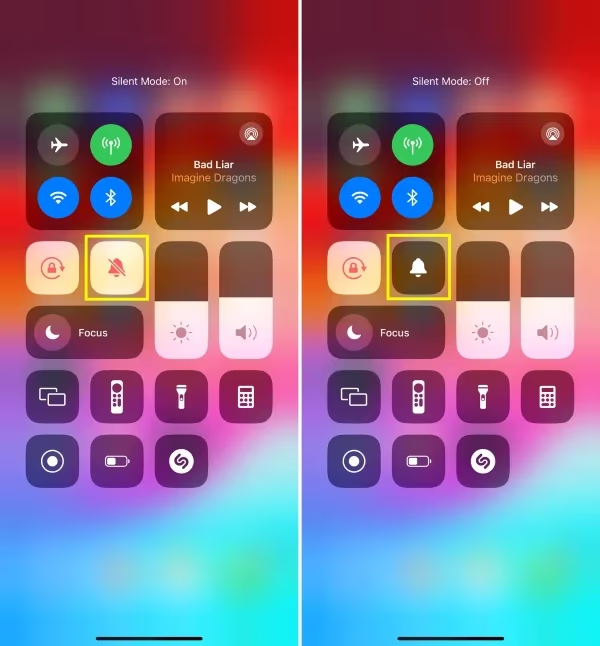
Swipe down from the top right to open Control Center
-
Make sure Silent Mode is disabled (indicated by a bell icon vs crossed out bell)
-
Check to see volume slider is raised and not muted
On Apple TV:
-
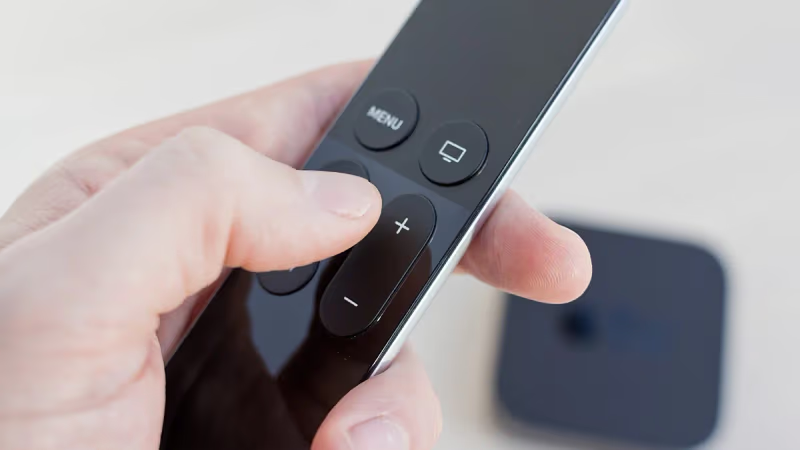
Locate volume controls on Apple TV remote
-
Press volume up several times
-
Try different media sources to isolate issues
If you can confirm devices are not muted and volume is turned up loud enough, it’s time to move on to further troubleshooting.
#Fix #2: Select Proper AirPlay Audio Output
Another settings miscue that can lead to no AirPlay sound is having the audio output for streaming set incorrectly.
On iPhone/iPad:
-
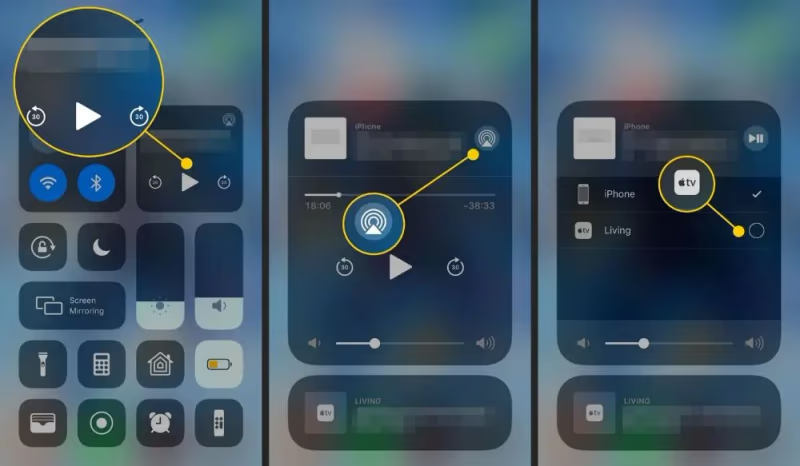
Open Control Center then tap the AirPlay icon
-
Under “Play Media On” check the option selected
-
Choose your Apple TV/smart TV or speakers
On Mac:
-
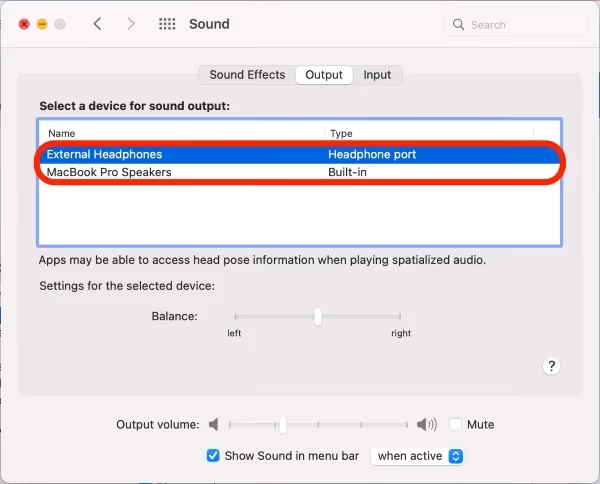
Click Apple menu > System Preferences > Sound
-
Click Output tab
-
Select AirPlay device under “Select output device”
Also take a moment to set audio input correctly. Choosing the proper playback device setup gets the sound routing to where you want.
#Fix #3: Update Apps Causing AirPlay Issues
While AirPlay itself is integrated at the iOS and app level, particular apps can still have compatibility issues interfering with streaming to smart TVs.
Updating apps to current versions solves most conflicts:
On iPhone/iPad:
-
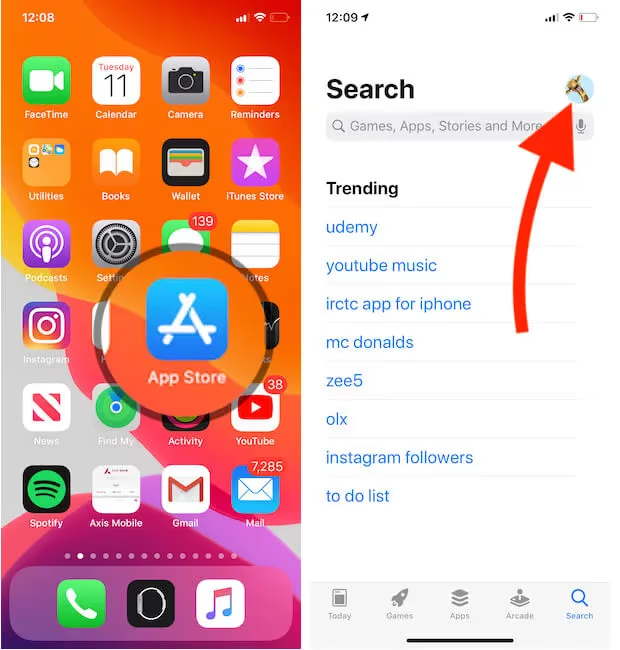
Open the App Store
-
Tap profile icon >Available Updates
-
Update any apps related to streaming issues
On Mac:
-
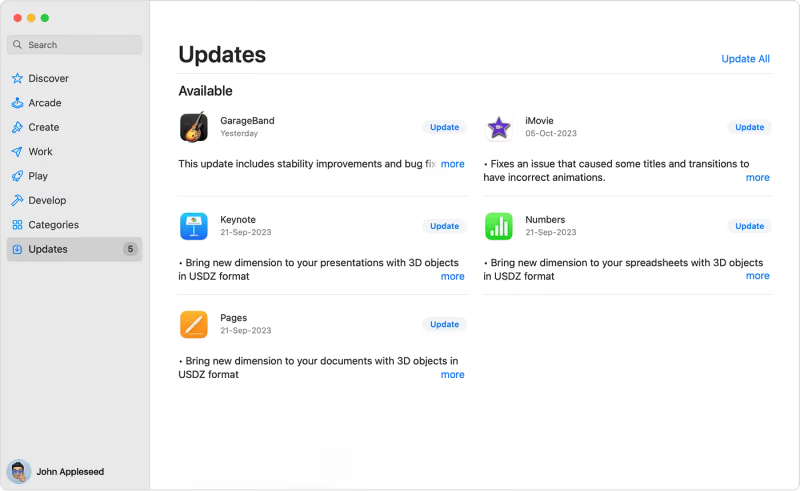
Launch the Mac App Store
-
Click Updates in left sidebar
-
Update apps with problems
Newer app releases often contain AirPlay performance improvements and bug fixes. Updating eliminates a common cause of AirPlay audio not working.
#Fix #4: Power Cycle Connected Devices
If you’re still not getting sound via AirPlay, try rebooting the iPhone/iPad, Apple TV and WiFi router powering the connection:
Restart iPhone/iPad
-
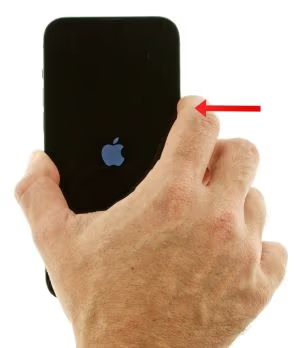
Hold Power + Volume Down buttons until powered off
-
Wait 30 seconds minimum before powering back on
Reboot Apple TV
-
Go to Settings > System > Restart
-
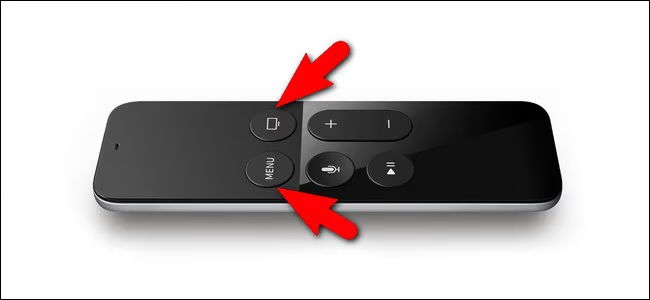
Or hold Menu + TV buttons for 6 seconds
Power cycle wireless router
-
Unplug router AC power for 1 minute
-
Plug back in so router resets
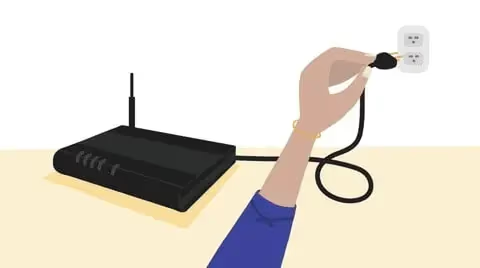
Rebooting everything forces devices to re-initiate the WiFi network and often resolves no sound or video issues with AirPlay mirroring and streaming.
#Fix #5: Switch iPhone and Apple TV to 2.4GHz WiFi
If you have a dual-band router broadcasting both 5GHz and 2.4GHz networks, interference or connection drops on the faster 5GHz frequency can interfere with stable AirPlay streaming.
For best results, have your iPhone/iPad and Apple TV join the 2.4GHz WiFi band instead:
-
Go to iOS Settings > Wi-Fi
-
Select the 2.4GHz WiFi network option
-
Enter password if prompted
-
Follow same process on Apple TV
The 2.4GHz band maintains wider device compatibility and more reliable connections for streaming media.
#Fix #6: Adjust Apple TV Audio Settings
To rule out audio format compatibility issues between your Apple TV and television display causing no AirPlay sound, adjusting settings may help get streaming audio routing correctly:
-
Navigate to Settings > Video and Audio > Audio Format
-
Change format to Dolby Digital 5.1
-
Under Audio Mode choose Stereo option
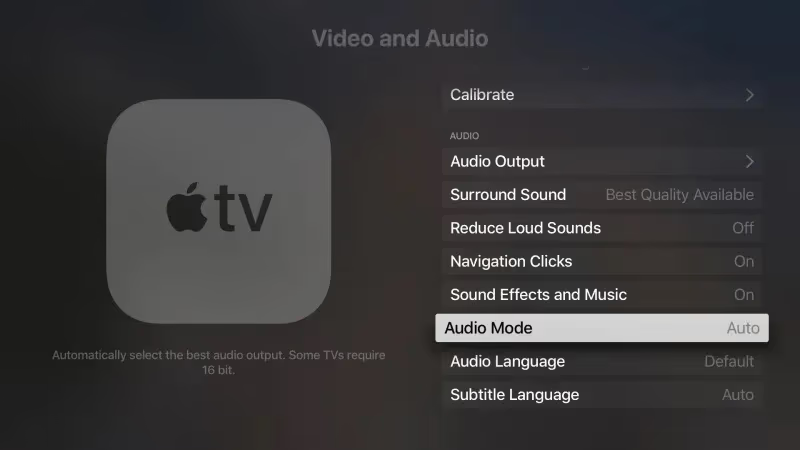
Playing around between Stereo, Dolby and back can re-initialize audio codecs to start streaming sound properly.
For Samsung, Vizio and other smart TVs, check that TV audio output is configured correctly:
- Under Audio settings, set Sound Output or Digital Audio Out to PCM
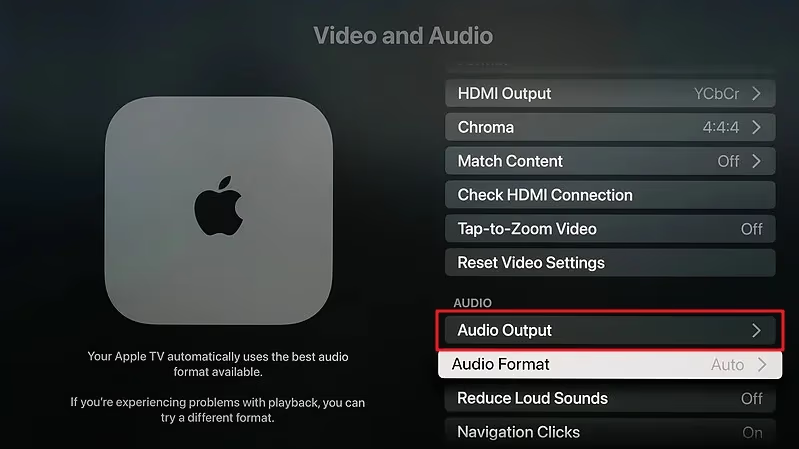
Trying both PCM and Auto modes toggles sound decoding that may kickstart AirPlay audio.
#Fix #7: Check AirPlay Hardware Connections
It’s also worth inspecting the physical HDMI cabling from your Apple TV media streamer to television:
-
Make sure HDMI cable is firmly inserted in tight at both ends
-
Try disconnecting and reconnecting cable, or reverse insertion direction
-
Test with different HDMI ports on TV, use new cable if issues persist

Any loose connections or faulty cords can manifest as cutting out video and sound when streaming content to your TV display.
For non-Apple smart TVs, double check external audio output connections going to speakers, sound bars and receivers. Make sure everything is wired correctly with solid connections.
#Fix #8: Extend WiFi Coverage If Needed
Placement issues like your iPhone streaming from AirPlay being too far away from the Apple TV/WiFi router can also interrupt connectivity:
-
Move iOS device into same room as Apple TV
-
Test AirPlay performance when closer together
-
If sound works properly, extend WiFi network range
Adding an affordable mesh WiFi system provides boosted signals for reliable wireless coverage all through your settings.
#Fix #9: Reset Network Settings on iPhone
For persistent AirPlay sound problems, reset your iPhone’s network settings back to factory defaults:
-
Go to Settings > General > Transfer or Reset iPhone > Reset
-
Tap “Reset Network Settings” to wipe configs
-
Rejoin WiFi network afterwards
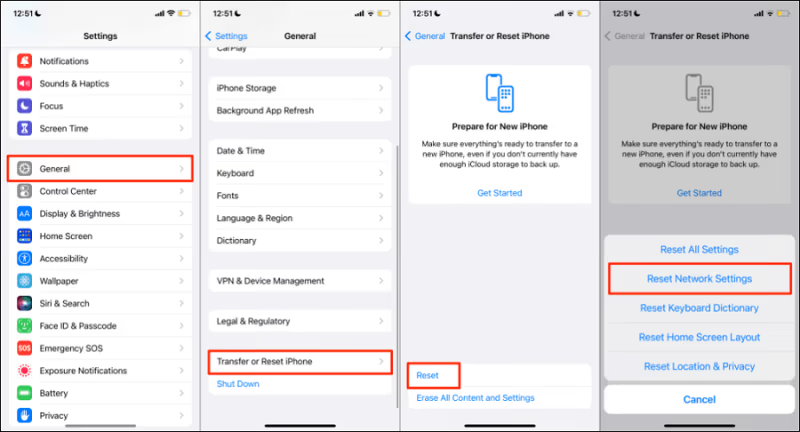
Resetting network settings reinitializes all connectivity-related configs that may have become corrupted and causing issues.
#Fix #10: Update iOS and tvOS Software
Outdated operating system versions full of bugs are another culprit that can ruin AirPlay performance and cause no audio.
Always keep your iPhone, iPad, Apple TV and Mac updated:
iOS Updates
-
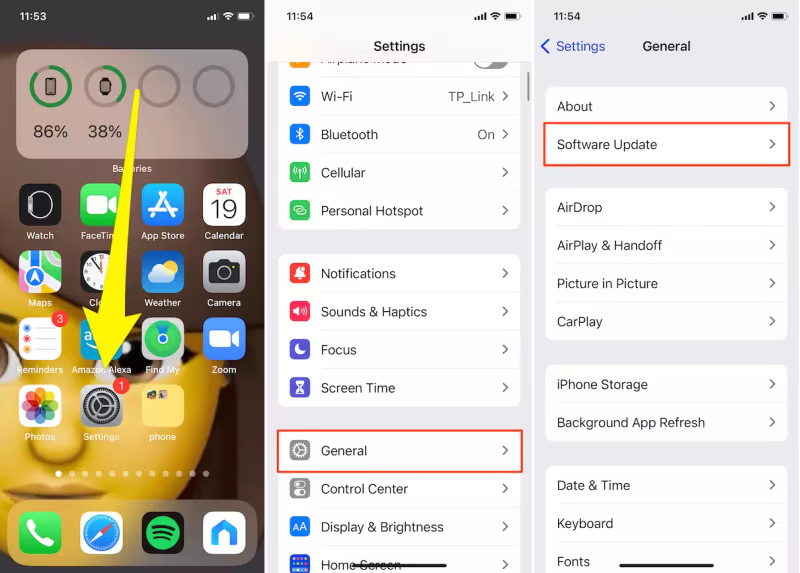
Open Settings app > General > Software Update
-
Install latest iOS version
tvOS Updates
-
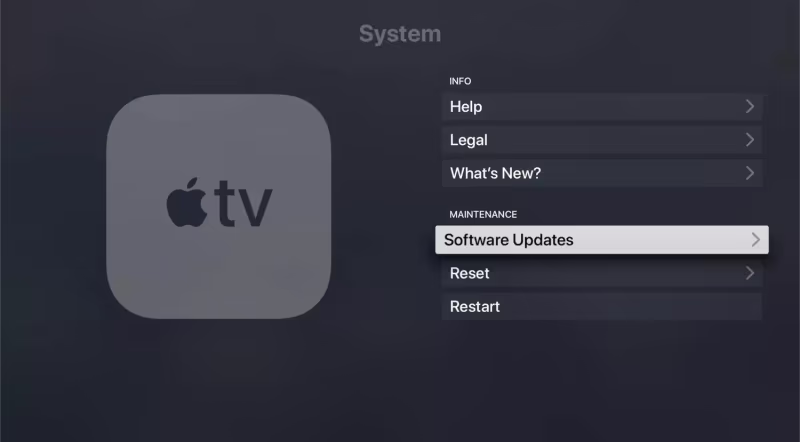
Go to Settings > System > Software Updates
-
Update Apple TV to newest tvOS
Staying current with major iOS and tvOS updates ensures optimum compatibility across Apple devices using AirPlay streaming.
#Fix #11: Disable 5GHz WiFi on Router
If your dual-band router won’t allow changing WiFi bands connected on Apple TV, you can log into its admin interface and disable the 5GHz network completely:
-
Browse to router IP address (192.168.1.1 or similar)
-
Enter admin password
-
Locate 5GHz wireless settings
-
Turn off or disable 5GHz network
-
Connect Apple TV and iPhone to 2.4GHz WiFi
With only a single 2.4GHz WiFi available, AirPlay connectivity improves. Enable 5GHz again down the road when testing confirms no more no sound problems.
#Fix #12: Perform an SMC Reset on Mac
For Macs used as AirPlay streaming sources, perform an SMC reset to refresh low-level system management hardware settings:
-
Fully shut down your Mac
-
For notebooks, plug in the power adapter
-
Press (left side): Shift + Control + Option + Power
-
Release all keys at once
-
Wait several seconds before powering back on
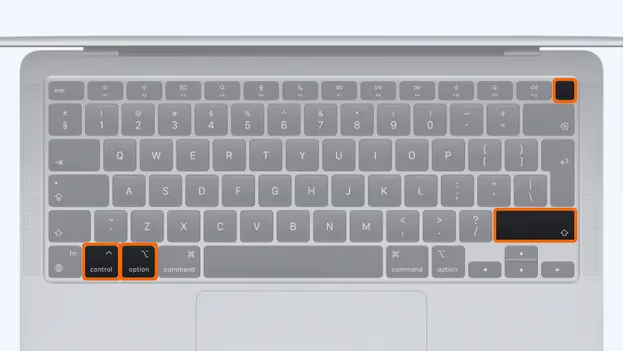
An SMC reset fixes AirPlay problems like choppy playback and no audio by resetting underlying connectivity components.
#Fix #13: Block Firewall Ports Causing Interference
Certain background apps like antivirus suites inspecting network traffic can also affect AirPlay:
-
Go to System Preferences > Security & Privacy > Firewall
-
Click Firewall Options
-
Add firewall exceptions for the mDNSResponder and Apple apps
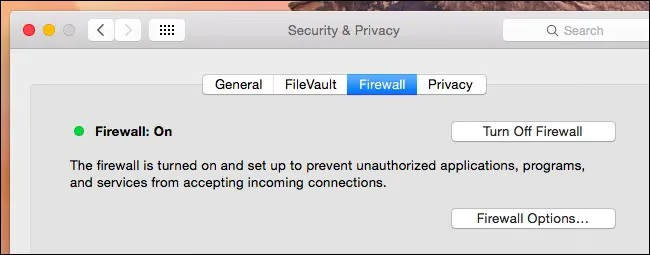
Whitelisting key Apple background processes prevents firewalls from interfering with AirPlay zeroconf network connectivity essential for discovering and pairing Apple TVs.
#Fix #14: Factory Reset Apple TV
If you’ve tried the above troubleshooting to no avail, resetting Apple TV restores factory settings which should restore functionality:
-
Go to Settings > System > Reset
-
Select “Reset and Update” option
-
Continue through prompts
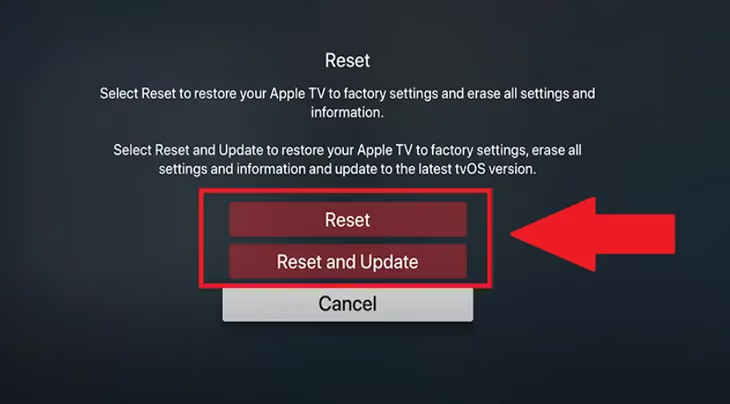
Choose “Erase all Content and Settings” for a cleaner slate if issues persist after updating. Resetting Apple TV wipes any problematic configs preventing AirPlay streaming with sound.
#Fix #15: Contact Apple Support
For advanced technical support troubleshooting AirPlay problems, Apple offers dedicated assistance:
-
Navigate to Official Apple Support
-
Select desired product (iPhone, iPad, Apple TV etc)
-
Choose contact options like chat or phone support
Apple support can walk through additional steps like logs analysis to zone in on no sound causes. They may suggest replacement hardware if they determine defective parts.
#Troubleshoot AirPlay No Sound: Key Takeaways
-
Double and triple check volume levels before further troubleshooting
-
Update/reboot streaming source devices and TVs
-
Switch connected WiFi bands or boost signal strength
-
Play with audio output formats on Apple TV and television
-
Reset iOS network settings and Apple TV to factory defaults
-
Contact Apple for replacement parts if issues persist
Staying current with major software updates and toggling key connectivity-related settings resolves most AirPlay no sound problems. But for ongoing or advanced issues, don’t hesitate to use the available Apple support channels.
#How Can You Prevent AirPlay Sound Issues?
Once you’ve managed to get AirPlay streaming working properly again, keep it running smooth by:
-
Always joining iPhone, iPad and Apple TV to the same WiFi
-
Updating devices whenever new iOS and tvOS releases arrive
-
Periodically power cycling the Apple TV and WiFi router
-
Setting explicit AirPlay audio outputs to avoid incorrect switching
-
Streaming content with AirPlay from same room as Apple TV
A little preventative maintenance goes a long way towards avoiding frustrations of no sound and interruptions.
#Frequently Asked Questions
#Why is there no sound when I AirPlay from iPhone to TV?
The most common reasons are incorrect audio output selection and muted volume on either the iPhone or the TV. Other causes include incompatible apps, Wi-Fi interference, and outdated iOS or tvOS software. Check Control Center to confirm Silent Mode is off and volume is up.
#Does AirPlay use Wi-Fi or Bluetooth?
AirPlay uses Wi-Fi exclusively to discover and stream content to receiving devices like Apple TV. Both the source device and the AirPlay receiver must be connected to the same Wi-Fi network for audio and video to work.
#Why does my iPhone have no sound when screen mirroring?
Screen mirroring audio failures usually stem from your iPhone and TV being on different Wi-Fi bands, or the TV’s sound output being set to an inactive port. Silent Mode on the iPhone is another frequent cause. Switching both devices to the same 2.4 GHz network and disabling Silent Mode fixes it in most cases. For persistent connection issues, see our guide on AirPlay not showing up.
#How do I fix AirPlay no sound on an LG TV?
Start by confirming that AirPlay is enabled in your LG TV’s Sound settings under Screen Share. Then check the volume on both your iPhone and the TV, reboot the TV, and connect both devices to the 2.4 GHz Wi-Fi band. Set Audio Out to Optical or HDMI ARC, and update both the TV firmware and your iOS version.
#Can I fix AirPlay audio issues on Samsung, TCL, or Hisense TVs?
Yes. The troubleshooting steps are similar across brands: verify Wi-Fi, check audio output settings, and update firmware. For brand-specific walkthroughs, see our guides for LG TV AirPlay not working, AirPlay unable to connect to Samsung TV, TCL TV AirPlay not working, and Hisense TV AirPlay not working.
#Will a factory reset fix AirPlay no sound on Apple TV?
A factory reset wipes all settings and reinstalls tvOS, which removes any corrupted configurations blocking AirPlay audio. Go to Settings, then System, then Reset and choose “Reset and Update.” Try less drastic fixes first, such as power cycling and toggling audio formats, before resorting to a full reset.
#Can I use AirPlay to stream audio to a hotel TV?
Most modern hotel TVs with AirPlay support allow streaming, but hotel Wi-Fi networks often block device-to-device communication. You may need to use a personal hotspot or a travel router to create your own network. Check our step-by-step guide on how to AirPlay to a hotel TV for detailed instructions.
#Does switching to 2.4 GHz Wi-Fi really help AirPlay audio?
The 2.4 GHz band has better range and wall penetration than 5 GHz, which reduces signal dropouts during AirPlay streaming. Many users report that audio cuts out on 5 GHz but plays without interruption on 2.4 GHz. If your router broadcasts both bands, connect your iPhone and Apple TV to the 2.4 GHz network for the most stable connection.