Connecting your phone to a hotel room TV opens up your full streaming library while traveling. This guide walks through three proven methods: wired HDMI, wireless screen mirroring, and portable streaming sticks.
- HDMI wired connections are the most reliable — no Wi-Fi needed, zero latency, and your phone charges at the same time
- AirPlay works wirelessly on most smart TVs made after 2019 — both devices must share the same Wi-Fi network
- Android users can mirror via Smart View — found in the Quick Settings pull-down menu on Samsung and most Android phones
- Portable streaming sticks bypass hotel TV limitations — Fire TV Stick, Chromecast, and Roku Express all plug into any HDMI port
- Hotel Wi-Fi firewalls often block screen mirroring — a wired connection or personal hotspot is the backup plan
#How Do You Connect Your Phone to a Hotel TV With HDMI?
The most reliable way to connect your phone to a hotel room TV is with a physical HDMI cable.
Here’s a step-by-step guide to linking devices via either a direct HDMI cable or HDMI adapter:
Requirements
-
HDMI adapter if your phone does not have a full-size HDMI port
-
Hotel TV with HDMI input
Instructions
-
Connect the HDMI cable between the TV input and your phone’s HDMI port. For phones without a dedicated HDMI port, attach an HDMI adapter accessory first.
-
Switch the hotel TV source to HDMI input. This is commonly done via the remote control input button or on-screen settings menu.
-
Enable screen mirroring on your smartphone. On iPhone, activate AirPlay. On Android, enable Smart View wireless display.
-
If successfully paired, your phone’s display should now be mirrored on the big screen. Launch media apps and content to view on the TV.
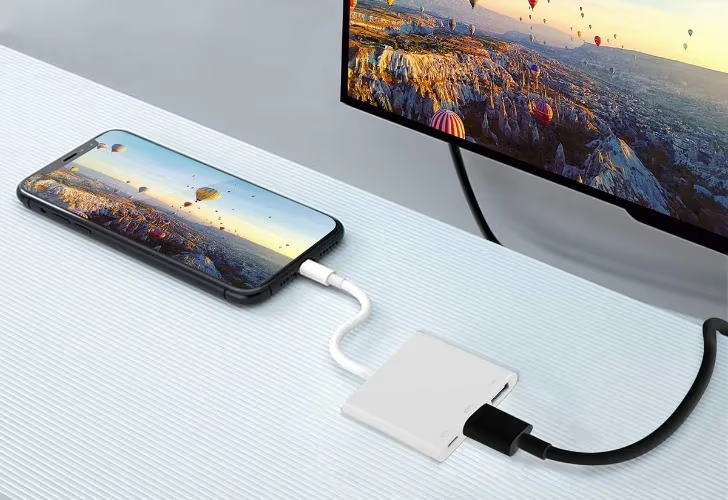
The main benefits of using a wired HDMI connection include:
-
No Wi-Fi or internet required
-
Reduced latency for smoother streaming
-
Charges phone battery simultaneously
-
Provides the highest-quality video and audio
Just be careful not to strain the charging port or cables when connecting devices. Also double check TV compatibility by looking for an HDMI logo or input.
#Can You Mirror Your Phone to a Hotel TV Wirelessly?
If you forgot your HDMI cable and adapter combo pack, you can still send videos from your phone to the hotel TV. Most modern televisions support wireless screen mirroring through their built-in smart platform.
Here are instructions for the two major mobile ecosystems:
Android Screen Mirroring
-
Ensure phone and smart TV are connected to same Wi-Fi network.
-
Initiate the Smart View screen mirroring feature on your Android device. This is found in the Quick Settings pull down menu.
-
Select the correct TV from the target device list now displayed on your phone. Accept the pairing prompt on TV if needed.
-
Once successfully connected, apps and media will now be cast from your phone to the big screen.
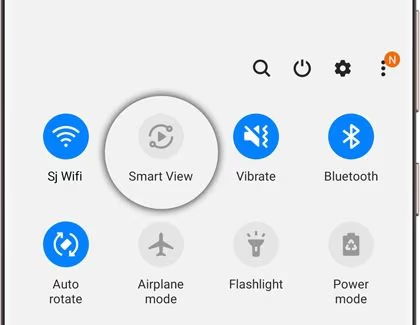
iPhone to TV AirPlay
-
Connect both iPhone and hotel smart TV to a mutual Wi-Fi source, often the hotel’s guest network details.
-
Swipe down from the top right edge to reveal Control Center on your iPhone. Select Screen Mirroring.
-
Choose the corresponding TV from the target list to initiate pairing.
-
If passwords or confirmation prompts appear on your TV screen, accept them.
-
You can now view media and apps directly from your iPhone on the larger display.
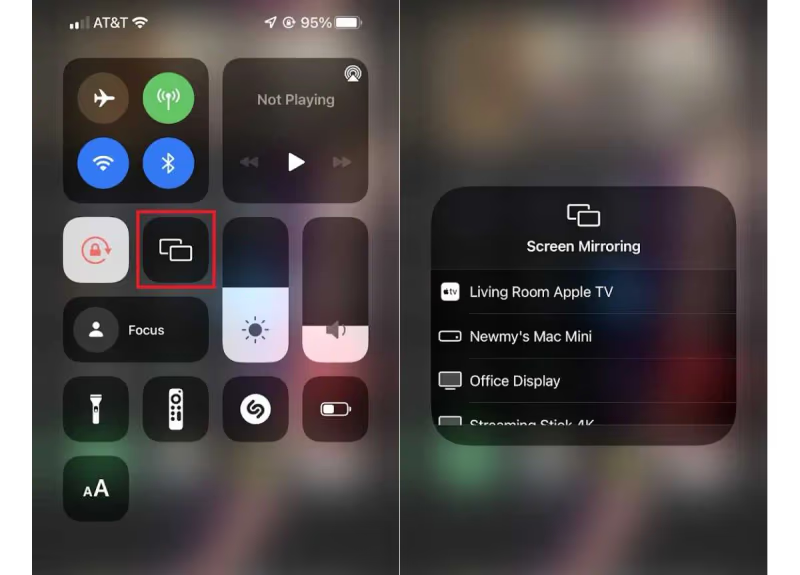
Key benefits of wireless screen sharing:
-
No cables or dongles required
-
Uses existing phone mirroring technology
-
Allows streaming apps access
-
Straightforward setup
But performance relies heavily on the speed and strength of the Wi-Fi connection. Multiple device interference can also disrupt media streams.
#Using Third-Party Streaming Sticks
Portable HDMI streaming sticks are another popular way to send personal content from your phone to a hotel room television.
Devices like the Amazon Fire Stick, Google Chromecast and Roku Express plug directly into TV HDMI ports. This instantly enables smart functionality and direct wireless streaming from your phone.
Here is an overview of using these third-party devices to connect your phone to a hotel room TV:
Requirements
-
Active streaming stick like Fire TV Stick Lite
-
Live TV HDMI input
-
Both devices connected to working Wi-Fi
Setup
-
Insert streaming media stick into open HDMI port on back/side of television.
-
Change TV input mode if necessary and connect stick to Wi-Fi network.
-
Download corresponding app on your phone (i.e. Roku). Login or create free streaming account.
-
Follow mobile app connection process to pair phone with plugged-in device.
-
Once successfully synced, access media apps and screen mirroring functionality in app.
-
Content shared from phone should now display directly on hotel room’s television screen. Video and audio will play from the TV speakers.
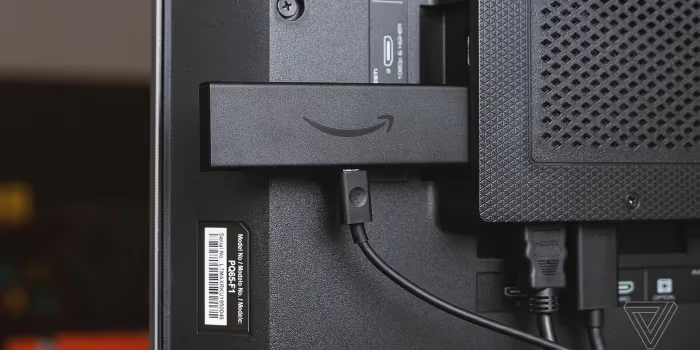
Benefits of Fire TV, Chromecast and Roku:
-
Small, portable and reusable
-
No wires or casting needed
-
Support virtually all media apps
-
Dedicated remote controls
Just be sure to bring your own streaming device and double check TV HDMI compatibility beforehand when possible.
#Common Problems and Troubleshooting Tips
Despite best laid plans, getting finicky technology to cooperate is never guaranteed. Especially when mixing your own devices with unfamiliar hotel room equipment.
Here are some of the most common phone to hotel TV connection issues and suggested fixes:
Can’t Locate HDMI Input
Many older hotel room televisions lack external HDMI ports altogether. Search behind panels or inspect the input label guide on the display for a rarely used HDMI source. Still not showing up? Consider switching to a wireless casting option instead or using an AirPlay TV adapter.
Spotty Wireless Performance
Mirroring your device screen over Wi-Fi relies heavily on strong connectivity. If your video or music stream keeps freezing and buffering, try moving closer to the TV or connecting to an alternative network. Also close unused apps on your phone to prioritize bandwidth for casting content like ESPN or TikTok.
External Device Not Compatible
Some hotel room entertainment equipment is outdated and incompatible with modern phones like the iPhone 15 or Galaxy S24. If pairing prompts fail repeatedly between your phone, HDMI cable and the TV, double check specifications support and ask the front desk about upgrading. Common smart TV brands like Vizio, TCL, Roku and Insignia generally have good support for AirPlay and casting.
Restrictive Network Policies
To protect bandwidth and privacy, hotel Wi-Fi networks often implement tight restrictions via firewalls and MAC address filtering. This can disrupt media streams and device pairing. Request access from IT staff or consider a wired connection instead to avoid blocked ports.
Must Login Before Access
Some hotel TV systems require you login or accept terms before allowing external connections or content streaming. If pairing fails, but inputs are accessible, check for popup prompts on the television requesting you accept TOS or enter credentials from the remote.
#Best Practices for Hotel TV Connections
Follow this expert advice for the smoothest, most enjoyable experience streaming phone videos, music and more on your hotel room big screen:
-
Check input compatibility – Verify TV specifications support HDMI, Chromecast or AirPlay beforehand
-
Charge devices beforehand – Streaming drains battery life quickly
-
Bring your own cables and adapters – Don’t rely on availability
-
Connect TV to external speakers – Enhance the audio greatly
-
Close other apps on your phone – Provides maximum bandwidth
-
Disable notifications – Prevents unwanted disruptions
-
Use a wired connection when possible – Most reliable performance
-
Be respectful if unsuccessful – Limit connection attempts
#FAQ
#Can you AirPlay to any hotel TV?
Not every hotel TV supports AirPlay. The TV needs to be an AirPlay 2-compatible smart TV from brands like Samsung, LG, Sony, or Vizio manufactured after 2019. If the hotel TV is older or a commercial-grade display, you will need an Apple TV box, a Lightning/USB-C to HDMI adapter, or a compatible streaming stick to mirror your screen.
#Do you need Wi-Fi to connect your phone to a hotel TV?
Wi-Fi is only required for wireless methods like AirPlay and Chromecast. A direct HDMI cable connection works without any internet or Wi-Fi access at all. This makes HDMI the go-to backup when hotel networks are slow, restricted, or require a captive portal login that blocks device-to-device communication.
#Why does AirPlay keep disconnecting at hotels?
Hotel Wi-Fi networks frequently use client isolation, which prevents devices on the same network from communicating with each other. This blocks AirPlay entirely. Ask the front desk if they have a network without client isolation, or create your own local network using a portable travel router connected to the hotel’s ethernet port.
#Is it safe to plug a streaming stick into a hotel TV?
Yes. Plugging a Fire TV Stick, Roku, or Chromecast into a hotel TV HDMI port poses no security risk to the television. However, always log out of your streaming accounts before you check out, and remove the device when you leave. Some hotels disable unused HDMI ports, so check with the front desk if your stick gets no signal.
#What HDMI adapter do you need for iPhone?
iPhones with a Lightning port (iPhone 14 and earlier) need Apple’s official Lightning Digital AV Adapter. iPhones with USB-C (iPhone 15 and later) work with any standard USB-C to HDMI adapter or cable. Third-party Lightning adapters exist at lower prices, but they often cap output at 720p and lack HDCP support for streaming apps like Netflix.
#Can you use a mobile hotspot instead of hotel Wi-Fi for screen mirroring?
Yes, and it often works better. Create a personal hotspot on one phone, then connect both the TV (or streaming stick) and your second device to that hotspot. This avoids hotel firewall restrictions entirely. Keep in mind that streaming video over cellular data uses roughly 1 GB per hour at 720p, so monitor your data plan.
#Does Chromecast work on hotel Wi-Fi?
Chromecast typically struggles on hotel Wi-Fi because it requires your phone and the Chromecast to be on the same network subnet. Hotel captive portals and client isolation usually prevent this. The workaround is to bring a travel router, connect it to the hotel’s wired ethernet, and create your own private Wi-Fi network that both devices can join without restrictions.
#Bottom Line
Having access to your entire personal media library makes any hotel stay feel more like home. Now that you know how to connect your phone to the hotel room television, streaming your own content is quick and reliable.
To recap the main methods covered:
-
Wired connection – HDMI cable to TV and phone adapter
-
Wireless casting – Built-in screen mirroring like AirPlay
-
Streaming sticks – Chromecast, Fire TV and Roku
Follow the step-by-step instructions provided above to begin enjoying your own streaming content from popular apps in hotel room comfort.
Safe travels and happy streaming!