TikTok has over 1 billion monthly active users, but watching on a phone screen limits the experience. AirPlay lets you send TikTok videos from your iPhone, iPad, or Mac straight to your TV over Wi-Fi. This guide covers wireless and wired methods so you can watch TikTok on the big screen no matter your setup.
- AirPlay 2 mirrors your full screen — any app including TikTok displays on your TV wirelessly
- iPhone/iPad requires iOS 12 or later — both devices must share the same Wi-Fi network
- Mac streams through tiktok.com — use Control Center to start screen mirroring from macOS Catalina 10.15+
- Wired HDMI connection works without Wi-Fi — use a Lightning or USB-C Digital AV Adapter plus an HDMI cable
- Most major TV brands support AirPlay 2 — including Samsung, LG, Sony, Vizio, and Roku TVs
#How Do You Stream TikTok from iPhone or iPad to TV?
Thanks to AirPlay 2, you can mirror the entire screen of your iPhone or iPad to your TV with just a few taps. This displays any app in full-screen on your TV, including TikTok. You can also use this same method to AirPlay ESPN and other video apps to your TV.
#What You’ll Need
-
iPhone or iPad running iOS 12 or later
-
TV with built-in AirPlay 2 support like Vizio, Insignia, Roku TV or Apple TV 4K/HD
-
iOS and TV/Apple TV connected to same Wi-Fi
#Step-By-Step Guide
Follow these steps:
-
Check TV has AirPlay enabled in settings menu
-
Open the Control Center on your iPhone/iPad
-
Tap the Screen Mirroring icon
-
Select your TV from list of available devices
-
Allow TV to access AirPlay when prompt displays
-
Open TikTok app on your iPhone/iPad
-
Start watching any video
-
Video will now stream to your TV
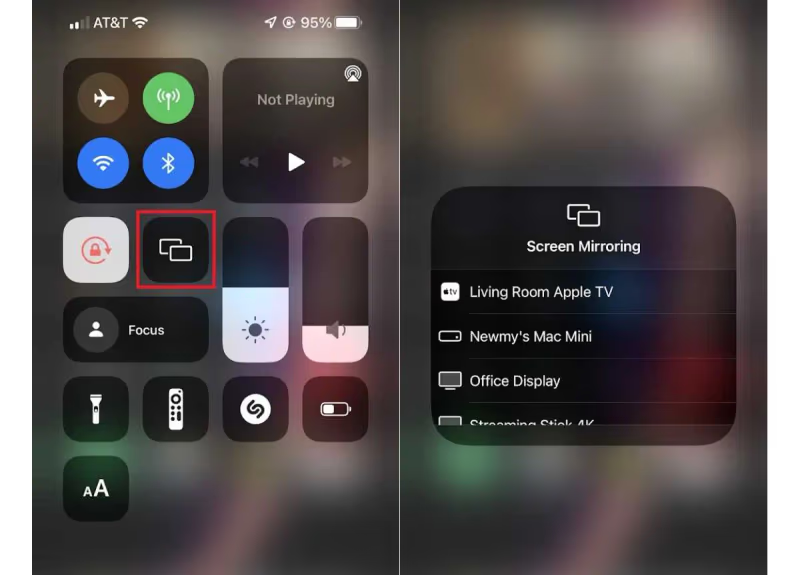
Once you finish streaming, disconnect AirPlay on your iPhone or iPad to stop sharing your screen with the TV. If you don’t have an AirPlay compatible TV, you can also watch TikTok on Roku by downloading the app directly.
#How Do You AirPlay TikTok from a Mac to Your TV?
You can also use AirPlay to show TikTok on your TV straight from your Mac. The process is similar to iOS but starts in a web browser instead.
#Prerequisites
-
Mac running macOS Catalina 10.15 or higher
-
AirPlay compatible TV
-
Both devices connected to same local Wi-Fi
#Step-By-Step Instructions
-
Check AirPlay is enabled on your TV
-
Go to tiktok.com and sign into your account
-
Start playing any video
-
Click Control Center icon and select Screen Mirroring
-
Choose your TV from list of available devices
-
TikTok video will now display on your TV
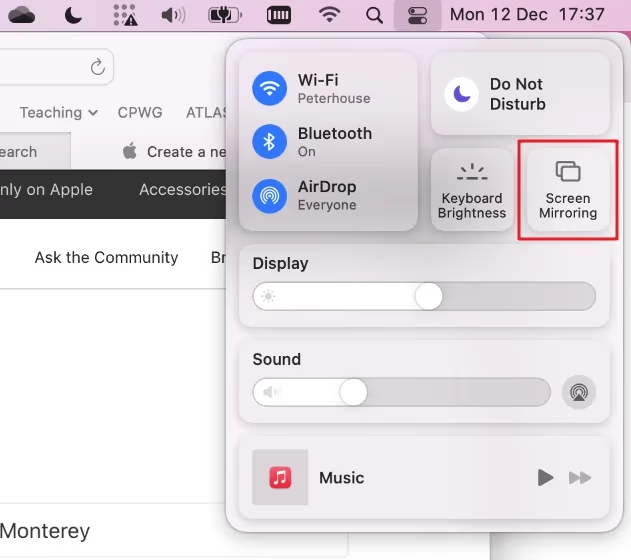
Once done, disconnect your Mac from the TV in the Control Center to stop sharing screens.
#Can You Display TikTok on TV Without a Wi-Fi Connection?
Don’t have your devices connected to the same Wi-Fi network? Not a problem.
You can display TikTok from your iPhone, iPad or Mac on your TV using a wired connection with the appropriate Digital AV adapter for your device. This method bypasses Wi-Fi entirely.
#What You’ll Need
-
iPhone/iPad + Lightning Digital AV Adapter
-
Or Mac + USB-C Digital AV Multiport Adapter
-
TV with HDMI input
#Step-By-Step Guide
Follow these steps:
-
Connect Digital AV Adapter to power source
-
Connect adapter to iPhone/iPad charging port or USB-C port on Mac
-
Use HDMI cable and connect adapter to TV’s HDMI input
-
Enable screen sharing to TV display
-
Open TikTok app on your iPhone/iPad or visit tiktok.com on your Mac
-
Stream any video and enjoy on the big screen!
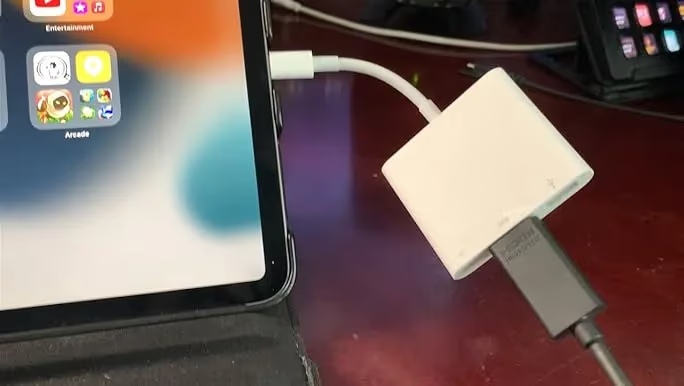
This wired option works well when your devices aren’t on the same Wi-Fi network but you still want to enjoy TikTok on TV.
#Bottom Line
-
AirPlay TikTok to both AirPlay 2 Smart TVs and Apple TV models from your iPhone, iPad and Mac.
-
Wireless connection requires both streaming device and TV to be connected to the same Wi-Fi.
-
Alternate wired connection option for devices on different networks works with HDMI cable + Digital AV adapter.
-
Make sure AirPlay/screen mirroring is enabled on destination screen before you start streaming.
-
End AirPlay session when done to prevent ongoing mirroring of your personal device screen.
#FAQ
#Can I AirPlay TikTok to a non-Apple TV?
Yes, as long as your smart TV has AirPlay 2 built in. Samsung, LG, Sony, Vizio, and Roku TVs from 2019 onward generally include AirPlay 2 support. Check your TV’s settings menu for an AirPlay toggle.
#Why does screen mirroring work better than standard AirPlay for TikTok?
Standard AirPlay only sends compatible media like music and movies. Screen mirroring shares your entire iOS display, so any app including TikTok appears on the TV. The tradeoff is slightly higher latency compared to direct AirPlay streaming.
#Do I need to download an app on my TV to use AirPlay?
No. AirPlay 2 is a system-level feature on supported TVs and Apple TV models. Just enable it in your TV’s settings and your Apple devices will detect it automatically.
#What should I do if my devices won’t connect via AirPlay?
Start by confirming both devices are on the same Wi-Fi network. Restart your TV, phone, and router. If the TV still doesn’t appear in the screen mirroring list, check that AirPlay is turned on in the TV’s settings. A wired HDMI connection is a reliable backup if wireless fails.
#Does AirPlay TikTok streaming cause lag or buffering?
Some lag is normal with screen mirroring since your device encodes and transmits the display in real time. A 5 GHz Wi-Fi connection reduces latency noticeably. Placing your router closer to both devices also helps.
#Can I still use my iPhone while AirPlaying TikTok?
Your iPhone screen mirrors everything to the TV, so any app you open or notification that appears will show on the TV too. There is no way to use the phone privately while mirroring. You would need to disconnect screen mirroring first.
#Will TikTok audio play through the TV speakers?
Yes. When you mirror your screen, both video and audio route to the TV. You can adjust volume using either your iPhone or the TV remote. If audio doesn’t come through, check that your TV is not muted and that the HDMI input is selected.
#Is there a TikTok app available directly on smart TVs?
TikTok has released apps for some smart TV platforms including Samsung, LG, and Android TV. If your TV has the TikTok app, you can skip AirPlay entirely and browse TikTok natively on the big screen without needing an iPhone or Mac at all.