TCL Roku TVs have gained popularity for their simplicity and access to thousands of streaming channels. Select models also support AirPlay 2, letting you cast photos, videos, music and more from Apple devices. Follow this guide to set up Apple ecosystem features on your TCL Roku TV. To learn about AirPlay on other TV brands, check out our guides for Roku, Vizio, Sharp and Philips TVs.
- AirPlay 2 works on 5 TCL Roku model lines — S325, S327, S435, 535, and 635 running Roku OS 9.4+
- Setup takes under 2 minutes — enable AirPlay in Settings > Apple AirPlay and HomeKit
- Both screen mirroring and direct casting are supported — mirror your full display or send individual photos, videos, and music
- Mac users need macOS Monterey or later — older macOS versions lack native AirPlay to TV support
- Third-party apps and Roku app work as fallbacks — use these if your TCL model lacks native AirPlay
#Which TCL Roku TV Models Support AirPlay?
AirPlay 2 support first arrived in select TCL Roku TV models running Roku OS 9.4 and above.
To check if your TCL Roku TV works with AirPlay:
1. Verify your model number
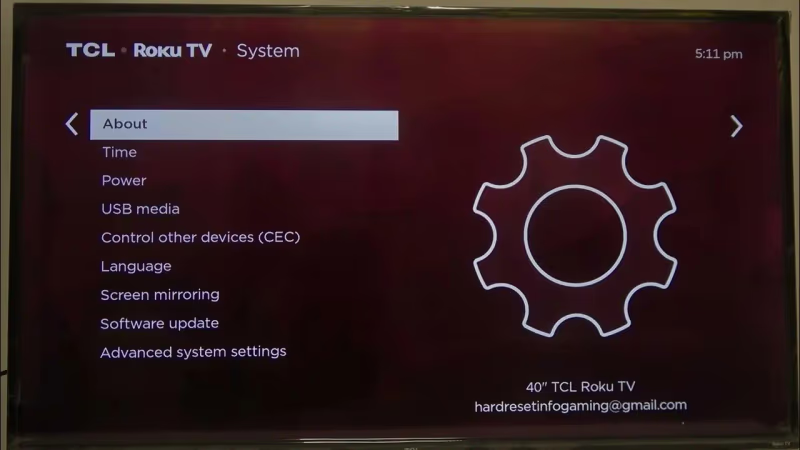
Go to Settings > System > About on your TCL Roku TV remote. Models beginning with the following prefixes support AirPlay when running Roku OS 9.4 or later:
-
S325
-
S327
-
S435
-
535
-
635
2. Ensure minimum Roku OS version
Under Settings > System > About, check that the OS version is 9.4 or higher.
Models without native AirPlay compatibility may be able to screen mirror from iOS using third-party apps.
#Step-by-Step Guide to Setting Up AirPlay on TCL Roku TV
Once you’ve confirmed AirPlay 2 compatibility, enabling wireless casting from Apple devices is straightforward:
1. Connect TCL Roku TV and Apple device to same WiFi
Ensure both are on the same 2.4Ghz or 5Ghz network. The TCL Roku remote signal can interfere with 5Ghz networks.
2. Turn on AirPlay
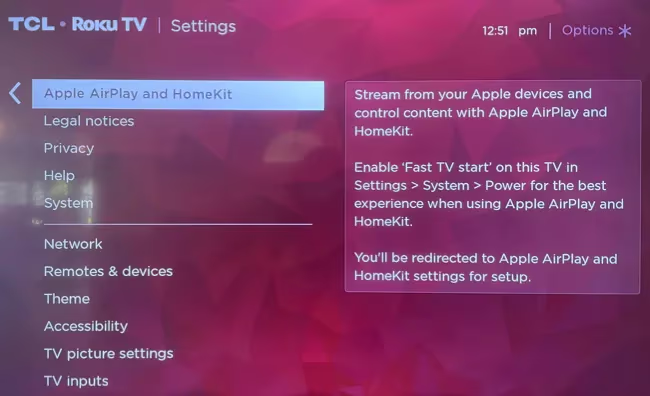
Go to Settings > Apple AirPlay and HomeKit. Set AirPlay and HomeKit to On.
Optional: Set AirPlay password
Under Settings > Apple AirPlay and HomeKit > AirPlay Password, create a password to secure your AirPlay connection.
3. Locate TCL Roku TV
On your unlocked iPhone, iPad or Mac, open the multitasking menu or Control Center. Your compatible TCL Roku TV should now be listed as an available device.
That’s it! Your TCL Roku TV is ready for AirPlaying content.
#Casting from iPhone and iPad to TCL Roku TV
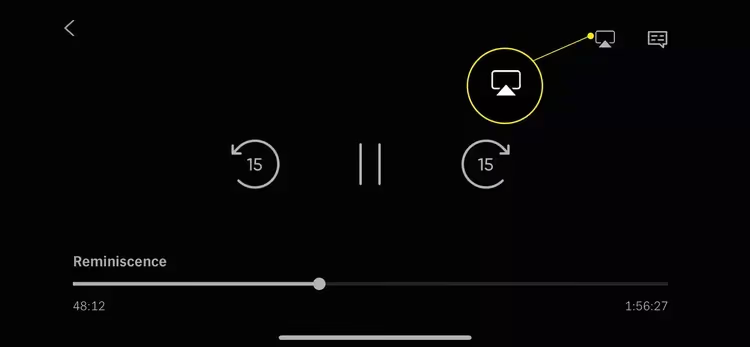
AirPlay 2 lets you beam videos, music, photos, games and more to your TCL Roku TV from iPhone and iPad:
Mirror Entire Screen
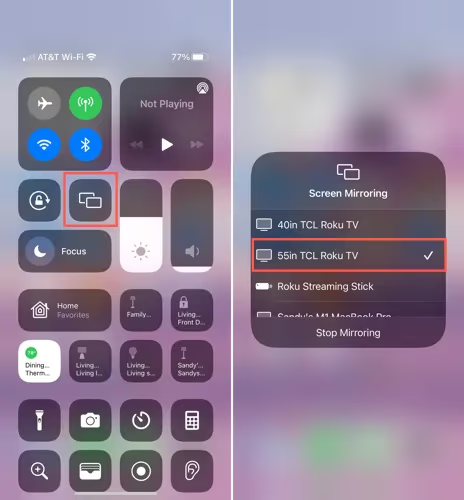
Access the Control Center and tap Screen Mirroring. Select your TCL Roku TV to mirror your entire iOS device screen.
Stream Photos & Videos
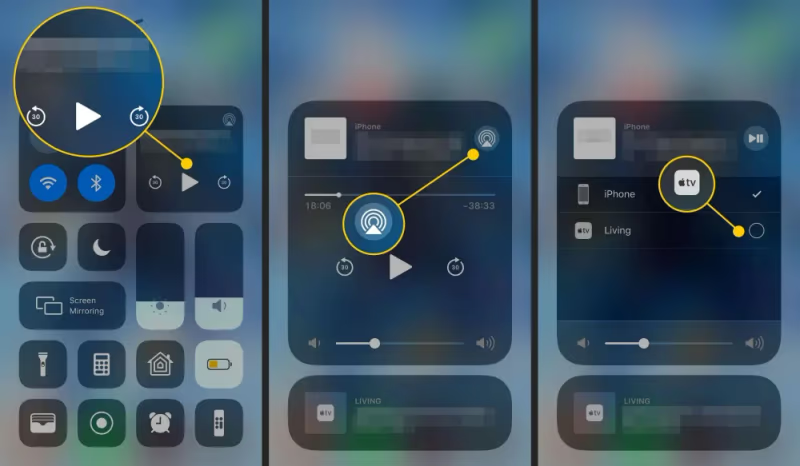
Open the Photos app. Tap the AirPlay icon when viewing a photo or video to cast to the TV.
Cast Apple Music
While playing audio, tap the AirPlay icon to select your TCL Roku TV speakers for Apple Music.
AirPlay Other Apps
Many third-party apps also have built-in AirPlay streaming support to easily view content on your TV.
#Casting from Mac to TCL Roku TV
Similar to iOS devices, Macs running macOS Monterey and above can directly AirPlay various content:
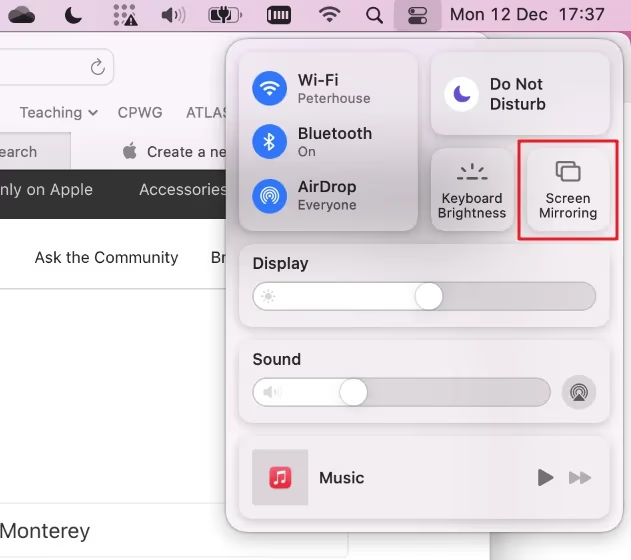
Mirror Screen
Click the Screen Mirroring icon in the menu bar to select your TCL Roku TV. Your entire macOS screen will be displayed.
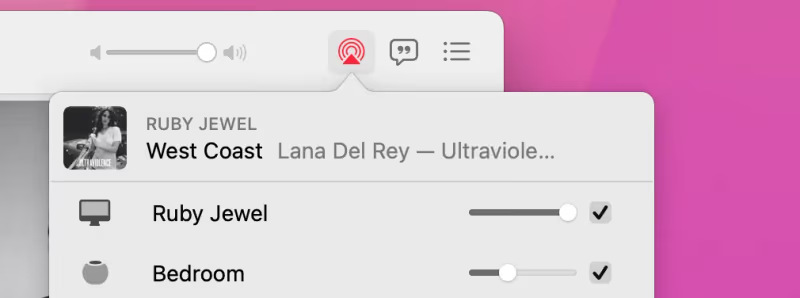
Cast Photos, Videos, Music & More
Right click on photos, videos, Apple Music and compatible third-party apps. Click AirPlay to beam individual content to the TCL Roku TV.
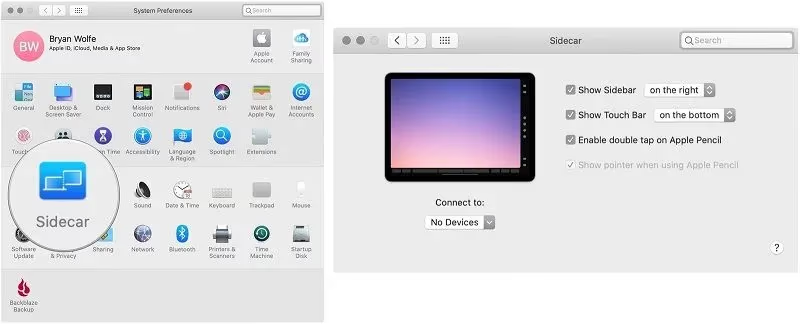
Use Sidecar
Under System Preferences, click Sidecar to extend your Mac desktop onto a TCL Roku TV with touch capability.
#How Do You Fix AirPlay Connection Issues?
If AirPlay isn’t working properly between your Apple device and compatible TCL Roku TV, try these top troubleshooting tips:
Update Software
Ensure your TCL Roku TV, iPhone, iPad and Mac have the latest software updates installed. Outdated OS versions can disrupt AirPlay.
Check WiFi Connection
AirPlay requires your TCL Roku TV and Apple devices to be on the same wireless network. Reboot router and devices if the connection drops.
Toggle AirPlay Off and On
Go to Settings > Apple AirPlay and HomeKit. Disable AirPlay for 1 minute, then re-enable it. This refreshes the protocol connection.
Restart Devices
If the steps above don’t restore connectivity, restart your TCL Roku TV and Apple device. Reset network settings if issues persist afterwards.
Check for Compatibility Issues
Very rarely, certain devices may have underlying hardware limitations that hinder AirPlay performance. Contact TCL Support if you’ve exhausted other troubleshooting methods.
#Alternative Options for Casting to TCL Roku TV
If your TCL Roku TV isn’t compatible with AirPlay, or you’re having difficulties getting AirPlay functioning reliably, fear not!
There are alternative options for wirelessly casting photos, videos and other content from iPhone, iPad and Mac onto your TCL Roku TV screen:
-
Smart View App – Beams content via WiFi Direct to newer Samsung and Android smart TVs. Enable screen mirroring to show iOS device display.
-
Roku App – Official Roku app lets you cast personal media from iOS or Android devices to TV via phone and TV being on same WiFi network.
-
Miracast HDMI Adapters – Plug USB dongles into TV HDMI port to cast from Windows/Android devices via proprietary Miracast protocol.
While the native AirPlay experience may be simpler, the apps listed above can achieve similar wireless streaming functionality. Consider AirPlaying to Amazon Fire TV for more casting options.
#FAQ
#Why can’t I see my TCL Roku TV in the AirPlay device list?
Your TV likely doesn’t meet the compatibility requirements. Check that your model prefix is S325, S327, S435, 535, or 635 and that Roku OS 9.4 or later is installed. Both your TV and Apple device must be connected to the same WiFi network for AirPlay to detect the TV.
#Do I need the Apple TV app to use AirPlay on a TCL Roku TV?
No, the Apple TV app is not required. AirPlay 2 is a built-in protocol on compatible TCL Roku TVs running Roku OS 9.4+, so you can cast directly from any supported Apple device without installing extra apps.
#Can I AirPlay streaming apps like Netflix and Hulu to my TCL Roku TV?
Yes, many popular streaming services including Netflix, Hulu, YouTube, and Amazon Prime Video support in-app AirPlay. This sends the video feed directly to the TV in its native format, which looks better than mirroring your entire screen. Look for the AirPlay icon within the app’s playback controls.
#Why does AirPlay disconnect or lag on my TCL Roku TV?
WiFi interference and network congestion are the most common causes. Keep your router, TV, and casting device within close range of each other. Reboot all three devices if stuttering persists. For the most stable connection, plug your TV into the router with an ethernet cable.
#Can I control AirPlay playback with the Roku remote?
The Roku remote can power AirPlay content on or off, but it cannot control playback functions like pause, rewind, or volume during AirPlay sessions. You need to use the playback controls on your iPhone, iPad, or Mac instead.
#Does AirPlay work with older TCL Roku TV models?
Older models without AirPlay 2 support cannot use native AirPlay. However, you can install third-party mirroring apps on your iPhone or iPad that cast to Roku devices over WiFi. The official Roku app also lets you push personal media to any Roku-powered TV regardless of model year.
#Can I use AirPlay and watch regular TV at the same time?
No, AirPlay takes over the full screen on your TCL Roku TV. When you start an AirPlay session, the TV switches away from whatever input or channel you were watching. You need to stop AirPlay before returning to live TV or other Roku channels.
#Bottom Line
AirPlaying content from your iPhone, iPad and Mac onto a big screen TCL Roku TV takes just a few minutes with AirPlay 2 support.
As you’ve learned, getting set up takes just minutes after confirming your TCL Roku TV model meets compatibility requirements. Wired and wireless casting performance is solid for both mirroring your device’s screen as well as streaming photos, videos and music.
Beyond native AirPlay capabilities, there are plenty of alternative options available for beaming personal media libraries over WiFi onto TCL Roku TV models lacking AirPlay.
We hope this guide covered everything you need to know about unlocking the versatility of using your Apple devices and TCL Roku TV setup. Wirelessly casting entertainment is easier than ever thanks to AirPlay 2 integration.