Watching videos, playing games, or browsing photos on your iPhone can be tough on the small screen. You can mirror your iPhone to a Philips Smart TV for a much better viewing experience. In this guide, you’ll learn 3 methods to cast your iPhone screen to a Philips Smart TV using mirroring apps and AirPlay. We cover which apps work best, step-by-step setup instructions, troubleshooting tips, and ways to improve iPhone to Philips TV mirroring.
- AirPlay works on Philips TVs from 2019 onward: enable it in your TV’s settings menu under Apple AirPlay
- Both devices need the same Wi-Fi network: AirPlay and third-party apps all require a shared network connection
- ApowerMirror keeps full 60fps video quality: it routes through a PC with an HDMI cable for the best picture
- LetsView connects in one tap via QR code: free app with HD mirroring up to 1080p at 60fps
- iOS 12 or later is required for AirPlay: update your iPhone before attempting to mirror to a Philips TV
#What Are the Best Ways to Screen Mirror iPhone to Philips Smart TV?
Here are the top 3 recommended methods to wirelessly display iPhone on a Philips Smart TV:
-
ApowerMirror – Mirror iPhone via PC with HDMI cable. Retains excellent video quality.
-
LetsView – Native app pairing. One-tap QR code setup. Free to use.
-
AirPlay – Built-in iPhone mirroring protocol. No app download needed.
These methods provide wireless iPhone to Philips TV screen mirroring with minimal latency. Both free and paid options included.
Now let’s look at how each method works and step-by-step instructions for mirroring your iPhone.
#Method #1: Use ApowerMirror to Mirror via PC
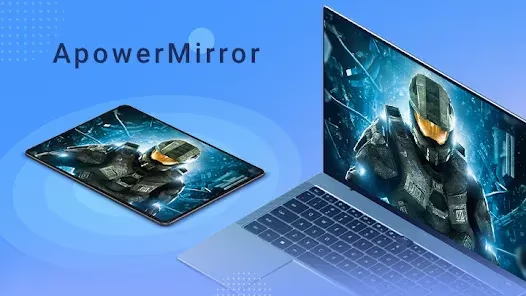
ApowerMirror is a versatile iPhone mirroring app allowing screen projection to Philips TV by routing the signal through a Windows/Mac computer using an HDMI cable.
#Why Use ApowerMirror?
-
Retains excellent original video quality
-
Low latency mirroring
-
Annotate screen during mirroring
-
iPhone controls media playback on TV
-
Mirror multiple devices simultaneously
#Step-by-Step Guide: Mirror iPhone to Philips Smart TV with ApowerMirror
#What You’ll Need:
-
iPhone
-
Windows or Mac computer
-
Philips Smart TV (2012 or newer)
Step 1. Download and Install ApowerMirror
First, download ApowerMirror on your iPhone and Windows/Mac computer. Tap install to add the app.
Step 2. Connect Computer to Philips TV via HDMI
Plug an HDMI cable from your Windows/Mac to a free HDMI port on the back of the Philips TV.
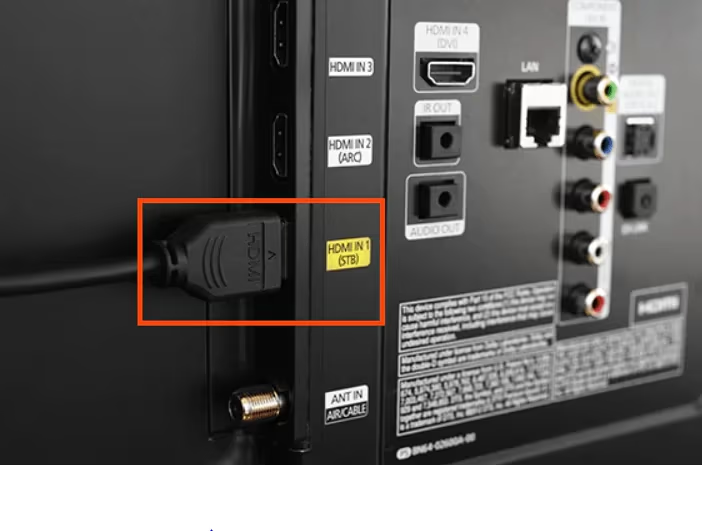
Then on your TV, select the HDMI input channel corresponding to the connected port. You may need to consult your TV manual to identify the proper input.
Step 3. Start iPhone Mirroring Session
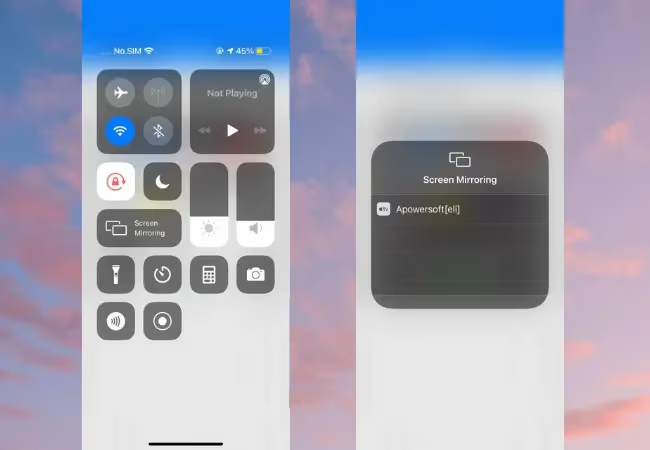
Now open ApowerMirror on your iPhone and tap the “Mirror” button. Select your computer from the list to initiate mirroring.
Next choose “Phone Screen Mirroring” and wait a moment while the connection initializes.
Step 4. Begin Streaming to Philips TV
The iPhone screen should now be mirroring directly to both your computer monitor and Philips TV!
To stop casting iPhone, swipe up and turn off ‘Screen Mirroring’ in iOS Control Center.
That’s it! With those four steps you can mirror iPhone video, photos, websites and more to your Philips Smart TV using ApowerMirror.
#How Do You Mirror iPhone to Philips TV with LetsView?
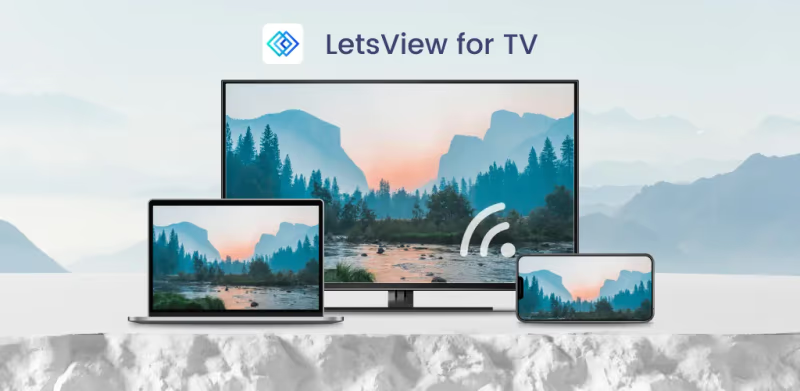
LetsView is a well-designed screen mirroring app enabling wireless connection between iPhone and Philips Smart TV.
#Why Use LetsView?
-
Free app
-
QR code connects in 1 tap
-
Low latency (50-100ms)
-
No cables/routers needed
-
Touch controls from iPhone
-
HD quality (up to 1080p at 60fps)
#Step-by-Step Guide: Mirror iPhone to Philips Smart TV with LetsView
#What You’ll Need
-
iPhone
-
Philips Smart TV (select 2012+ models supported)
-
LetsView app
Step 1. Download and Install LetsView
First, install LetsView on your iPhone from the App Store.
Also download LetsView on your Philips Smart TV from the Google Play Store if available or using ‘Apps’ store on your TV.
Step 2. Connect iPhone and Philips TV to Same Wi-Fi Network
Ensure your iPhone and Philips Smart TV are both connected to the same Wi-Fi network. LetsView creates a direct peer-to-peer connection over Wi-Fi.
Step 3. Launch LetsView and Start Casting
Now open LetsView on both devices. On iPhone, swipe down from top right to open Control Center and tap ‘Screen Mirroring’. Your TV name should appear.
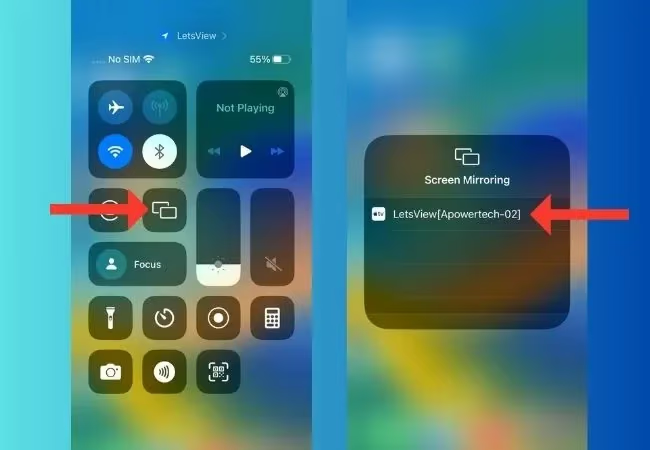
Select it and your iPhone screen will instantly mirror directly to your Philips TV over Wi-Fi!
If facing issues with LetsView not connecting, try these methods to fix AirPlay not showing up on TV.
#Method #3: Use AirPlay to Wirelessly Mirror iPhone to Philips Smart TV
AirPlay is an Apple proprietary protocol that allows wireless streaming from iPhone and Mac devices to smart TVs. Most late model Philips TVs have integrated AirPlay support.
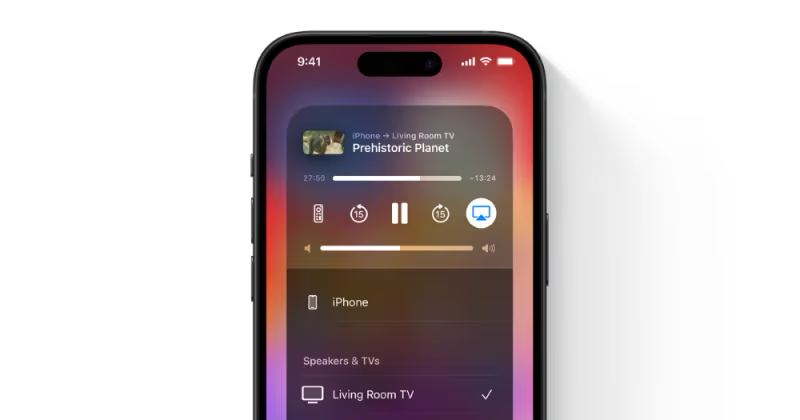
#Why Use AirPlay?
-
Built into iPhone by default
-
No apps to download
-
Straightforward screen mirroring
-
Display photos, video, music and more
However, some users report AirPlay keeps disconnecting from TV intermittently. Follow our guide for troubleshooting tips.
#Step-by-Step Guide: Mirror iPhone to Philips Smart TV with AirPlay
#What You’ll Need
-
iPhone (must be iOS 12+)
-
Philips Smart TV (select 2019+ models with AirPlay)
-
Connected to same Wi-Fi network
Step 1. Enable AirPlay on Your Philips Smart TV
Check if your Philips TV model supports AirPlay. Usually 2019 and newer.
In your Philips TV settings menu ensure Apple AirPlay is toggled ON. Consult TV manual if unsure.
Step 2. Swipe to Access iPhone Control Center
On your iPhone swipe down from the top right corner to reveal Control Center. Tap the ‘Screen Mirroring’ icon.
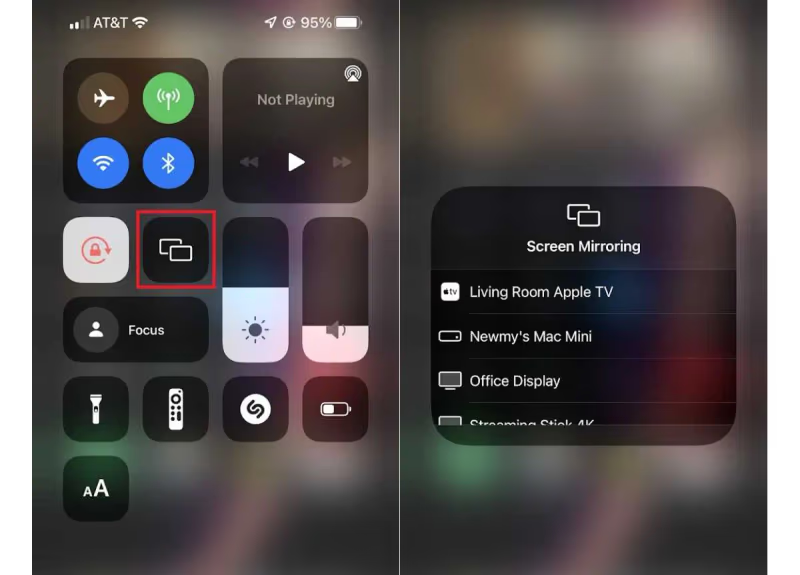
Step 3. Select Your Philips TV
Your TV name should now appear in the iPhone screen mirroring menu if available on same network. Tap the name to begin casting.
Step 4. Enjoy Mirroring iPhone to Philips TV!
You can now stream videos, music, photos, gameplay, and more from iPhone directly to the big screen! Everything on your iPhone is mirrored wirelessly.
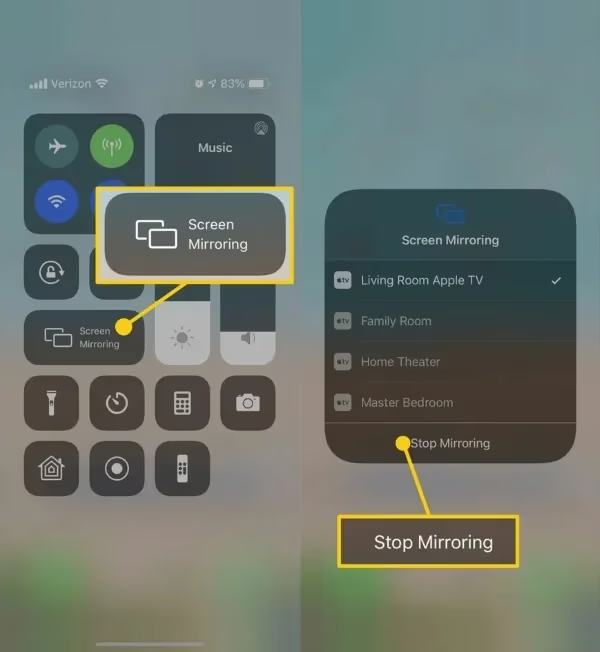
To stop casting, swipe up and turn ‘Screen Mirroring’ off in Control Center. Enjoy effortless iPhone to Philips Smart TV mirroring with AirPlay!
#What Tips Help With iPhone to Philips TV Mirroring?
Follow these handy tips for smooth, glitch-free screen mirroring:
-
Update to latest OS — Ensure iPhone and Philips TV have latest firmware updates installed for best compatibility.
-
Check Wi-Fi strength — Position iPhone and Philips TV closer to router for fastest wireless performance.
-
Enable CEC controls. With HDMI-CEC, your Philips TV remote can control iPhone mirrored playback.
-
Disable battery optimizations. Stop battery saver modes closing mirroring apps in background.
-
Cast safely. Use a TV flexion bracket to securely hold your OLED TV while casting.
-
Clean display. Gently wipe down your matte Philips TV panel for clearer mirrored picture.
#Bottom Line
Whether you have an iPhone 14 Pro Max or older iPhone SE, it’s straightforward to mirror your small screen to a big Philips Android Smart TV with ApowerMirror, LetsView or AirPlay.
-
For buttery smooth 60fps screen mirroring retaining maximum video quality, ApowerMirror combined with HDMI cable is tough to beat.
-
If you want a quick wireless solution using iPhone and Philips TV apps alone, check out LetsView.
-
Or use the AirPlay protocol already built into your iPhone and newer Philips models.
Upgrade your viewing experience today! Ditch squinting at tiny text on a small iPhone display. Instead relax on your couch streaming crystal clear 4K movies, video calling friends and family on a 65-inch Philips Ambilight TV, or conquering game levels on a cinematic scale.
Whatever your smart screen mirroring needs, this guide covered the top methods for how to cast iPhone to Philips Smart TV models wirelessly. Now you can sync your iPhone with a Philips TV in minutes!
For more AirPlay mirroring tips, check out our guides on:
#Frequently Asked Questions
#Does my Philips TV support AirPlay?
Most Philips Smart TVs made in 2019 or later support AirPlay 2. Check under Settings > Wireless & Networks > Apple AirPlay on your TV. If you don’t see this menu, your model likely predates AirPlay support, and you’ll need a third-party app like LetsView or ApowerMirror instead.
#Can I mirror my Mac to a Philips TV with AirPlay?
Yes. Click the Control Center icon in your Mac’s menu bar and select Screen Mirroring. Your Philips TV should appear if both devices share the same Wi-Fi network. This works on macOS Monterey (12.0) and later.
#Why is my AirPlay connection lagging on Philips TV?
Lag usually comes from a weak Wi-Fi signal or network congestion. Move your router closer to the TV, switch from the 2.4GHz band to 5GHz for less interference, and close bandwidth-heavy apps on other devices. A wired Ethernet connection to the TV, if available, eliminates wireless lag entirely.
#Do I need an Apple TV to use AirPlay on Philips TV?
No. Philips TVs with built-in AirPlay 2 connect directly to your iPhone or Mac without any extra hardware. Apple TV is a separate streaming device and is not required when your TV already has native AirPlay support.
#Can I stream Netflix or YouTube through AirPlay to my Philips TV?
You can, but it’s not the best approach. AirPlay mirrors your entire screen, so notifications and calls will show on the TV too. For Netflix and YouTube, use the dedicated TV apps instead for higher quality playback and independent phone use.
#How do I fix AirPlay not showing my Philips TV?
Start by restarting both your iPhone and the Philips TV. Confirm they’re on the same Wi-Fi network and that AirPlay is toggled on in the TV settings. If the TV still doesn’t appear, try a power cycle: unplug the TV for 60 seconds, plug it back in, and check again.
#Is there any delay when mirroring games through AirPlay?
AirPlay typically adds 50-150ms of latency, which is noticeable in fast-paced games. For casual games like puzzles or card games, the delay is barely felt. ApowerMirror with an HDMI cable connection gives lower latency for gaming since it bypasses wireless transmission.
#Can I mirror iPhone to Philips TV without Wi-Fi?
Not with AirPlay or LetsView, since both require a Wi-Fi network. The only workaround is using a Lightning-to-HDMI adapter (or USB-C to HDMI for iPhone 15 and newer) plugged directly into the TV’s HDMI port. This gives a wired mirror with zero latency but keeps your phone tethered to the TV.