AirPlay on Insignia TV lets you wirelessly send videos, photos, and music from your iPhone, iPad, or Mac to your television screen. Whether your Insignia TV has built-in AirPlay or needs a streaming device, this guide walks you through every step.
Not every Insignia TV works the same way. The model year determines whether AirPlay is built in or requires extra hardware.
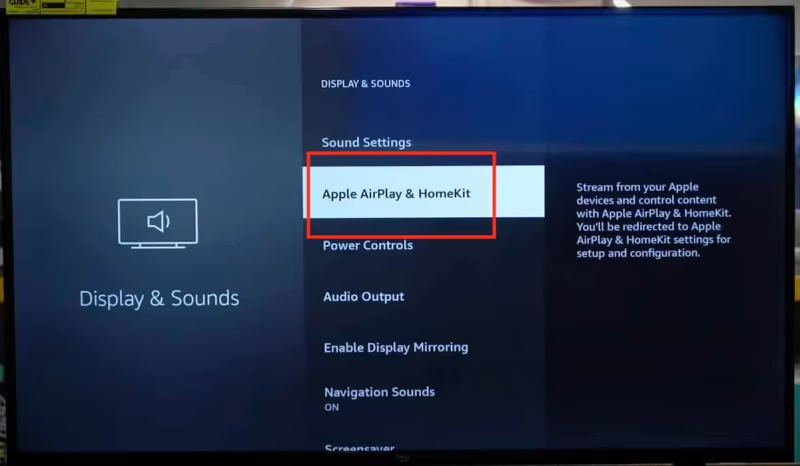
- Insignia Fire TVs (2020+) have native AirPlay — enable it in Settings > Display & Sounds > AirPlay & HomeKit
- Older Insignia TVs require a streaming device — Roku Streaming Stick or Apple TV 4K adds AirPlay support via HDMI
- Both devices must share the same Wi-Fi network — AirPlay will not detect your TV on a different network or frequency band
- 5 GHz Wi-Fi reduces lag and buffering — the 2.4 GHz band causes noticeable delays during video streaming
- AirPlay works for mirroring and direct streaming — screen mirroring shows your full display while app-level AirPlay sends only the media
#Which Insignia TVs Support AirPlay?
Your Insignia TV’s AirPlay compatibility depends on when it was manufactured and which platform it runs.
Insignia Fire TV Edition (2020 and newer): These models include built-in AirPlay through Amazon’s Fire OS integration with Apple HomeKit. You can find the model year printed on the back label of your TV or in Settings > Device & Software > About.
Insignia Fire TV Edition (pre-2020): These older Fire TV models do not support AirPlay natively. Amazon added AirPlay support to Fire OS starting in 2020, so earlier models were left out.
Insignia Roku TV and non-smart models: No built-in AirPlay. You will need an external streaming device plugged into an HDMI port.
If your Insignia TV has HDMI port issues, fix those first before attempting AirPlay setup with any external device.
#How Do You Enable AirPlay on a New Insignia Fire TV?
Setting up AirPlay on a 2020 or newer Insignia Fire TV takes about two minutes. Here is the exact process:
- Connect your iPhone or iPad and your Insignia Fire TV to the same Wi-Fi network.
- On your TV remote, press the Home button and navigate to Settings.
- Select Display & Sounds.
- Choose AirPlay & HomeKit.
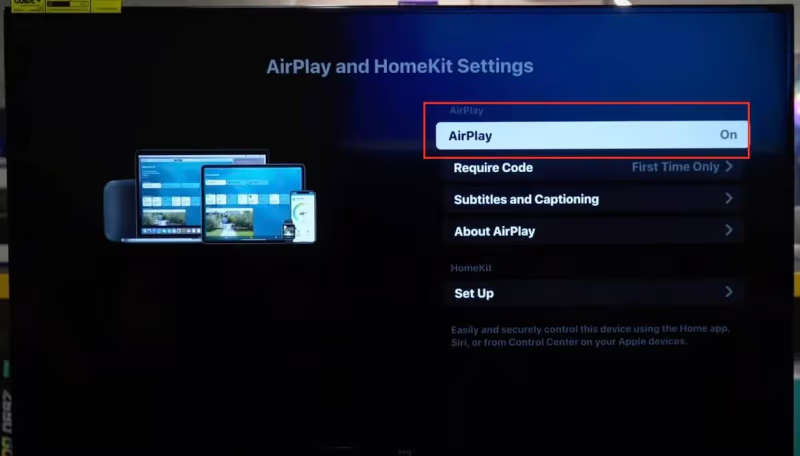
- Toggle AirPlay to On.
Now grab your iPhone or iPad:
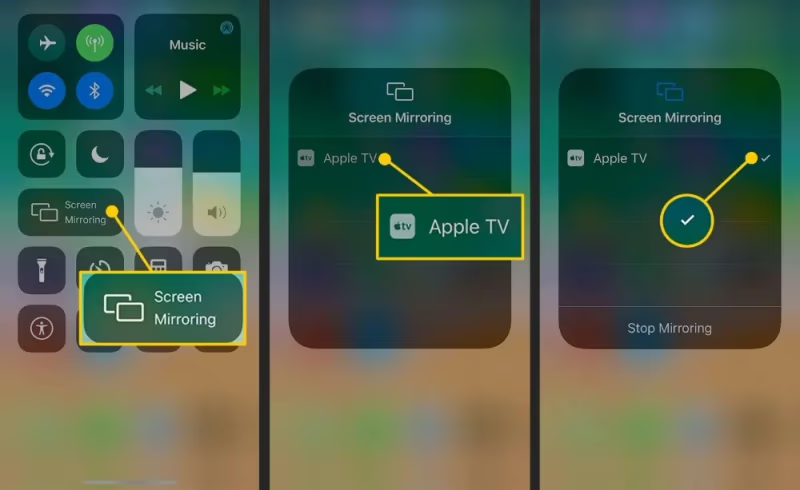
- Swipe down from the top-right corner to open Control Center.
- Tap Screen Mirroring.
- Select your Insignia TV from the device list.
- Enter the pairing code shown on your TV screen if prompted.
Your iPhone display should appear on the TV within a few seconds. To stream from a specific app instead, open the app (YouTube, Netflix, Photos) and tap the AirPlay icon directly.
#How Do You AirPlay to an Older Insignia TV?
Older Insignia TVs without built-in AirPlay need a streaming device that supports it. Two reliable options exist.
#Option 1: Roku Streaming Stick
Roku added AirPlay support to most of its devices in 2020. A Roku Streaming Stick 4K is the most affordable way to add AirPlay to any TV with an HDMI port.
- Plug the Roku Streaming Stick into your Insignia TV’s HDMI port.
- Complete the Roku setup process and connect to your Wi-Fi network.
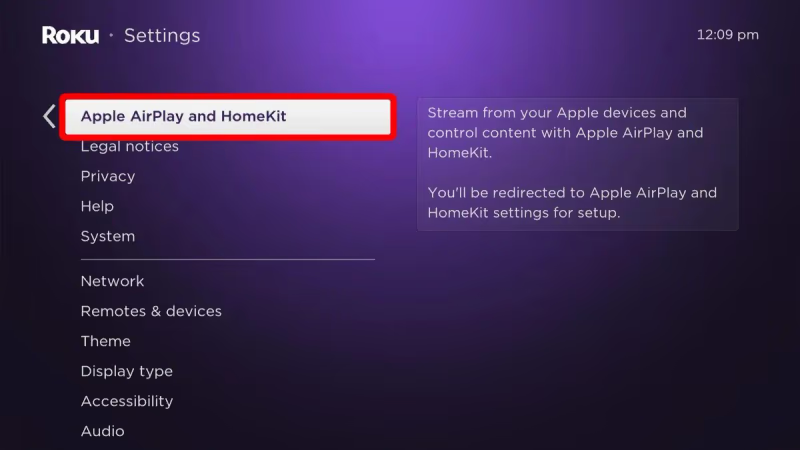
- On your Roku, go to Settings > Apple AirPlay and HomeKit.
- Turn on AirPlay.
- On your iPhone, open Control Center and tap Screen Mirroring. Select the Roku device.
The Roku must be running Roku OS 9.4 or later for AirPlay. Check your version in Settings > System > About. Update the firmware if needed.
#Option 2: Apple TV 4K
The Apple TV 4K provides the best AirPlay experience since Apple built the protocol.
- Connect the Apple TV 4K to your Insignia TV using the included HDMI cable.
- Power on and complete setup. Sign in with your Apple ID.
- Go to Settings > AirPlay and HomeKit and confirm AirPlay is enabled.
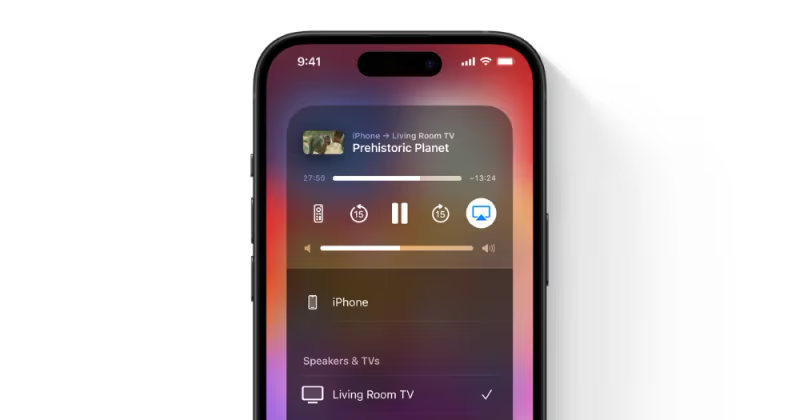
- On your iPhone, open Control Center, tap Screen Mirroring, and select the Apple TV.
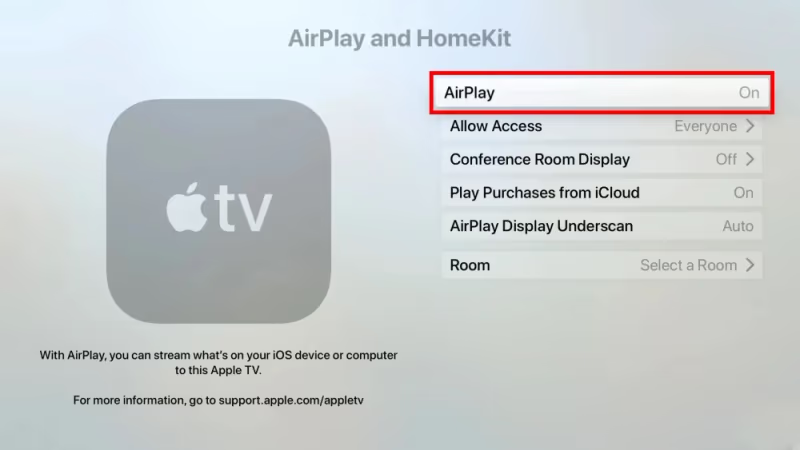
Apple TV 4K also supports AirPlay from Mac computers. Open System Settings > Displays on your Mac and choose the Apple TV as an external display.
#AirPlay Streaming vs. Screen Mirroring: What Is the Difference?
These two features look similar but work differently.
Screen mirroring duplicates your entire iPhone or iPad screen on the TV. Everything you do on your phone shows up on the television, including notifications, text messages, and app switching. The TV resolution matches your phone’s aspect ratio, so you may see black bars on the sides.
AirPlay streaming sends only the media content. When you tap the AirPlay icon inside an app like YouTube or Netflix, the app streams directly to the TV. You can use your phone for other tasks while the video plays. This method produces better video quality since the stream goes directly from the app server to the TV.
For watching movies and shows, AirPlay streaming is the better choice. For presentations, photo slideshows, or showing someone your screen, mirroring works well. You can also AirPlay content like TikTok to your TV or stream ESPN through AirPlay using the app-level AirPlay button.
#Troubleshooting AirPlay on Insignia TV
AirPlay connection problems are common. Here are the most frequent issues and their fixes.
#TV Does Not Appear in the AirPlay Device List
Both devices must be on the same Wi-Fi network and the same frequency band. If your router broadcasts separate 2.4 GHz and 5 GHz networks, make sure your phone and TV are on the same one. Restart your router if the TV still does not appear.
#AirPlay Connects but Video Lags or Buffers
Switch to the 5 GHz band on your router. Move your router closer to the TV, or reduce the number of devices using the network. Close background apps on your iPhone to free up processing power.
#AirPlay Keeps Disconnecting
This usually points to a weak Wi-Fi signal or a power-saving setting. Disable Low Power Mode on your iPhone. If the issue persists, check our detailed guide on AirPlay keeps disconnecting from TV for more fixes.
#No Sound During AirPlay
Verify the TV volume is up and not muted. Check that the audio output on your iPhone is set to the TV rather than a Bluetooth speaker. Our guide on AirPlay to TV with no sound covers all the audio troubleshooting steps.
#AirPlay Icon Not Showing on iPhone
Make sure AirPlay is enabled on the TV or streaming device. Restart both your iPhone and the TV. If the icon still does not appear, read our full guide on how to fix AirPlay not showing up.
#Tips for the Best AirPlay Performance
A few settings make a real difference in AirPlay quality.
Use the 5 GHz Wi-Fi band whenever possible. The 2.4 GHz band has more interference from microwaves, Bluetooth devices, and neighboring networks. On most routers, the 5 GHz network name ends with “_5G” or “_5GHz.”
Update your TV firmware regularly. On Insignia Fire TV, go to Settings > Device & Software > About > Check for Updates. Outdated firmware causes compatibility problems with newer iOS versions. Apple publishes AirPlay device requirements that list minimum firmware versions.
Keep your iPhone within 30 feet of the TV during AirPlay. Walls and floors weaken the Wi-Fi signal. If your TV is far from the router, consider a Wi-Fi extender or mesh system.
Close unused apps before starting AirPlay. iPhones with many background apps running may stutter during screen mirroring because the phone is processing multiple tasks at once.
#Bottom Line
Check your Insignia TV’s model year first. If it is a 2020 or newer Fire TV Edition, enable AirPlay in Settings > Display & Sounds > AirPlay & HomeKit. For older models, plug in a Roku Streaming Stick or Apple TV 4K and enable AirPlay on that device instead.
Connect both devices to the same 5 GHz Wi-Fi network for the best streaming quality. Use app-level AirPlay for movies and shows, and screen mirroring when you need to share your full display.
#FAQ
#Does AirPlay work on all Insignia TVs?
No. Only Insignia Fire TV Edition models from 2020 and later have built-in AirPlay support. Older Insignia Fire TVs, Roku TVs, and non-smart models need an external streaming device like a Roku Streaming Stick or Apple TV 4K connected via HDMI. Check your model year in Settings > Device & Software > About.
#Can I AirPlay from a Mac to an Insignia TV?
Yes, if your Insignia Fire TV supports AirPlay (2020+) or you have an Apple TV connected. On macOS Monterey or later, click the Control Center icon in the menu bar, select Screen Mirroring, and choose your TV. Older macOS versions use the AirPlay icon in the menu bar instead.
#Do I need an Apple TV to use AirPlay on Insignia?
Not necessarily. Insignia Fire TVs from 2020 onward have AirPlay built in, and Roku devices running OS 9.4+ also support it. An Apple TV 4K is one option but not the only one.
#Why does AirPlay lag on my Insignia TV?
Lag usually comes from Wi-Fi congestion or a weak signal. Switch both devices to the 5 GHz band, move closer to your router, and close background apps on your phone. If you are screen mirroring, try using app-level AirPlay instead since it streams directly from the content server.
#Can I use AirPlay and watch cable at the same time on Insignia?
No. AirPlay takes over the HDMI input or the entire screen on built-in Fire TV models. You cannot display both cable TV and AirPlay content simultaneously. Ending the AirPlay session returns you to your previous input.
#Is there a free alternative to AirPlay for Insignia TVs?
Most Insignia Fire TVs support Miracast for Android screen mirroring at no cost. For iPhones, free third-party apps like AirScreen (available on the Amazon Appstore) can receive AirPlay connections on older Fire TV models that lack native support. Quality varies compared to official AirPlay.
#Does AirPlay work over a mobile hotspot?
Yes, but performance depends on your cellular connection speed. Connect both the TV and your iPhone to the hotspot network. LTE hotspots usually handle standard definition video, while 5G hotspots can manage 1080p streaming. Battery drain on your phone will be significant since it is running the hotspot and sending AirPlay data at the same time.