AirPlay keeps disconnecting from your TV mid-stream, and you need it fixed now. This is one of the most common AirPlay complaints across Samsung, LG, Sony, and Vizio smart TVs. The good news: most disconnections trace back to a handful of causes that you can resolve in under 10 minutes.
- Wi-Fi signal strength — AirPlay requires both devices on the same network with at least -60 dBm signal for stable streaming
- Auto-lock is the top culprit — iPhone and iPad auto-lock cuts the AirPlay session after the screen sleeps
- Firmware mismatches cause drops — outdated tvOS, iOS, or TV firmware creates compatibility gaps that trigger disconnects
- 2.4GHz vs 5GHz matters — 5GHz offers faster throughput for video, while 2.4GHz reaches farther through walls
- Ethernet eliminates Wi-Fi issues — connecting your Apple TV 4K or smart TV via Ethernet cable removes wireless instability entirely
#Why Does AirPlay Keep Disconnecting?
AirPlay streams video and audio over your local Wi-Fi network. Any disruption to that connection drops the stream. Here are the specific triggers:
Network problems rank first. Weak signal, band congestion, and router firmware bugs all cause intermittent drops. If your router is in the basement and your TV is upstairs, the signal may not hold during a 2-hour movie.
Device settings come second. Auto-lock on iPhone and iPad terminates the AirPlay session when the screen goes dark. Low Power Mode throttles Wi-Fi performance. Do Not Disturb can block AirPlay handshake requests on some iOS versions.
Software incompatibility is the third category. Apple releases AirPlay protocol updates with each iOS and tvOS version. If your iPhone runs iOS 18 but your Samsung Smart TV hasn’t received a firmware update in a year, the two devices may struggle to maintain a connection.
#How Do You Fix AirPlay Dropping on a Smart TV?
Work through these fixes in order. Each one addresses a different root cause.
#1. Disable Auto-Lock on Your iPhone or iPad
This is the single most common fix. Go to Settings > Display & Brightness > Auto-Lock and set it to Never while streaming.
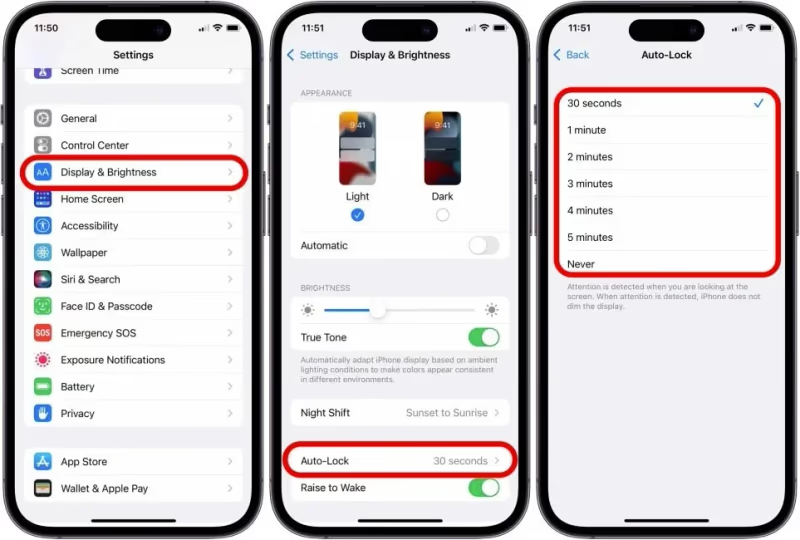
On Mac, open System Settings > Lock Screen and set “Turn display off when inactive” to a longer interval or Never. Once you finish streaming, change it back.
#2. Check Your Wi-Fi Signal Strength
Open the Wi-Fi settings on your iPhone and tap the info icon (i) next to your connected network. If the signal is weak, move your router closer to the TV or move the TV closer to the router.
For a quick test, stand next to your TV with your phone. If you see only one or two Wi-Fi bars, AirPlay will struggle. A Wi-Fi extender or mesh system like Eero or Google Nest Wifi solves dead-zone issues permanently.
#3. Confirm Both Devices Are on the Same Network
AirPlay requires the source device and the TV to share the exact same Wi-Fi network. This sounds obvious, but dual-band routers often create separate 2.4GHz and 5GHz networks. Your iPhone might connect to “HomeNetwork_5G” while your TV sits on “HomeNetwork.”
Check your TV’s network settings and your phone’s connected network name. They must match.
#4. Update All Software
Outdated firmware is a silent connection killer. Update every device in the chain:
- iPhone/iPad: Settings > General > Software Update
- Mac: System Settings > General > Software Update
- Apple TV 4K: Settings > System > Software Updates
- Samsung Smart TV: Settings > Support > Software Update
- LG Smart TV: Settings > All Settings > General > About This TV > Check for Updates
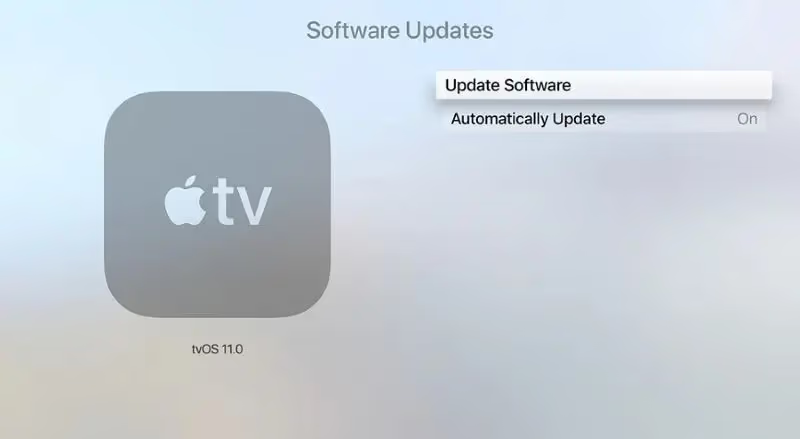
Apple’s AirPlay system requirements page lists minimum firmware versions for each compatible TV brand. If your TV model isn’t listed, it may not officially support AirPlay 2. For TVs that lack native support, an AirPlay TV adapter adds AirPlay capability through HDMI.
#5. Restart Everything
Power cycle your router, TV, and Apple device. Unplug your router for 30 seconds, then plug it back in. Turn off your TV (not just standby) and turn it on again. Restart your iPhone by holding the side button and volume button, then sliding to power off.
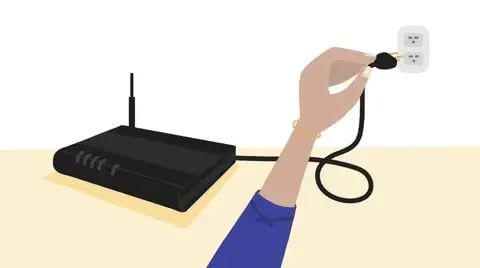
This clears stale network connections and temporary software glitches. It works more often than most people expect.
#6. Switch Wi-Fi Bands
If your router broadcasts both 2.4GHz and 5GHz bands, try switching. The 5GHz band offers higher throughput for video streaming but has shorter range. The 2.4GHz band travels farther through walls but handles less data.
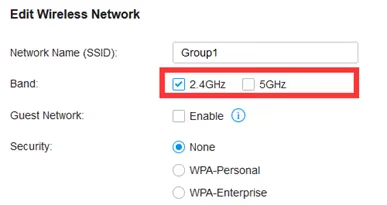
For most setups where the TV and router are in the same room, 5GHz performs better. If they’re separated by walls, 2.4GHz may give you a more stable connection.
#7. Use an Ethernet Cable
For Apple TV 4K, connect it directly to your router with an Ethernet cable. This removes Wi-Fi from the equation entirely.
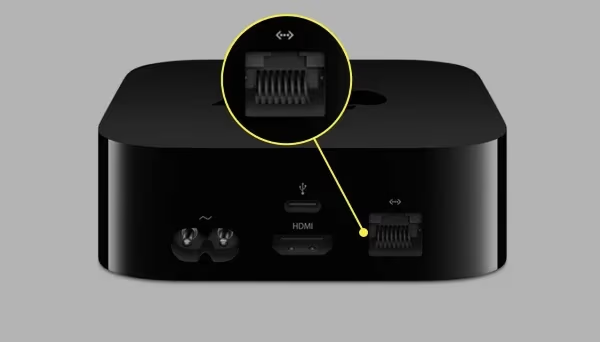
Many Samsung and LG smart TVs also have Ethernet ports on the back panel. A wired connection is the most reliable fix for repeated disconnections, especially in apartments with dozens of competing Wi-Fi networks.
#8. Turn Off Low Power Mode
Low Power Mode on iPhone reduces Wi-Fi activity to save battery. This directly affects AirPlay stability.
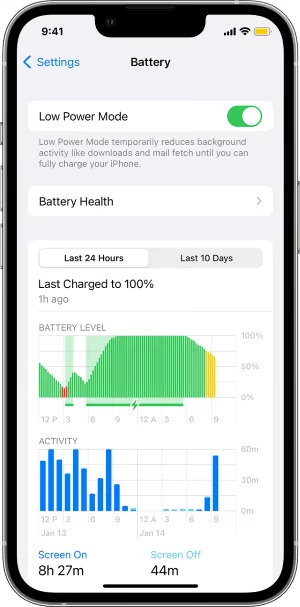
Go to Settings > Battery and toggle off Low Power Mode. Keep your iPhone plugged in while streaming to avoid the low-battery prompt that re-enables it.
#9. Reset Network Settings
If nothing else works, reset your network settings. On iPhone, go to Settings > General > Transfer or Reset iPhone > Reset > Reset Network Settings. This erases saved Wi-Fi passwords and Bluetooth pairings, so you’ll need to reconnect to your network afterward.
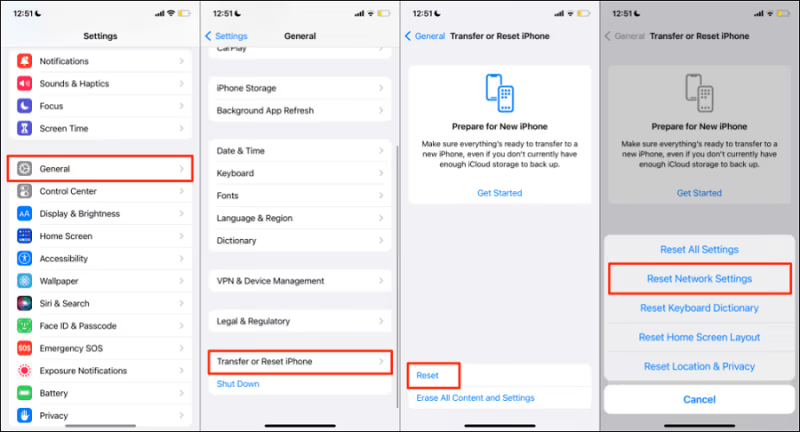
This fix clears corrupted network configurations that normal restarts don’t touch. If your AirPlay problem started after a recent iOS update, this step often resolves it. You might also want to check if AirPlay is not showing up at all after the reset, which would point to a deeper configuration issue.
#10. Verify AirPlay Settings on Your TV
On Samsung Smart TV, go to Settings > General > Apple AirPlay Settings and make sure AirPlay is turned on. Check that “Require Code” is set to First Time Only rather than Every Time, which can interrupt reconnections.
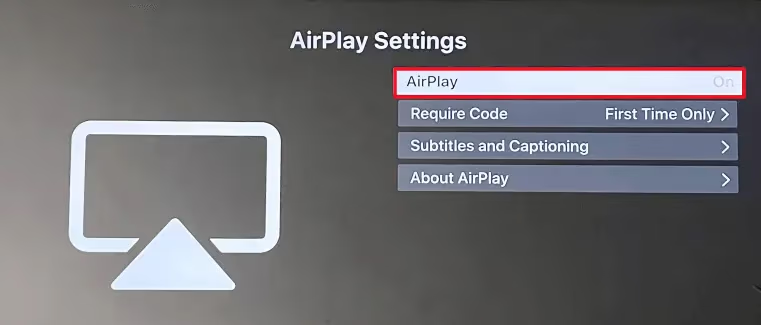
On LG Smart TV, navigate to Home Dashboard > AirPlay > AirPlay and HomeKit Settings. If AirPlay keeps failing on your LG, our guide on LG TV AirPlay not working covers model-specific troubleshooting.
#What About AirPlay Display Resolution Issues?
Mismatched resolutions between your Apple device and the TV can cause AirPlay to disconnect or show a black screen. On Apple TV 4K, go to Settings > AirPlay and HomeKit and enable Conference Room Display or adjust the resolution under Video and Audio > Resolution.
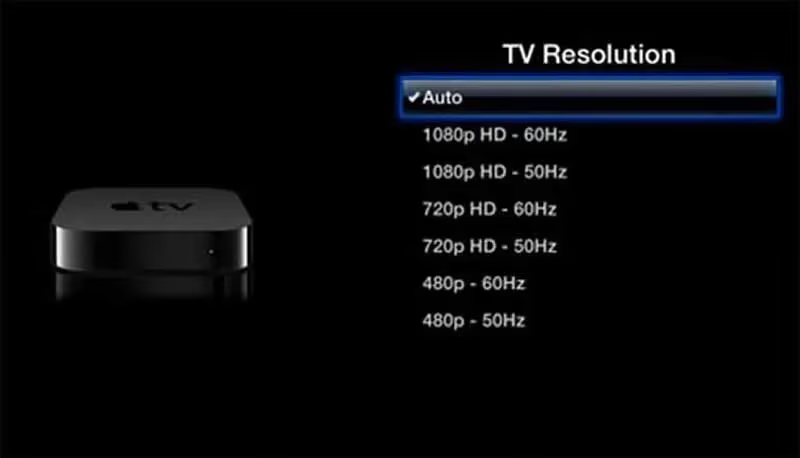
If you’re mirroring a Mac with a non-standard display resolution (like an ultrawide monitor), the TV may not handle the aspect ratio. Set your Mac’s display to a standard 16:9 resolution before starting AirPlay.
#Preventing Future AirPlay Disconnections
Once you’ve fixed the immediate problem, these habits keep AirPlay stable long-term:
- Keep firmware current. Enable automatic updates on your TV and Apple devices. Samsung Smart TVs check for updates under Settings > Support > Software Update > Auto Update.
- Monitor your router. Routers older than 4-5 years often lack the processing power for multiple simultaneous streams. If you run AirPlay, a gaming console, and several phones on the same network, consider upgrading to a Wi-Fi 6 router.
- Close background apps. Streaming apps running on both the iPhone and the TV can compete for bandwidth. Close Netflix or YouTube on one device before AirPlay-ing from the other.
- Keep devices within range. AirPlay works reliably up to about 30 feet with line-of-sight. Walls, mirrors, and large appliances reduce that distance significantly.
If disconnections persist after trying all 10 fixes, the problem may be hardware-related. Apple’s AirPlay support page can help you determine if your specific TV model is fully compatible. For Samsung-specific connection failures, see our guide on AirPlay unable to connect to Samsung TV.
#Bottom Line
Start with the two most common fixes: disable auto-lock on your iPhone and confirm both devices share the same Wi-Fi network. If those don’t work, update all firmware, restart every device in the chain, and try an Ethernet connection. For persistent issues, reset your network settings and verify your TV’s AirPlay configuration. Most AirPlay disconnection problems come down to Wi-Fi instability or a device setting that interrupts the stream.
#Frequently Asked Questions
#Why does AirPlay disconnect when my iPhone screen locks?
Auto-lock puts your iPhone to sleep after a set period of inactivity, and iOS treats this as the end of the AirPlay session. Set auto-lock to “Never” in Display & Brightness settings before streaming. Audio-only AirPlay (like Apple Music to a HomePod) continues through screen lock, but video mirroring and screen sharing do not.
#Can I use AirPlay without Wi-Fi?
Peer-to-peer AirPlay works between an Apple device and an Apple TV without a shared Wi-Fi network. Your Apple device creates a direct wireless connection using Bluetooth for discovery and a point-to-point Wi-Fi link for data transfer. This mode doesn’t work with third-party smart TVs, only with Apple TV hardware.
#Does AirPlay work with any smart TV?
Only TVs that support AirPlay 2 can receive AirPlay streams natively. Samsung, LG, Sony, and Vizio have added AirPlay 2 to select models from 2018 onward. Older TVs without AirPlay support need an Apple TV 4K or a compatible streaming adapter connected via HDMI.
#Why does AirPlay keep buffering but not disconnecting?
Buffering without disconnection points to bandwidth limitations rather than connection drops. Your Wi-Fi network can maintain the link but can’t transfer data fast enough for smooth playback. Close other devices streaming on the same network, move closer to the router, or switch to a 5GHz band for more throughput.
#Will a factory reset fix AirPlay problems on my TV?
A factory reset is a last resort that erases all settings and apps from your TV. It can fix AirPlay issues caused by corrupted software configurations. Before going that far, try resetting only your network settings on both the TV and the Apple device, which addresses most software-related AirPlay failures without losing your other TV settings.
#Does AirPlay quality depend on internet speed?
AirPlay transfers data over your local network, not the internet. Your internet speed doesn’t affect AirPlay performance directly. What matters is your local Wi-Fi router’s throughput and signal strength between devices. The exception is when you AirPlay content from an internet-based app like Netflix, which needs both strong local Wi-Fi and sufficient internet bandwidth.
#How far can AirPlay reach between devices?
AirPlay’s effective range is approximately 30 feet with a clear line of sight between devices. Concrete walls, large mirrors, and metal appliances reduce this distance by 30-50%. For rooms separated by multiple walls, a mesh Wi-Fi system or Ethernet backhaul provides more reliable coverage than trying to stretch a single router’s signal.